install git:
access this page: https://git-scm.com/downloads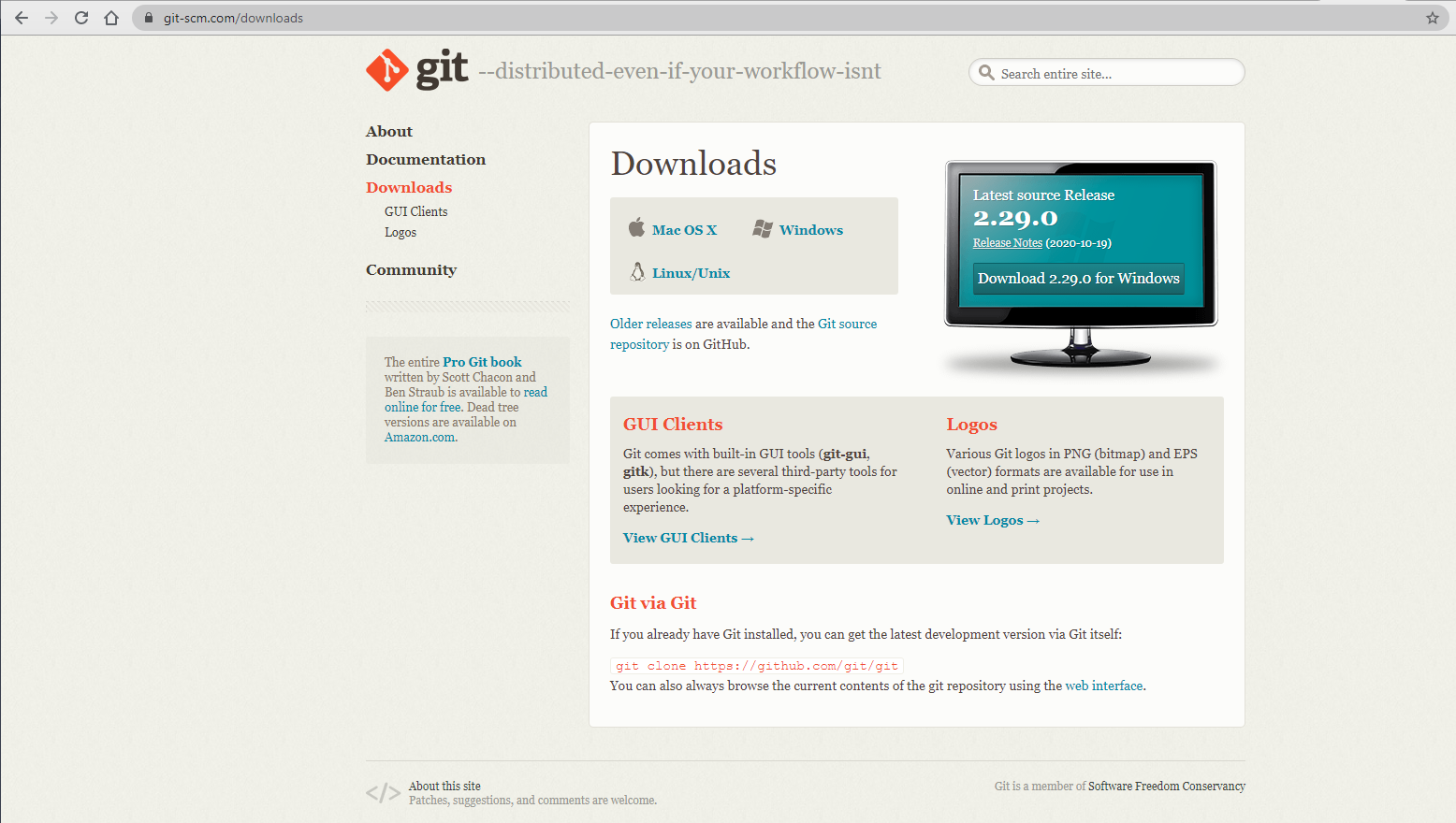
download a git install pack of the right version that fits your system.
git environment components:
refer the answer of “Abizern” in stackoverflow: https://stackoverflow.com/questions/4492979/git-is-not-recognized-as-an-internal-or-external-command
Modifying PATH on Windows 10:
- In the Start Menu or taskbar search, search for “environment variable”.
- Select “Edit the system environment variables”.
- Click the “Environment Variables” button at the bottom.
- Double-click the “Path” entry under “System variables”.
- With the “New” button in the PATH editor, add
C:\Program Files\Git\bin\andC:\Program Files\Git\cmd\to the end of the list. - Close and re-open your console.
Modifying PATH on Windows 7:
- Right-click “Computer” on the Desktop or Start Menu.
- Select “Properties”.
- On the very far left, click the “Advanced system settings” link.
- Click the “Environment Variables” button at the bottom.
- Double-click the “Path” entry under “System variables”.
- At the end of “Variable value”, insert a
;if there is not already one, and thenC:\Program Files\Git\bin\;C:\Program Files\Git\cmd\. Do not put a space between;and the entry. - Close and re-open your console.
synchronization:
before you push, you need:
- a github account
- a corresponding project
there are no files in the directory of that Github project that are not in your directory (Git ⊆ Yours)
get into the right directory position
initiate git directory
git init
add all files under the current directory into the adding list
git add .
commit the adding list, “layout” here is comment
git commit -m "layout"
use the repository on the github page

git remote add origin [web URL]
- push
git push origin master

若有收获,就点个赞吧
0 人点赞


