一、虚拟机搭建
1. 安装、配置 Centos
各版本记录如下:
| Centos 镜像 下载地址 | CentOS-8.3.2011-x86_64-minimal.iso |
|---|---|
| JDK 版本 | JDK 11 |
| Kakfa 版本 | 2.8.0 |
| Zookeeper 版本 | 3.7.0 |
- 配置磁盘:

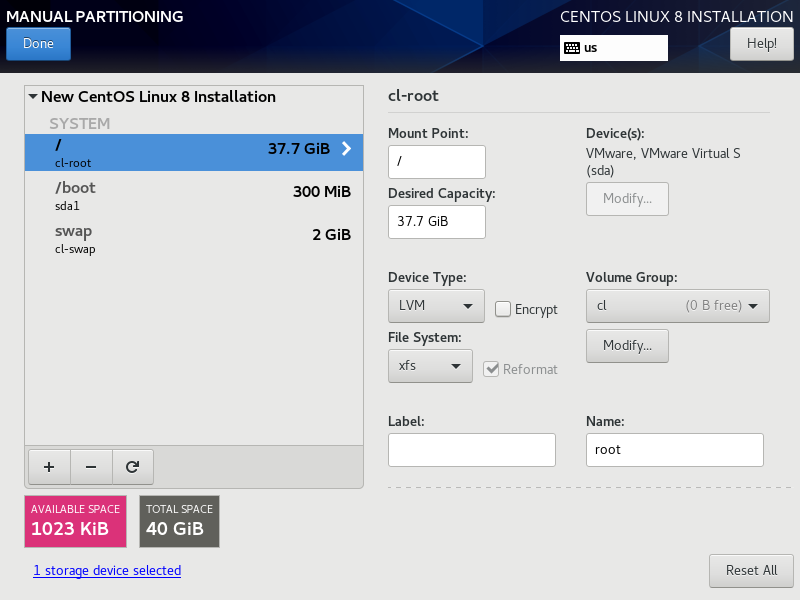
- 配置网络环境
静态地址
如果使用 NAT 模式但无法使用 DHCP 分配网络地址,则打开 Windows 服务看是否启动了和 VMWare 相关的两个服务。
- 关闭防火墙 ```shell systemctl status firewalld.service systemctl start firewalld.service systemctl stop firewalld.service systemctl enable firewalld.service systemctl disable firewalld.service
yum install -y lrzsz
4. 部署 JDK```shellcd /usrmkdir javarpm -ivh jdk
2. 部署 Zookeeper
- 修改 zoo.cfg 配置文件 ``` tickTime=2000 # 会话超时时间等于 2*tickTime
日志目录
dataDir=/var/lib/zookeeper
端口号
clientPort=2181
2. 启动 Zookeepzer```shellbin/zkServer.sh start
3. 同一主机部署三个 Kafka 进程(单机模拟集群环境)
端口号分配 | 名称 | Broker Id | 端口号 | log 目录 | | —- | —- | —- | —- | | kafka1 | 1 | 9092 | /kafka/data/k1 | | kafka2 | 2 | 9093 | /kafka/data/k2 | | kafka3 | 3 | 9094 | /kafka/data/k3 |
修改配置文件 ```shell
1 修改端口号
listeners=PLAINTEXT://localhost:9094
2 修改日志目录
log.dirs=/kafka/data/k1
3. 分别启动三个节点```shell./bin/kafka-server-start.sh ./config/server1.properties
- 查看是否启动成功 ```shell jps // OUTPUT 27681 Kafka 28148 Kafka 27561 QuorumPeerMain 28553 Kafka 28985 Jps
netstat -anp |grep 9092
tcp6 0 0 :::9092 :::* LISTEN 27681/java
tcp6 0 0 127.0.0.1:33978 127.0.0.1:9092 ESTABLISHED 27681/java
tcp6 0 0 127.0.0.1:9092 127.0.0.1:33978 ESTABLISHED 27681/java
5. 创建 Topic```shell./bin/kafka-topics.sh --create --topic test --bootstrap-server localhost:9092
查看 Topic 描述
[root@localhost kafka_2.13-2.7.0]# ./bin/kafka-topics.sh --describe --topic test --bootstrap-server localhost:9092Topic: test PartitionCount: 1 ReplicationFactor: 1 Configs: segment.bytes=1073741824Topic: test Partition: 0 Leader: 1 Replicas: 1 Isr: 1
创建三个副本的 Topic ```shell kafka-topics.sh —create —topic —partitions —replication-factor
./kafka-topics.sh —describe —topic test2 —bootstrap-server localhost:9092 // OUTPUT Topic: test2 PartitionCount: 3 ReplicationFactor: 3 Configs: segment.bytes=1073741824 Topic: test2 Partition: 0 Leader: 1 Replicas: 1,3,2 Isr: 1,3,2 Topic: test2 Partition: 1 Leader: 2 Replicas: 2,1,3 Isr: 2,1,3 Topic: test2 Partition: 2 Leader: 3 Replicas: 3,2,1 Isr: 3,2,1
<a name="nBetr"></a>## 4. 小结以上是简单描述使用单台虚拟机安装 3 个 Kafka 进程的流程。<a name="xugWY"></a># 二、使用 Docker 安装 Kafka 集群<a name="DhyTx"></a>## 1. Centos 安装 Docker```shell#1 安装 yum-utilssudo yum install -y yum-utils#2 添加源sudo yum-config-manager \--add-repo \https://download.docker.com/linux/centos/docker-ce.repo#3 Enable the nightly or test repositoriessudo yum-config-manager --enable docker-ce-nightlysudo yum-config-manager --enable docker-ce-test#4 安装最新的Docker和Containerdsudo yum install -y https://download.docker.com/linux/fedora/30/x86_64/stable/Packages/containerd.io-1.2.6-3.3.fc30.x86_64.rpmsudo yum install -y docker-ce docker-ce-cli#5 启动Dockersudo systemctl start docker#6 配置Docker开机自启动sudo systemctl enable docker#7 检查Docker版本docker -v#8 安装Composecurl -L https://github.com/docker/compose/releases/download/1.25.4/docker-compose-`uname -s`-`uname -m` -o /usr/local/bin/docker-composechmod +x /usr/local/bin/docker-composeyum -y install epel-releaseyum -y install python-pip#9 Apply executable permissions to the binary:sudo chmod +x /usr/local/bin/docker-compose
三、引用

若有收获,就点个赞吧
0 人点赞


