- 修改 placeholder 样式
- 清除浮动
- 文本溢出时显示省略号
- 隐藏滚动条
- 使用 caret-color 来修改光标的颜色
- 水平居中
- 垂直居中
- img和父元素5px间距的问题
- 解决
margin重叠的问题 - 使用
height: 100vh使元素的高度与 window 的高度相同 - 使用
:not选择器设置除最后一个元素外,其他元素都设置样式 - 使用 flex 布局将一个元素智能地固定在底部
outline:none删除输入状态线- 解决iOS滚动条被卡住的问题
- CSS绘制三角形
- CSS绘制小箭头
- CSS绘制三角形和小箭头的总结
- 自定义滚动条样式
- 内容禁止选中
- 使用
display:flex将一个元素在水平和垂直方向上居中 - 使用
filter:grayscale(1),使页面处于灰色模式。
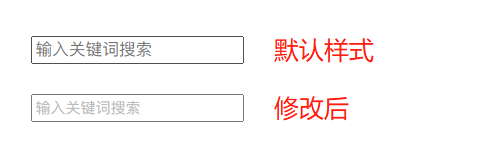
修改 placeholder 样式
input::-webkit-input-placeholder {color: #babbc1;font-size: 12px;}
清除浮动
.clearfix::before,.clearfix::after {content: '';display: table;}.clearfix::after {clear: both;}
文本溢出时显示省略号
单行文本
overflow: hidden;white-space: nowrap;text-overflow: ellipsis;max-width: 375px;
多行文本
overflow: hidden;text-overflow: ellipsis;display: -webkit-box;/* 设置显示的行数 */-webkit-line-clamp: 2;-webkit-box-orient: vertical;
常见结合属性:
-
块级元素
父元素块级标签里,子元素块级标签进行水平居中:给小的块级标签设置
margin: 0 auto;Flex布局中
div {/* 给父级元素添加flex属性 */display: flex;/* 默认的主轴是 x 轴 默认的情况可以不写*/flex-direction: row;/* 设置主轴上的子元素的排列方式 */justify-content: center;}
垂直居中
内部垂直居中(非图片)
-
图片
给图片的父标签设置
line-height:标签的高度;-
Flex布局中
div {display: flex;flex-direction: row;/* 当侧轴是单行的情况,使用 align-items */align-items: center;/* 当侧轴是多行的情况,使用align-content */align-content: center;}
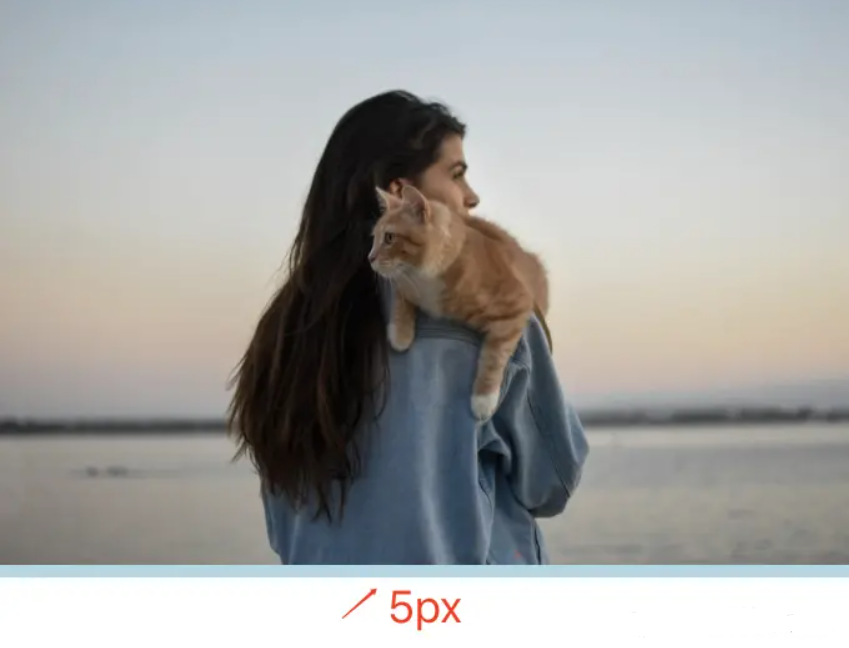
img和父元素5px间距的问题
方案一:设置父元素字体大小为 0
.img-container{font-size: 0;}
方案二:将 img 元素设置为
**display: block**img{display: block;}
方案三:将 img 元素设置为
** vertical-align: bottom**img{vertical-align: bottom;}
方案四:给父元素设置
**line-height: 5px**.img-container{line-height: 5px;}
解决
margin重叠的问题 同级的垂直块之间,margin这个属性上下边距,会发生重叠的情况
- 解决办法:float浮动或display:inline-block
- 父子级的块之间,子级的上下margin会与父级上下margin重叠

<a name="xglts"></a>### 删除 `type="number"` 末尾的箭头默认情况下,在type="number"的末尾会出现一个小箭头```cssinput[type=number]::-webkit-outer-spin-button,input[type=number]::-webkit-inner-spin-button {-webkit-appearance: none;}
outline:none 删除输入状态线
当输入框被选中时,它默认会有一条状态线,可以通过使用 outline: none 来移除它。
input {outline: none;}
解决iOS滚动条被卡住的问题
在苹果手机上,经常发生元素在滚动时被卡住的情况。这时,可以使用如下的 CSS 来支持弹性滚动。
CSS绘制三角形
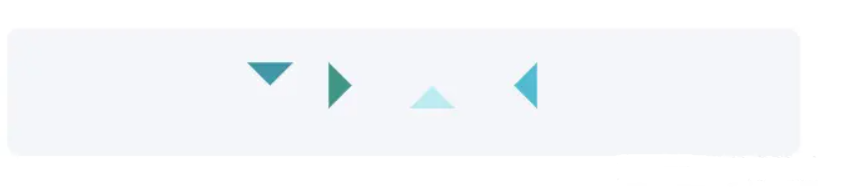
.box {padding: 15px;background-color: #f5f6f9;border-radius: 6px;display: flex;align-items: center;justify-content: center;}.triangle {display: inline-block;margin-right: 10px;/* Base Style */border: solid 10px transparent;}/*下*/.triangle.bottom {border-top-color: #0097a7;}/*上*/.triangle.top {border-bottom-color: #b2ebf2;}/*左*/.triangle.left {border-right-color: #00bcd4;}/*右*/.triangle.right {border-left-color: #009688;}
CSS绘制小箭头

.box {padding: 15px;background-color: #ffffff;border-radius: 6px;display: flex;align-items: center;justify-content: center;}.arrow {display: inline-block;margin-right: 10px;width: 0;height: 0;/* Base Style */border: 16px solid;border-color: transparent #cddc39 transparent transparent;position: relative;}.arrow::after {content: "";position: absolute;right: -20px;top: -16px;border: 16px solid;border-color: transparent #fff transparent transparent;}/*下*/.arrow.bottom {transform: rotate(270deg);}/*上*/.arrow.top {transform: rotate(90deg);}/*左*/.arrow.left {transform: rotate(180deg);}/*右*/.arrow.right {transform: rotate(0deg);}
CSS绘制三角形和小箭头的总结
- 都是利用矩形的边框来绘制,将矩阵的宽高设置为0,再设置边框的样式生成三角形
- 绘制小箭头时,在矩形后添加
::after伪类,生成一个相同的矩形,再设置border-color和页面背景颜色相同,使用定位移动,遮罩掉下方的矩形,视觉上即是小箭头。自定义滚动条样式
```css /滚动条整体粗细样式/ ::-webkit-scrollbar { /高宽分别对应横竖滚动条的尺寸/ width: 8px; height: 8px; }
/滚动条里面小方块/ ::-webkit-scrollbar-thumb { border-radius: 10px !important; box-shadow: inset 0 0 5px rgba(0, 0, 0, 0.2) !important; / 颜色 / / background:#b6b6b6!important; / / 线性渐变背景 / background-image: linear-gradient(45deg, #ffbd61 25%,#ffbd61 25%, #ff8800 25%, #ff8800 50%,#ffbd61 50%, #ffbd61 75%, #ff8800 75%, #ff8800 100%)!important; }
/滚动条轨道/ ::-webkit-scrollbar-track { border-radius: 10px !important; box-shadow: inset 0 0 5px rgba(0, 0, 0, 0.2) !important; background: #EDEDED !important; }
<a name="HNNjV"></a>### 自定义选定的文本样式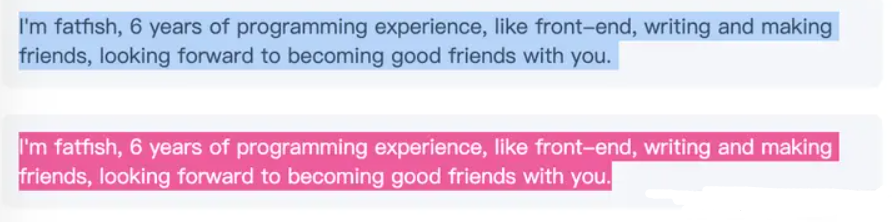```css标签名::selection {color: #ffffff;background-color: #ff4c9f;}
内容禁止选中
标签名 {user-select: none;}
使用display:flex将一个元素在水平和垂直方向上居中
display:flex;align-items: center; /*垂直居中*/justify-content: center; /*水平居中*/
使用 filter:grayscale(1),使页面处于灰色模式。
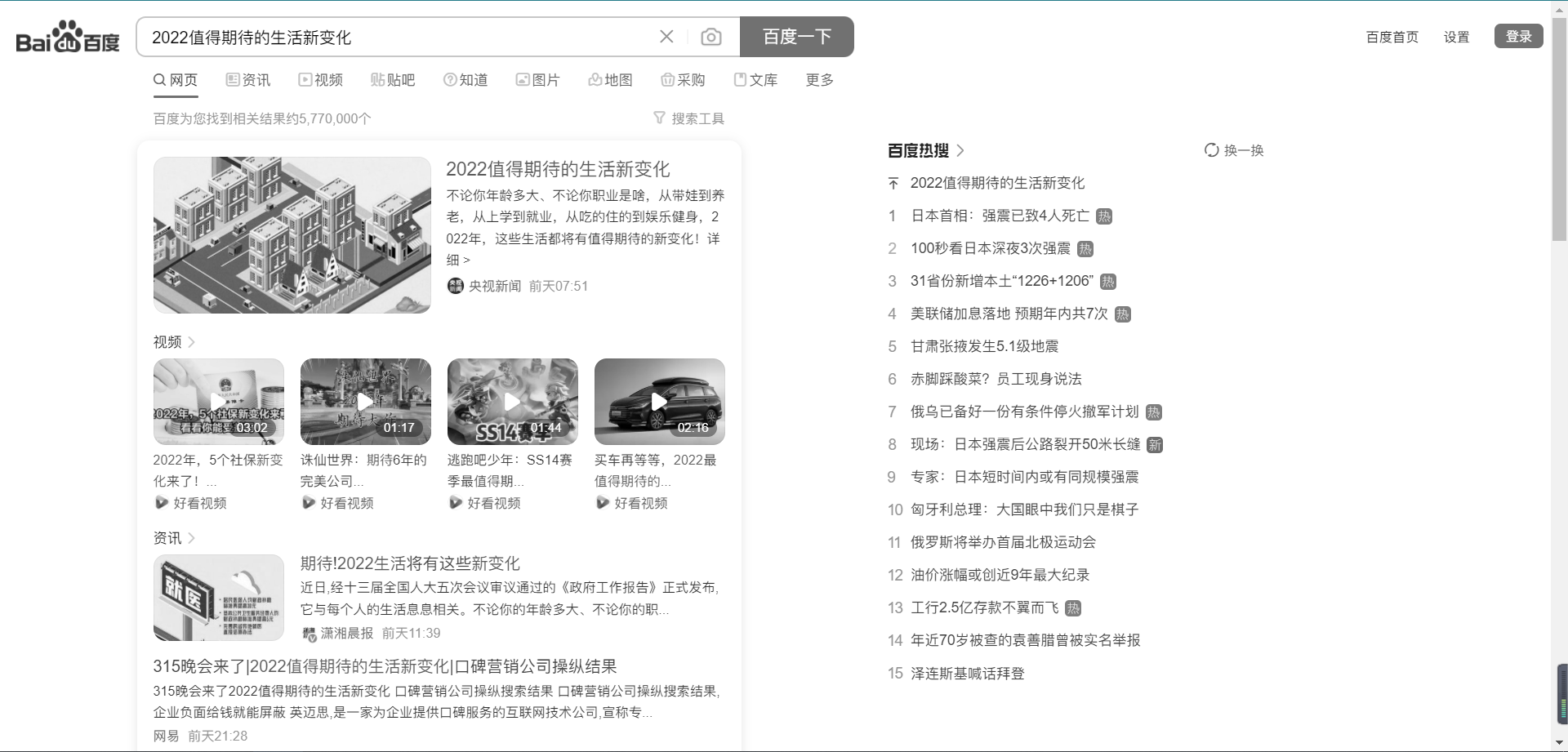
body{filter: grayscale(1);}

若有收获,就点个赞吧
0 人点赞


