一、基础语法
所有流程图都由节点,几何形状和边缘,箭头或线条组成。美人鱼代码定义了这些节点和边缘的制作和交互方式。
它还可以容纳不同的箭头类型、多向箭头以及链接到子图。
重要说明:请勿将单词“end”键入为“流程图”节点。将所有或任何一个字母大写以防止流程图中断,即“结束”或“结束”。或者,您可以应用此变通办法。
1 节点
1.1 节点(默认)
flowchart LRid
注意ID 是框中显示的内容。
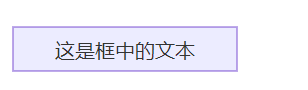
1.2 包含文本的节点
还可以在框中设置与 ID 不同的文本。如果多次执行此操作,则为将要使用的节点找到的最后一个文本。此外,如果稍后为节点定义边,则可以省略文本定义。在呈现框时将使用前面定义的那个。
flowchart LR
    id1[This is the text in the box]
2 图方向
此语句声明流程图的方向。
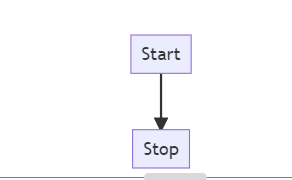
这声明流程图是从上到下定向的( 或 )。TD TB
flowchart TD
    Start --> Stop
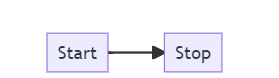
这声明流程图的方向是从左到右 ()。LR
flowchart LR
    Start --> Stop
可能的流程图方向是:
- TB - 从上到下
- TD - 自上而下/与自上同
- BT - 从下到上
- RL - 从右到左
- LR - 从左到右
3 节点形状
3.1 圆角节点
flowchart LR
    id1(This is the text in the box)

3.2 圆边节点
flowchart LR
    id1([This is the text in the box])

3.3 矩形边节点
flowchart LR
    id1[[This is the text in the box]]

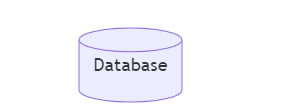
3.4 圆柱形节点
flowchart LR
    id1[(Database)]
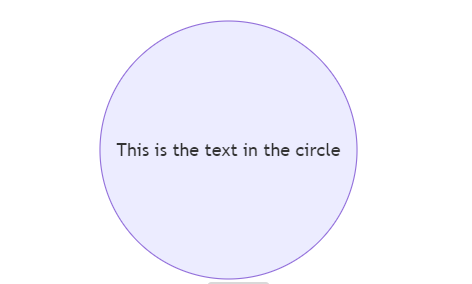
3.5 圆形节点
flowchart LR
    id1((This is the text in the circle))
3.5 形状不对称的节点
flowchart LR
    id1>This is the text in the box]
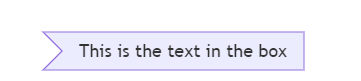
目前,只有上面的形状是可能的,而不是它的镜子。这可能会随着将来的版本而改变。
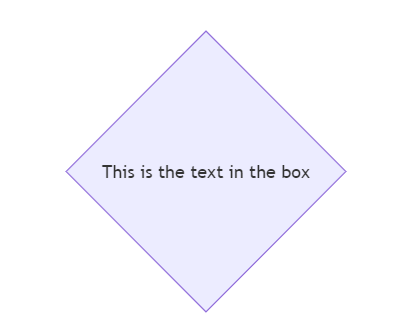
3.6 菱形节点
flowchart LR
    id1{This is the text in the box}
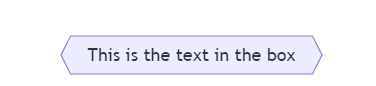
3.7 六边形节点
flowchart LR
    id1{{This is the text in the box}}
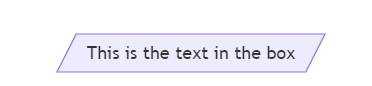
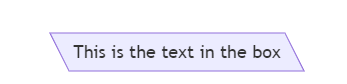
3.8 平行四边形节点
flowchart TD
    id1[/This is the text in the box/]
flowchart TD
    id1[\This is the text in the box\]
3.9 梯形节点
flowchart TD
    A[/Christmas\]

flowchart TD
    B[\Go shopping/]

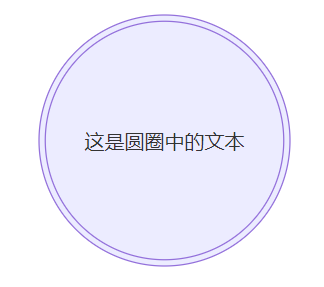
3.10 双圆节点
flowchart TD
    id1(((This is the text in the circle)))
4 节点连接
节点可以通过链接/边进行连接。可以具有不同类型的链接或将文本字符串附加到链接。
4.1 箭头连接
flowchart LR
    A-->B

4.2 直线连接
flowchart LR
    A --- B

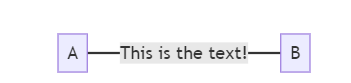
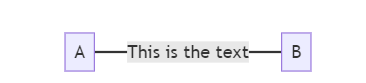
4.3 有文本的连接
flowchart LR
    A-- This is the text! ---B
或
flowchart LR
    A---|This is the text|B
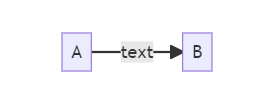
4.4 带有箭头和文本的连接
flowchart LR
    A-->|text|B

或
flowchart LR
    A-- text -->B
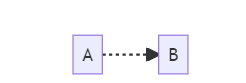
4.5 虚线连接
flowchart LR;
   A-.->B;
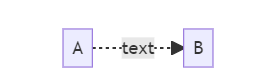
4.6 带文本的虚线连接
flowchart LR
   A-. text .-> B
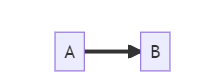
4.7 粗连接
flowchart LR
   A ==> B
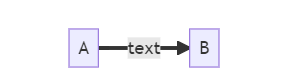
4.8 带文本的粗连接
flowchart LR
   A == text ==> B
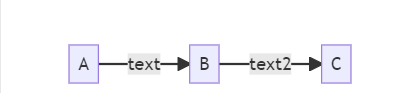
4.9 连接连接
可以在同一行中声明许多链接,如下所示:
flowchart LR
   A -- text --> B -- text2 --> C
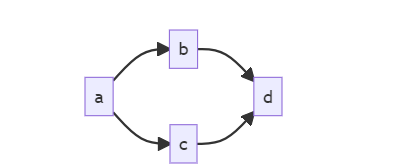
也可以在同一行中声明多个节点链接,如下所示:
flowchart LR
   a --> b & c--> d
然后,您可以以非常富有表现力的方式描述依赖关系。就像下面的单行:
flowchart TB
    A & B--> C & D
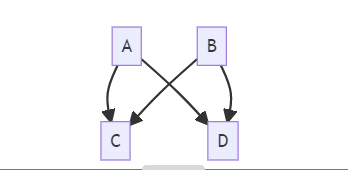
如果使用基本语法描述同一关系图,则需要四行。一句警告的话,人们可能会过分地使用这个流程图,使流程图更难以降价形式阅读。我想到了瑞典语这个词。这意味着,不要太多,也不要太少。这也适用于富有表现力的语法。
flowchart TB
    A --> C
    A --> D
    B --> C
    B --> D
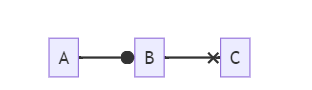
5 箭头类型
支持新类型的箭头,如下所示:
flowchart LR
    A --o B
    B --x C
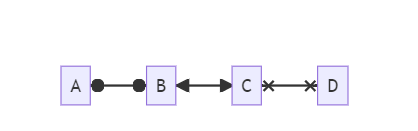
5.1 多向箭头
flowchart LR
    A o--o B
    B <--> C
    C x--x D
6 链接的最小长度
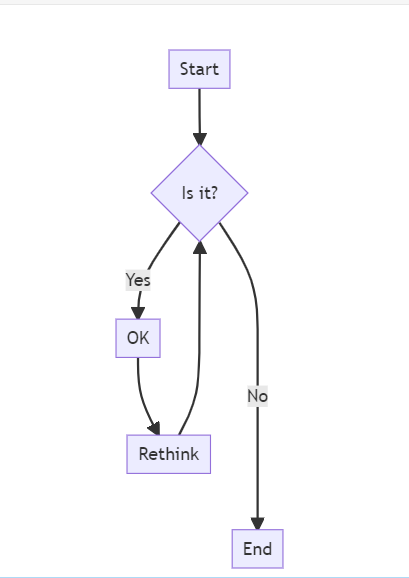
流程图中的每个节点最终都根据其连接到的节点分配给呈现图中的一个等级,即垂直或水平级别(取决于流程图方向)。默认情况下,链接可以跨越任意数量的等级,但您可以通过在链接定义中添加额外的短划线来要求任何链接比其他链接长。
在以下示例中,在从节点 B 到节点 E 的链接中添加了两个额外的短划线,以便它比常规链接多跨越两个等级:
flowchart TD
    A[Start] --> B{Is it?}
    B -->|Yes| C[OK]
    C --> D[Rethink]
    D --> B
    B ---->|No| E[End]
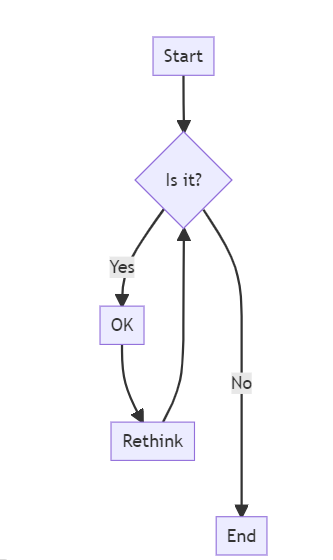
注意呈现引擎可能仍会创建比请求的排名数更长的链接,以适应其他请求。
当链接标签写在链接的中间时,必须在链接的右侧添加额外的短划线。以下示例等效于上一个示例:
flowchart TD
    A[Start] --> B{Is it?}
    B -- Yes --> C[OK]
    C --> D[Rethink]
    D --> B
    B -- No ----> E[End]
对于虚线或粗链接,要添加的字符是等号或点,如下表所示:
| 长度 | 1 | 2 | 3 |
|---|---|---|---|
| 正常 | —- | —— | ——- |
| 带箭头的法线 | —> | —-> | ——> |
| 粗 | === | ==== | ===== |
| 带箭头的粗 | ==> | ===> | ====> |
| 虚线 | -.- | -..- | -…- |
| 带箭头的虚线 | -.-> | -..-> | -…-> |
7 破坏语法的特殊字符
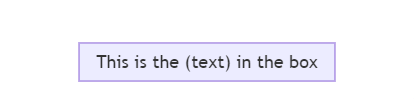
可以将文本放在引号内,以便呈现更麻烦的字符。如下例所示:
flowchart LR
    id1["This is the (text) in the box"]
7.1 要转义字符的实体代码
可以使用此处举例说明的语法对字符进行转义。
 flowchart LR
        A["A double quote:#quot;"] -->B["A dec char:#9829;"]

给出的数字以 10 为基数,因此可以编码为 。还支持使用 HTML 字符名称。##35;
8 子图
subgraph title
    graph definition
end
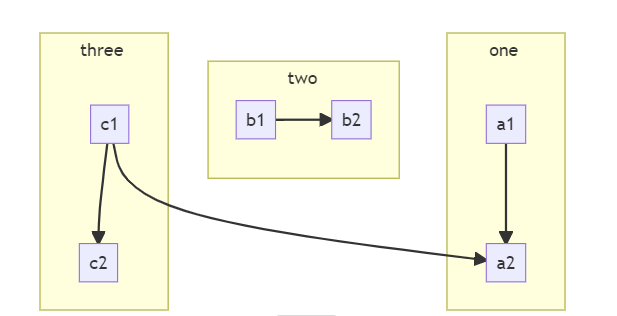
示例
flowchart TB
    c1-->a2
    subgraph one
    a1-->a2
    end
    subgraph two
    b1-->b2
    end
    subgraph three
    c1-->c2
    end
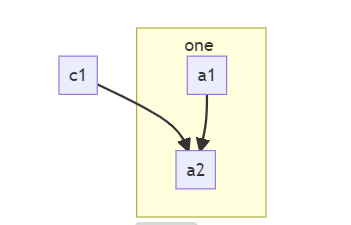
您还可以为子图设置显式 ID。
flowchart TB
    c1-->a2
    subgraph ide1 [one]
    a1-->a2
    end
9 流程图
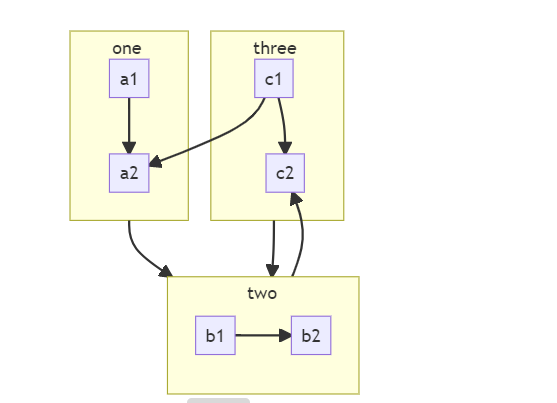
使用图形类型流程图,还可以设置子图之间的边缘,如下面的流程图所示。
flowchart TB
    c1-->a2
    subgraph one
    a1-->a2
    end
    subgraph two
    b1-->b2
    end
    subgraph three
    c1-->c2
    end
    one --> two
    three --> two
    two --> c2
10 子图中的方向
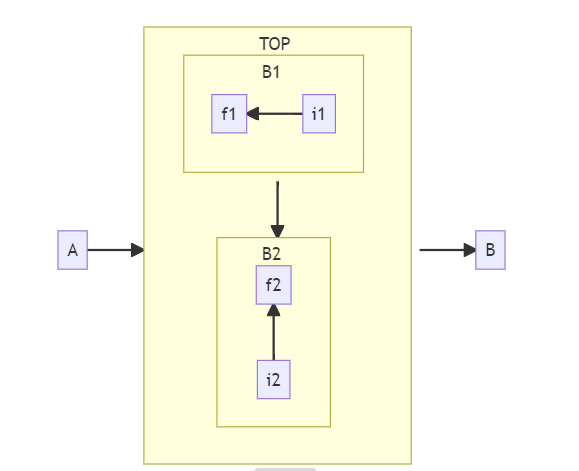
使用图形类型流程图,您可以使用 direction 语句来设置子图将呈现的方向,如本例所示。
flowchart LR
  subgraph TOP
    direction TB
    subgraph B1
        direction RL
        i1 -->f1
    end
    subgraph B2
        direction BT
        i2 -->f2
    end
  end
  A --> TOP --> B
  B1 --> B2
二、简单示例

若有收获,就点个赞吧
0 人点赞


