
Form的子孙元素必须是FormField类型,FormField是一个抽象类,定义几个属性,FormState内部通过它们来完成操作,FormField部分定义如下:
const FormField({...FormFieldSetter<T> onSaved, //保存回调FormFieldValidator<T> validator, //验证回调T initialValue, //初始值bool autovalidate = false, //是否自动校验。})
为了方便使用,Flutter提供了一个TextFormField组件,它继承自FormField类,也是TextField的一个包装类,所以除了FormField定义的属性之外,它还包括TextField的属性。
FormState
FormState为Form的State类,可以通过Form.of()或GlobalKey获得。我们可以通过它来对Form的子孙FormField进行统一操作。我们看看其常用的三个方法:
FormState.validate():调用此方法后,会调用Form子孙FormField的validate回调,如果有一个校验失败,则返回false,所有校验失败项都会返回用户返回的错误提示。FormState.save():调用此方法后,会调用Form子孙FormField的save回调,用于保存表单内容FormState.reset():调用此方法后,会将子孙FormField的内容清空。示例
我们修改一下上面用户登录的示例,在提交之前校验:
- 用户名不能为空,如果为空则提示“用户名不能为空”。
- 密码不能小于6位,如果小于6为则提示“密码不能少于6位”。
完整代码:
class _MyHomePageState extends State<MyHomePage> {TextEditingController _unameController = new TextEditingController();TextEditingController _pwdController = new TextEditingController();GlobalKey _formKey= new GlobalKey<FormState>();@overrideWidget build(BuildContext context) {return Scaffold(appBar: AppBar(title:Text("Form Test"),),body: Padding(padding: const EdgeInsets.symmetric(vertical: 16.0, horizontal: 24.0),child: Form(key: _formKey, //设置globalKey,用于后面获取FormStateautovalidate: true, //开启自动校验child: Column(children: <Widget>[TextFormField(autofocus: true,controller: _unameController,decoration: InputDecoration(labelText: "用户名",hintText: "用户名或邮箱",icon: Icon(Icons.person)),// 校验用户名validator: (v) {return v.trim().length > 0 ? null : "用户名不能为空";}),TextFormField(controller: _pwdController,decoration: InputDecoration(labelText: "密码",hintText: "您的登录密码",icon: Icon(Icons.lock)),obscureText: true,//校验密码validator: (v) {return v.trim().length > 5 ? null : "密码不能少于6位";}),// 登录按钮Padding(padding: const EdgeInsets.only(top: 28.0),child: Row(children: <Widget>[Expanded(child: RaisedButton(padding: EdgeInsets.all(15.0),child: Text("登录"),color: Theme.of(context).primaryColor,textColor: Colors.white,onPressed: () {//在这里不能通过此方式获取FormState,context不对//print(Form.of(context));// 通过_formKey.currentState 获取FormState后,// 调用validate()方法校验用户名密码是否合法,校验// 通过后再提交数据。if((_formKey.currentState as FormState).validate()){//验证通过提交数据}},),),],),)],),),),);}}
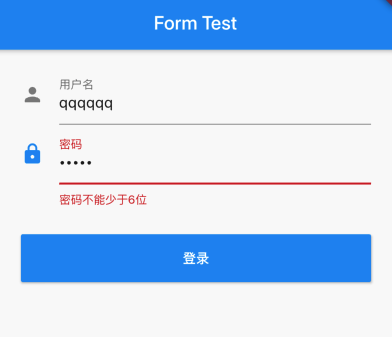
注意,登录按钮的onPressed方法中不能通过Form.of(context)来获取,原因是,此处的context为FormTestRoute的context,而Form.of(context)是根据所指定context向根去查找,而FormState是在FormTestRoute的子树中,所以不行。正确的做法是通过Builder来构建登录按钮,Builder会将widget节点的context作为回调参数:
Expanded(// 通过Builder来获取RaisedButton所在widget树的真正context(Element)child:Builder(builder: (context){return RaisedButton(...onPressed: () {//由于本widget也是Form的子代widget,所以可以通过下面方式获取FormStateif(Form.of(context).validate()){//验证通过提交数据}},);}))
其实context正是操作Widget所对应的Element的一个接口,由于Widget树对应的Element都是不同的,所以context也都是不同的,有关context的更多内容会在后面高级部分详细讨论。Flutter中有很多“of(context)”这种方法,读者在使用时一定要注意context是否正确。
因为自己去写的时候发现这块有的小部件不熟悉,有点懵逼. 暂时复制过来. 以后会修改
文章完全复制地址: https://book.flutterchina.club/chapter3/input_and_form.html

若有收获,就点个赞吧
0 人点赞


