由於語法渲染問題而影響閱讀體驗, 請移步博客閱讀~
本文GitPage地址
Start With Raspberry pi
apt Mirror
reference: https://mirrors.tuna.tsinghua.edu.cn/help/raspbian/
## 编辑 `/etc/apt/sources.list` 文件,删除原文件所有内容,用以下内容取代:deb http://mirrors.tuna.tsinghua.edu.cn/raspbian/raspbian/ buster main non-free contribdeb-src http://mirrors.tuna.tsinghua.edu.cn/raspbian/raspbian/ buster main non-free contrib## 编辑 `/etc/apt/sources.list.d/raspi.list` 文件,删除原文件所有内容,用以下内容取代:deb http://mirrors.tuna.tsinghua.edu.cn/raspberrypi/ buster main ui
Virtual Keyboard
reference:https://www.cnblogs.com/little-kwy/p/9478961.html
sudo apt-get install matchbox-keyboardsudo apt-get install libmatchbox1 -y
sudo nano /usr/bin/toggle-matchbox-keyboard.sh
##!/bin/bash##This script toggle the virtual keyboardPID=`pidof matchbox-keyboard`if [ ! -e $PID ]; thenkillall matchbox-keyboardelsematchbox-keyboard&fi
sudo nano /usr/share/applications/toggle-matchbox-keyboard.desktop
[Desktop Entry]Name=Toggle Matchbox KeyboardComment=Toggle Matchbox KeyboardExec=toggle-matchbox-keyboard.shType=ApplicationIcon=matchbox-keyboard.pngCategories=Panel;Utility;MBX-MB-INPUT-MECHANSIM=True
It’s failed and I don’t know why. But there is a keyboard for rasberrypi, so…
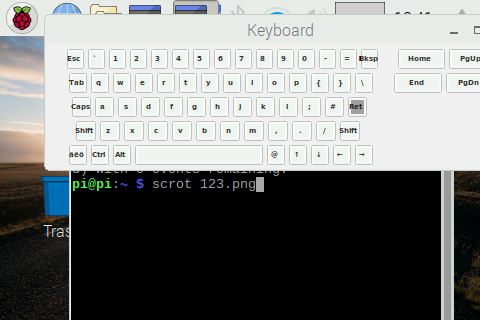
Screen Shot
sudo apt-get install scrotscrot test.png## screen shot forscrot -s 0 0 100 100## Screen shot after 10sscrot -d 10
Screen Record
sudo apt-get install vokoscreenvokoscreen
USB Camera
reference: https://blog.csdn.net/yjp19871013/article/details/80147803
Take a Photo
sudo apt-get install fswebcamfswebcam /dev/video0 ~/image.jpg #/dev/vedio0 is the vedio
raspistill -o ugi.jpg -w 2560 -h 1440 -v # -vf
Stream image
sudo apt-get install luvcviewluvcview -s 400x400
I got an error code after a lunached the command. The image poped out and crashed after about 1s.
luvcview: ../../src/xcb_io.c:165: dequeue_pending_request:Assertion `!xcb_xlib_unknown_req_in_deq' failed.
But I find that once you launched your camera, you need to keep the camera moving for a while and so, it can run smoothly.
自动免密码登录
##https://blog.csdn.net/zexzex_/article/details/78490054sudo raspi-config选择Boot OptionsDesktop / CLTconsole Autologin Text console int3 或者 Desktop Autologin Desktop GUI 桌面环境finishreboot
开机任务
参考: yuanfujie
進入隱藏文件夾, 然後創建一個文件夾和文件, 做開機啓動腳本
cd ~/.configcd /home/pi/.configmkdir autostartcd autostart## 創建自啓腳本sudo nano myapp.desktop
在nano後黏貼代碼如下。重點在Exec=XXX;
比如,我的需要執行的腳本路徑爲/home/pi/Blive
[Desktop Entry]Type=ApplicationExec=/home/pi/BliveIcon=ICON_PATH
親測有效
Enjoy~
Enjoy~
由於語法渲染問題而影響閱讀體驗, 請移步博客閱讀~
本文GitPage地址
GitHub: Karobben
Blog:Karobben
BiliBili:史上最不正經的生物狗

若有收获,就点个赞吧
0 人点赞


