xmake 介绍
关于 xmake 的具体介绍,可以到 xmake 官网 进一步了解,我们也提供了完善的中文文档支持,也可以直接访问 xmake 的 GitHub 仓库。
xmake 安装
打开 Xfce 终端,然后执行下面的安装命令。
bash <(curl -kfsSL https://xmake.io/shget.text) v2.3.7
等待编译安装完成后,如果是在当前终端下继续操作使用 xmake,请再执行下面的命令,关联下 xmake 环境,否则会提示 xmake 找不到。
source ~/.xmake/profile
如果是新打开的终端,就不需要执行上面的命令了,xmake 已经能够正常使用了。
我们可以执行 xmake —version 来验证下 xmake 是否安装成功,如果看到下面的输出结果,说明我们已经成功安装,可以正常使用了。
xmake -versionxmake v2.5.9+HEAD.809ee9806, A cross-platform build utility based on LuaJITCopyright (C) 2015-present Ruki Wang, tboox.org, xmake.io___ ___ __ __ __ _| | ______\ \/ / | \/ |/ _ | |/ / __ \> < | \__/ | /_| | < ___//_/\_\_|_| |_|\__ \|_|\_\____|by ruki, xmake.io👉 Manual: https://xmake.io/#/getting_started🙏 Donate: https://xmake.io/#/sponsor
创建 C++ 空工程
xmake 有自带各种 C/C++ 项目的工程创建模板,我们可以通过执行下面的命令,快速创建一个 Hello World 工程。
cd ~/Codexmake create hello
这里,我们将工程目录创建在 ~/Code 目录下,这个是当前实验环境的代码存储目录,后期的工程创建操作默认都是存放在此目录下。
如果看到下面的输出内容,则说明已经成功创建了一个最简单的 C++ 空项目。
PS C:\Learn\xmake> xmake create hellocreate hello ...[+]: src\main.cpp[+]: xmake.lua[+]: .gitignorecreate ok!
我们可以在项目根目录执行 tree 简单看下这个空项目里面有哪些文件。
PS C:\Learn\xmake> tree卷 OS 的文件夹 PATH 列表卷序列号为 8230-F440C:.└─hello└─src
可以看到,除了 src 目录下的 C++ 源文件外,xmake 会在根目录生成一个 xmake.lua 文件,执行 gvim xmake.lua 使用 gvim 打开看下 xmake.lua 这个文件里面的内容。
add_rules("mode.debug", "mode.release")target("hello")set_kind("binary")add_files("src/*.cpp")
可以看到,仅仅只需要简单几行配置,就可以完整描述整个 C++ 项目的构建,而其中的蓝色文本部分仅仅只是自动生成的注释内容,用户不需要的话,完全可以自己删掉它们,实际描述构建的配置,可以精简为:
- add_rules(“mode.debug”, “mode.release”):可选配置,用于描述编译模式,默认情况下会采用 release 编译模式。
- target(“hello”):定义一个目标程序。
- set_kind(“binary”):指定编译生成的目标程序是可以执行的。
- add_files(“src/*.cpp”):添加 src 目录下的所有 C++ 源文件。
编译工程
接下来,我们开始编译这个工程,只需要进入项目根目录下,然后执行 xmake 命令就可以完成编译。 ```shell PS C:\Learn\xmake> cd hello PS C:\Learn\xmake\hello> ls
目录: C:\Learn\xmake\hello
Mode LastWriteTime Length Name
d——- 2021/11/13 11:11 src -a—— 2021/10/31 20:44 64 .gitignore -a—— 2021/11/13 11:11 1963 xmake.lua
如果编译正常通过,会显示下面的结果,编译过程中默认会显示编译进度信息,以及正在编译哪些文件。```shellPS C:\Learn\xmake\hello> xmakechecking for platform ... windowschecking for architecture ... x64checking for Microsoft Visual Studio (x64) version ... 2022[ 25%]: compiling.release src\main.cpp[ 50%]: linking.release hello.exe[100%]: build ok!
编译完成后,再执行 tree 命令,查看 xmake 生成了哪些文件。
PS C:\Learn\xmake\hello> treeFolder PATH listing for volume OSVolume serial number is 8230-F440C:.├───.xmake│ └───windows│ └───x64│ └───cache├───build│ ├───.deps│ │ └───hello│ │ └───windows│ │ └───x64│ │ └───release│ │ └───src│ ├───.objs│ │ └───hello│ │ └───windows│ │ └───x64│ │ └───release│ │ └───src│ └───windows│ └───x64│ └───release└───src
可以看到默认情况下,xmake 会自动在 build 目录生成可执行文件,其中还会自动创建 linux/x86_64/release 子目录,这是为了方便处理跨平台编译,如果一个项目同时需要编译各种平台、架构、编译模式下的目标文件,那么分别存储到不同的目录,可以互不影响。
使用MSVC
运行程序
既然完成了编译,有了可执行文件,执行如下命令,就可以直接运行。
xmake 会自动执行 build 目录下实际对应的可执行程序,然后加载运行,因此不需要用户手动去找对应的程序路径来执行,这样能够最大程度地简化用户的操作。
如果运行成功,就会在终端显示 hello world! 字符串,如下图所示。
PS C:\Learn\xmake\hello> xmake runhello world!
调试程序
xmake 也支持直接加载 gdb 调试器运行编译好的可执行程序来实现断点调试,在开始调试前,我们需要先在当前环境安装下 gdb
windows下使用cygwin或者MinGW安装GDB,否则默认调用是安装VS
gdb 安装完成后,需要在之前的 hello 项目中,将编译配置切换到 debug 模式重新编译程序,使编译好的程序带上符号信息(这个时候会传递 -g 编译选项给 gcc),这样我们才能够在调试器中正常下断点进行源码调试。
因此我们先来重新编译下 debug 版本程序。
PS C:\Learn\xmake\hello> xmake f -m debugchecking for platform ... windowschecking for architecture ... x64checking for Microsoft Visual Studio (x64) version ... 2022PS C:\Learn\xmake\hello> xmake[ 25%]: compiling.debug src\main.cpp[ 50%]: linking.debug hello.exe[100%]: build ok!
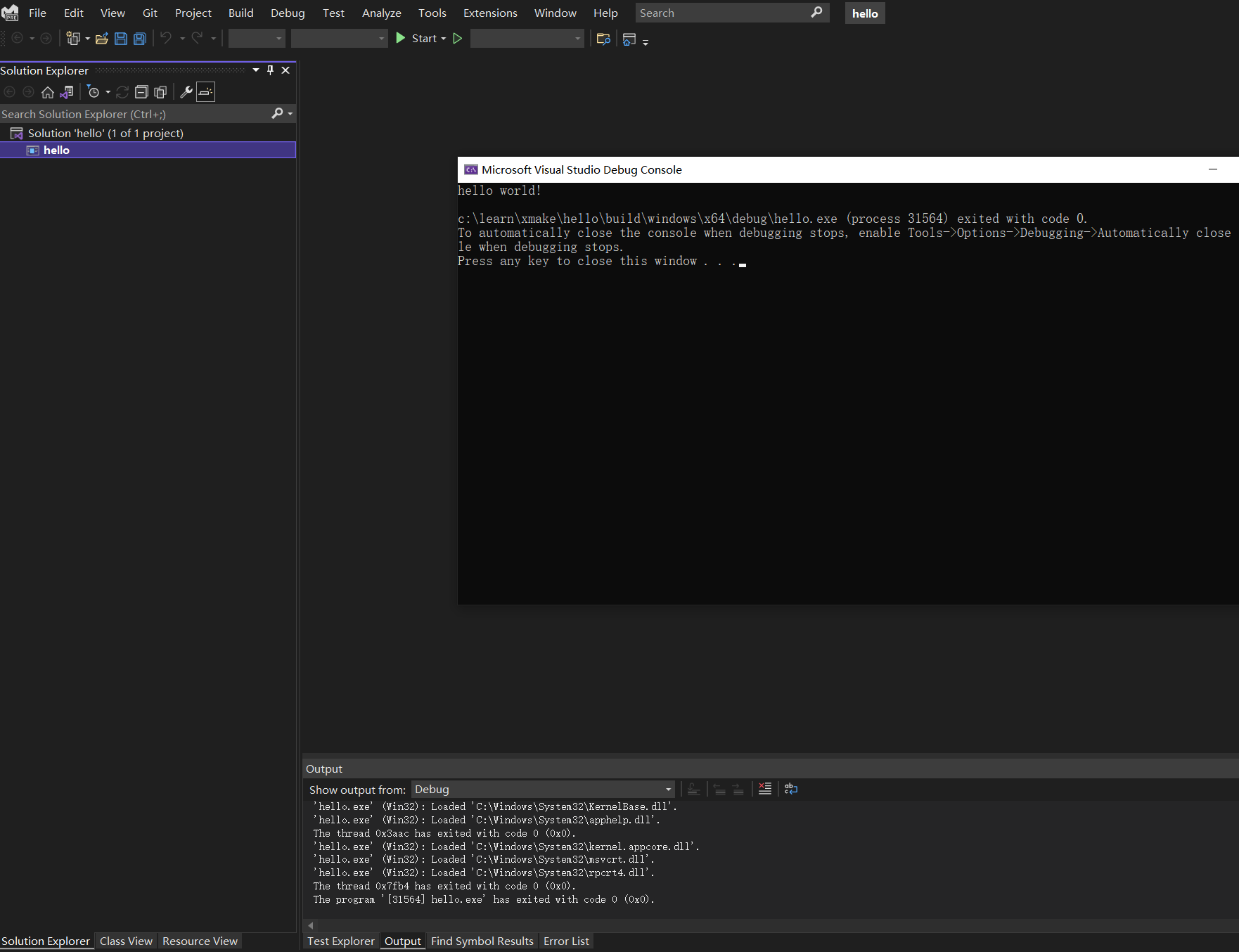
编译好后,我们就可以加载调试器运行了,还是之前的 xmake run 命令,只不过追加了 -d 参数,告诉 xmake 当前我们需要调试运行程序,xmake 会自动检测当前环境存在的调试器,然后运行它去加载我们的程序。
PS C:\Learn\xmake\hello> xmake run -d
使用GDB
配置xmake.lua,详见
在windows下,使用GDB调试有问题
add_rules("mode.debug", "mode.release")target("hello")set_kind("binary")add_files("src/*.c")toolchain("myclang")set_kind("standalone")set_sdkdir("C:/cygwin64")set_bindir("C:/cygwin64/bin")set_toolset("cc", "gcc")set_toolset("cxx", "g++")toolchain_end()
运行程序
$xmake f --toolchain=myclang$xmake[ 25%]: compiling.release src\main.c[ 50%]: linking.release hello[100%]: build ok!$xmake -v[ 50%]: linking.release helloC:\cygwin64\bin\x86_64-pc-cygwin-g++ -o build\linux\x64\release\hello build\.objs\hello\linux\x64\release\src\main.c.o -s[100%]: build ok!
安装程序

若有收获,就点个赞吧
0 人点赞


