- 1.进入控制台,重置密码为hhxxttxs.808.
- 2. ssh远程连接到服务器
- 3. 安装网站运行的基础
以华为云为例。可以先使用华为云一个月的免费服务器(开发者免费试用专区](https://activity.huaweicloud.com/free_test/index.html?ggw_hd#individual),每日上午9点30可以抢购免费资格。)
1.进入控制台,重置密码为hhxxttxs.808.
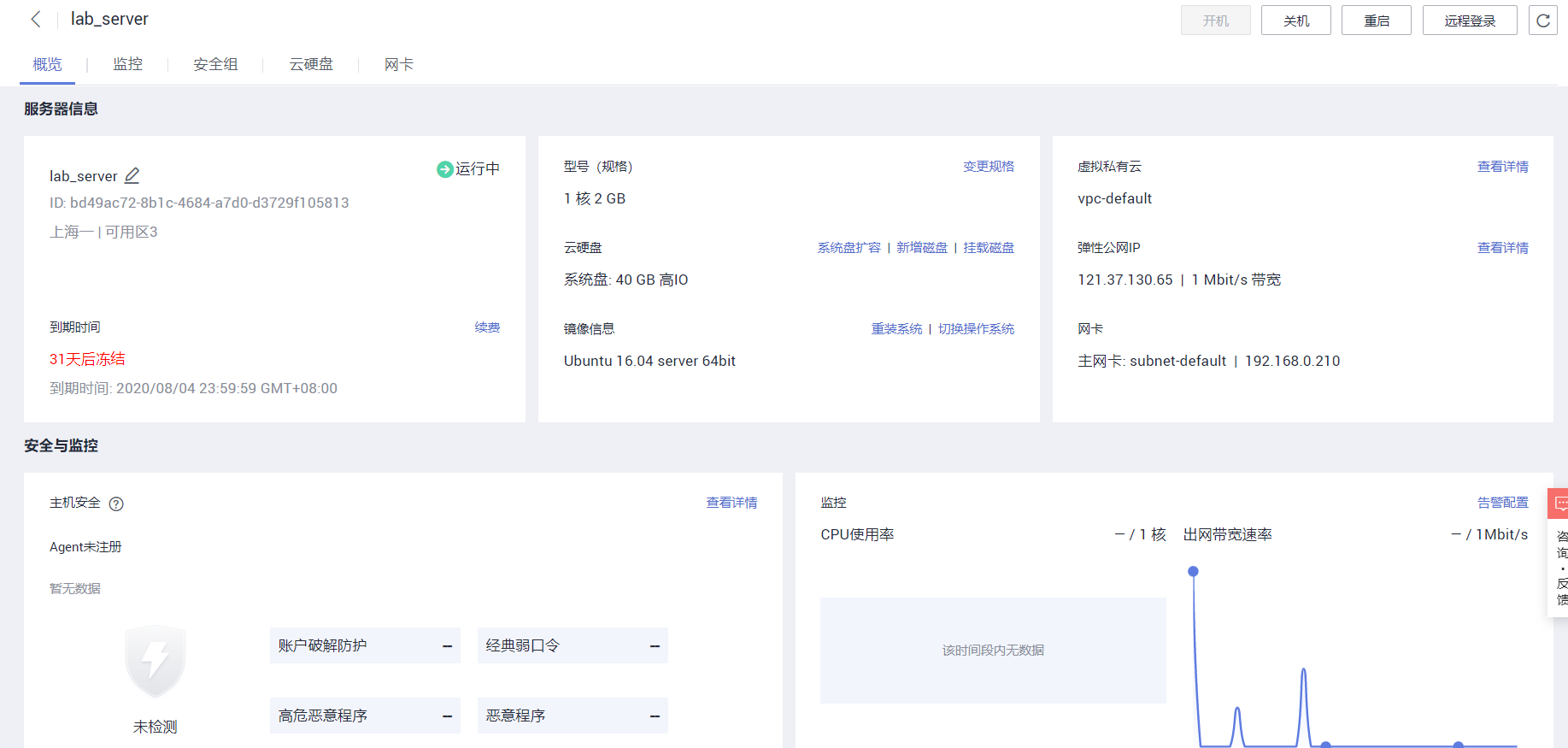
2. ssh远程连接到服务器
登录云服务器的用户名和密码:
- Windows操作系统用户名:Administrator
- Linux操作系统用户名:root
如忘记登录密码,可通过控制台提供的“ 重置密码 ” 功能设置新密码。ssh root@公网ip
cx@DESKTOP-VS3A41J MINGW64 ~$ ssh root@121.37.130.65root@121.37.130.65's password:Welcome to Ubuntu 16.04.6 LTS (GNU/Linux 4.4.0-176-generic x86_64)* Documentation: https://help.ubuntu.com* Management: https://landscape.canonical.com* Support: https://ubuntu.com/advantage* "If you've been waiting for the perfect Kubernetes dev solution formacOS, the wait is over. Learn how to install Microk8s on macOS."https://www.techrepublic.com/article/how-to-install-microk8s-on-macos/0 packages can be updated.0 updates are security updates.Welcome to Huawei Cloud ServiceLast login: Sat Jul 4 10:33:11 2020root@hecs-x-medium-2-linux-20200704093014:~#
解决Host key verification failed.
ECDSA host key for 121.37.130.65 has changed and you have requested strict checking.Host key verification failed.
一般这个问题,是重置服务器后再次访问时出现。
ssh-keygen -R 你要访问的IP地址cx@DESKTOP-VS3A41J MINGW64 ~$ ssh-keygen -R 121.37.130.65# Host 121.37.130.65 found: line 2/c/Users/cx/.ssh/known_hosts updated.Original contents retained as /c/Users/cx/.ssh/known_hosts.old再重新访问即可
3. 安装网站运行的基础
代码:
- 代码运行基础:Python及相关库
- 传输代码:Git、scp、ftp
数据库MySQL
输入python +tab 查看服务器python版本。
安装python3.6
1. 下载python3源码
cd /usr/localwget https://www.python.org/ftp/python/3.6.10/Python-3.6.10.tgz
2 解压并编译
tar -xzvf Python-3.6.10.tgzcd Python-3.6.10sudo ./configure --prefix=/usr/local/python3.6.10# 上一步报错则先输入下一条指令sudo apt-get install build-essentialsudo makesudo make install
3. 创建软连接
# 备份python2的软连接
sudo cp /usr/bin/python /usr/bin/python_bak

# 删除原来的oython2软连接
sudo rm /usr/bin/python

# 重新指定python为python3的软连接
sudo ln -s /usr/local/Python-3.6.10/python /usr/bin/python
4. 检查是否成功
python -V
>>>Python 3.6.10
5. 安装pip
若apt-get指令无法下载。更新系统下载源
更新系统下载源
root模式下进入sources.list文件
sudo vim /etc/apt/sources.list
将文件中默认的ubuntu源内容替换成
命令模式下dd可以删除本行

deb http://mirrors.aliyun.com/ubuntu/ bionic main restricted universe multiverse

deb-src http://mirrors.aliyun.com/ubuntu/ bionic main restricted universe multiverse

deb http://mirrors.aliyun.com/ubuntu/ bionic-security main restricted universe multiverse

deb-src http://mirrors.aliyun.com/ubuntu/ bionic-security main restricted universe multiverse

deb http://mirrors.aliyun.com/ubuntu/ bionic-updates main restricted universe multiverse

deb-src http://mirrors.aliyun.com/ubuntu/ bionic-updates main restricted universe multiverse

deb http://mirrors.aliyun.com/ubuntu/ bionic-backports main restricted universe multiverse

deb-src http://mirrors.aliyun.com/ubuntu/ bionic-backports main restricted universe multiverse

deb http://mirrors.aliyun.com/ubuntu/ bionic-proposed main restricted universe multiverse

deb-src http://mirrors.aliyun.com/ubuntu/ bionic-proposed main restricted universe multiverse
更新
apt-get update
apt-get upgrade
安装pip3
sudo apt-get install python3-pip
检查 pip 是否安装成功
pip3 -v
更新pip
pip3 install --upgrade pip
6. 修改pip下载源
修改配置文件 :
根目录创建.pip文件:
mkdir ~/.pip
cd ~/.pip
#编辑pip.conf文件
sudo vim pip.conf
在pip.conf文件中添加清华大学的pypi镜像,要是想用其他的镜像,替换成相应的地址即可。
[global]
index-url = https://pypi.tuna.tsinghua.edu.cn/simple
trusted-host = pypi.tuna.tsinghua.edu.cn
其他国内镜像源:
https://mirrors.aliyun.com/pypi/simple
https://pypi.mirrors.ustc.edu.cn/simple/
http://pypi.hustunique.com/
http://pypi.sdutlinux.org/
http://pypi.douban.com/simple/
软连接
cd /usr/bin
rm pip3
ln -s pip3.6 pip3
重新登录
root@hecs-x-medium-2-linux-20200704093014:~# pip3 -V
pip 20.1.1 from /usr/local/lib/python3.6/dist-packages/pip (python 3.6)
root@hecs-x-medium-2-linux-20200704093014:~# pip3.6 -V
pip 20.1.1 from /usr/local/lib/python3.6/dist-packages/pip (python 3.6)
root@hecs-x-medium-2-linux-20200704093014:~# pip -V
pip 20.1.1 from /usr/local/lib/python3.6/dist-packages/pip (python 3.6)
7. 安装虚拟环境 可选
pip install virtualenv
8. 创建虚拟环境
cd ~
cd /home
virtualenv py36_django
cd ./py36_django
source bin/activate  激活虚拟环境
(py36_django) root@hecs-x-medium-2-linux-20200704093014:/home/py36_django#
9. 克隆文件
cd /home
git clone https://xxxxx

更新
cd proj_lab
git fetch --all && git reset --hard origin/master && git pull
10. 安装apt-getmysql
cd ./home
wget https://dev.mysql.com/get/mysql-apt-config_0.8.15-1_all.deb
dpkg -i mysql-apt-config_0.8.15-1_all.deb
ok
...
apt-get update
apt-get install mysql-server
遇到 package configuration 下面有ok键但无法点击的时候。按住tab选中ok,然后按下enter
ubuntu 启动/停止mysql
sudo service mysql status 查看状态
    service mysql start
    service mysql stop
    service mysql status
先启动mysql服务再登录进入mysql
(py36_django) root@hecs-x-medium-2-linux-20200704093014:/home# mysql -u root -p
Enter password:hhxxttxs.808
Welcome to the MySQL monitor.  Commands end with ; or \g.
Your MySQL connection id is 8
Server version: 8.0.20 MySQL Community Server - GPL

Copyright (c) 2000, 2020, Oracle and/or its affiliates. All rights reserved.

Oracle is a registered trademark of Oracle Corporation and/or its
affiliates. Other names may be trademarks of their respective
owners.

Type 'help;' or '\h' for help. Type '\c' to clear the current input statement.

mysql>
ubuntu的mysql卸载
删除mysql的数据文件
sudo rm /var/lib/mysql/ -R
删除mysql的配置文件
sudo rm /etc/mysql/ -R
自动卸载mysql(包括server和client)
sudo apt-get autoremove mysql* --purge
sudo apt-get remove apparmor
然后在终端中查看MySQL的依赖项:dpkg --list|grep mysql
有时候自动卸载并没有卸载完成。则需要再执行sudo apt-get remove name手动卸载。
清除残留数据:dpkg -l|grep ^rc|awk '{print$2}'|sudo xargs dpkg -P
最后再执行一次dpkg --list|grep mysql查看依赖。
新建项目数据库 s2ac_db
mysql> create database s2ac_db default charset=utf8mb4 default collate utf8mb4_unicode_ci;
Query OK, 1 row affected (0.67 sec)
分配新用户(不要使用root用户管理)
mysql> create user 'ck'@'localhost' identified by 'hhxxttxs';    新建用户ck
Query OK, 0 rows affected (0.60 sec)

mysql> grant all privileges on s2ac_db.* to 'ck'@'localhost';    赋予管理权限
Query OK, 0 rows affected (0.58 sec)

mysql> flush privileges;                                        # 刷新权限
Query OK, 0 rows affected (0.13 sec)
重新登录查看是否正确设置
D:\MyDatabase\mysql\mysql-8.0.20-winx64\bin>mysql -h localhost -u ck -p
Enter password: ********
...

mysql> show databases;
+--------------------+
| Database           |
+--------------------+
| information_schema |
| s2ac_db            |
+--------------------+
2 rows in set (0.00 sec)
11 导出本地数据库上传到服务器.
Microsoft Windows [版本 10.0.18362.900]
(c) 2019 Microsoft Corporation。保留所有权利。

C:\WINDOWS\system32>mysqldump -u ck -p s2ac_db >data.sql
Enter password: ********

C:\WINDOWS\system32>
复制data.sql到项目文件夹。git,scp,ftp上传
scp 本地文件地址 目的主机:目的主机存储地址
git打开本地存放数据库数据的文件夹
cx@DESKTOP-VS3A41J MINGW64 /g/code_workspace/py3_2020/7_Django_2020/proj_lab (master)
$ scp data.sql root@121.37.130.65:/home/data.sql
root@121.37.130.65's password:
data.sql                                      100%  127KB 467.2KB/s   00:00
root@hecs-x-medium-2-linux-20200704093014:/home# ls
data.sql  mysql-apt-config_0.8.15-1_all.deb  proj_lab  py36_django

mysql -u ck -p s2ac_db
password:
mysql>use s2ac_db;
mysql>source data.sql; 导入数据库
mysql> show tables;
+-----------------------------+
| Tables_in_s2ac_db           |
+-----------------------------+
| auth_group                  |
| auth_group_permissions      |
| auth_permission             |
| auth_user                   |
| auth_user_groups            |
| auth_user_user_permissions  |
| comment_comment             |
| django_admin_log            |
| django_content_type         |
| django_migrations           |
| django_session              |
| my_cache_table              |
| read_statistics_readdetails |
| read_statistics_readnum     |
| s2aclab_articles            |
| s2aclab_articletype         |
+-----------------------------+
16 rows in set (0.00 sec)
12.上传settings到服务区
scp settings.py root@121.30.137.65 xxx
13. 安装mysql环境配置
/home# wget https://dev.mysql.com/get/Downloads/MySQL-8.0/libmysqlclient-dev_8.0.20-1ubuntu16.04_amd64.deb
dpkg -i libmysqlclient-dev_8.0ls.20-1ubuntu16.04_amd64.deb

apt-get install libmysqlclient-dev
报错
Reading package lists... Done
Building dependency tree
Reading state information... Done
You might want to run 'apt-get -f install' to correct these:
The following packages have unmet dependencies:
 libmysqlclient-dev : Depends: libmysqlclient21 (= 8.0.20-1ubuntu18.04) but it is not going to be installed
E: Unmet dependencies. Try 'apt-get -f install' with no packages (or specify a solution).

apt-get -f install

apt-get install libmysqlclient-dev
14.根据requirement.txt安装依赖
vim requirenment.txt 查看依赖
astroid==2.3.3
autopep8==1.5
certifi==2020.6.20
colorama==0.4.3
Django==2.0
django-ckeditor==5.9.0
django-js-asset==1.2.2
isort==4.3.21
lazy-object-proxy==1.4.3
mccabe==0.6.1
mysqlclient==1.3.14
Pillow==7.1.2
pycodestyle==2.5.0
pylint==2.4.4
pytz==2020.1
six==1.14.0
typed-ast==1.4.1
wincertstore==0.2
wrapt==1.11.2

pip install -r requirenment.txt 安装依赖
ERROR
error: command 'x86_64-linux-gnu-gcc' failed with exit status 1
查看自己python的版本,然后下载自己版本Python的devel,比如python3.6.8就是
sudo apt-get install python3.6-dev
 /usr/bin/ld: cannot find -lssl
 /usr/bin/ld: cannot find -lcrypto
 collect2: error: ld returned 1 exit status
 error: command 'x86_64-linux-gnu-gcc' failed with exit status 1
apt-get install openssl

apt-get install libssl
# 无法安装libssl可以尝试安装libssl-dev

root@hecs-x-medium-2-linux-20200704093014:/home/proj_lab# apt-get install libsslReading package lists... Done
Building dependency tree
Reading state information... Done
E: Unable to locate package libssl

dpkg --add-architecture i386
apt-get update
apt-get install libssl-dev:i386

pip install -r requirenment.txt 安装依赖

pip list 查看已安装的库
15. python manage.py runserver 0.0.0.0:port
0.0.0.0/0表示所有公网ip地址
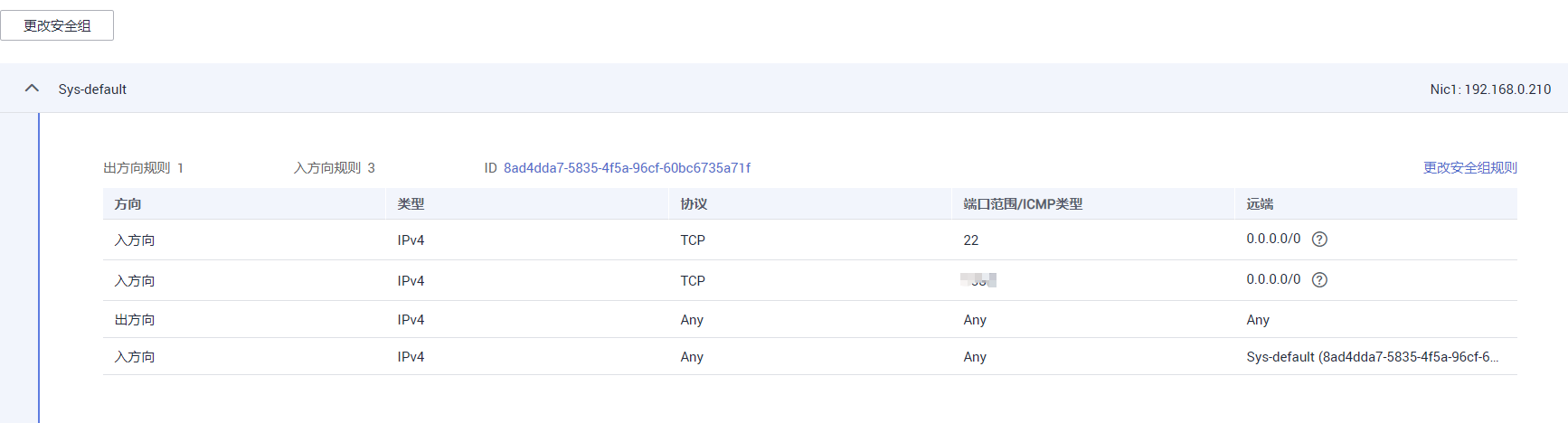
端口号可以在服务器的安全组中看到
(py36_django) root@hecs-x-medium-2-linux-20200704093014:/home/proj_lab# python manage.py runserver 0.0.0.0:3389
Performing system checks...

System check identified no issues (0 silenced).
July 04, 2020 - 17:00:14
Django version 2.0, using settings 'proj_lab.settings'
Starting development server at http://0.0.0.0:3389/
Quit the server with CONTROL-C.
输入服务器的公网ip和端口号访问

若有收获,就点个赞吧
0 人点赞


