一、下载
1、在官网下载MySQL Community Server 8.0.20:https://dev.mysql.com/downloads/mysql/
2、解压后新建一个my.ini配置文件
[mysqld]# 设置3306端口port=3306# 自定义设置mysql的安装目录,即解压mysql压缩包的目录basedir=D:\MyDatabase\mysql-8.0.20-winx64# 自定义设置mysql数据库的数据存放目录datadir=D:\MyDatabase\mysql-8.0.20-winx64\data# 允许最大连接数max_connections=200# 允许连接失败的次数,这是为了防止有人从该主机试图攻击数据库系统max_connect_errors=10# 服务端使用的字符集默认为UTF8character-set-server=utf8# 创建新表时将使用的默认存储引擎default-storage-engine=INNODB# 默认使用“mysql_native_password”插件认证default_authentication_plugin=mysql_native_password[mysql]# 设置mysql客户端默认字符集default-character-set=utf8[client]# 设置mysql客户端连接服务端时默认使用的端口和默认字符集port=3306default-character-set=utf8
二、安装
1.保存配置文件后,在安装目录的bin目录下打开cmd
必须保证data文件夹为空或者不存在,否则报错
# 进入cmd管理员模式。在bin目录下
mysqld --initialize --console    # 初始化mysql并输出在控制台

C:\WINDOWS\system32>D:

D:\>cd D:\MyDatabase\mysql\mysql-8.0.20-winx64\bin

D:\MyDatabase\mysql\mysql-8.0.20-winx64\bin>mysqld --initialize --console
2020-06-14T14:09:02.947341Z 0 [System] [MY-013169] [Server] D:\MyDatabase\mysql\mysql-8.0.20-winx64\bin\mysqld.exe (mysqld 8.0.20) initializing of server in progress as process 6176
2020-06-14T14:09:02.948253Z 0 [Warning] [MY-013242] [Server] --character-set-server: 'utf8' is currently an alias for the character set UTF8MB3, but will be an alias for UTF8MB4 in a future release. Please consider using UTF8MB4 in order to be unambiguous.
2020-06-14T14:09:02.961689Z 1 [System] [MY-013576] [InnoDB] InnoDB initialization has started.
2020-06-14T14:09:09.686606Z 1 [System] [MY-013577] [InnoDB] InnoDB initialization has ended.
2020-06-14T14:09:21.621905Z 6 [Note] [MY-010454] [Server] A temporary password is generated for root@localhost: KzGOtWgOF5.u
D:\MyDatabase\mysql\mysql-8.0.20-winx64\bin>
2.初始化mysql 。记录初始化后的账户密码
记录上一步中的@rootlocalhost:后面的密码KzGOtWgOF5.u
3. 注册mysql服务,以便启动mysql
mysqld --install MySQL
Service successfully installed.
# remove
sc delte MySQL
4. 启动/关闭mysql服务
net start MySQL
MySQL 服务正在启动 ..
MySQL 服务已经启动成功。
net stop MySQL
5. 登录mysql mysql -h localhost -u root -p
mysql -h localhost -u root -p

D:\MyDatabase\mysql\mysql-8.0.20-winx64\bin>mysql -h localhost -u root -p
Enter password: ************
Welcome to the MySQL monitor.  Commands end with ; or \g.
Your MySQL connection id is 8
Server version: 8.0.20

Copyright (c) 2000, 2020, Oracle and/or its affiliates. All rights reserved.

Oracle is a registered trademark of Oracle Corporation and/or its
affiliates. Other names may be trademarks of their respective
owners.

Type 'help;' or '\h' for help. Type '\c' to clear the current input statement.
6.修改mysql密码为空格 ‘ ‘
mysql> alter user 'root'@'localhost' identified with mysql_native_password by ' ';
Query OK, 0 rows affected (0.58 sec)
退出
mysql> quit
Bye

重新登陆
D:\MyDatabase\mysql\mysql-8.0.20-winx64\bin>mysql -h localhost -u root -p
Enter password: *
Welcome to the MySQL monitor.  Commands end with ; or \g.
Your MySQL connection id is 9
Server version: 8.0.20 MySQL Community Server - GPL

Copyright (c) 2000, 2020, Oracle and/or its affiliates. All rights reserved.

Oracle is a registered trademark of Oracle Corporation and/or its
affiliates. Other names may be trademarks of their respective
owners.

Type 'help;' or '\h' for help. Type '\c' to clear the current input statement.

mysql>
配置mysql环境变量
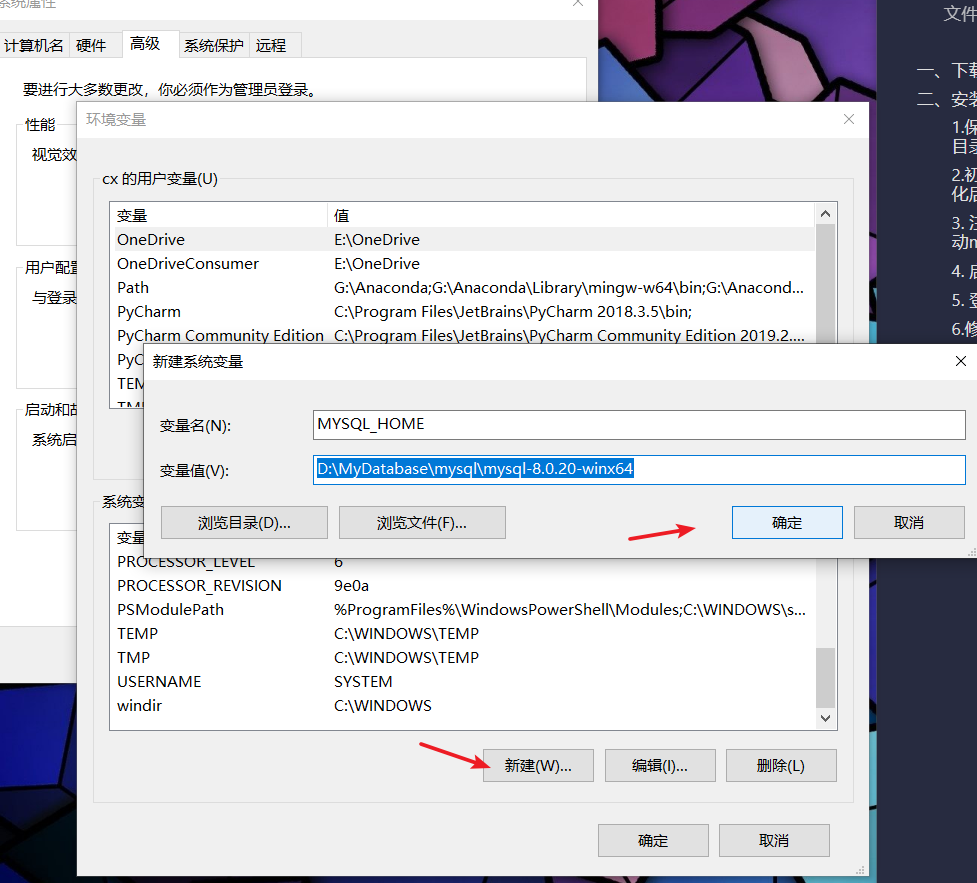
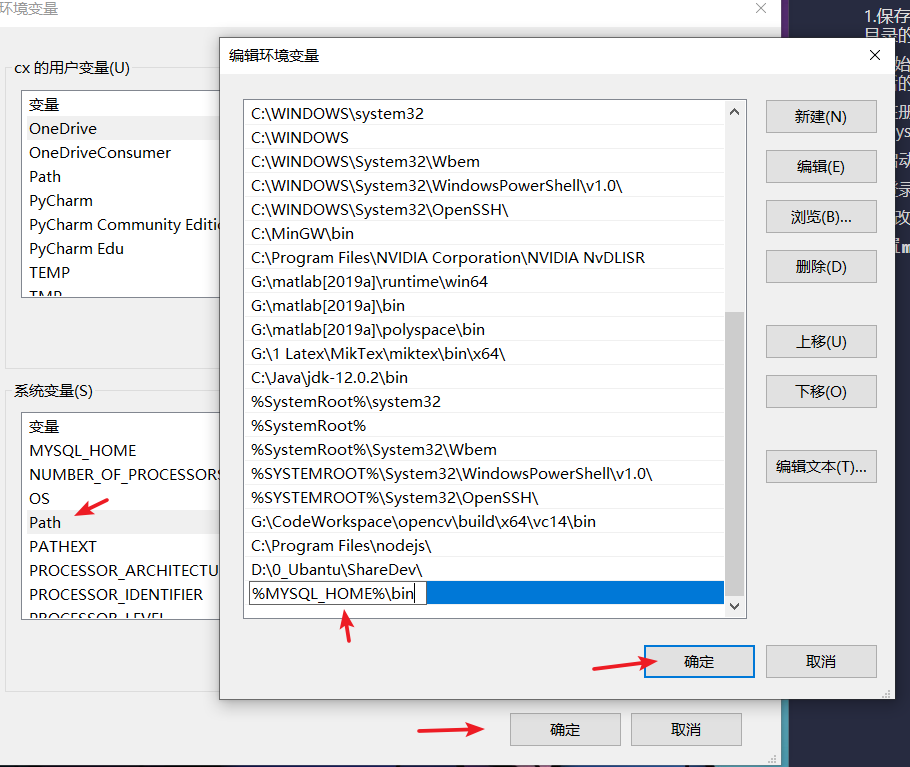
下次可以随便打开cmd执行mysql指令。
三、MySQL 常用指令
| 命令 | 作用 |
|---|---|
| create database ; | 新建数据库 |
| use dbname; | 选择数据库 |
| drop database dbname; | 直接删除数据库 |
| show databases; | 显示所有数据库 |
| show tables; | 显示默认数据库中所有表 |
| describe tablename; | 表的显示描述 |
| select version(),current_date; | 显示当前mysql版本 |
| \c | 放弃正在输入的命令 |
| \h | 显示命令清单 |
| \q | 退出mysql |
| \s | 查看mysql服务器状态 |

若有收获,就点个赞吧
0 人点赞


