帮助命令
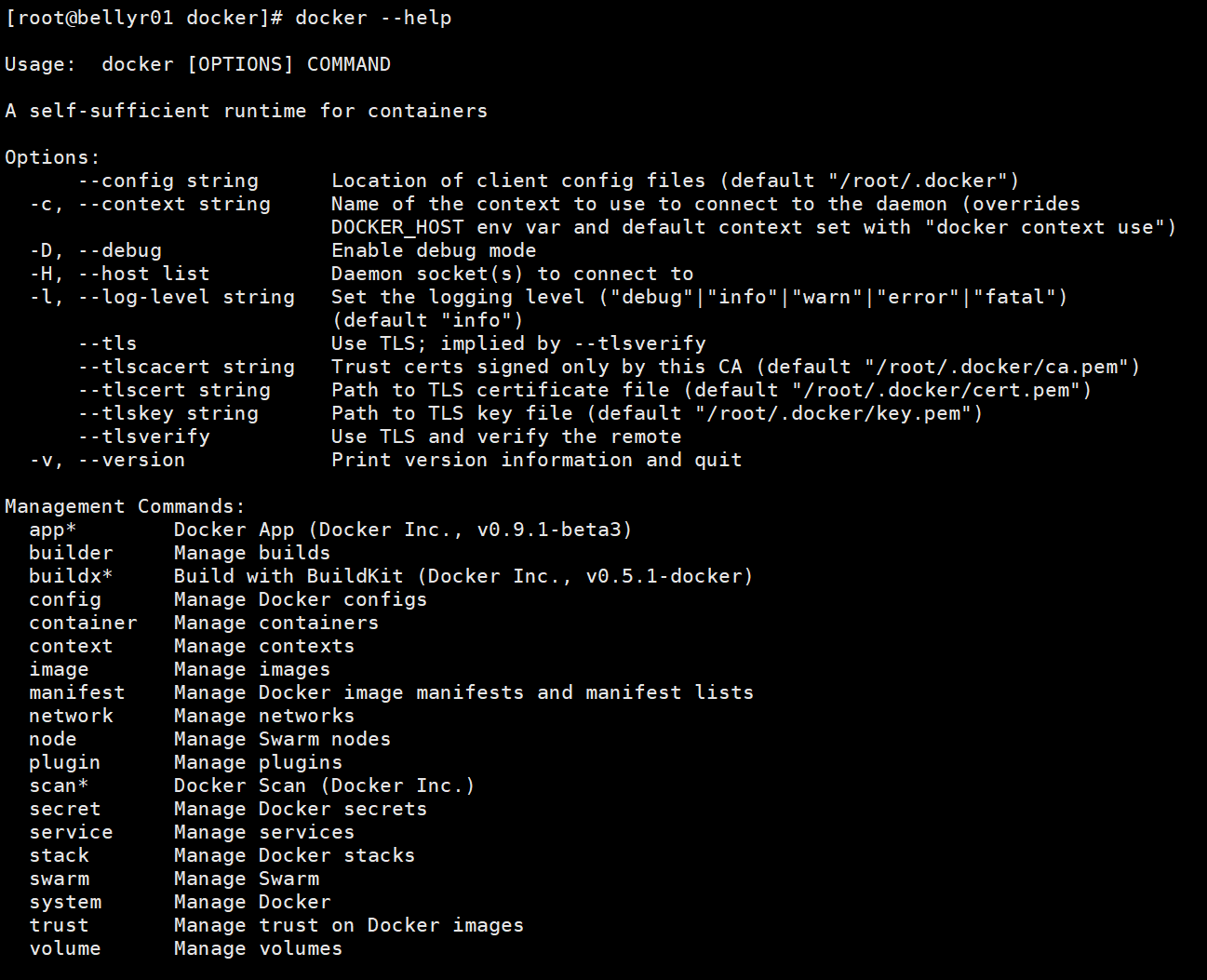
# docker版本信息docker version# docker详细信息docker info# docker帮助信息docker --help
镜像命令
docker images:List images
docker images:列出本地主机上的镜像
选项说明:
REPOSITORY:表示镜像的仓库源
TAG:镜像的标签
IMAGE ID:镜像ID
CREATED:镜像创建时间
SIZE:镜像大小
同一仓库源可以有多个 TAG,代表这个仓库源的不同个版本,我们使用 REPOSITORY:TAG 来定义不同的镜像 如果你不指定一个镜像的版本标签,例如你只使用 ubuntu,docker 将默认使用 ubuntu:latest 镜像
基本语法:docker images [OPTIONS] [REPOSITORY[:TAG]]
OPTIONS说明:
-a:列出本地所有的镜像(含中间映像层)
-q:只显示镜像ID
--digests:显示镜像的摘要信息
--no-trunc:显示完整的镜像信息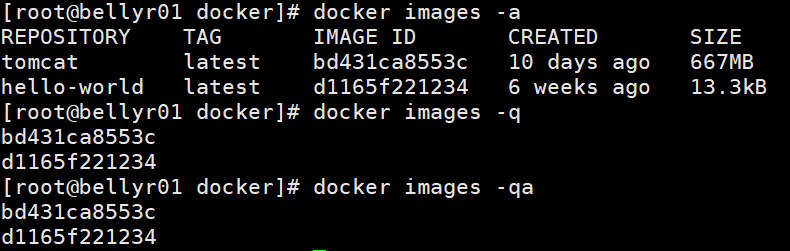


docker search:Search the Docker Hub for images
docker search 去 https://hub.docker.com 上找镜像,下载是使用我们配置的阿里云镜像仓库
基本语法:docker search [OPTIONS] 镜像名字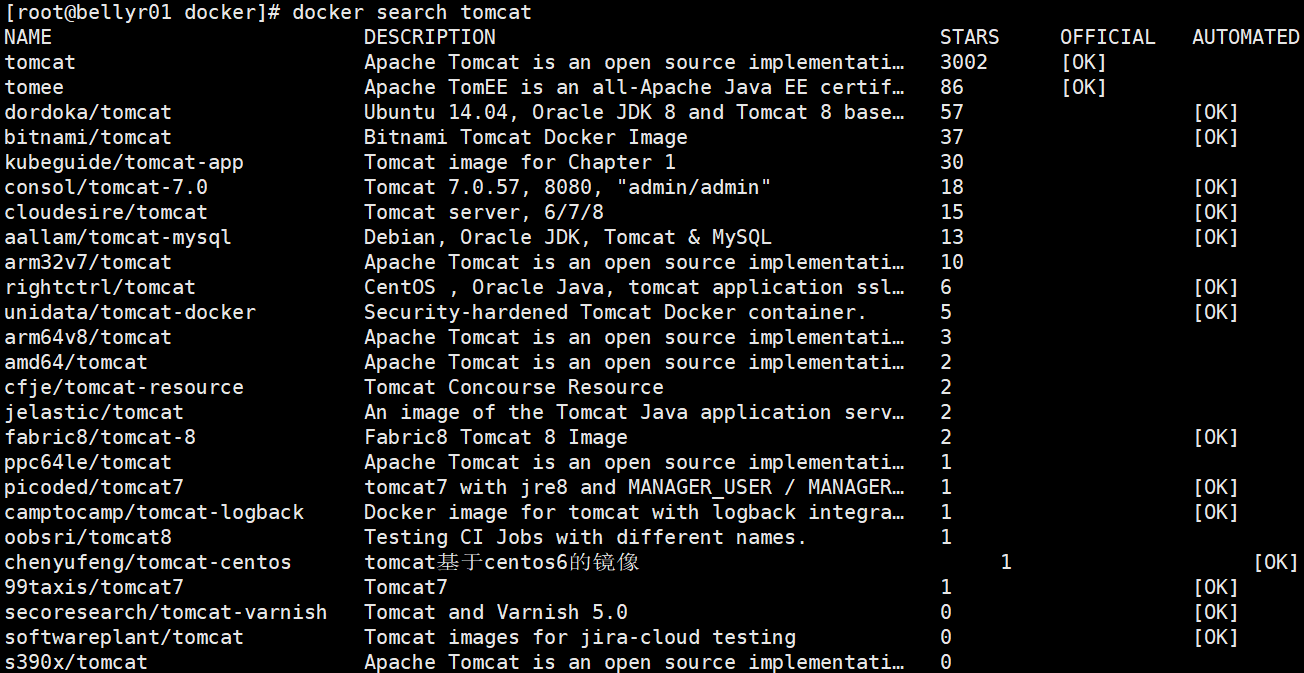
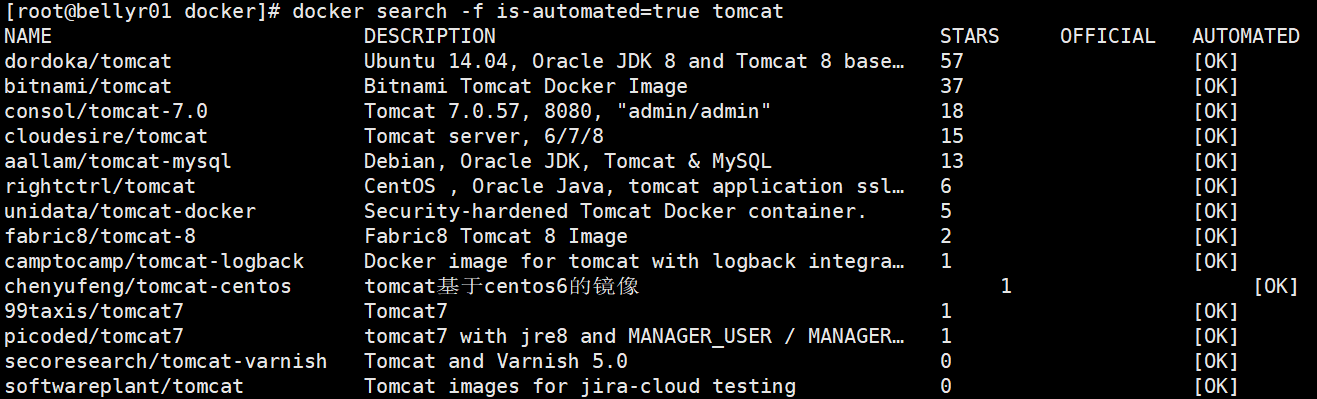
OPTIONS说明:-f : Filter output based on conditions provided
--no-trunc : 显示完整的镜像描述
docker pull:Pull an image or a repository from a registry
基本语法:docker pull 镜像名字[:TAG] (如果不加TAG默认TAG为 latest)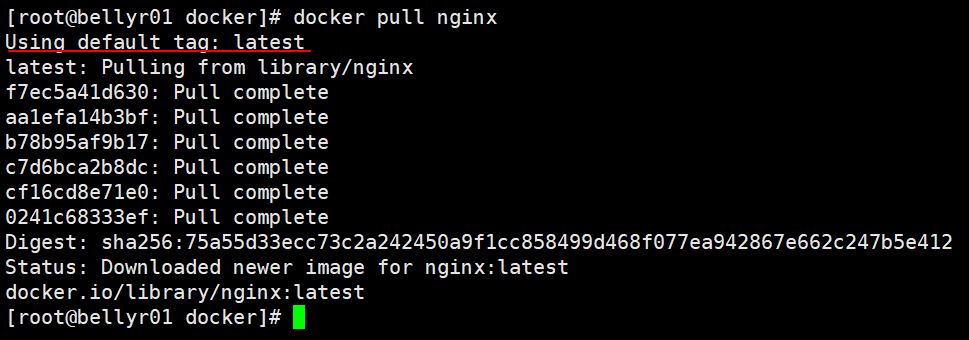
docker rmi:Remove one or more images
基本语法:docker rmi [OPTIONS] IMAGE
OPTIONS说明:-f:Force removal of the image
案例:
1)删除单个:docker rmi -f 镜像ID/镜像名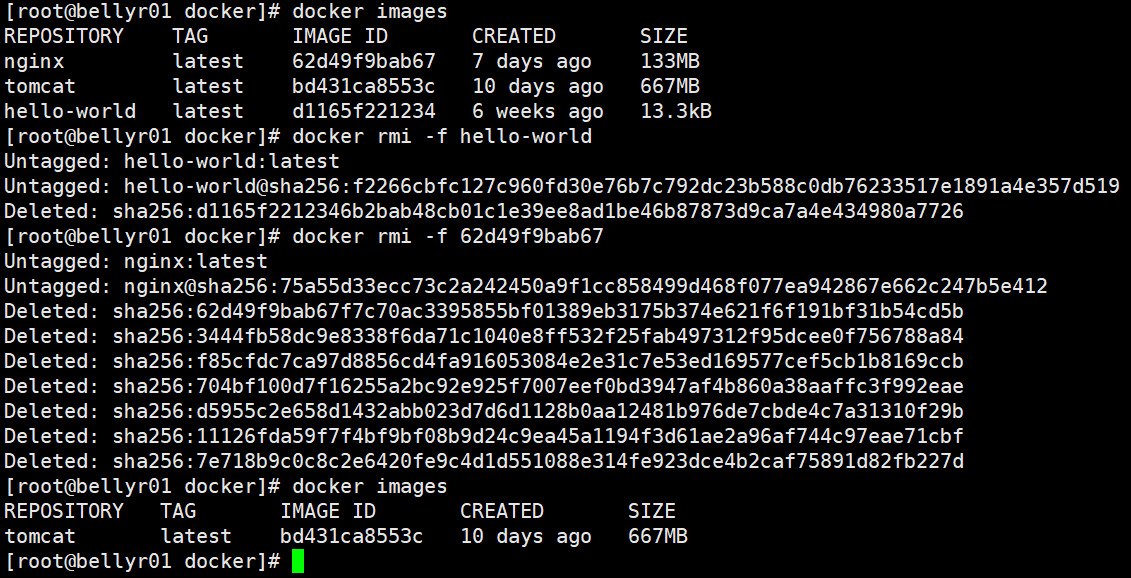
2)删除多个:docker rmi -f 镜像名1:TAG/镜像ID1 镜像名2:TAG/镜像ID2 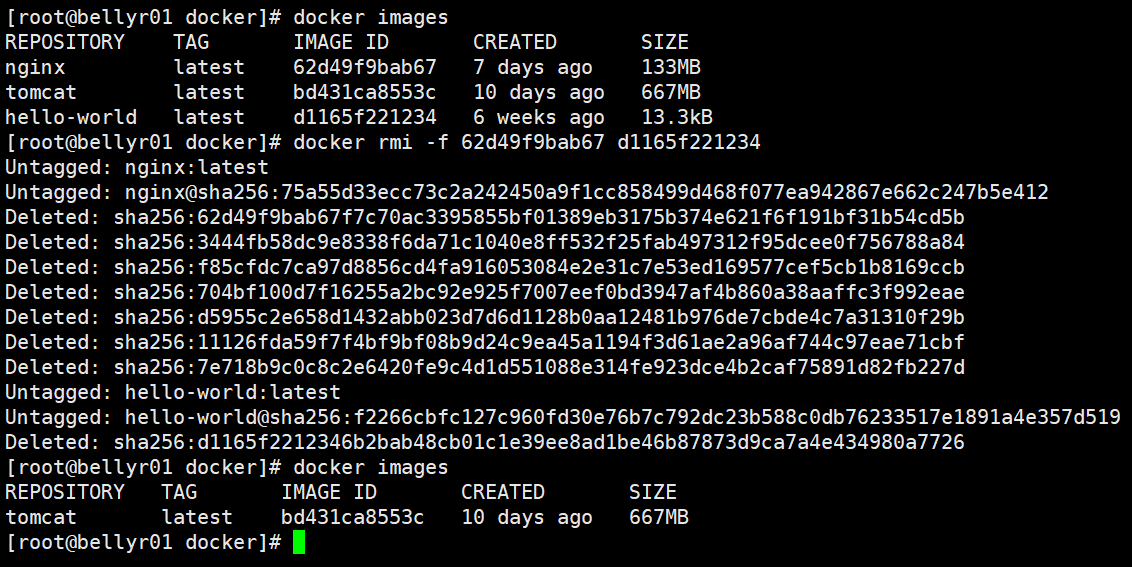
3)删除全部:docker rmi -f $(docker images -qa)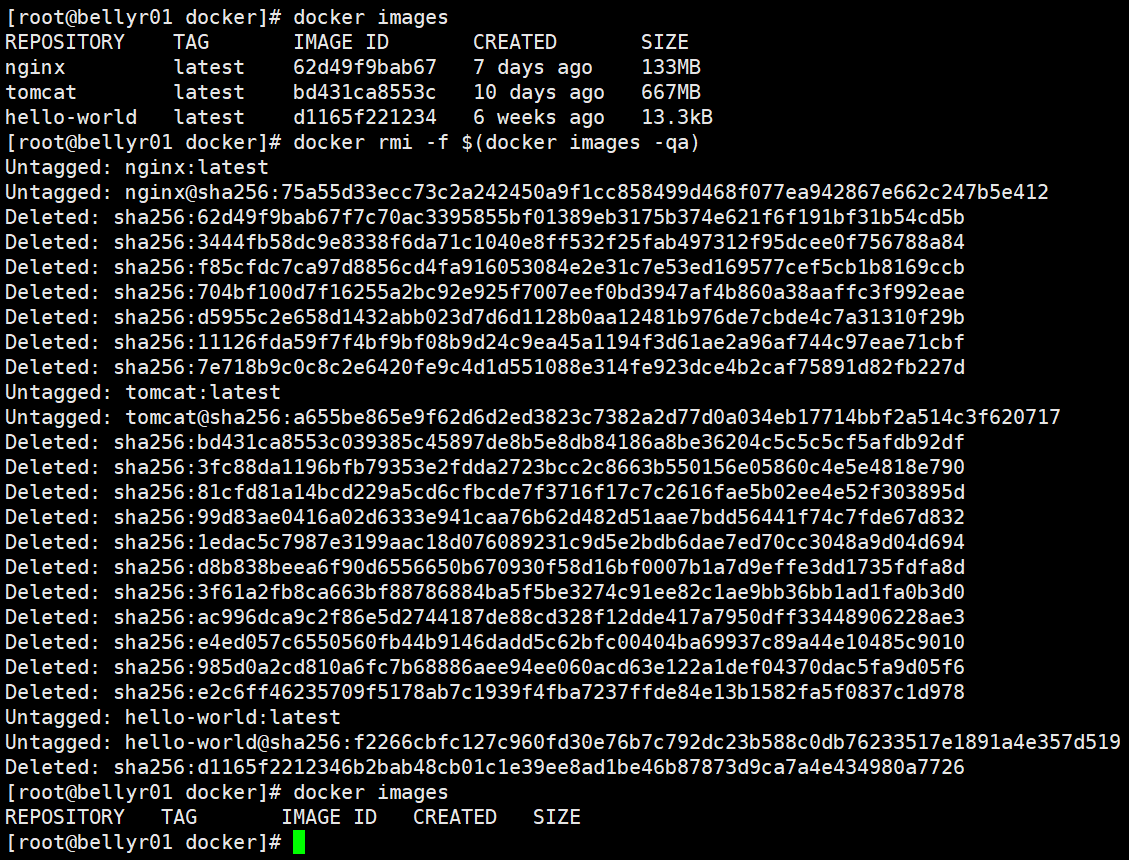
思考:结合我们Git的学习心得,大家猜猜是否会有 docker commit / docker push?
容器命令
docker run:Run a command in a new container
有镜像才能创建容器,这是根本前提(下载一个CentOS镜像演示):docker pull centos
基本语法:docker run [OPTIONS] IMAGE [COMMAND] [ARG...]
OPTIONS说明:有些是一个减号,有些是两个减号--name="容器新名字":为容器指定一个名称;-d:后台运行容器,并返回容器ID,也即启动守护式容器;-i:以交互模式运行容器,通常与 -t 同时使用;-t:为容器重新分配一个伪输入终端,通常与 -i 同时使用;-P:随机端口映射;-p:指定端口映射,有以下四种格式
ip:hostPort:containerPort
ip::containerPort
hostPort:containerPort
containerPort
案例:
1)启动交互式容器
2)以交互模式启动一个容器:在容器内执行/bin/bash命令
3)启动容器并指定名称
docker ps:List containers
docker ps:列出正在运行的容器
基本语法:docker ps [OPTIONS]
OPTIONS说明:-a:列出当前所有正在运行的容器+历史上运行过的-l:显示最近创建的容器-n:显示最近n个创建的容器-q:静默模式,只显示容器编号--no-trunc:不截断输出
退出容器
docker start:Start one or more stopped containers
docker restart:Restart one or more containers
docker stop:Stop one or more running containers
docker kill:Kill one or more running containers
基本语法:docker kill 容器ID或者容器名 强制停止容器
docker rm:Remove one or more containers
基本语法:docker rm [OPTIONS] 容器ID或者容器名
OPTIONS说明:-f:Force the removal of a running container (uses SIGKILL)
案例:删除所有容器(包括正在运行)
docker rm -f $(docker ps -aq)
docker ps -aq | xargs docker rm -f
重要容器命令
启动守护式容器
基本语法:docker run -d 容器名 
Q:启动后 docker ps -a 进行查看,会发现容器已经退出,为什么?
A:Docker容器后台运行,就必须有一个前台进程,容器运行的命令如果不是那些一直挂起的命令(比如运行top,tail),容器会自动退出。
这个是docker的机制问题,比如你的web容器,我们以nginx为例,正常情况下,我们配置启动服务只需要启动响应的service即可。
例如:service nginx start
但是,这样做,nginx为后台进程模式运行,就导致docker前台没有运行的应用,这样的容器后台启动后,会立即自杀。因为他觉得他没事可做了,
所以最佳的解决方案是,将你要运行的程序以前台进程的形式运行
查看容器日志
基本语法:docker logs [OPTIONS] CONTAINER
OPTIONS选项说明:-t:是加入时间戳-f:跟随最新的日志打印-n 数字:显示最后多少条
案例:docker run -d centos /bin/sh -c "while true;do echo hello zzyy;sleep 2;done"(守护式启动centos,centos中前台循环打印)docker logs -ft -n 3 容器ID

查看容器内运行的进程

查看容器内部细节
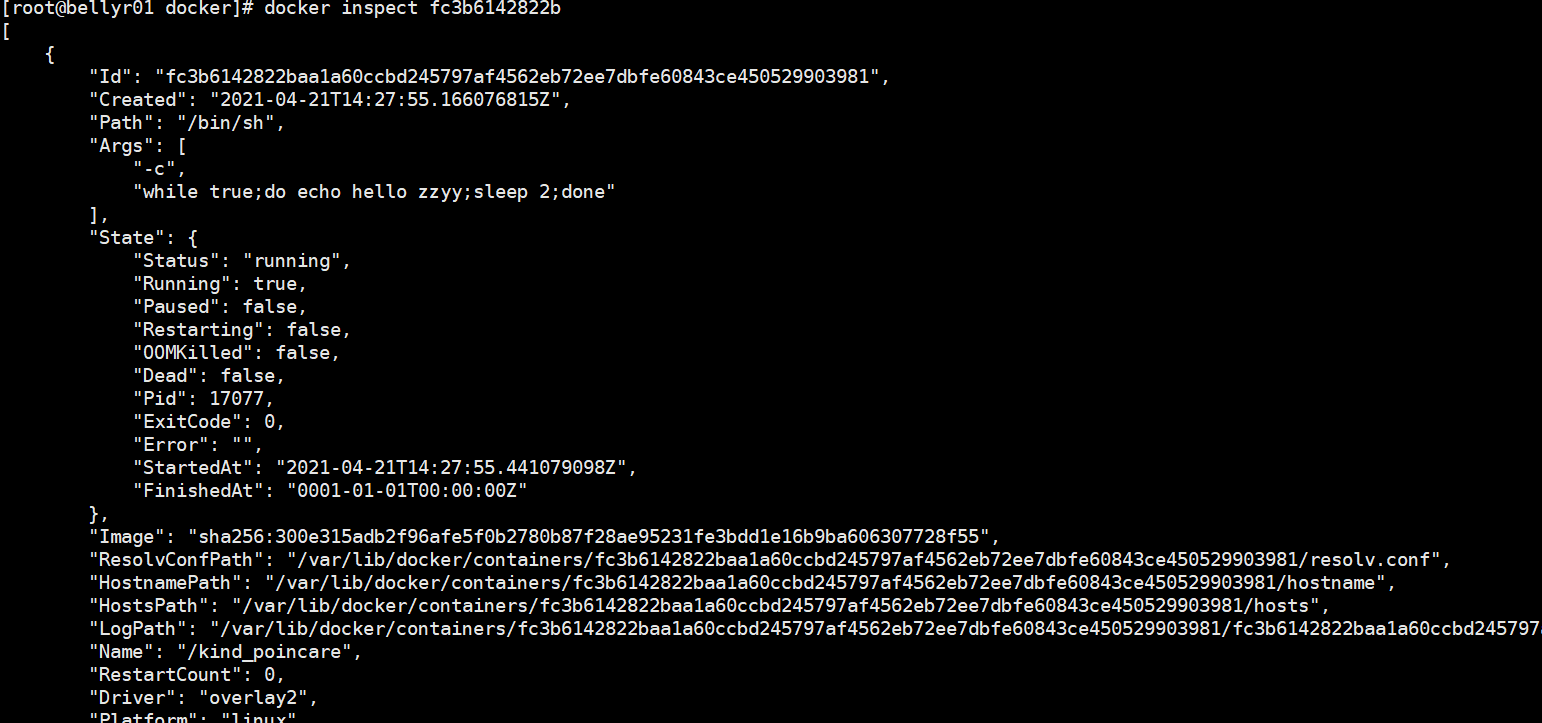
进入正在运行的容器两种方式
方式一基本语法:docker attach 容器ID
方式二基本语法:docker exec [OPTIONS] CONTAINER COMMAND
两者区别:
attach 直接进入容器启动命令的终端,不会启动新的进程
exec 是在容器中打开新的终端,并且可以启动新的进程
从容器内拷贝文件到主机上
基本语法:docker cp 容器ID:容器内路径 目的主机路径
总结
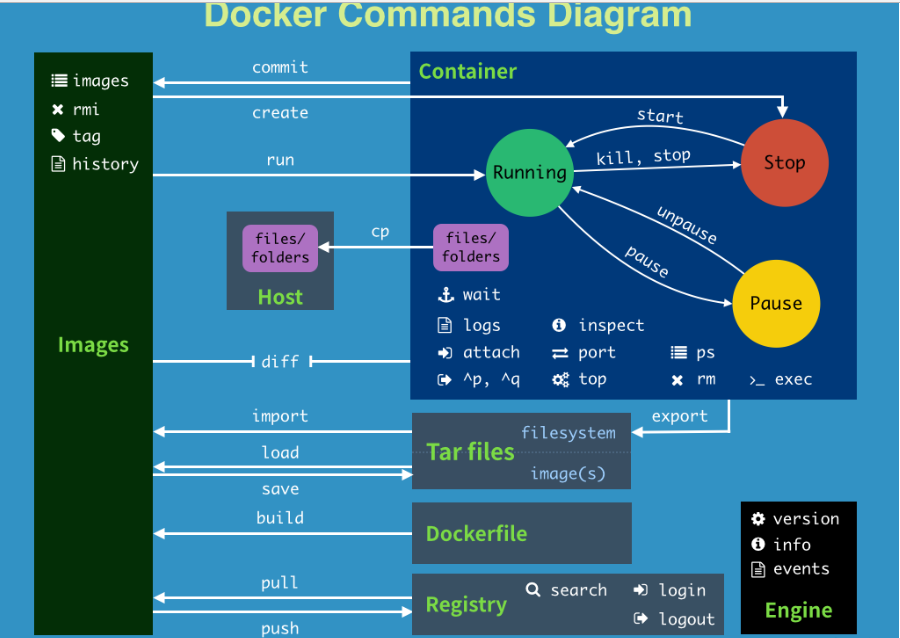
attach Attach to a running container # 当前 shell 下 attach 连接指定运行镜像
build Build an image from a Dockerfile # 通过 Dockerfile 定制镜像
commit Create a new image from a container changes # 提交当前容器为新的镜像
cp Copy files/folders from the containers filesystem to the host path #从容器中拷贝指定文件或者目录到宿主机中
create Create a new container # 创建一个新的容器,同 run,但不启动容器
diff Inspect changes on a container’s filesystem # 查看 docker 容器变化
events Get real time events from the server # 从 docker 服务获取容器实时事件
exec Run a command in an existing container # 在已存在的容器上运行命令
export Stream the contents of a container as a tar archive # 导出容器的内容流作为一个 tar 归档文件[对应 import ]
history Show the history of an image # 展示一个镜像形成历史
images List images # 列出系统当前镜像
import Create a new filesystem image from the contents of a tarball # 从tar包中的内容创建一个新的文件系统映像[对应export]
info Display system-wide information # 显示系统相关信息
inspect Return low-level information on a container # 查看容器详细信息
kill Kill a running container # kill 指定 docker 容器
load Load an image from a tar archive # 从一个 tar 包中加载一个镜像[对应 save]
login Register or Login to the docker registry server # 注册或者登陆一个 docker 源服务器
logout Log out from a Docker registry server # 从当前 Docker registry 退出
logs Fetch the logs of a container # 输出当前容器日志信息
port Lookup the public-facing port which is NAT-ed to PRIVATE_PORT # 查看映射端口对应的容器内部源端口
pause Pause all processes within a container # 暂停容器
ps List containers # 列出容器列表
pull Pull an image or a repository from the docker registry server # 从docker镜像源服务器拉取指定镜像或者库镜像
push Push an image or a repository to the docker registry server # 推送指定镜像或者库镜像至docker源服务器
restart Restart a running container # 重启运行的容器
rm Remove one or more containers # 移除一个或者多个容器
rmi Remove one or more images # 移除一个或多个镜像[无容器使用该镜像才可删除,否则需删除相关容器才可继续或 -f 强制删除]
run Run a command in a new container # 创建一个新的容器并运行一个命令
save Save an image to a tar archive # 保存一个镜像为一个 tar 包[对应 load]
search Search for an image on the Docker Hub # 在 docker hub 中搜索镜像
start Start a stopped containers # 启动容器
stop Stop a running containers # 停止容器
tag Tag an image into a repository # 给源中镜像打标签
top Lookup the running processes of a container # 查看容器中运行的进程信息
unpause Unpause a paused container # 取消暂停容器
version Show the docker version information # 查看 docker 版本号
wait Block until a container stops, then print its exit code # 截取容器停止时的退出状态值

若有收获,就点个赞吧
0 人点赞


