一、get the uploading permission
You needs these permissions for uploading (here the system only supports Chinese):
1、培训课程发布(发布新课程和我发布的课程相关)
2、培训审核管理(课程和系列课的审核、课程状态改变相关)
3、培训_配置管理(类目管理,发课权限管理,白名单管理,数据统计相关)
apply the permission here:https://acl.alibaba-inc.com/apply/instance/index.htm?keyword=phoenix-breed_role&type=role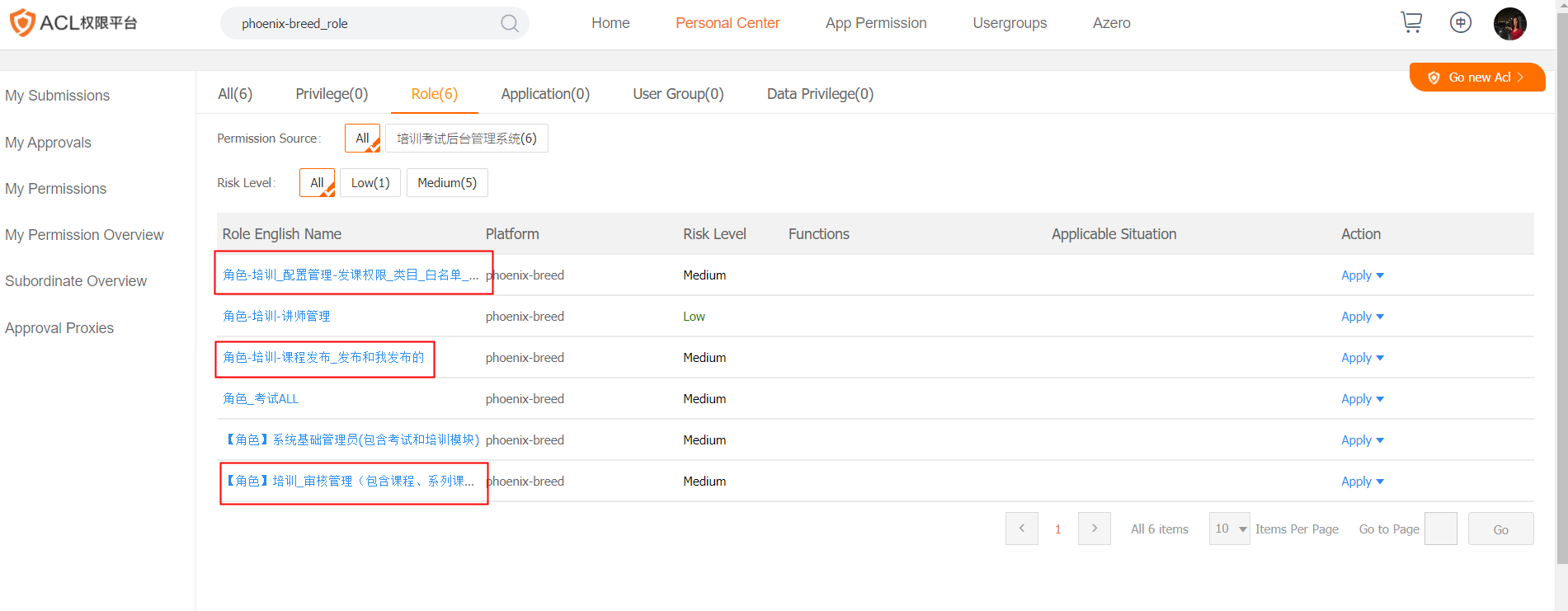
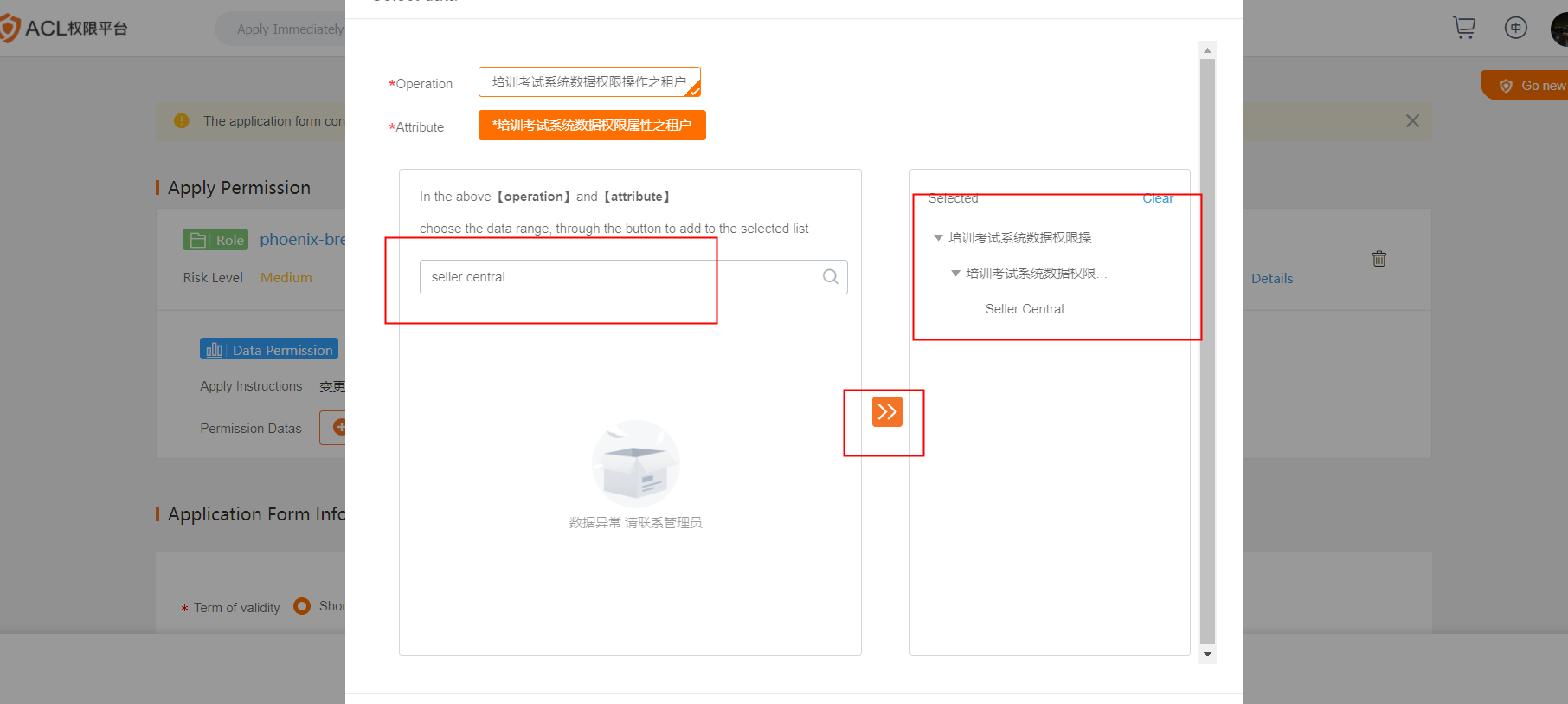
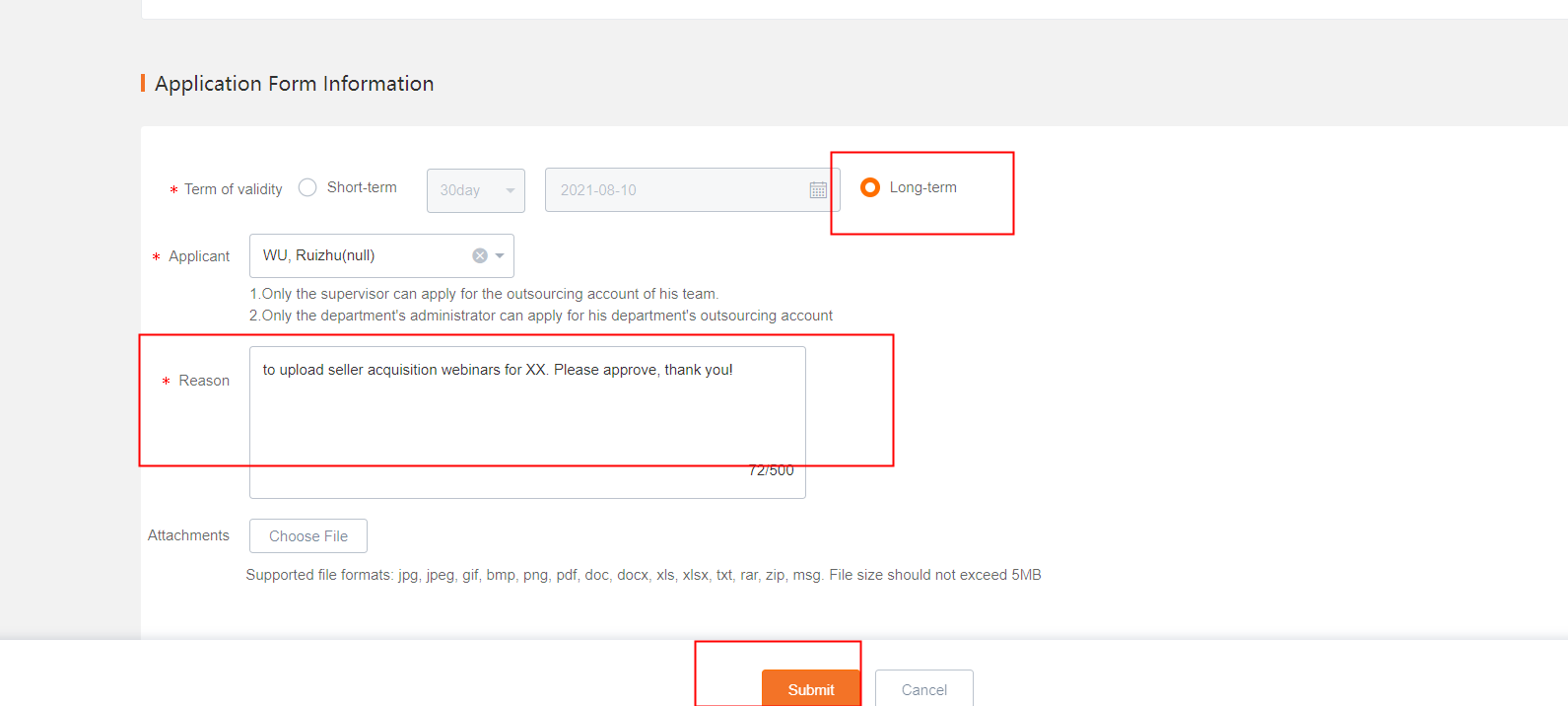
pls click select data and search for- 【Seller Central】*
二、创建直播活动=Create one webinar
https://phoenix.alibaba-inc.com/
1. Get the permission of uploading webinar:
To add your new course uploading permission:
if you would like to search your course uploading permissions: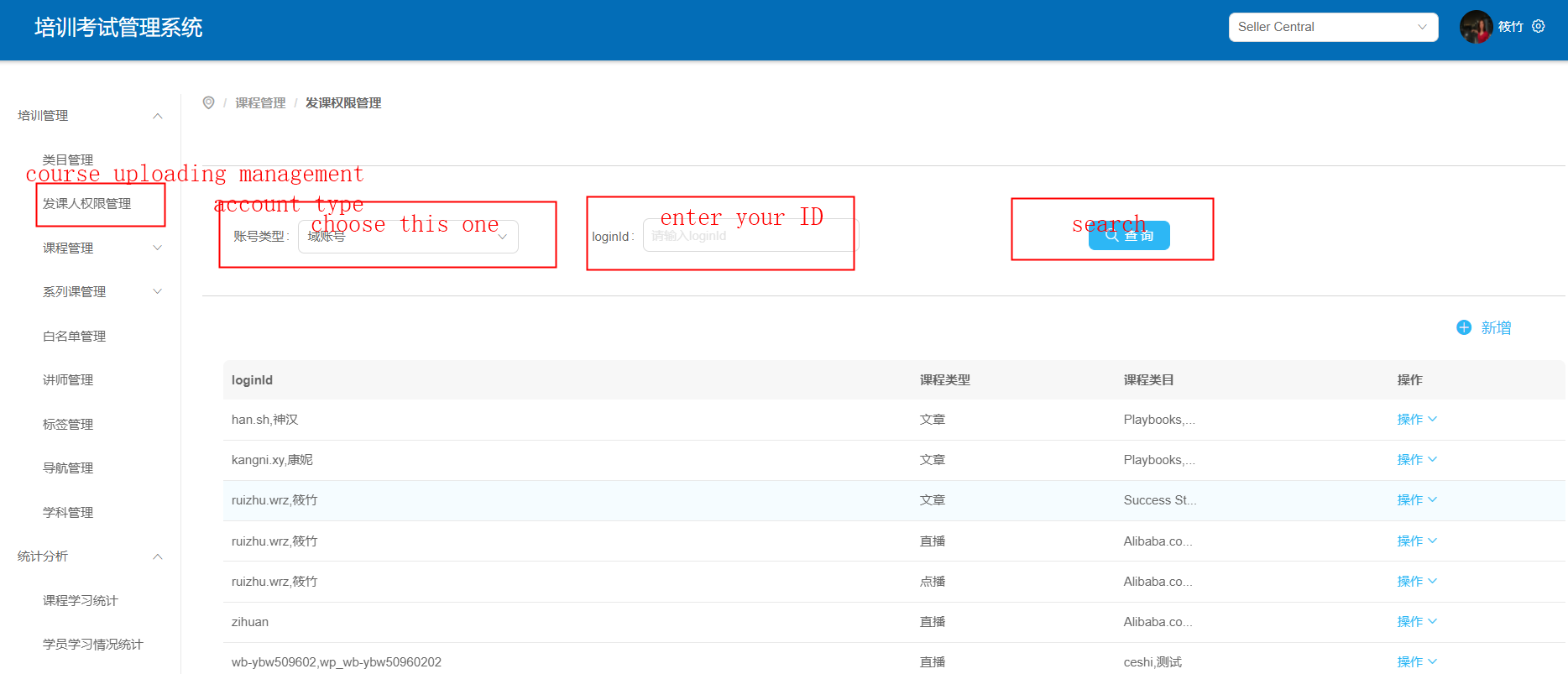
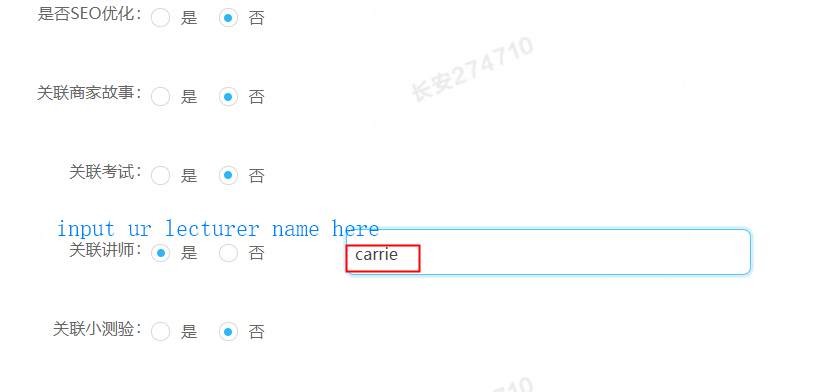
2. input lecturer information
if you would like to show the lecturers on the webinar pages like this, you need to input lecturer information first: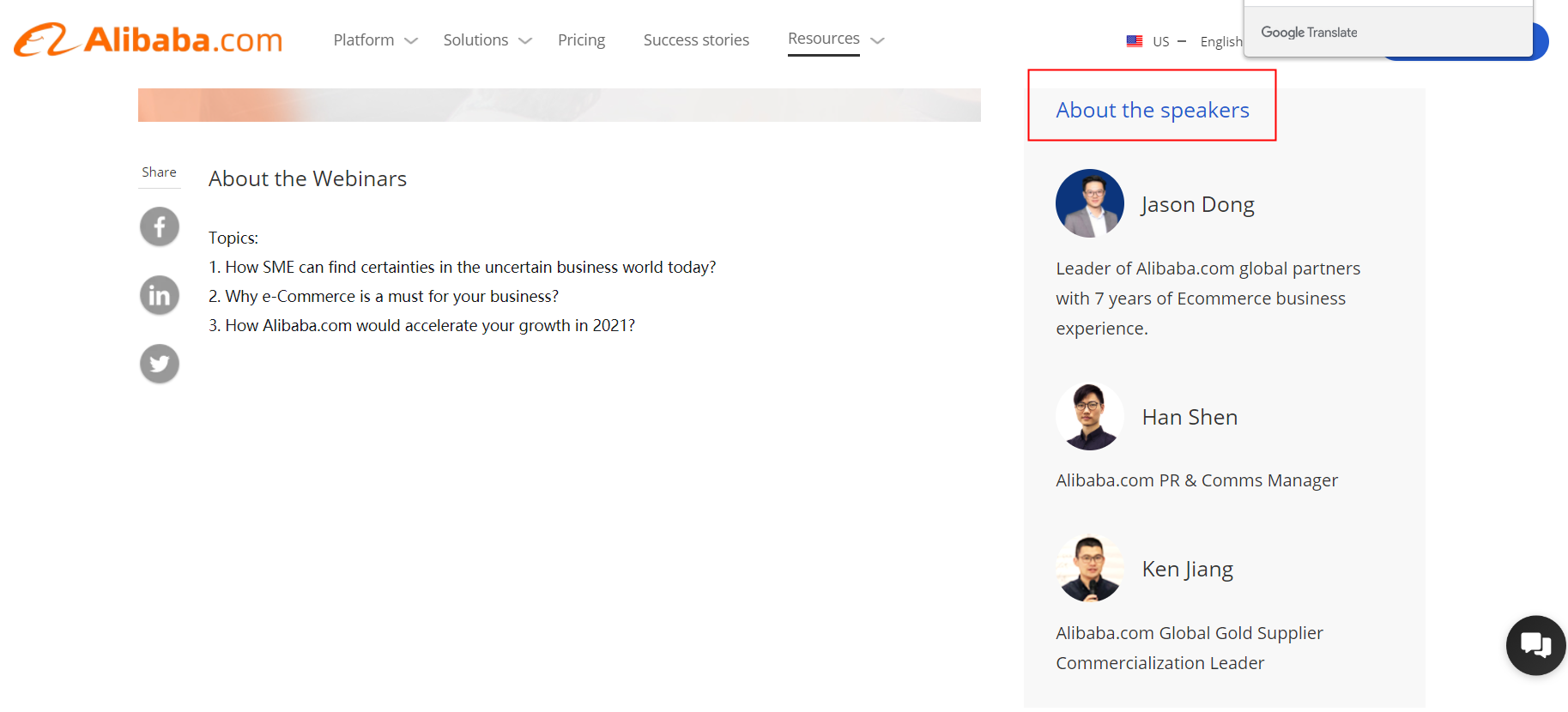
to input new lecturers: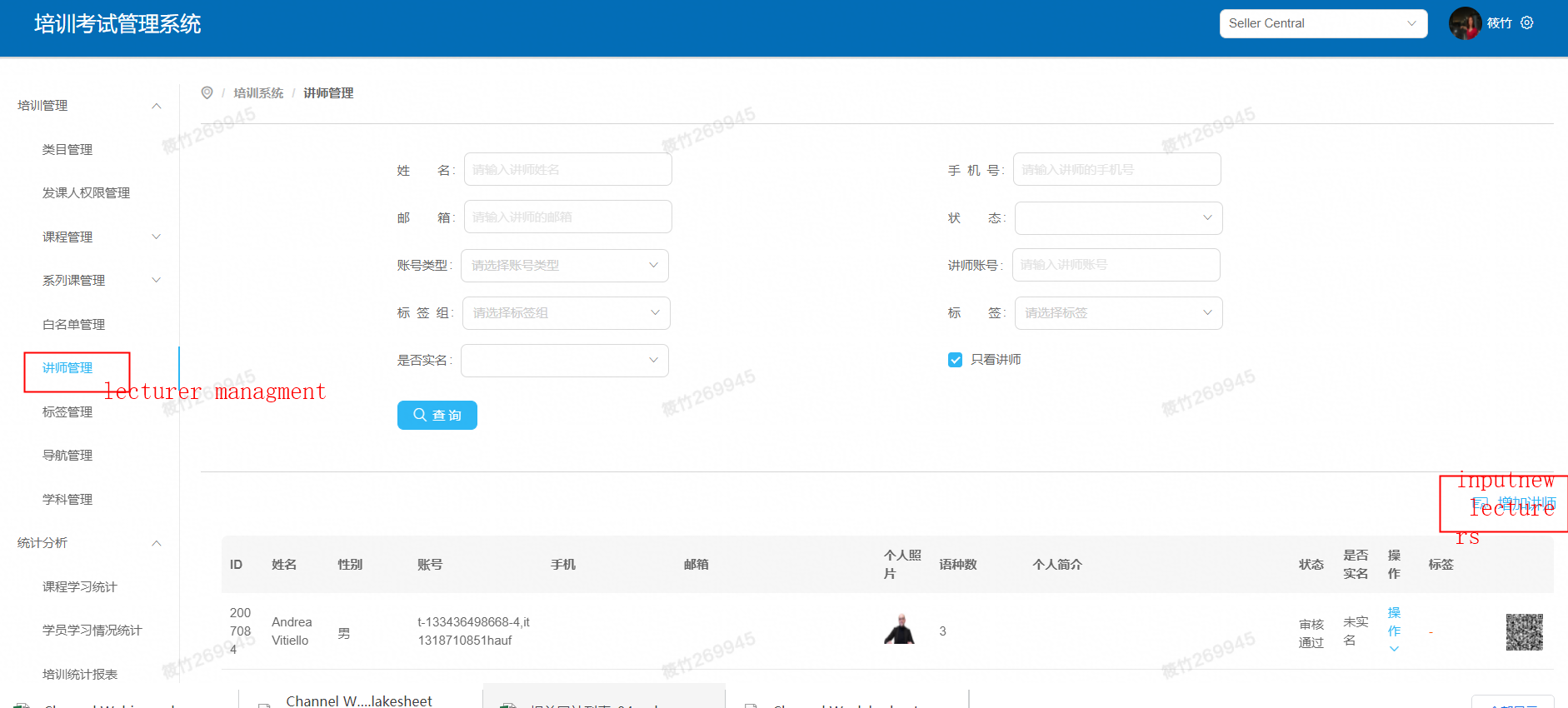
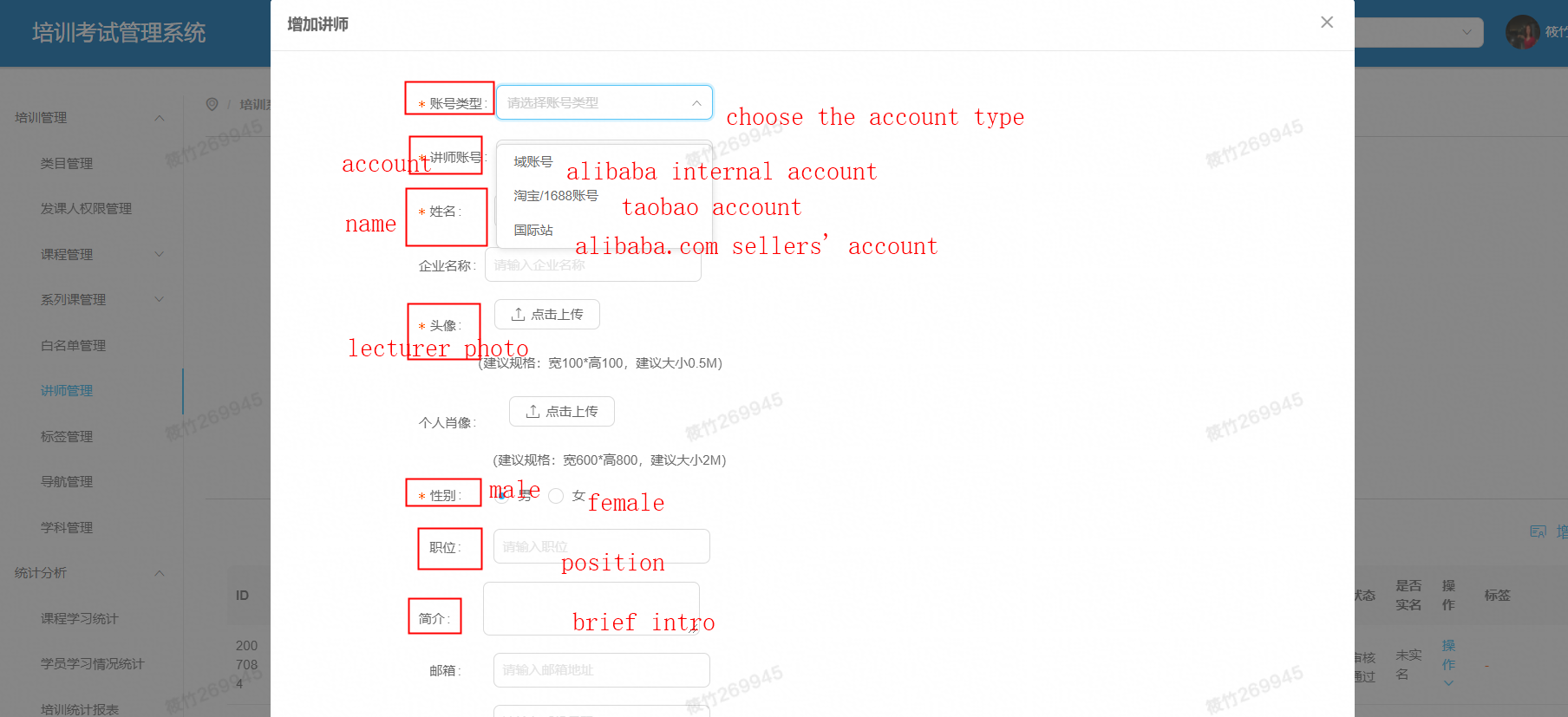
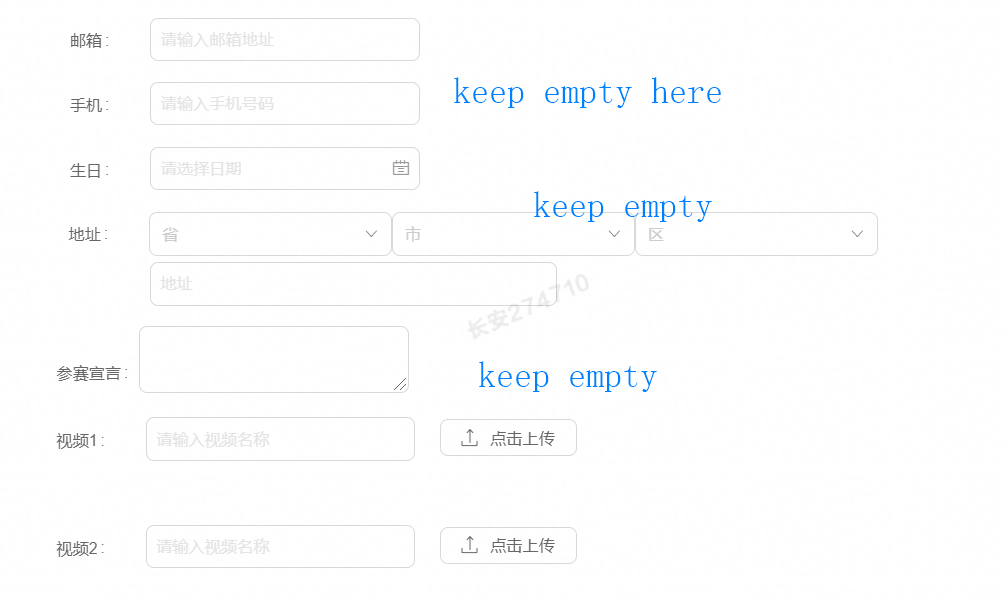
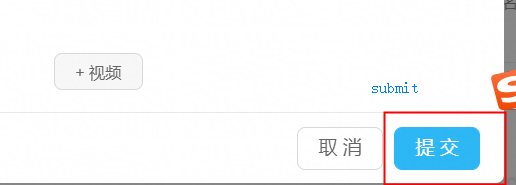
3. input the webinar information
To input a new live webinar:
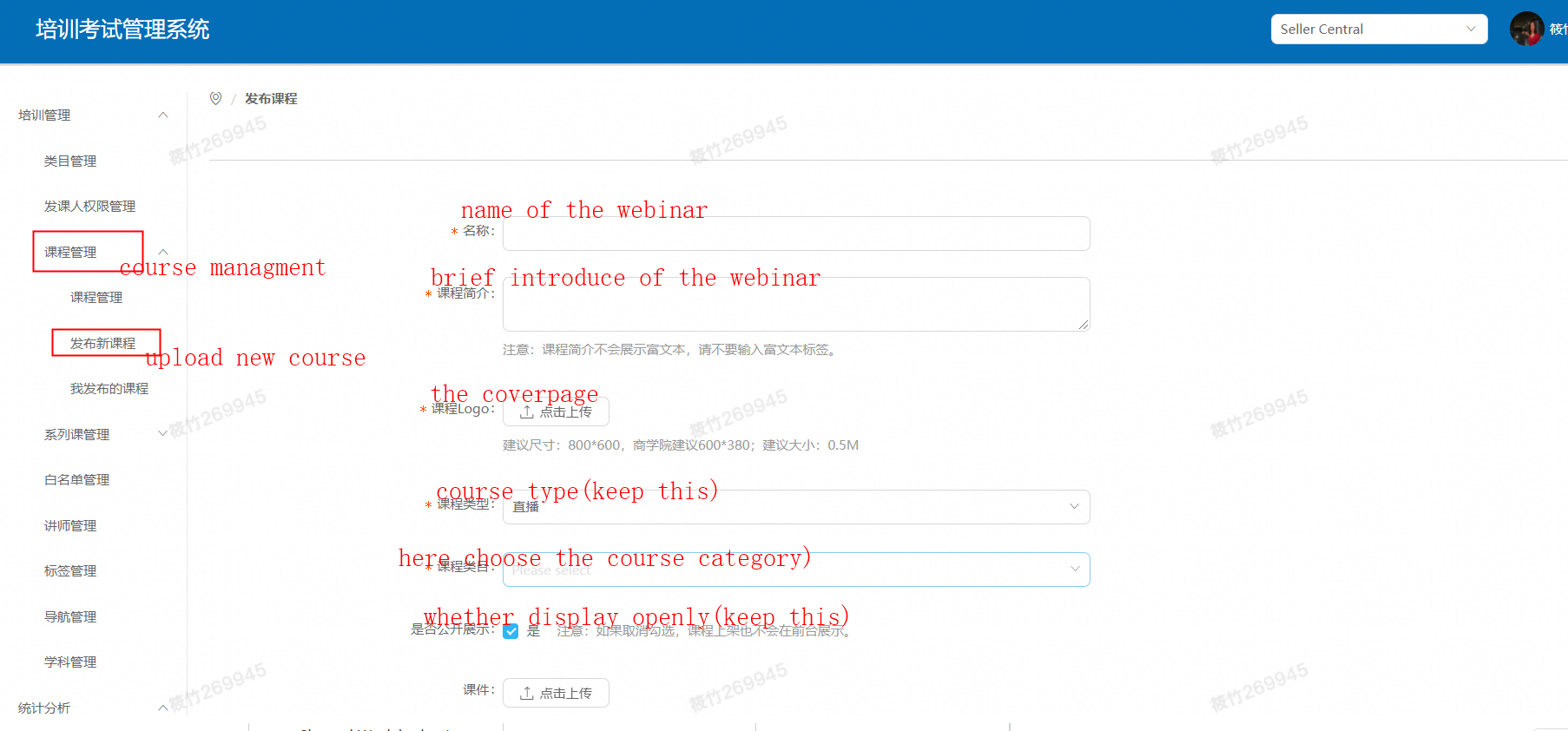
for live time, just choose the time in your own time zone will be fine, as the system will automatically show the time according to different time zones where the IP is in



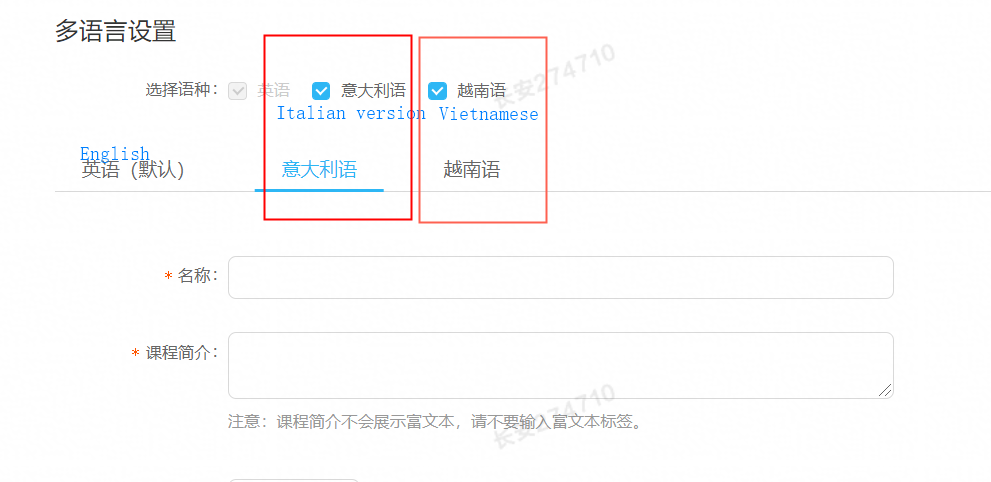
4. input Vietnamese and Italian version(if needed)
For Italy and Vietnam team, MUST input Vietnamese and Italian version!!!

5. Approval Process:approve and finally online the webinar
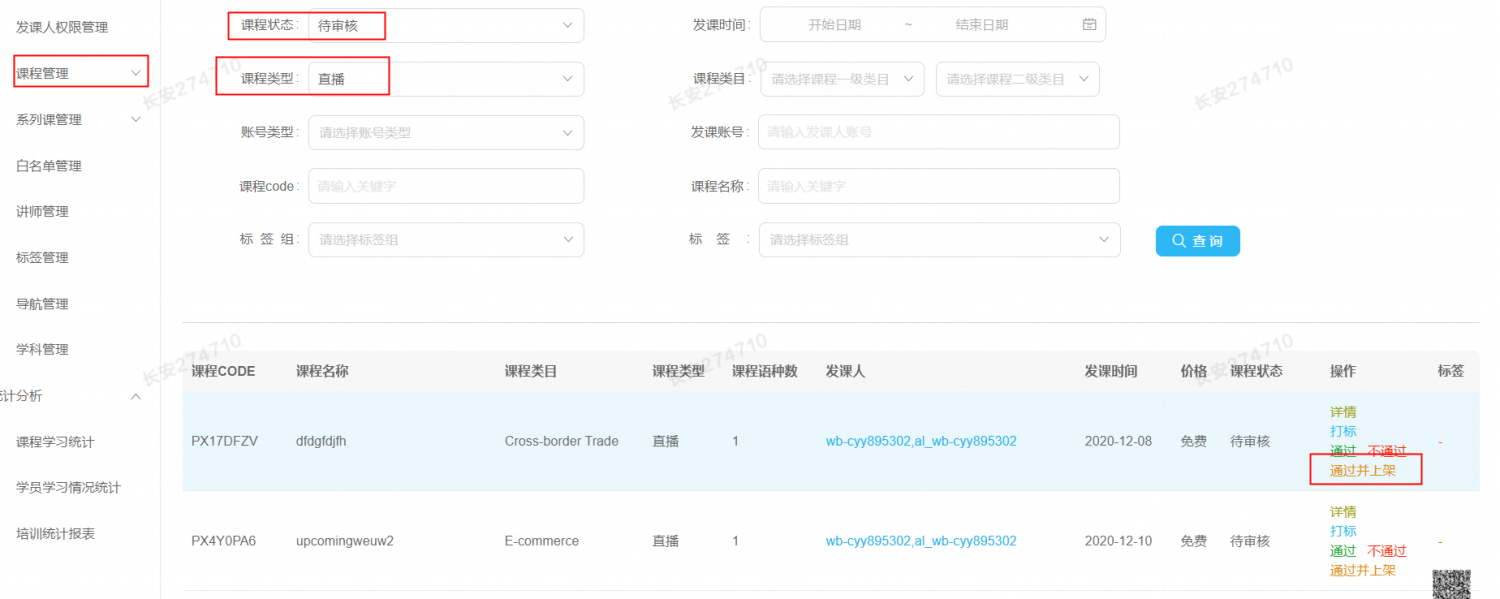
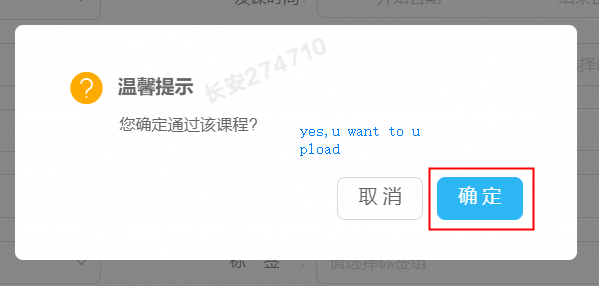

and then you can find ur webinar on detailed page: https://seller.alibaba.com/webinars
6. Offline the webinar
when you would like to upload the replay link, or to edit your webinar, you need to offline it first:
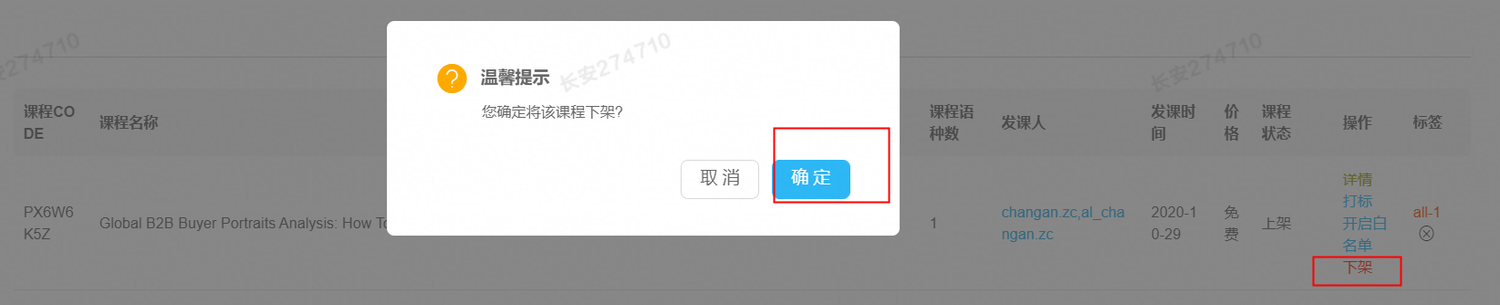
7.Edit the webinar details + Add the replay link
the first thing you need to do is to offline the webinar just follow step 6 and then:
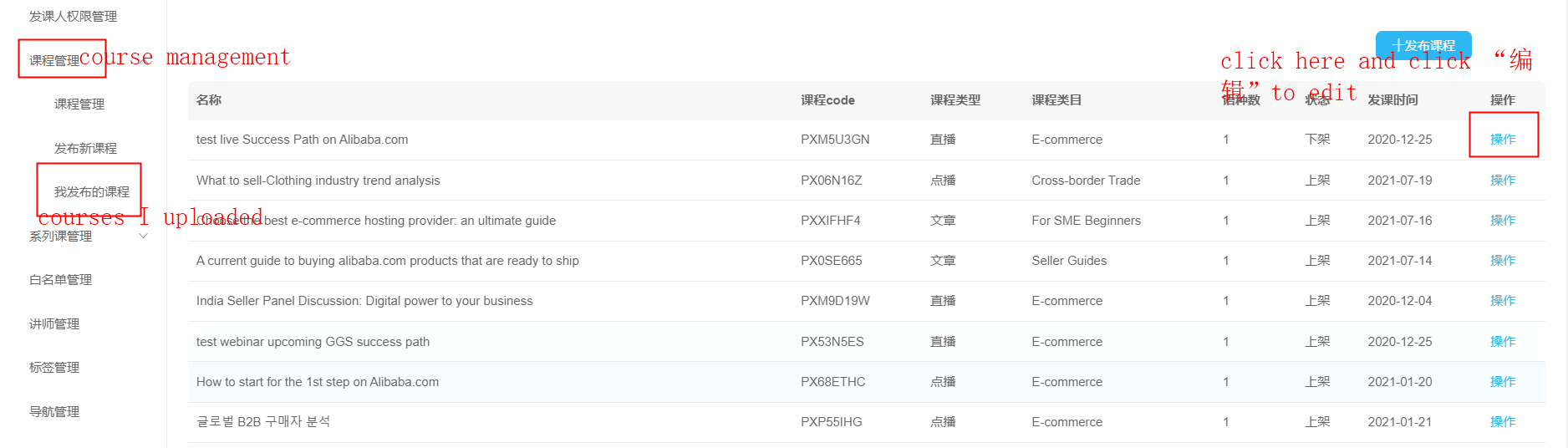
and then, put your reply link here:


the last step: approve and finally online the webinar again, you can follow step 5
——————————————————————————————————————————-
以上权限申请完毕后,进入培训后台:https://phoenix.alibaba-inc.com/
1.点击【发课人权限管理】
2.点击【新增】
3.填写:
· 账号类型:域账号
· login id:邮箱域名 例如 changan.zc
· 课程类型:直播
· 课程类目:Webinars (如果选错则直播活动无法展示到对应页面)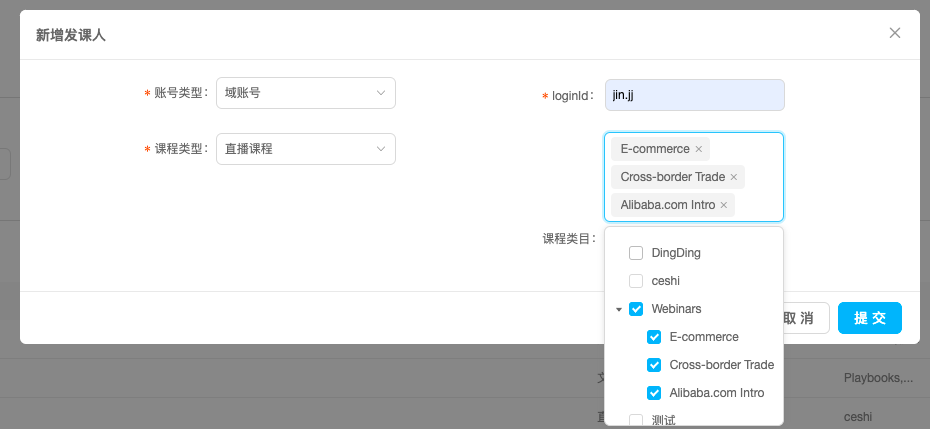
4.点击【课程管理】-【发布新课程】
| 字段 | 填写说明 | 是否会在页面前端透传用户 |
|---|---|---|
| 名称 | 不能发布已有的活动名称,否则发布活动后不能上架(目前无提示,之后会新增功能,提示用户) | 是 |
| 课程简介 | 是 | |
| 课程logo | 请注意图片尺寸 | 是 |
| 课程类型 | 【直播】 | 否 |
| 课程类目 | 【Webinars】下选择直播活动对应的类目 | 否 |
| 直播时间 | 是 | |
| 选择时区 | 本地时区,例如越南UTC+7 | 是 |
| 选择大区 | 影响Leads分发的兜底逻辑,例如越南活动则填写Alibaba Vietnam | 否 |
| 课程详情 | 填写的内容会前后台完全一致展示,注意格式 | 是 |
| 关联三方直播 | 1. Zoom (1)需要提前在Zoom Webinar后台生成Zoom链接,然后将Zoom Link粘贴到“直播链接”, (2)回放链接暂时为空,无需填写;待后续Zoom直播结束后,将回放链接填写补填即可; Zoom直播生成教程+回放链接获取方法点击这里V1.0》) 2. 上直播-无需任何内容填写 |
|
| 关联讲师* | 若无法搜索到讲师,请进入左侧【讲师管理】- 【新增讲师】 | 是 |
*关联讲师:讲师管理 - 新增讲师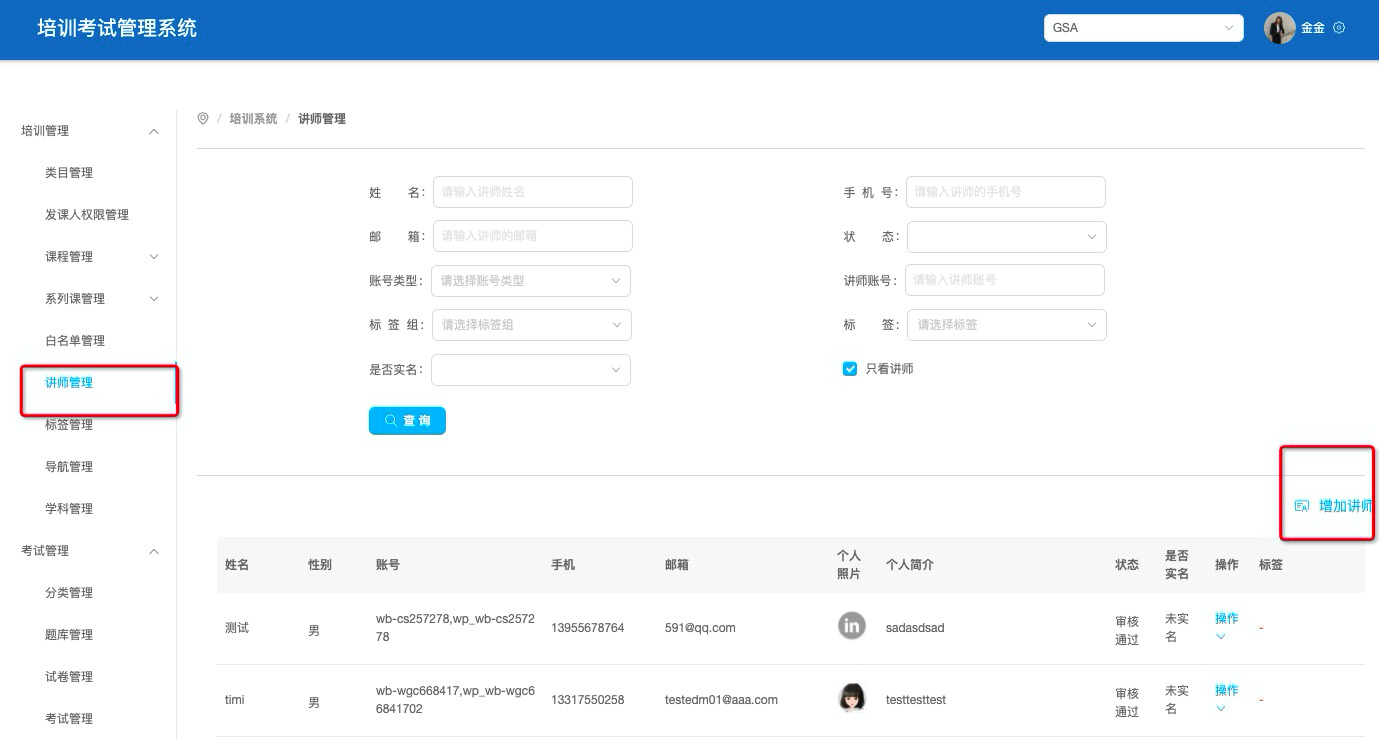
填写完必填字段后,点击【提交】
三、上架直播活动
【课程管理】-【课程管理】,在【课程名称】输入课程名称,进行搜索
在【课程状态】待审核的该条课程上,点击【通过并上架】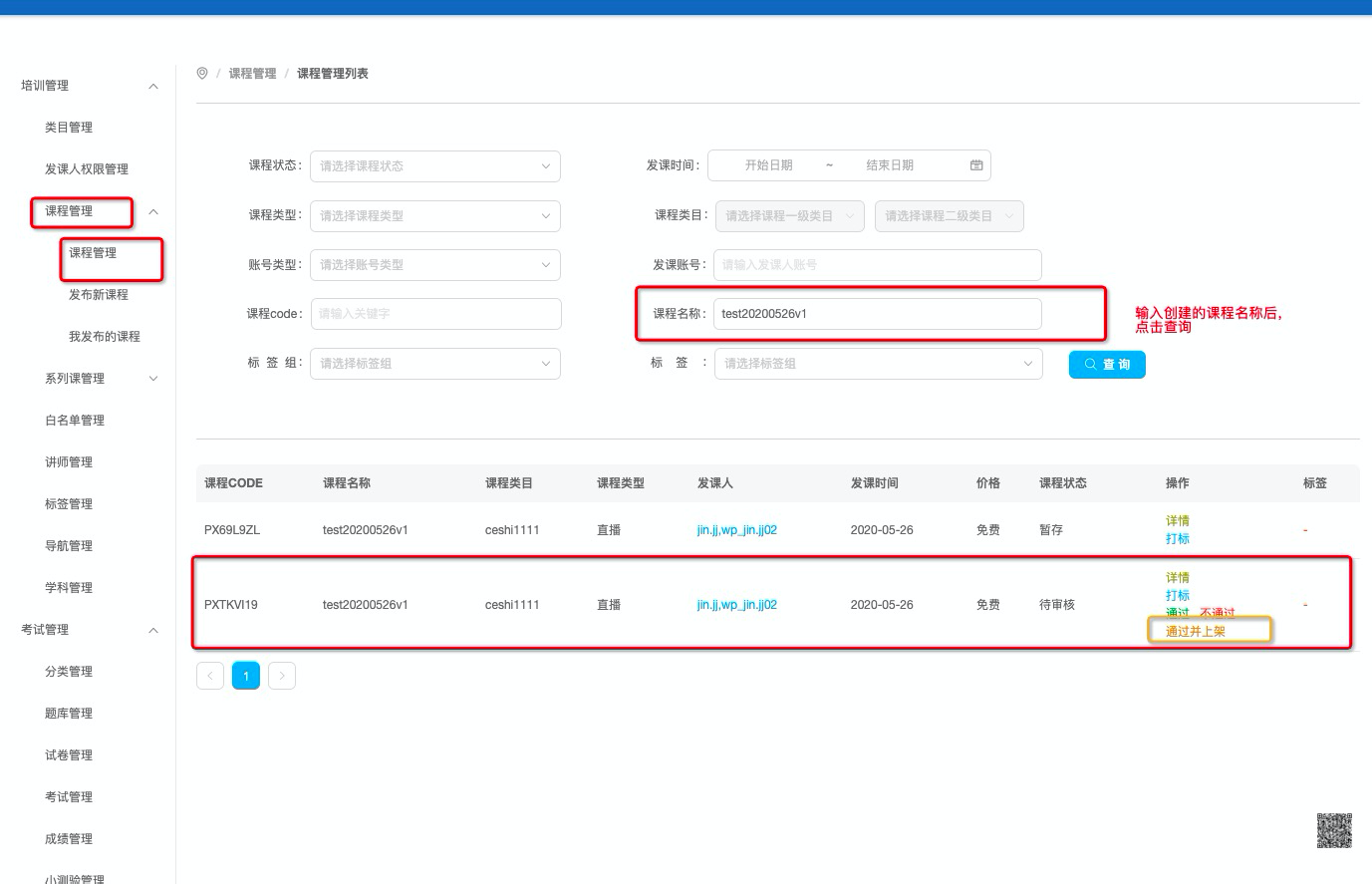
上架后,可在【课程管理】-【我发布的课程】中,查看上架的活动
点击【详情】,可看到创建活动详情页
点击【下架】,可修改活动信息(若要修改活动,必须先下架,上架活动不支持修改)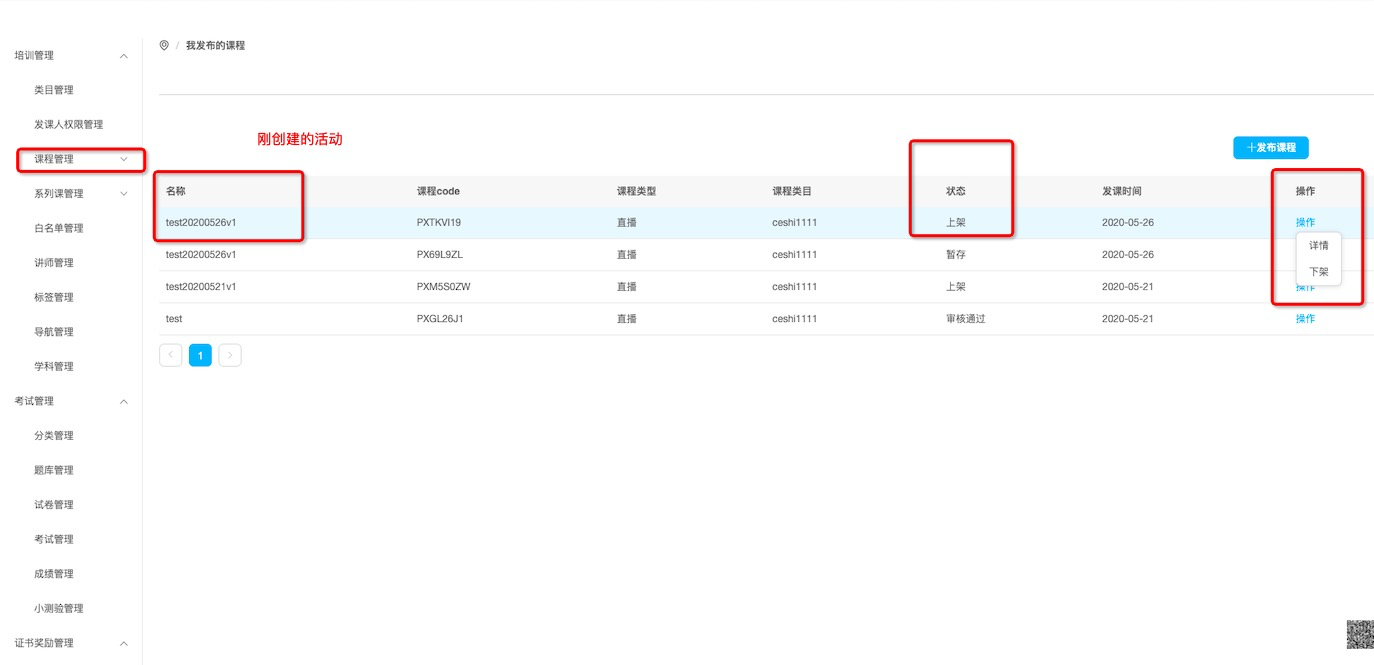
操作流程video
(注:6月中会有直播相关页面迭代,因此视频内容将会有调整,本视频仅基于目前已有版本进行录制)
GGS招商侧直播活动创建.mp4
四、zoom和上直播后台操作指导
you may find how to create a webinar and record it in zoom here: https://www.yuque.com/docs/share/f82e4e1e-bbf5-478c-b234-46d102385fb0?# 《Zoom Webinar 创建流程(联动培训后台)V1.0》
you may find how to upload a video to shangzhibo here: https://www.yuque.com/docs/share/c8d2151a-44da-4944-98b1-90d423a8dc6f?# 《上直播 webinar视频创建流程》

若有收获,就点个赞吧
0 人点赞


