一、目标及背景
1.目标和内容
1、能够描述项目流程
2、能够了解PV、QPS、DAU等参数
3、能够实现服务器基本环境配置
4、能够部署配置MySQL生产环境
5、能够部署配置Nginx生产环境
6、能够部署配置PHP生产环境
7、能够理解PHP-FPM和Nginx关联关系
8、能够配置Nginx关联到PHP-FPM
2.企业架构分布式集群解决方案
集群:多台服务器在一起作同样的事 。 分布式 :多台服务器在一起作不同的事 。分布式集群也就是微服务 耦合性性低(解耦)
最终的架构图示:
实现负载均衡LB、高可用HA、数据库主从复制M-S、读写分离R-W、缓存中间件[memcached、Redis] nosql[mongodb]·······
3.业务背景
年份:2008-2010 发布产品类型:互联网动态站点 社区论坛 商城 社交类站点 户数量: 100-500 PV : 1000-3000(24小时访问次数总和 8小时) 页面访问数量 点击量 QPS: 5-10(每秒访问查询次数) 并发量 吞吐量 TPS(每秒请求当中事务的次数) RPS(请求每秒的次数) DAU: 10-50(每日活跃用户数) 日活数 根据用户登录等方式 QPS 两种方法: ①计算 pv/时间 = qps
②压测 使用ab等并发测试软件 在规定时间发送一定的请求数量
二、服务器基本环境部署
1、安装一台虚拟机,centos7.6操作系统
2、网络配置
3、机器名FQDN设置
4、DNS解析设置 本地Hosts解析
5、各类防火墙暂时关闭
6、配置需要的yum环境及其源地址
7、vim安装配置
8、网络校时 ntpd
①安装操作系统
使用VMware Workstation安装Centos7系统,超详细(图文详解)
②FQDN设置(重要)
在集群中配置FQDN,有助于进行区分主机身份。
FQDN:(Fully Qualified Domain Name)全限定域名:同时带有主机名和域名的名称。(通过符号“.”)
例如:主机名是bigserver,域名是mycompany.com,那么FQDN就是bigserver.mycompany.com。
全限定域名可以从逻辑上准确地表示出主机在什么地方,也可以说全域名是主机名的一种完全表示形式。
从全限定域名中包含的信息可以看出主机在域名树中的位置。DNS解析流程:首先查找本机HOSTS表,有的直接使用表中定义,没有查找网络连接中设置的DNS 服务器由他来解析。
当我们申请了一个域名时,就可以使用这个域名来得到IP,但若这个域名下挂在很多主机如何?我是不是得申请很多很多域名给每个主机?不需要,域名即创建了一个域,就如命名空间,在这个命名空间下,其他主机都可以创建自己的名称。这个名称就是通过以上公式得来。 举个例子,一个公司申请了域名comp.com,这时候有一台主机名为web,则可以使用web.comp.com得到这个主机IP。若还有两台提供邮件和OA服务的主机cmail,oa,则这时候可以用以下FQDN: cmail.comp.com oa.comp.com
# hostname -hProgram options:-a, --alias alias names-A, --all-fqdns all long host names (FQDNs)-b, --boot set default hostname if none available-d, --domain DNS domain name-f, --fqdn, --long long host name (FQDN)-F, --file read host name or NIS domain name from given file-i, --ip-address addresses for the host name-I, --all-ip-addresses all addresses for the host-s, --short short host name-y, --yp, --nis NIS/YP domain name[root@localhost ~]# hostname -alocalhost.localdomain localhost4 localhost4.localdomain4 localhost.localdomain localhost6 localhost6.localdomain6[root@localhost ~]# hostname -Alocalhost.localdomain[root@localhost ~]# hostname -d[root@localhost ~]# hostname -flocalhost[root@localhost ~]# hostname -f[root@localhost ~]# hostname -i192.168.1.100
修改主机名和主机解析:
- centos6
①添加修改/etc/hosts
shell > vim /etc/hosts
#在文件里追加一行
192.168.0.110 server01.lnmp.com server01 server01
②网卡配置/etc/sysconfig/network
- 临时修改
[root@centos6 ~]# hostname server01.lnmp.com

- 永久修改
[root@centos6 ~]# vim /etc/sysconfig/network
#修改HOSTNAME的值为server01
HOSTNAME=server01

[root@centos6 ~]# hostname
# 查看当前的hostnmae
centos6.magedu.com
# 编辑network文件修改hostname行(重启生效)
[root@centos6 ~]# vim /etc/sysconfig/network
[root@centos6 ~]# cat /etc/sysconfig/network                            # 检查修改
NETWORKING=yes
HOSTNAME=centos66.magedu.com
[root@centos6 ~]# service network restart
- centos7
①添加修改/etc/hosts
hosts文件可以配置主机ip与对应的主机名。
hosts文件格式:ip地址 主机名/域名 (主机别名)
shell > vim /etc/hosts
#在文件里追加一行
192.168.0.110 server01.lnmp.com server01

[root@localhost ~]# echo "192.168.0.110 server01.lnmp.com server01" >> /etc/hosts
[root@localhost ~]# cat /etc/hosts
192.168.0.110 server01.lnmp.com server01
②修改主机名
- 永久修改
修改的是/etc/hostname 文件,通过hostname 或者 uname -a 查看
[root@localhost ~]# hostnamectl set-hostname server01.lnmp.com
[root@localhost ~]# cat /etc/hostname
server01.lnmp.com
[root@localhost ~]# exec bash
[root@server01 ~]#

- 临时修改
[root@centos7 ~]$ hostname 主机名
#若要立即生效可以使用exec bash
[root@centos7 ~]# exec bash

显示主机IP:
[root@server01 ~]# hostname -i
192.168.0.110
[root@server01 ~]# hostname -a
server01
[root@server01 ~]# hostname -A
server01.lnmp.com
③网络配置
配置静态IP
[root@server01 ~]# cat /etc/sysconfig/network-scripts/ifcfg-ens33
TYPE="Ethernet"
BOOTPROTO="static"
NAME="ens33"
DEVICE="ens33"
ONBOOT="yes"
IPADDR=192.168.0.110
NETMASK=255.255.255.0   #也可以PREFIX=24
GATEWAY=192.168.0.1
DNS1=8.8.8.8
DNS2=114.114.114.144
[root@server01 ~]# systemctl restart network
④Hosts主机解析
看③
⑤关闭防火墙和selinux
- centos6
## 临时关闭:
shell>  service iptables stop
## 永久关闭:
shell>  chkconfig --list|grep iptables
iptables 0:off  1:off  2:on  3:on  4:on  5:on  6:off
shell>  chkconfig iptables off
## 开机自动关闭

## 关闭selinux:
shell> getenforce  查看状态
Enforcing
shell> setatus     查看状态
shell> setenforce
usage: setenforce [ Enforcing | Permissive | 1 | 0 ]
shell> setenforce 0  临时变成警告模式
shell> getenforce
Permissive

##永久关闭
shell> cat /etc/selinux/config
...
SELINUX=disabled  //关闭selinux,下次开机生效
...
- centos7
查看防火墙状态
[root@server01 ~]# firewall-cmd --state
running
[root@server01 ~]# systemctl status firewalld.service

## 临时关闭:
systemctl status/stop/restart firewalld.service  防火墙状态
[root@server01 ~]# systemctl stop firewalld.service
#临时关闭
## 永久关闭:

[root@server01 ~]# systemctl list-unit-files |grep firewalld
firewalld.service                             enabled
防火墙开机启动/关闭 : systemctl disable/enable firewalld.service
[root@server01 ~]# systemctl disable firewalld.service
Removed symlink /etc/systemd/system/multi-user.target.wants/firewalld.service.
Removed symlink /etc/systemd/system/dbus-org.fedoraproject.FirewallD1.service.
[root@server01 ~]# systemctl list-unit-files |grep firewalld
firewalld.service                             disabled


## 关闭selinux:
shell> getenforce  查看状态
Enforcing
shell> setatus     查看状态
shell> setenforce
usage: setenforce [ Enforcing | Permissive | 1 | 0 ]
shell> setenforce 0  临时变成警告模式
shell> getenforce
Permissive

##永久关闭
shell> cat /etc/selinux/config
...
SELINUX=disabled  //关闭selinux,下次开机生效

#修改配置文件  永久关闭  vi /etc/selinux/config
shell > sed -i "s/SELINUX=enforcing/SELINUX=disabled/" /etc/selinux/config;
⑥yum 源配置
- 配置yum本地光盘源
#建立光盘挂载目录文件夹
shell > mkdir /dvd1 /dvd2
#手动挂载光盘 顺便调整光盘顺序
shell > mount /dev/sr0 /dvd2
shell > mount /dev/sr1 /dvd1
#lsblk查看是否挂载成功
#添加到开启加载脚本  开机自动挂载光盘
shell > echo "mount /dev/sr0 /dvd2" >> /etc/rc.local
shell > echo "mount /dev/sr1 /dvd1" >> /etc/rc.local

# chmod +x /etc/rc.local  centos7 中需要执行
# echo 'mount -o ro /dev/sr0 /mnt' >> /etc/rc.local


shell > cd /etc/yum.repos.d
shell > mkdir bak
#移动默认源 备份并使其失效
shell > mv ./* ./bak
#按照挂载光盘位置,配置光盘源
把光盘挂载到一个目录/mnt下,然后进入/etc/yum.reps.d/目录下,创建一个以 .repo结尾的文件,内容如下:(此文件为最简写法)

# vim local.repo
[local]
name=local yum
baseurl=file:///mnt
gpgcheck=0
enabled=1
格式:
yum仓库的标准格式
[仓库标识名称],名称任意,在一个文件中可以拥有多个标识
name=仓库名称
baseurl=仓库的路径,支持多种格式,file://本地路径,ftp://,http://或https://
gpgcheck=gpg密钥,值可以是0(代表不检测),1(代表检测,如果是1,下方还要定义一个gpgkey=密钥连接)
enabled=是否启动当前仓库,值可以0,也可以是1,默认为1,代表启动仓库

# yum clean all  清空本地的yum源缓存
# yum makecache   重新生成元数据

# yum repolist all 查看所有的yum源:
查看可用的yum源:
# yum repolist enabled
注:file://本地协议路径,后面跟仓库的具体路径
https://blog.csdn.net/weixin_46362786/article/details/104469557 开机挂载mount etc/fstab与/etc/rc.d/rc.local区别差不多,差别就是如果你有程序依赖于NFS的话还是的放到etc/fstab比较好。程序启动先加载/etc/fastab文件。 放fstab里面会在程序启动前加载上NFS文件系统,放到rc.local里往往造成程序启动加载时找不到路径
- 配置网络源:
https://mirrors.cloud.tencent.com/help/centos.html 腾讯
https://mirrors.tuna.tsinghua.edu.cn/help/centos/ 清华源
https://mirrors.163.com/.help/centos.html 网易
# yum install wget -y
# mv /etc/yum.repos.d/CentOS-Base.repo /etc/yum.repos.d/CentOS-Base.repo.backup
# wget -O /etc/yum.repos.d/CentOS-Base.repo http://mirrors.cloud.tencent.com/repo/centos7_base.repo

wget -O  下载重命名
# yum clean all
# yum makecache
- epel源
# mv /etc/yum.repos.d/epel.repo /etc/yum.repos.d/epel.repo.backup
# wget -O /etc/yum.repos.d/epel.repo http://mirrors.cloud.tencent.com/repo/epel-7.repo
https://mirrors.cloud.tencent.com/help/epel.html 腾讯
https://mirrors.tuna.tsinghua.edu.cn/help/epel/ 清华源
⑦vim配置
# yum install bash-completion vim net-tools ntpdate -y

①yum 安装vim配置显示行号
shell > yum -y install vim
#配置vim默认显示行号
shell > echo "set nu" >> /root/.vimrc

[root@server01 ~]# vim ~/.vimrc
[root@server01 ~]# cat ~/.vimrc
syntax on    语法高亮(syntax off)
set nu       设置显示行号(set nonu)

②grep搜索关键字高亮显示(centos 7中不用配置)
#搜索关键字高亮
shell > sed -i "8calias grep='grep --color'" /root/.bashrc
#当前窗口重新加载配置
shell > source /root/.bashrc

[root@server01 ~]# ps aux |grep ssh    centos 7中默认就是高亮
⑧时间校对
- 手动同步:
推荐您使用域名,而非IP地址,以免出现IP地址变动影响使用的情况!
# ntpdate NTP服务器的IP地址或域名
# ntpdate 120.25.108.11
# ntpdate cn.ntp.org.cn
- 自动同步
-- centos6
#安装校时命令和服务
shell > yum -y install ntp
#开启ntpd服务
shell > service ntpd start
#开机自启ntpd
shell > chkconfig ntpd on
ntpd(默认的ntpd 校时服务万一连不上网可以替换成第三方的)
还可以用ntpdata

-- centos7
ntpd服务配置文件位置  /etc/ntp.conf
yum -y install ntp
① 启动ntpd服务
# yum -y install ntp
# systemctl start ntpd
② 把ntpd服务追加到系统开机启动项中
# systemctl enable ntpd
# systemctl status ntpd
⑨配置脚本
-- centos6.9配置脚本

#!/bin/bash
if [ ! $1 ];then
  hostname='server01'
else
  hostname=$1
fi
if [ ! $2 ];then
  domain='server01.lnmp.com'
else
  domain=$2
fi
#设置主机名称
sed -i "s/localhost.localdomain/$hostname/" /etc/sysconfig/network;
#解析
echo "192.168.17.102   $hostname $domain" >> /etc/hosts;
#关闭防火墙
#iptables
service iptables stop >> /dev/null
chkconfig iptables off
#关闭selinux
setenforce 0 &>>/dev/null
sed -i "s/SELINUX=enforcing/SELINUX=disabled/" /etc/selinux/config;
#yum源配置
if [[ ! -d /dvd1 ]] && [[ ! -d /dvd2 ]];then
   mkdir /dvd1 /dvd2
fi
#挂载一下顺序 dvd1为4.2G dvd2 1.2G
mount /dev/sr0 /dvd2 &>> /dev/null
mount /dev/sr1 /dvd1 &>> /dev/null
#开机自动挂载
echo 'mount /dev/sr0 /dvd2' >> /etc/rc.local
echo 'mount /dev/sr1 /dvd1' >> /etc/rc.local
#备份原来的源
cd /etc/yum.repos.d
if [ ! -d /etc/yum.repos.d/bak ];then
   mkdir bak
fi
mv ./* ./bak &>>/dev/null
#配置本地源
cp /root/local.repo ./
yum makecache &>>/dev/null
#安装vim
yum -y install vim
#行号
echo "set nu" >> /root/.vimrc
#搜索关键字高亮
sed -i "8calias grep='grep --color'" /root/.bashrc
#ntpd服务 时间校时
yum install -y ntp
chkconfig ntpd on
三、企业服务器LNMP环境搭建
在企业中搭建实际业务环境时,一般依赖文件(小文件)使用yum安装解决,生产业务环境需要使用源码编译的方式进行安装。
源码编译预估时间: Mysql 852s≈15m Nginx 27s≈1m PHP 564s≈10m
1、MySQL
1.1、相关参数介绍
https://dev.mysql.com/downloads/mysql/
编译参数的说明
| -DCMAKE_INSTALL_PREFIX | 安装到的软件目录 |
|---|---|
| -DMYSQL_DATADIR | 数据文件存储的路径 |
| -DSYSCONFDIR | 配置文件路径 (my.cnf) |
| -DENABLED_LOCAL_INFILE=1 | 使用localmysql客户端的配置 |
| -DWITH_PARTITION_STORAGE_ENGINE | 使mysql支持分表 |
| -DEXTRA_CHARSETS | 安装支持的字符集 |
| -DDEFAULT_CHARSET | 默认字符集使用 这里配置为utf8mb4 |
| -DDEFAULT_COLLATION | 连接字符集 |
| -DWITH_SSL | 开启mysql的ssl使用 |
初始化参数说明
| —basedir | 安装到的软件目录 |
|---|---|
| —datadir | 数据文件存储路径 |
| —user | mysql使用的用户 |
mysql 安装
#1、创建用户
[root@server01 ~]# useradd -s /sbin/nologin -M mysql

-r  建立系统帐号
-M  不要自动建立用户的登入目录。
-s<shell>   指定用户登入后所使用的shell。

#2、解决依赖
[root@server01 ~]# yum install -y cmake
[root@server01 ~]# yum install -y ncurses-devel

#3、编译安装
[root@server01 ~]# cd /root/soft 上传目录
[root@server01 ~]# tar -zxvf mysql-5.6.33.tar.gz
[root@server01 ~]# cd mysql-5.6.33
[root@server01 ~]# cmake \
-DCMAKE_INSTALL_PREFIX=/usr/local/mysql \
-DMYSQL_DATADIR=/usr/local/mysql/data \
-DSYSCONFDIR=/etc \
-DENABLED_LOCAL_INFILE=1 \
-DWITH_PARTITION_STORAGE_ENGINE=1 \
-DEXTRA_CHARSETS=all \
-DDEFAULT_CHARSET=utf8mb4 \
-DDEFAULT_COLLATION=utf8mb4_general_ci \ 注意有空格
-DWITH_SSL=bundled
编译过程如果出错
[root@server01 ~]# rm -f CMakeCache.tx

[root@server01 ~]# make && make install
#4、配置文件
[root@server01 ~]# rm -rf /etc/my.cnf
[root@server01 ~]# cp /usr/local/mysql/support-files/my-default.cnf /etc/my.cnf

#5、授权并初始化数据库
[root@server01 ~]# chown -R mysql:mysql /usr/local/mysql
[root@server01 ~]# /usr/local/mysql/scripts/mysql_install_db --basedir=/usr/local/mysql --datadir=/usr/local/mysql/data --user=mysql

#6、配置服务、自启动和环境变量
[root@server01 ~]# cp /usr/local/mysql/support-files/mysql.server /etc/init.d/mysqld
[root@server01 ~]# service mysqld start
[root@server01 ~]# chkconfig --add mysqld
[root@server01 ~]# echo 'PATH=/usr/local/mysql/bin:$PATH' >> /etc/profile
#7、初始化root密码 删除匿名用户
#导入环境变量PATH
# vim /etc/profile
在/etc/profile最后面加
export PATH=$PATH:/usr/local/mysql/bin
# source /etc/profile  #立即生效
或
[root@server01 ~]# export PATH=/usr/local/mysql/bin:$PATH
[root@server01 ~]# mysql_secure_installation
[root@server01 ~]# mysql -V
[root@server01 ~]# mysql --version

[root@server01 ~]# servier mysql start|stop|restart|reload|status
1.2、脚本实现安装及其初始化
[root@server01 ~]# vim mysql_install.sh
[root@server01 ~]# sh mysql_install.sh
[root@server01 ~]# source mysql_install.sh
[root@server01 ~]# source /etc/profile
#!/bin/bash
#源码编译安装MySQL
mysql_install() {
    #1、创建用户
`id mysql` &>/dev/null
[ $? -ne 0 ] && useradd -s /sbin/nologin -M mysql
#2、解决依赖
yum install -y cmake
yum install -y ncurses-devel
#3、编译安装
cd /root/soft
tar zxvf mysql-5.6.33.tar.gz
cd mysql-5.6.33
cmake \
-DCMAKE_INSTALL_PREFIX=/usr/local/mysql \
-DMYSQL_DATADIR=/usr/local/mysql/data \
-DSYSCONFDIR=/etc \
-DENABLED_LOCAL_INFILE=1 \
-DWITH_PARTITION_STORAGE_ENGINE=1 \
-DEXTRA_CHARSETS=all \
-DDEFAULT_CHARSET=utf8mb4 \
-DDEFAULT_COLLATION=utf8mb4_general_ci \  注意有空格
-DWITH_SSL=bundled
make && make install
#配置文件
rm -rf /etc/my.cnf
cp /usr/local/mysql/support-files/my-default.cnf /etc/my.cnf
#授权并初始化数据库
chown -R mysql:mysql /usr/local/mysql
/usr/local/mysql/scripts/mysql_install_db --basedir=/usr/local/mysql --datadir=/usr/local/mysql/data --user=mysql
#配置服务、自启动和环境变量
cp /usr/local/mysql/support-files/mysql.server /etc/init.d/mysqld
service mysqld start
chkconfig --add mysqld
echo 'PATH=/usr/local/mysql/bin:$PATH' >> /etc/profile
#删除匿名用户
#设置root域名的密码
rpm -qa|grep expect
if [ $? -ne 0 ];then
   yum -y install expect
fi
#导入环境变量PATH
export PATH=/usr/local/mysql/bin:$PATH
#初始化root密码 删除匿名用户
echo '#!/usr/bin/expect
set timeout 60
spawn mysql_secure_installation
expect {
"enter for none" { send "\r"; exp_continue}
"Y/n" { send "Y\r" ; exp_continue}
"password" { send "123456\r"; exp_continue}
"Cleaning up" { send "\r"}
}
interact ' > mysql_secure_installation.exp
chmod +x mysql_secure_installation.exp
./mysql_secure_installation.exp
}
#脚本开始时间
start_time=`date +%s`
#执行的脚本代码
mysql_install
#脚本结束时间
end_time=`date +%s`
#脚本执行花费时间
const_time=$((end_time-start_time))
echo 'Take time is: '$const_time's'
2、Nginx
官方网址:http://nginx.org/
2.1、介绍
- 常见用法:
1) web服务器软件 httpd http协议
同类的web服务器软件:apache nginx(俄罗斯) IIS(微软 fastcgi) lighttpd(德国)
2)代理服务器 反向代理
3)邮箱代理服务器 IMAP POP3 SMTP
4)负载均衡功能 LB loadblance - Nginx架构的特点:
①高可靠:稳定性 master进程 管理调度请求分发到哪一个worker=> worker进程 响应请求 一master多worker
②热部署 :(1)平滑升级 (2)可以快速重载配置
③高并发:可以同时响应更多的请求 事件 epoll模型 几万
④响应快:尤其在处理静态文件上,响应速度很快 sendfile
⑤低消耗:cpu和内存 1w个请求 内存2-3MB
⑥分布式支持 :反向代理 七层负载均衡
2.2、安装
https://www.cnblogs.com/weibanggang/p/11484970.html
官方网址:<http://nginx.org/
常见安装方式:
①yum安装配置,需使用Nginx官方源或者EPEL源
http://nginx.org/en/linux_packages.html
②源码编译
http://nginx.org/en/docs/configure.html
问题编译过程中出现问题:

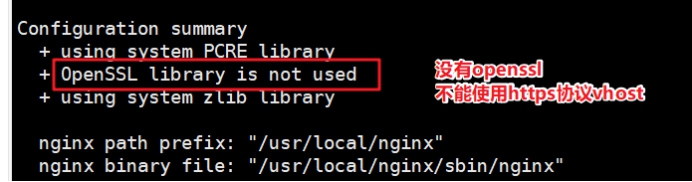
依赖解决
[root@server01 ~]# yum -y install pcre-devel zlib-devel openssl-devel
安装步骤及其脚本
①创建nginx服务用户
[root@server01 ~]# useradd -s /sbin/nologin -M www
[root@server01 ~]# id www
uid=1002(www) gid=1002(www) groups=1002(www)
②安装nginx依赖
[root@server01 ~]# yum -y install pcre-devel zlib-devel openssl-devel
③编译安装
[root@server01 ~]# cd
[root@server01 ~]# tar -zxvf nginx-1.14.2.tar.gz
[root@server01 ~]# cd nginx-1.14.2
[root@server01 ~]# ./configure --prefix=/usr/local/nginx --user=www --group=www --with-http_ssl_module --with-http_stub_status_module --with-http_realip_module
[root@server01 ~]# make && make install

[root@server01 ~]# vim nginx.sh
#!/bin/bash
#编译安装Nginx
nginx_install(){
#创建软件运行用户
`id www` &>>/dev/null
if [ $? -ne 0 ];then
   useradd -s /sbin/nologin -M www
fi
#安装依赖
yum -y install pcre-devel zlib-devel openssl-devel
#编译安装
cd /root/soft
tar xvf nginx-1.14.2.tar.gz
cd nginx-1.14.2
./configure --prefix=/usr/local/nginx --user=www --group=www --with-http_ssl_module --with-http_stub_status_module --with-http_realip_module && make && make install
}
#脚本开始时间
start_time=`date +%s`
#执行的脚本代码
nginx_install
#脚本结束时间
end_time=`date +%s`
#脚本执行花费时间
const_time=$((end_time-start_time))
echo 'Take time is: '$const_time's'


./configure
    --sbin-path=/usr/local/nginx/nginx
    --conf-path=/usr/local/nginx/nginx.conf
    --pid-path=/usr/local/nginx/nginx.pid
    --with-http_ssl_module
    --with-pcre=../pcre-8.44
    --with-zlib=../zlib-1.2.11
编译参数说明
| 参数 | 作用 |
|---|---|
| —prefix | 编译安装到的软件目录 |
| —user | worker进程运行用户 |
| —group | worker进程运行用户组 |
| —with-http_ssl_module | 支持https 需要==pcel-devel==依赖 |
| —with-http_stub_status_module | 基本状态信息显示 查看请求数、连接数等 |
| —with-http_realip_module | 定义客户端地址和端口为header头信息 常用于反向代理后的真实IP获取 |
2.3、目录介绍
查看安装目录/usr/local/nginx
| 目录 | 作用 |
|---|---|
| conf | 配置文件 |
| html | 网站默认目录 |
| logs | 日志 |
| sbin | 可执行文件 [软件的启动 停止 重启等] |
2.4、软件操作参数
查看nginx的二进制可执行文件的相关参数
[root@server01 sbin]#  cd /usr/local/nginx/sbin
[root@server01 sbin]#  ./nginx -h
[root@server01 sbin]#  ./nginx 启动nginx
[root@server01 sbin]#  ss -naltp |grep nginx
执行后显示
nginx version: nginx/1.14.2
Usage: nginx [-?hvVtTq] [-s signal] [-c filename] [-p prefix] [-g directives]

Options:
#查看帮助
  -?,-h         : this help
#查看版本并退出
  -v            : show version and exit
#查看版本和配置选项并退出
  -V            : show version and configure options then exit
#检测配置文件语法并退出
  -t            : test configuration and exit
#检测配置文件语法打印它并退出
  -T            : test configuration, dump it and exit
#在配置测试期间禁止显示非错误信息
  -q            : suppress non-error messages during configuration testing
#发送信号给主进程  stop强制退出  quit优雅的退出  reopen重开日志   reload重载配置
  -s signal     : send signal to a master process: stop, quit, reopen, reload
#设置nginx目录  $prefix路径
  -p prefix     : set prefix path (default: /usr/local/nginx/)
#指定启动使用的配置文件
  -c filename   : set configuration file (default: conf/nginx.conf)
#在配置文件之外设置全局指令
  -g directives : set global directives out of configuration file

一般主要使用:
-s参数控制管理nginx服务
-V参数查看nginx开启的模块和编译参数
-t参数检测配置文件是否有错误
2.5、服务配置
①使用社区的服务配置文件
nginx编译包里默认没有服务启动脚本模板,可以通过社区获得
https://www.nginx.com/resources/wiki/start/topics/examples/redhatnginxinit/
#! (释伴) 或解释器
Should work on RHEL, Fedora, CentOS. Tested on CentOS 5.
Save this file as /etc/init.d/nginx
#!/bin/sh
#
# nginx - this script starts and stops the nginx daemon
#
# chkconfig:   - 85 15
# description:  NGINX is an HTTP(S) server, HTTP(S) reverse \
#               proxy and IMAP/POP3 proxy server
# processname: nginx
# config:      /etc/nginx/nginx.conf
# config:      /usr/local/nginx/conf/nginx.conf
# pidfile:     /usr/local/nginx/logs/nginx.pid

# Source function library.
. /etc/rc.d/init.d/functions

# Source networking configuration.
. /etc/sysconfig/network

# Check that networking is up.
[ "$NETWORKING" = "no" ] && exit 0

nginx="/usr/local/nginx/sbin/nginx"
prog=$(basename $nginx)

NGINX_CONF_FILE="/usr/local/nginx/conf/nginx.conf"

[ -f /etc/sysconfig/nginx ] && . /etc/sysconfig/nginx

lockfile=/var/lock/subsys/nginx

make_dirs() {
   # make required directories
   user=`$nginx -V 2>&1 | grep "configure arguments:.*--user=" | sed 's/[^*]*--user=\([^ ]*\).*/\1/g' -`
   if [ -n "$user" ]; then
      if [ -z "`grep $user /etc/passwd`" ]; then
         useradd -M -s /bin/nologin $user
      fi
      options=`$nginx -V 2>&1 | grep 'configure arguments:'`
      for opt in $options; do
          if [ `echo $opt | grep '.*-temp-path'` ]; then
              value=`echo $opt | cut -d "=" -f 2`
              if [ ! -d "$value" ]; then
                  # echo "creating" $value
                  mkdir -p $value && chown -R $user $value
              fi
          fi
       done
    fi
}

start() {
    [ -x $nginx ] || exit 5
    [ -f $NGINX_CONF_FILE ] || exit 6
    make_dirs
    echo -n $"Starting $prog: "
    daemon $nginx -c $NGINX_CONF_FILE
    retval=$?
    echo
    [ $retval -eq 0 ] && touch $lockfile
    return $retval
}

stop() {
    echo -n $"Stopping $prog: "
    killproc $prog -QUIT
    retval=$?
    echo
    [ $retval -eq 0 ] && rm -f $lockfile
    return $retval
}

restart() {
    configtest || return $?
    stop
    sleep 1
    start
}

reload() {
    configtest || return $?
    echo -n $"Reloading $prog: "
    killproc $prog -HUP
    retval=$?
    echo
}

force_reload() {
    restart
}

configtest() {
  $nginx -t -c $NGINX_CONF_FILE
}

rh_status() {
    status $prog
}

rh_status_q() {
    rh_status >/dev/null 2>&1
}

case "$1" in
    start)
        rh_status_q && exit 0
        $1
        ;;
    stop)
        rh_status_q || exit 0
        $1
        ;;
    restart|configtest)
        $1
        ;;
    reload)
        rh_status_q || exit 7
        $1
        ;;
    force-reload)
        force_reload
        ;;
    status)
        rh_status
        ;;
    condrestart|try-restart)
        rh_status_q || exit 0
            ;;
    *)
        echo $"Usage: $0 {start|stop|status|restart|condrestart|try-restart|reload|force-reload|configtest}"
        exit 2
esac
上传脚本到/etc/init.d目录下
shell > vim /etc/init.d/nginx
修改软件和配置路径
#执行文件路径  第22行
nginx="/usr/local/nginx/sbin/nginx"
#配置文件路径  第25行
NGINIX_CONF_FILE="/usr/local/nginx/conf/nginx.conf"
②添加自启动
shell > chmod +x /etc/init.d/nginx
shell > chkconfig --add nginx
shell > chkconfig nginx on   #开启2345  chkconfig nginx off
shell > chkconfig --list
或
[root@server01 init.d]# chkconfig |grep nginx
[root@server01 init.d]# chkconfig --level 35 nginx on
[root@server01 init.d]# chkconfig -h
chkconfig version 1.7.4 - Copyright (C) 1997-2000 Red Hat, Inc.
This may be freely redistributed under the terms of the GNU Public License.

usage:   chkconfig [--list] [--type <type>] [name]
         chkconfig --add <name>
         chkconfig --del <name>
         chkconfig --override <name>
         chkconfig [--level <levels>] [--type <type>] <name> <on|off|reset|resetpriorities>

环境变量
[root@server01 init.d]# echo 'PATH=/usr/local/nginx/sbin:$PATH' >> /etc/profile
[root@server01 init.d]# source /etc/profile
[root@server01 init.d]# nginx -h
注意在服务脚本中,有chkconfig配置开启模式、开启顺序、关闭顺序设置
#!/bin/sh
#
# nginx - this script starts and stops the nginx daemon
#              开启模式(0-6)   开启顺序  关闭顺序
# chkconfig:      -           85         15
# chkconfig:      3           85         15


等级0表示:表示关机
等级1表示:单用户模式
等级2表示:无网络连接的多用户命令行模式
等级3表示:有网络连接的多用户命令行模式
等级4表示:不可用
等级5表示:带图形界面的多用户模式
等级6表示:重新启动

2.6、mynginx脚本
#!/bin/bash
#Nginx管理文件位置
EXEC=/usr/local/nginx/sbin/nginx
start(){
   $EXEC
   if [ $? -eq 0 ];then
      echo -e "\033[32m nginx is running \033[0m"
   fi
}

stop(){
  $EXEC -s quit
   if [ $? -eq 0 ];then
      echo -e "\033[31m nginx is not run \033[0m"
   fi
}
status(){
  if [ -f '/usr/local/nginx/logs/nginx.pid' ];then
     echo -e "\033[32m nginx is running \033[0m"
  else
     echo -e "\033[31m nginx is not run \033[0m"
  fi
}
restart(){
  stop
  start
}

reload(){
  $EXEC -s reload
}

configtest(){
  $EXEC -t
}

#调用执行
case "$1" in
   start)
      start;;
   stop)
      stop;;
   restart)
      restart;;
   status)
      status;;
   reload)
      reload;;
   configtest)
      configtest;;
   *)
   echo '{start|stop|restart|reload|configtest}'
   ;;
esac
linux下使用shell脚本输出带颜色字体 https://www.jb51.net/article/141286.htm
3、PHP
3.1、介绍

==**PHP**==(外文名:PHP: Hypertext Preprocessor,中文名:“超文本预处理器”)是一种通用开源脚本语言。语法吸收了C语言、Java和Perl的特点,利于学习,使用广泛,==**主要适用于Web开发领域**==。PHP 独特的语法混合了C、Java、Perl以及PHP自创的语法。它可以比CGI或者Perl更快速地执行动态网页。用PHP做出的动态页面与其他的编程语言相比,==**PHP是将程序嵌入到HTML(标准通用标记语言下的一个应用)文档中去执行,执行效率比完全生成HTML标记的CGI要高许多**==;PHP还可以执行编译后代码,编译可以达到加密和优化代码运行,使代码运行更快。
html :超文本标记语言 http:超文本传输协议 php:页面上需要修改的,需要连接数据库查询数据转为html
==**PHP-FPM(FastCGI Process Manager:FastCGI进程管理器**==)对于PHP 5.3.3之前的php来说,是一个补丁包 ,旨在将FastCGI进程管理整合进PHP包中。
相对Spawn-FCGI,PHP-FPM在CPU和内存方面的控制都更胜一筹,而且前者很容易崩溃,必须用crontab定时进行监控,而PHP-FPM则没有这种烦恼。 PHP5.3.3已经集成php-fpm了,不再是第三方的包了。PHP-FPM提供了更好的PHP进程管理方式,可以有效控制内存和进程、可以平滑重载PHP配置,比spawn-fcgi具有更多优点,所以被PHP官方收录了。在./configure的时候带 –enable-fpm参数即可开启PHP-FPM。
页面分类:
静态页面 一般普通访问到的页面
动态页面 用户可以和服务器进行交互页面
执行动态页面,需要和服务器进行交互,使用后端语言进行开发
LNMP 使用php进行开发交互

LAMP和LNMP在使用和配置PHP的区别: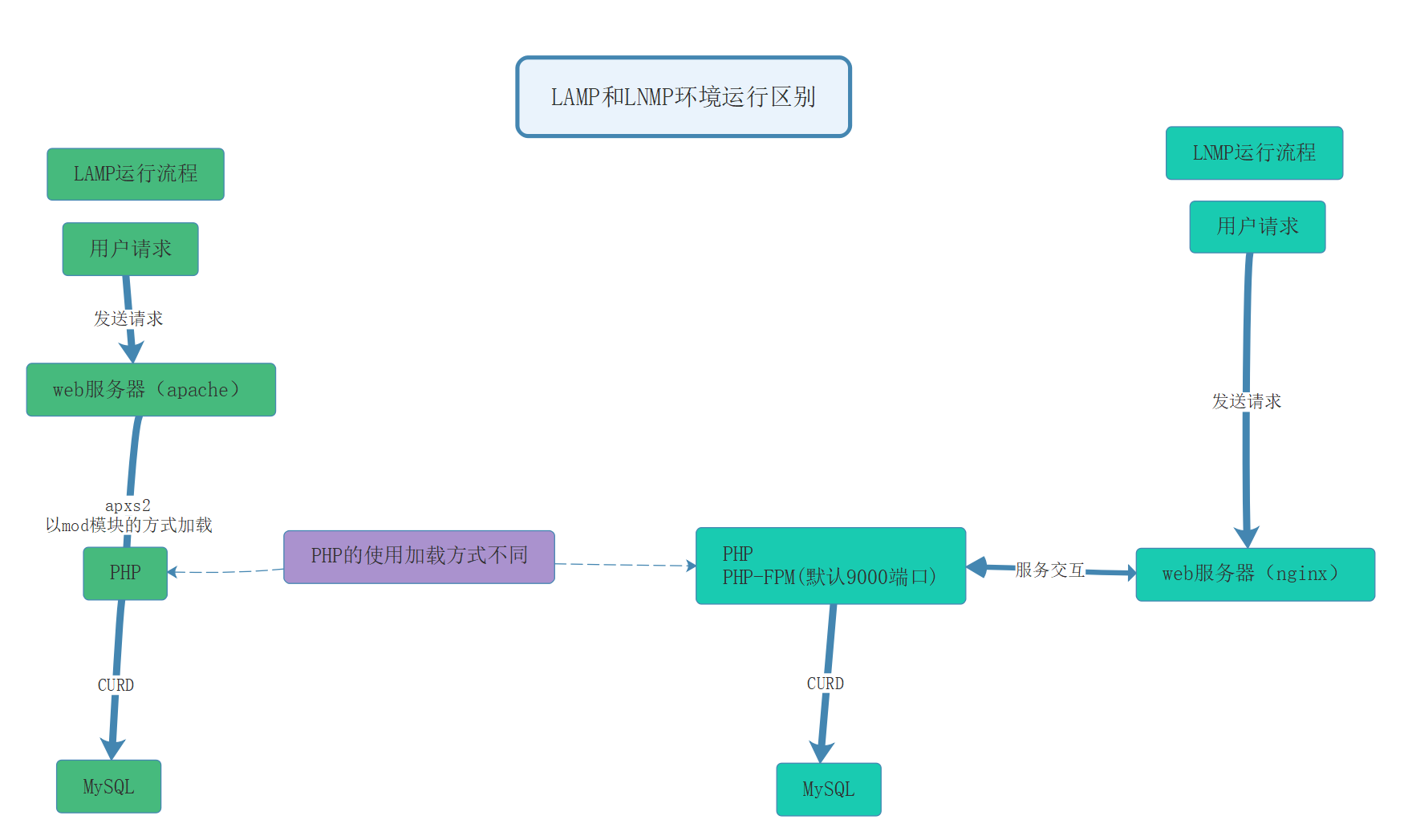
3.2、安装
下载地址:https://www.php.net/releases/
https://www.php.net/manual/zh/
https://www.php.net/manual/zh/install.php

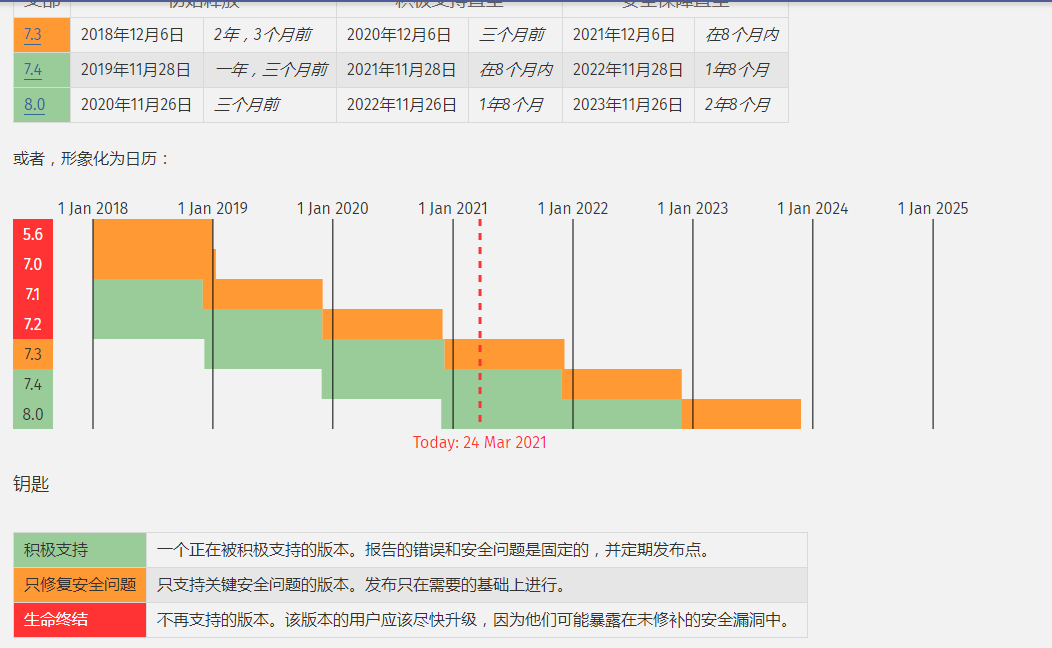
解压进入目录
shell > tar zxf php-7.2.12.tar.gz
shell > cd php-7.2.12
编译参数配置
shell > ./configure --prefix=/usr/local/php --with-config-file-path=/usr/local/php/etc --enable-fpm --with-fpm-user=www --with-fpm-group=www --with-mysqli=mysqlnd --with-pdo-mysql=mysqlnd --with-iconv-dir --with-freetype-dir --with-jpeg-dir --with-png-dir --with-zlib --with-libxml-dir --enable-xml --disable-rpath --enable-bcmath --enable-shmop --enable-sysvsem --enable-inline-optimization --with-curl --enable-mbregex --enable-mbstring --enable-ftp --with-gd --with-openssl --with-mhash --enable-pcntl --enable-sockets --with-xmlrpc --with-libzip --enable-soap --without-pear --with-gettext --disable-fileinfo --enable-maintainer-zts


配置选项讲解:https://www.php.net/manual/zh/configure.about.php
--prefix=/usr/local/php  - 安装位置
--with-config-file-path=/usr/local/php/etc -设置 php.ini的路径默认为 prefix/lib
--enable-fpm  - 编译 PHP 时需要--enable-fpm 配置选项来激活 FPM 支持
--with-fpm-user  - 设置 FPM 运行的用户身份(默认 - nobody)
--with-fpm-group - 设置 FPM 运行时的用户组(默认 - nobody)
--with-fpm-systemd - 启用 systemd 集成 (默认 - no)
--with-mysqli
--with-pdo-mysql
--with-iconv-dir
--with-freetype-dir

 –with-mysqli=mysqlnd –with-pdo-mysql=mysqlnd 选项说明
https://979137.com/archives/138.html
传统的安装php的方式中,我们在编译PHP时,一般需要指定以下几项:
--with-mysql=/usr/local/mysql
--with-pdo-mysql=/usr/local/mysql
这实际上就是使用了mysql官方自带的libmysql驱动, 这是比较老的驱动, PHP 5.3开始已经不建议使用它了, 而建议使用mysqlnd.


--prefix=/usr/local/php                      //指定 php 安装目录
--with-apxs2=/usr/local/apache/bin/apxs      //整合apache,
                        //apxs功能是使用mod_so中的LoadModule指令,
                       //加载指定模块到 apache,要求 apache 要打开SO模块
--with-config-file-path=/usr/local/php/etc    //指定php.ini位置
--with-MySQL=/usr/local/mysql                 //mysql安装目录,对mysql的支持
--with-mysqli=/usr/local/mysql/bin/mysql_config
                      //mysqli扩展技术不仅可以调用MySQL的存储过程、处理MySQL事务,
                      //而且还可以使访问数据库工作变得更加稳定。
--enable-safe-mode    //打开安全模式
--enable-ftp          //打开ftp的支持
--enable-zip          //打开对zip的支持

--with-bz2            //打开对bz2文件的支持
--with-jpeg-dir       //打开对jpeg图片的支持
--with-png-dir        //打开对png图片的支持
--with-freetype-dir   //打开对freetype字体库的支持
--without-iconv       //关闭iconv函数,各种字符集间的转换
--with-libXML-dir     //打开libxml2库的支持
--with-XMLrpc         //打开xml-rpc的c语言
--with-zlib-dir       //打开zlib库的支持
--with-gd             //打开gd库的支持
--enable-gd-native-ttf //支持TrueType字符串函数库
--with-curl            //打开curl浏览工具的支持
--with-curlwrappers    //运用curl工具打开url流
--with-ttf             //打开freetype1.*的支持,可以不加了
--with-xsl             //打开XSLT 文件支持,扩展了libXML2库 ,需要libxslt软件
--with-gettext         //打开gnu 的gettext 支持,编码库用到
--with-pear            //打开pear命令的支持,PHP扩展用的
--enable-calendar      //打开日历扩展功能
--enable-mbstring      //多字节,字符串的支持
--enable-bcmath        //打开图片大小调整,用到zabbix监控的时候用到了这个模块
--enable-sockets       //打开 sockets 支持
--enable-exif          //图片的元数据支持
--enable-magic-quotes  //魔术引用的支持
--disable-rpath        //关闭额外的运行库文件
--disable-debug        //关闭调试模式
—with 代表需要手动开启 可能需要加载第三方模块 第三方模块没有,就会error —enable 代表开启php的默认功能 —without 关闭默认加载的模块
PHP 初始的配置和安装过程被 configure 脚本中一系列命令行选项控制。可以通过 ./configure —help 命令了解 PHP 所有可用的编译选项及简短解释。本手册是分开对这些选项编写文档的。可在附录中找到 核心配置选项,而扩展模块特定的配置选项分别在其函数参考页面中描述。 PHP 的 configure 脚本使用的部分选项的列表,用于类 Unix 环境的编译 https://www.php.net/manual/zh/configure.about.php 从源代码编译 https://www.php.net/manual/zh/install.fpm.install.php 编译 PHP 时需要
--enable-fpm配置选项来激活 FPM 支持。 以下为 FPM 编译的具体配置参数(全部为可选参数):
--with-fpm-user- 设置 FPM 运行的用户身份(默认 - nobody)--with-fpm-group- 设置 FPM 运行时的用户组(默认 - nobody)--with-fpm-systemd- 启用 systemd 集成 (默认 - no)--with-fpm-acl- 使用POSIX 访问控制列表 (默认 - no) 5.6.5版本起有效
解决遇到的依赖软件问题




shell > yum -y install libxml2-devel libjpeg-devel libpng-devel freetype-devel curl-devel openssl-devel
编译并安装到目录
shell > make && make install
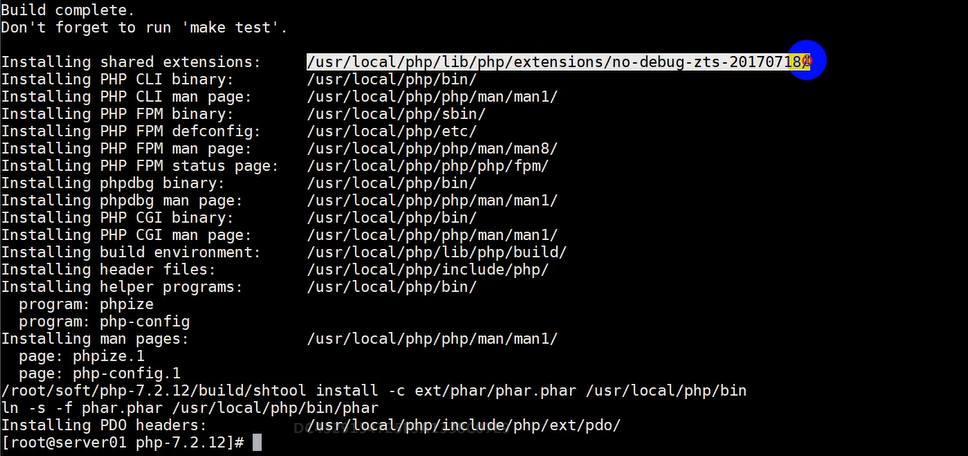
查看PHP的安装目录
shell > cd /usr/local/php
shell > ls


shell> cd/usr/local/php/bin
shell> ./php -v        #看版本
shell> ./php -h        #看帮助
shell> ./php -m   #看加载的扩展
| 目录名称 | 作用 |
|---|---|
| bin | php相关命令目录 php phpize、php-config在源码编译扩展时用 |
| etc | 配置文件目录 |
| include | php默认类库 |
| lib | php第三方扩展类库 |
| php | man文档文件 |
| sbin | php-fpm执行文件 |
| var | log日志目录 run运行目录 保存pid文件 |


3.3、配置
使用php-fpm进行管理php服务,有两个配置文件: ①php.ini #默认php配置文件 ②php-fpm.conf #php-fpm相关的配置
复制配置文件
shell > cp /usr/local/php/etc/php-fpm.conf.default /usr/local/php/etc/php-fpm.conf
shell > cp /usr/local/php/etc/php-fpm.d/www.conf.default /usr/local/php/etc/php-fpm.d/www.conf
shell > cp /root/soft/php-7.2.12/php.ini-development /usr/local/php/etc/php.ini
添加启动服务
shell > cp /root/soft/php-7.2.12/sapi/fpm/init.d.php-fpm /etc/init.d/php-fpm
shell > chmod +x /etc/init.d/php-fpm
shell > chkconfig --add php-fpm
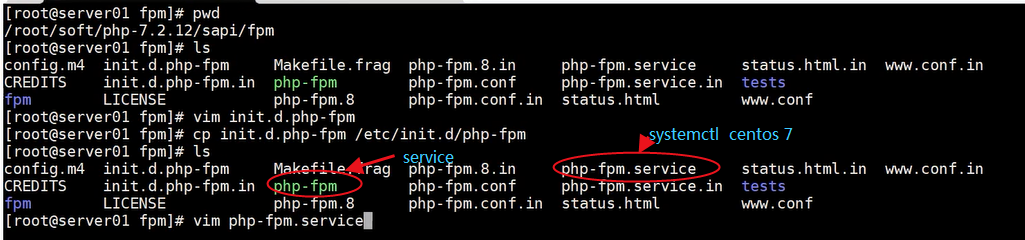
添加环境变量(方便php、phpize、phpconfig查找使用)
shell > echo 'PATH=/usr/local/php/bin:$PATH' >> /etc/profile
shell > source /etc/profile
php安装脚本及其初始化配置
以下脚本,作为编译安装和配置php的参考
#!/bin/bash
php_install(){
#php编译安装
#和nginx使用相同的用户,如果没有就创建
`id www` &> /dev/null
[ $? -ne 0 ] && useradd -s /sbin/nologin -M www
#解决依赖
yum -y install libxml2-devel libjpeg-devel libpng-devel freetype-devel curl-devel openssl-devel
#解压
tar xvf php-7.2.12.tar.gz
cd php-7.2.12
#编译安装php
./configure --prefix=/usr/local/php --with-config-file-path=/usr/local/php/etc --enable-fpm --with-fpm-user=www --with-fpm-group=www --with-mysqli=mysqlnd --with-pdo-mysql=mysqlnd --with-iconv-dir --with-freetype-dir --with-jpeg-dir --with-png-dir --with-zlib --with-libxml-dir --enable-xml --disable-rpath --enable-bcmath --enable-shmop --enable-sysvsem --enable-inline-optimization --with-curl --enable-mbregex --enable-mbstring --enable-ftp --with-gd --with-openssl --with-mhash --enable-pcntl --enable-sockets --with-xmlrpc --with-libzip --enable-soap --without-pear --with-gettext --disable-fileinfo --enable-maintainer-zts && make && make install
#配置文件初始化
cp php.ini-development /usr/local/php/etc/php.ini
#php-fpm服务配置文件
cp /usr/local/php/etc/php-fpm.conf.default /usr/local/php/etc/php-fpm.conf
#php-fpm服务子配置文件
cp /usr/local/php/etc/php-fpm.d/www.conf.default /usr/local/php/etc/php-fpm.d/www.conf
#配置服务及其环境变量
cp /root/soft/php-7.2.12/sapi/fpm/init.d.php-fpm /etc/init.d/php-fpm
chmod +x /etc/init.d/php-fpm
service php-fpm start
chkconfig --add php-fpm
echo 'PATH=/usr/local/php/bin:$PATH' >> /etc/profile
}
#脚本开始时间
start_time=`date +%s`
#执行的脚本代码
php_install
#脚本结束时间
end_time=`date +%s`
#脚本执行花费时间
const_time=$((end_time-start_time))
echo 'Take time is: '$const_time's'
3.4、Nginx+php-fpm配置
①编写测试文件
shell > vim /usr/local/nginx/html/index.php
文件内容
<?php
    phpinfo();
这是你访问nginx 服务器,不会解析这个php文件,会把这个index.php下载下来,是因为没把这个.php文件交给php-fpm 解析。
②在nginx.conf中配置
修改配置文件,告知nginx如果接收到.php结尾的请求,交由给php-fpm进行处理
shell > vim /usr/local/nginx/conf/nginx.conf
打开location .php 结尾那一段注释,并修改script为$document_root
#1、把root变量提升上层
        root html;
        location / {
            #root   html;
            index  index.html index.htm;
        }

        #error_page  404              /404.html;

        # redirect server error pages to the static page /50x.html
        #
        error_page   500 502 503 504  /50x.html;
        location = /50x.html {
            root   html;
        }

        # proxy the PHP scripts to Apache listening on 127.0.0.1:80
        #
        #location ~ \.php$ {
        #    proxy_pass   http://127.0.0.1;
        #}

        # pass the PHP scripts to FastCGI server listening on 127.0.0.1:9000
        #
        location ~ \.php$ {
          #2、默认使用上层的root变量
        #    root           html;
            fastcgi_pass   127.0.0.1:9000
            fastcgi_index  index.php;
          #3、把script修改为$document_root  $document_root 就是上面的root html;
     #$document_root 的参数是由root html那一行定义的,默认在/usr/local/nginx/html #所以把 html换成站点根目录就正常了。
            fastcgi_param  SCRIPT_FILENAME  $document_root$fastcgi_script_name;
            include        fastcgi_params;
        }
注意:
- 注意一点,如果您没有修改/scripts这个地方是访问不了的

$document_root这个参数是有root参数来设定的,所有我们要修改下把/scripts修改为$document_root既指向站点根目录.

③重新加载配置文件
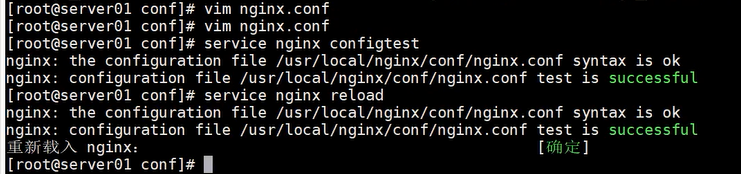
④测试:
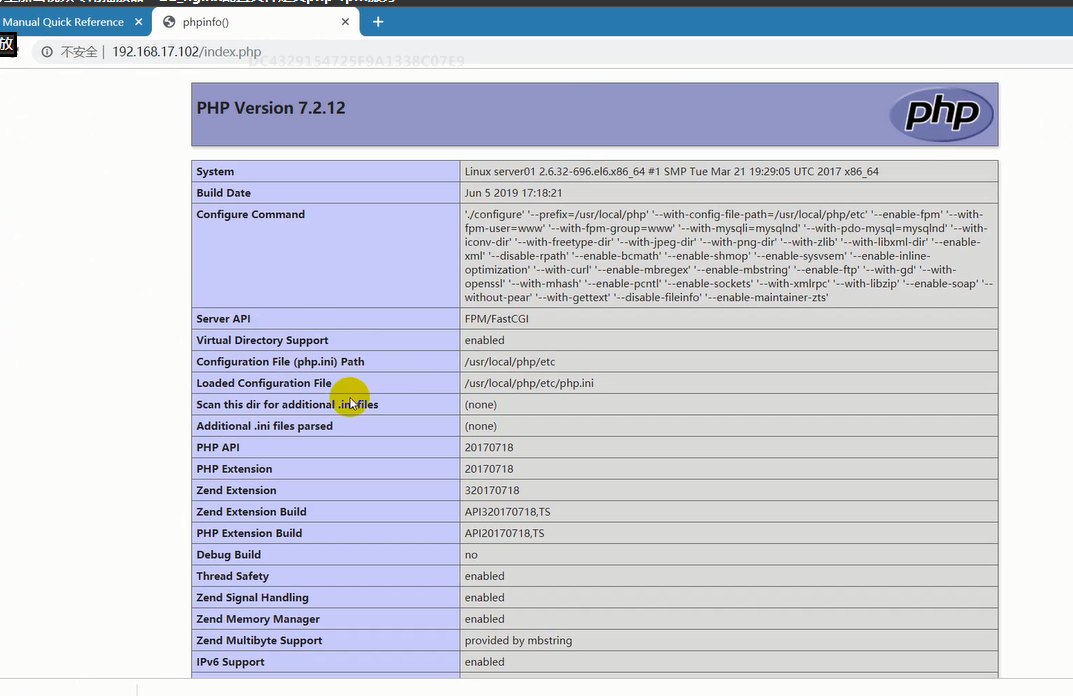
⑤错误:
看nginx 配置文件目录
   location ~ \.php$ {
          #2、默认使用上层的root变量
        #    root           html;
            fastcgi_pass   127.0.0.1:9000;
            fastcgi_index  index.php;
          #3、把script修改为$document_root  $document_root 就是上面的root
            fastcgi_param  SCRIPT_FILENAME  $document_root$fastcgi_script_name;
            include        fastcgi_params;
        }

很有可能是php 挂了,重启php
将扩展库静态编译入PHP

若有收获,就点个赞吧
0 人点赞


