教程视频
主要特点
- 开放源代码、跨平台应用
- 支持多种网页编程语言
- 模块化设计、运行稳定、良好的安全性
注意:使用yum安装的时候,是没有模块的,只有源代码包编译安装才有
LAMP:
- L: Linux
- A: Apache
- M: Mysql
- P: PHP
LNMP:
- L: Linux
- N: Nginx
- M: Mysql
- P: PHP


安装apache
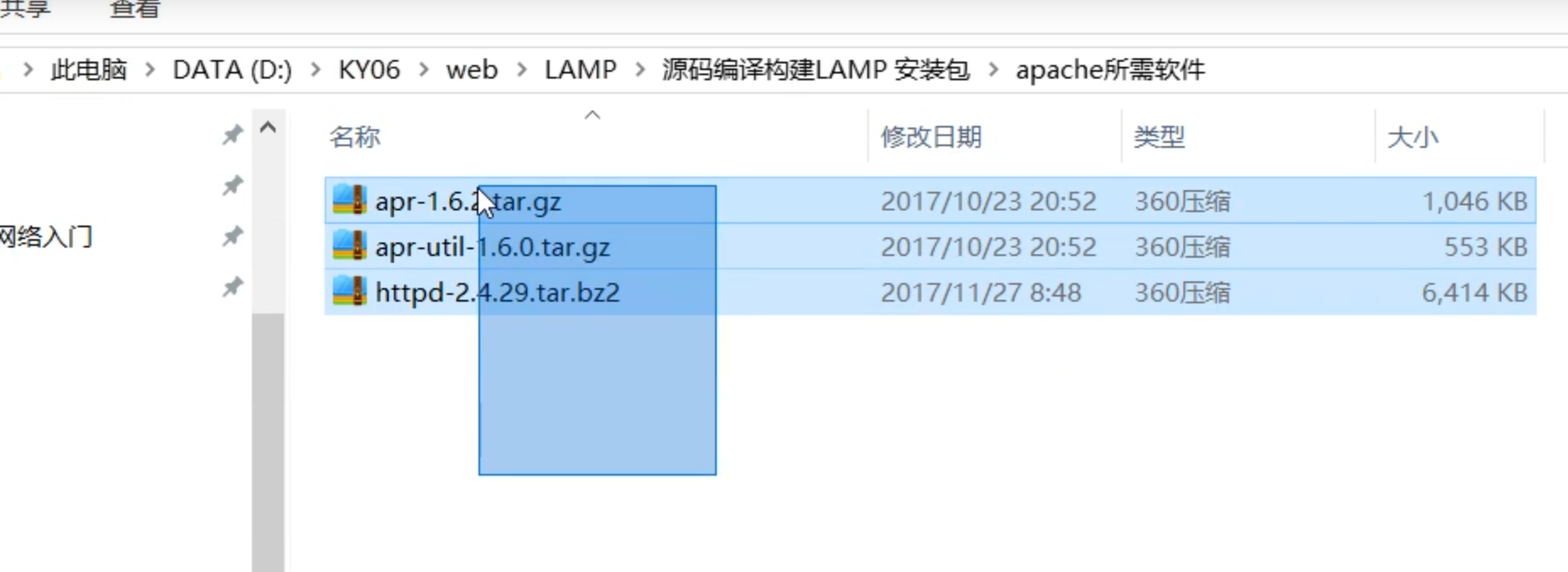
tar zxvf apr-1.6.2.tar.gztar zxvf apr-util-1.6.0.tar.gz// 解压缩apachetar jxvf httpd-2.4.29.tar.bz2// 需要将解压缩后的apr和apr-util放入apache的srclib目录中,不然预编译的时候会报错mv apr-1.6.2 httpd-2.4.29/srclib/aprmv apr-util-1.6.0 httpd-2.4.29/srclib/apr-utilyum -y install gcc gcc-c++ make pcre-devel expat-devel perl

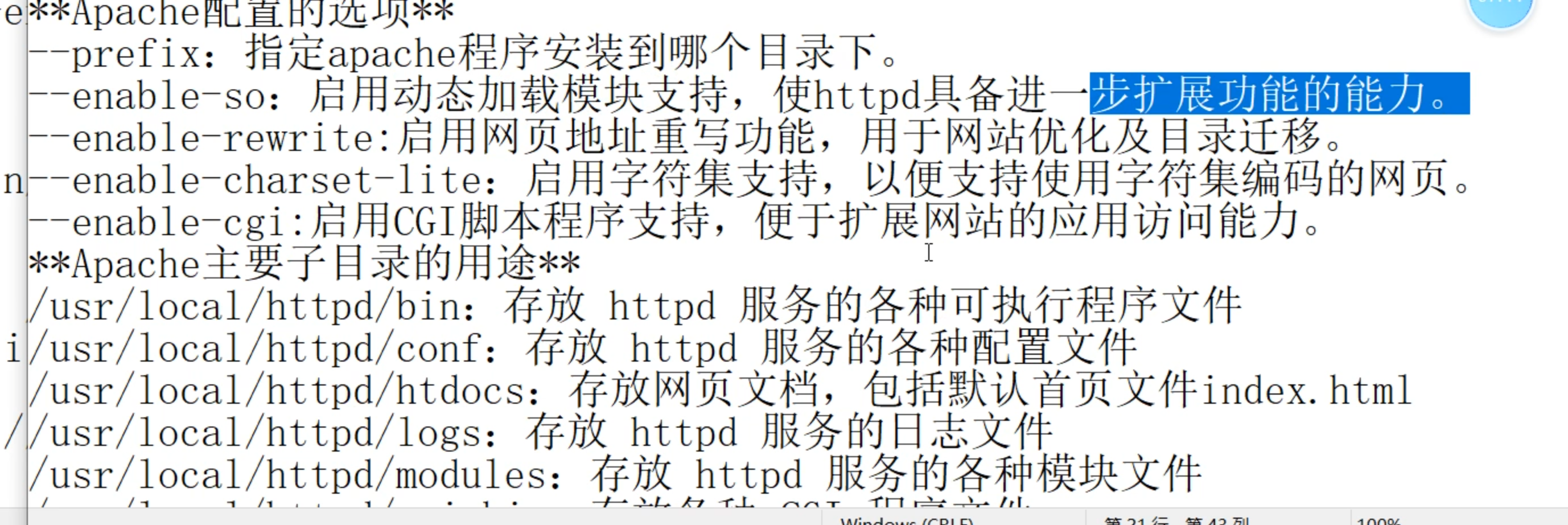
// 进入apache目录cd httpd-2.4.29// 进行预编译./configure --prefix=/usr/local/httpd --enable-so --enable-rewrite --enable-charset-lite --enable-cgi// 编译安装make && make install

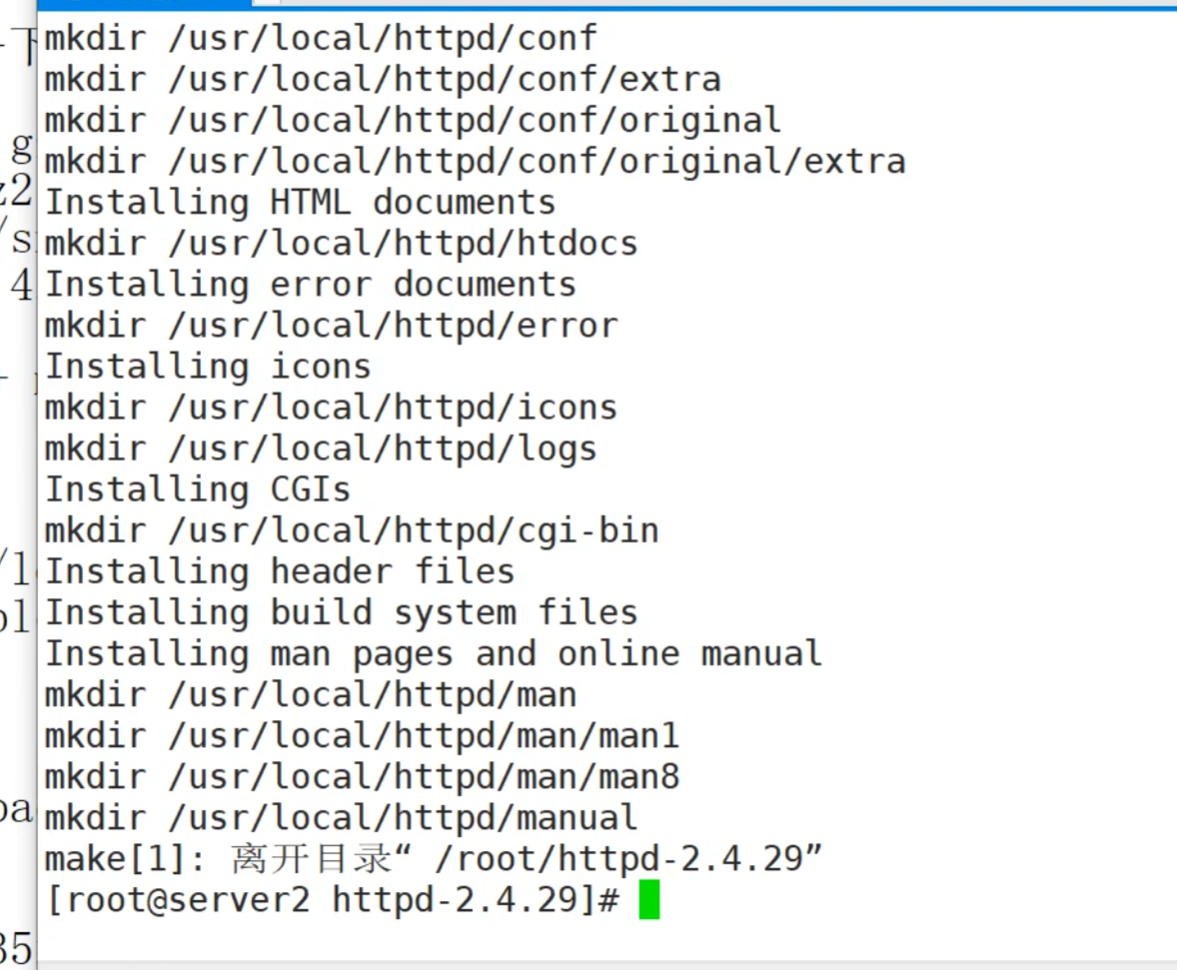

// 将apache主程序apachectl复制到/etc/init.d目录下并重命名为httpd,这是开机自启动会加载的目录cp /usr/local/httpd/bin/apachectl /etc/init.d/httpd
vi /etc/init.d/httpd# chkconfig: 35 85 21 //35级别自动运行 第85个启动 第21个关闭 这些不懂没关系# description: Apache is a World Wide Web server

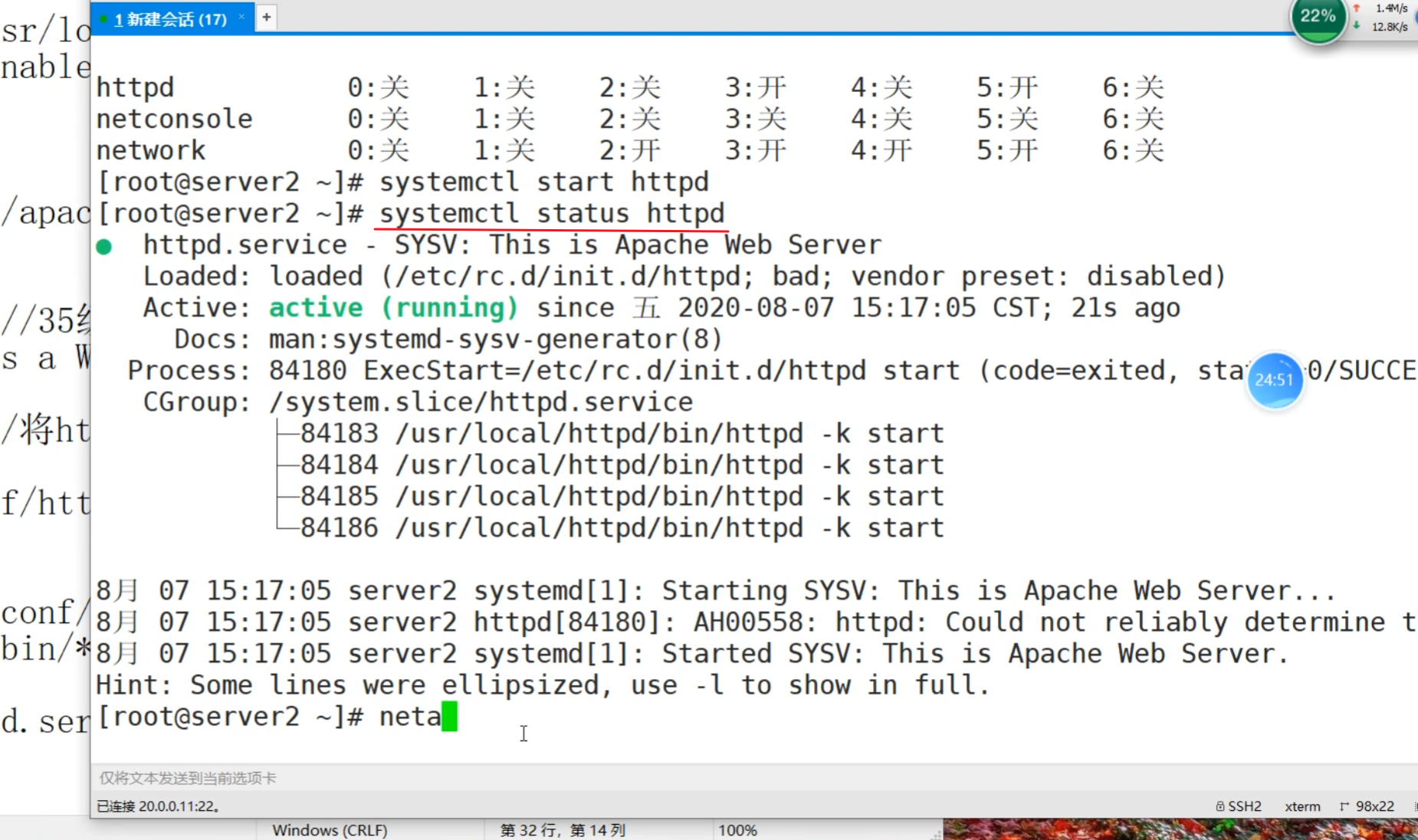
chkconfig -- add httpd这样就能通过systemctl、service命令管理了



vi /usr/local/httpd/conf/httpd.confServerName 域名

ln -s /usr/local/httpd/conf/httpd.conf /etcln -s /usr/local/httpd/bin/* /usr/local/bin

systemctl stop firewalld.servicesetenforce 0
// 语法检测,下面两个命令都行httpd -tapachectl -t// 启动apache服务service httpd start// 查看是否启动成功netstat -anpt | grep 80
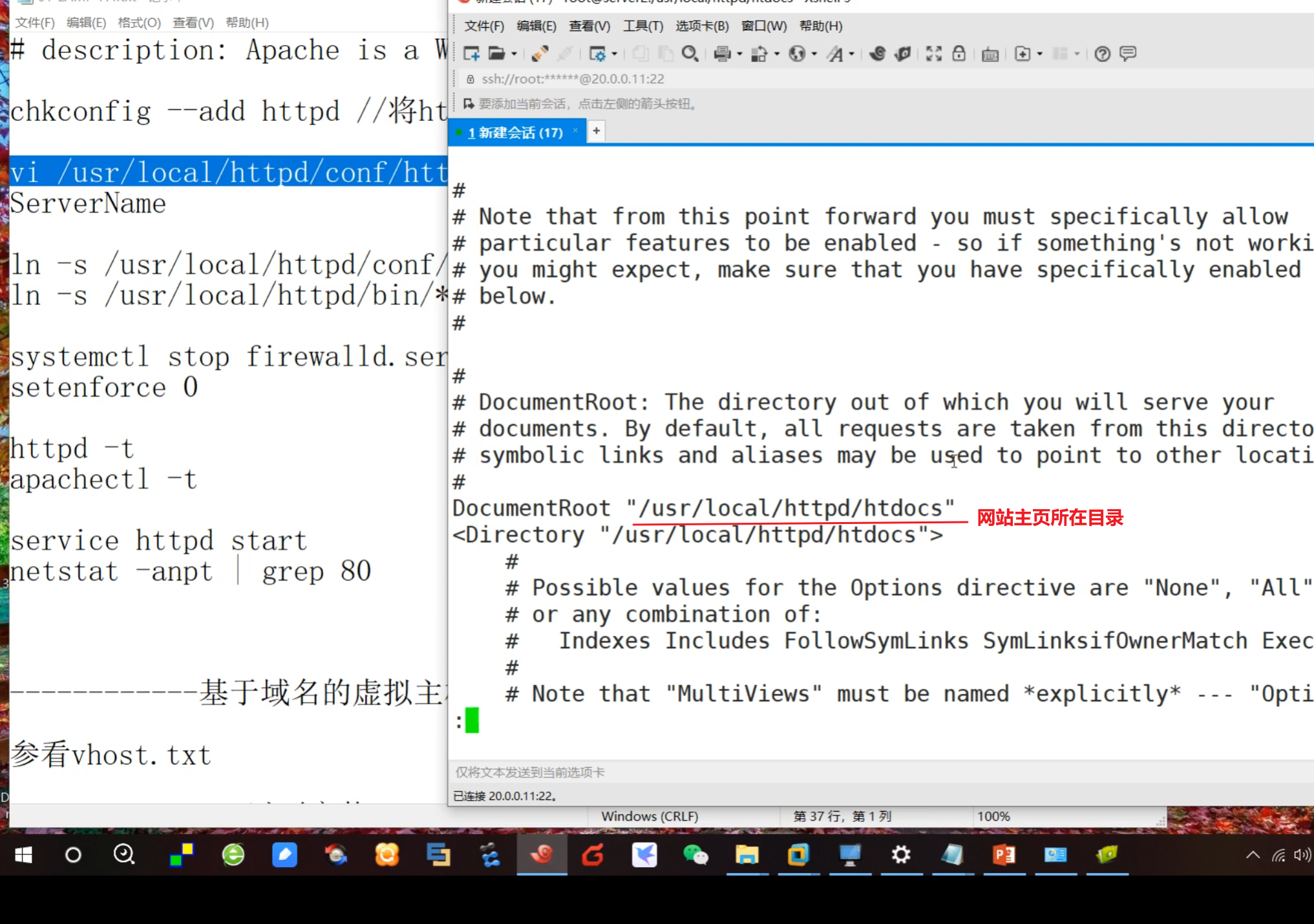
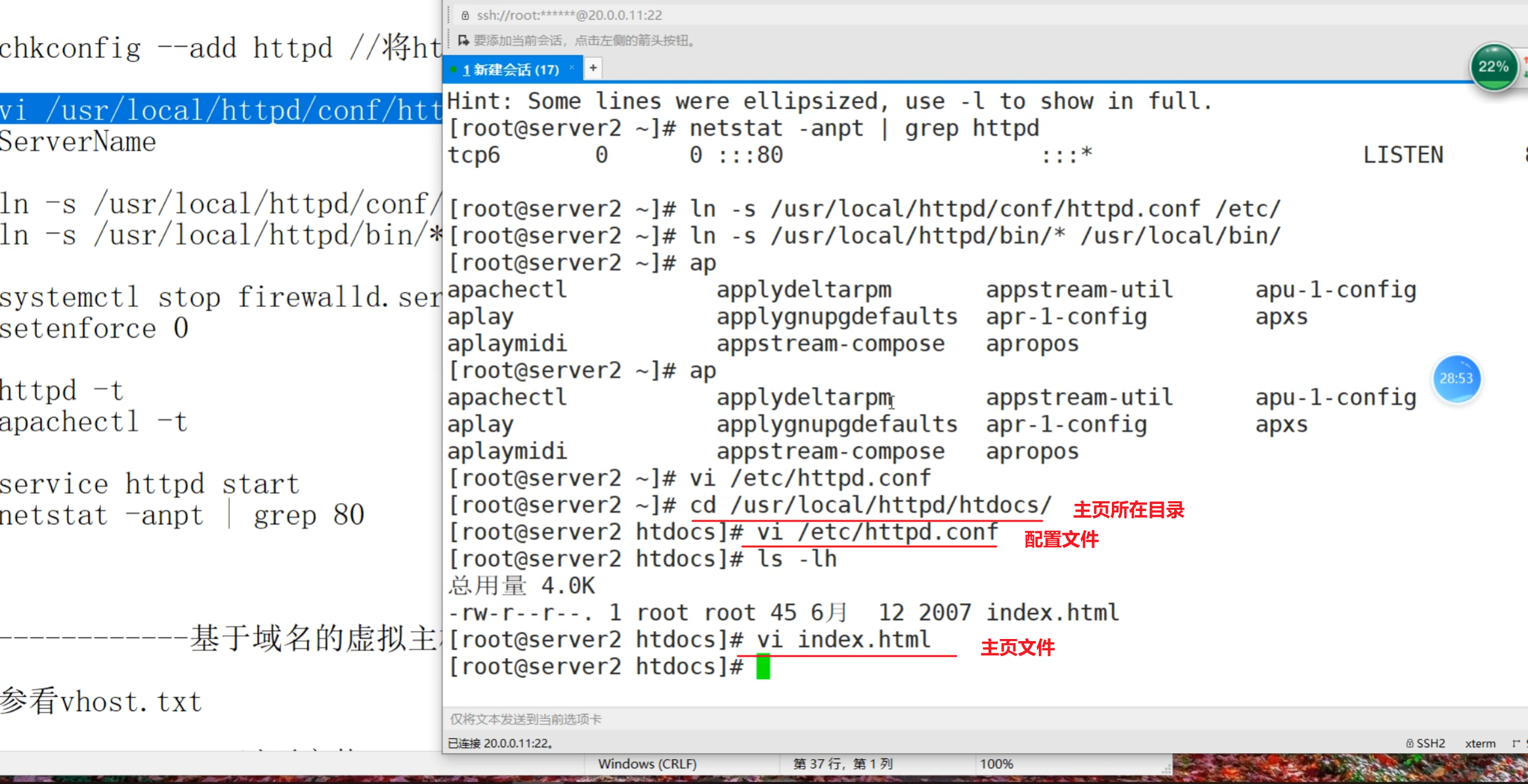

修改完配置之后需要重启服务

通过ip地址可以访问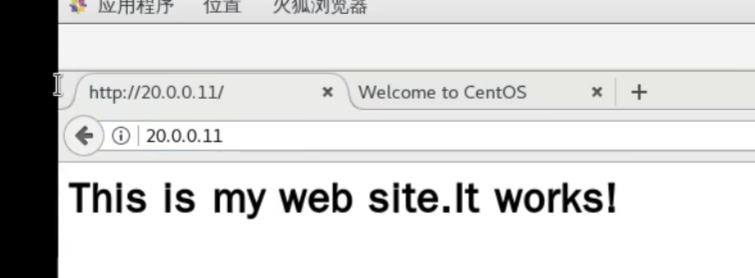


若有收获,就点个赞吧
0 人点赞


