See more: https://wiki.ubuntu.org.cn/Vsftpd
Concept
- vsftpd: Very Secure FTP Daemon
Install
$ sudo apt install vsftpd
Start
vsftpd is started automatically after installed it.
Or you can manually controll it using$ service vsftpd status● vsftpd.service - vsftpd FTP serverLoaded: loaded (/lib/systemd/system/vsftpd.service; enabled; vendor preset: enabled)Active: active (running) since Wed 2022-01-26 14:57:58 CST; 16min agoMain PID: 843765 (vsftpd)Tasks: 1 (limit: 4612)Memory: 1.3MCGroup: /system.slice/vsftpd.service└─843765 /usr/sbin/vsftpd /etc/vsftpd.conf
service:$ sudo service vsftpd start$ sudo service vsftpd restart$ sudo service vsftpd stop
Access
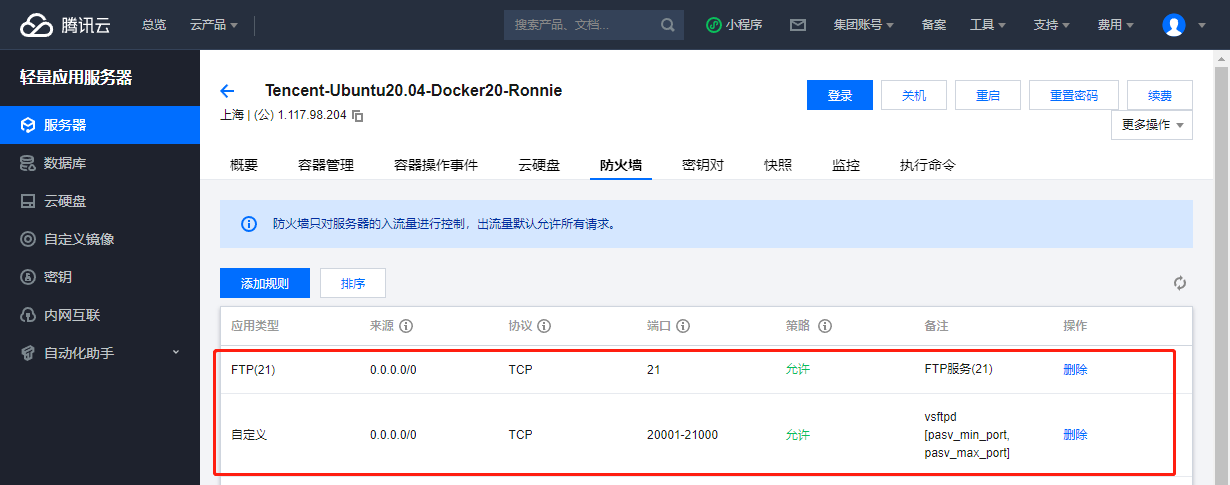
Configure vsftpd.conf
$ sudo vim /etc/vsftpd.conf...pasv_min_port=20001pasv_max_port=21000...
Configure firewall
Access with Windows Explorer
Login
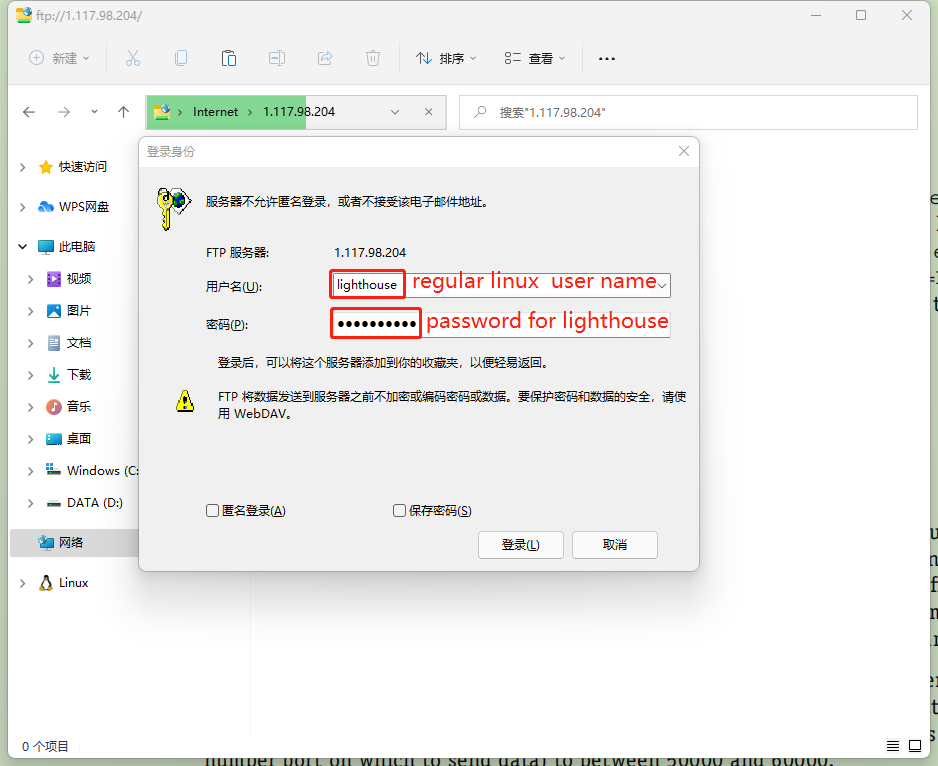
ftp://dev.ikiss.it or ftp://lighthouse@dev.ikiss.it or ftp://lighthouse:passwd@dev.ikiss.it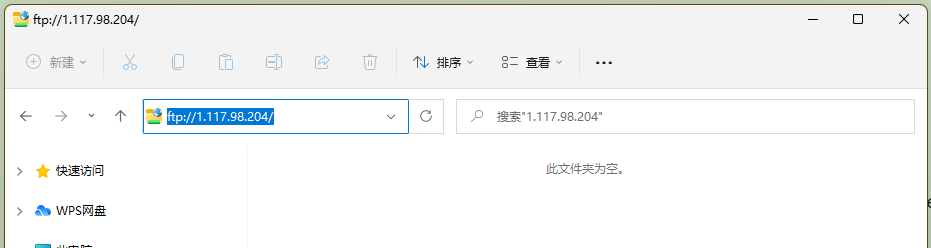
Download

Access with cli
local access
$ ftp localhostConnected to localhost.220 (vsFTPd 3.0.3)Name (localhost:lighthouse):<Enter>331 Please specify the password.Password:*******230 Login successful.Remote system type is UNIX.Using binary mode to transfer files.ftp> ls200 EPRT command successful. Consider using EPSV.150 Here comes the directory listing.drwxrwxr-x 5 1001 1001 4096 Jan 05 12:31 rocket.chatdrwxrwxr-x 3 1001 1001 4096 Jan 25 18:21 scp_files226 Directory send OK.ftp>
remote access
$ pftp 1.117.98.204Connected to 1.117.98.204.220 (vsFTPd 3.0.3)Name (1.117.98.204:ronnie): lighthouse331 Please specify the password.Password:230 Login successful.Remote system type is UNIX.Using binary mode to transfer files.ftp> ls227 Entering Passive Mode (1,117,98,204,79,205).150 Here comes the directory listing.drwxrwxr-x 5 1001 1001 4096 Jan 05 12:31 rocket.chatdrwxrwxr-x 3 1001 1001 4096 Jan 26 17:20 scp_files226 Directory send OK.ftp> cd scp_files250 Directory successfully changed.ftp> ls227 Entering Passive Mode (1,117,98,204,78,152).150 Here comes the directory listing.drwxrwxr-x 2 1001 1001 4096 Jan 25 17:48 Nginx-rw-r--r-- 1 1001 1001 1966 Jan 25 18:21 default.conf-rwxrwxr-x 1 1001 1001 23696 Jan 25 17:50 dev.do-it.cool.zip-rwxrwxr-x 1 1001 1001 295115 Jan 26 17:20 me1.jpg-rwxrwxr-x 1 1001 1001 139377 Jan 26 17:20 me2.jpg-rwxrwxr-x 1 1001 1001 164668 Jan 26 17:20 me3.jpg-rwxrwxr-x 1 1001 1001 133431 Jan 26 17:20 me4.jpg-rwxrwxr-x 1 1001 1001 132827 Jan 26 17:20 me5.jpg-rwxrwxr-x 1 1001 1001 159251 Jan 26 17:20 me6.jpg-rwxrwxr-x 1 1001 1001 143987 Jan 26 17:20 me7.jpg-rwxrwxr-x 1 1001 1001 1129861 Jan 25 17:46 retail.tar226 Directory send OK.ftp> get me1.jpglocal: me1.jpg remote: me1.jpg227 Entering Passive Mode (1,117,98,204,80,198).150 Opening BINARY mode data connection for me1.jpg (295115 bytes).226 Transfer complete.295115 bytes received in 0.11 secs (2.5194 MB/s)ftp> !lsme1.jpgftp> exit221 Goodbye.
Allow upload and delete
$ sudo vim /etc/vsftpd.conf...write_enable=YES...$ sudo service vsftpd restart
Allow anonymous
allowing downloading and uploading ```bash $ sudo vim /etc/vsftpd.conf … anonymous_enable=YES anon_upload_enable=YES # need write_enable=YES anon_mkdir_write_enable=YES anon_other_write_enable=YES # deleting and renaming … $ sudo service vsftpd restart
$ sudo mkdir /srv/ftp/upload $ sudo chown ftp:ftp /srv/ftp/upload/
<a name="gxlBA"></a>## Logs```bash$ sudo tail -f /var/log/vsftpd.logWed Jan 26 15:09:30 2022 [pid 848661] CONNECT: Client "::ffff:117.81.208.104"Wed Jan 26 15:09:32 2022 [pid 848656] [anonymous] FAIL LOGIN: Client "::ffff:117.81.208.104"Wed Jan 26 15:09:33 2022 [pid 848669] CONNECT: Client "::ffff:117.81.208.104"Wed Jan 26 15:09:36 2022 [pid 848668] [anonymous] FAIL LOGIN: Client "::ffff:117.81.208.104"Wed Jan 26 15:10:20 2022 [pid 848967] CONNECT: Client "::ffff:117.81.208.104"Wed Jan 26 15:10:22 2022 [pid 848966] [anonymous] FAIL LOGIN: Client "::ffff:117.81.208.104"Wed Jan 26 15:10:27 2022 [pid 848986] CONNECT: Client "::ffff:117.81.208.104"Wed Jan 26 15:10:29 2022 [pid 848985] [anonymous] FAIL LOGIN: Client "::ffff:117.81.208.104"^C$
More configurations
allow or deny
- userlist_enable Default: NO
- userlist_deny Default: YES
- userlist_file Default: /etc/vsftpd.user_list | | userlist_deny = YES | userlist_deny = NO | | —- | —- | —- | | userlist_enable = YES | users in userlist_file are denied | users in userlist_file are allowed | | userlist_enable = NO | All users are allowed. | |
limit access
- chroot_local_user=YES
- chroot_list_enable=YES
- chroot_list_file=/etc/vsftpd/chroot_list
NOTE: when a user is jailed, he must have no write access on his home dir.
| chroot_local_user= YES | chroot_local_user= NO | |
|---|---|---|
| chroot_list_enable= YES | All users are jailed, but users listed in chroot_list_file are NOT jailed. | All users are NOT jailed, but users listed in chroot_list_file are jailed. |
| chroot_list_enable= NO | All users are jailed. | All users are NOT jailed. |
Dedicated user for ftp
Create ftp user
$ sudo adduser ftper
...
Configure
# /etc/vsftpd.conf
userlist_enable=YES
userlist_deny=NO
# /etc/vsftpd.user_list
ftper
Connect
ftp://ftper@dev.ikiss.it
ftp://ftper:xxx@dev.ikiss.it

若有收获,就点个赞吧
0 人点赞


