本节课程主要内容为开发环境的代建,具体如下:
1)编程环境:Conda环境
2)编程语言:Python3.8
3)库文件:Opencv
4)编程软件:Pycharm软件
常用开发语言—环境介绍(大白的相关课程)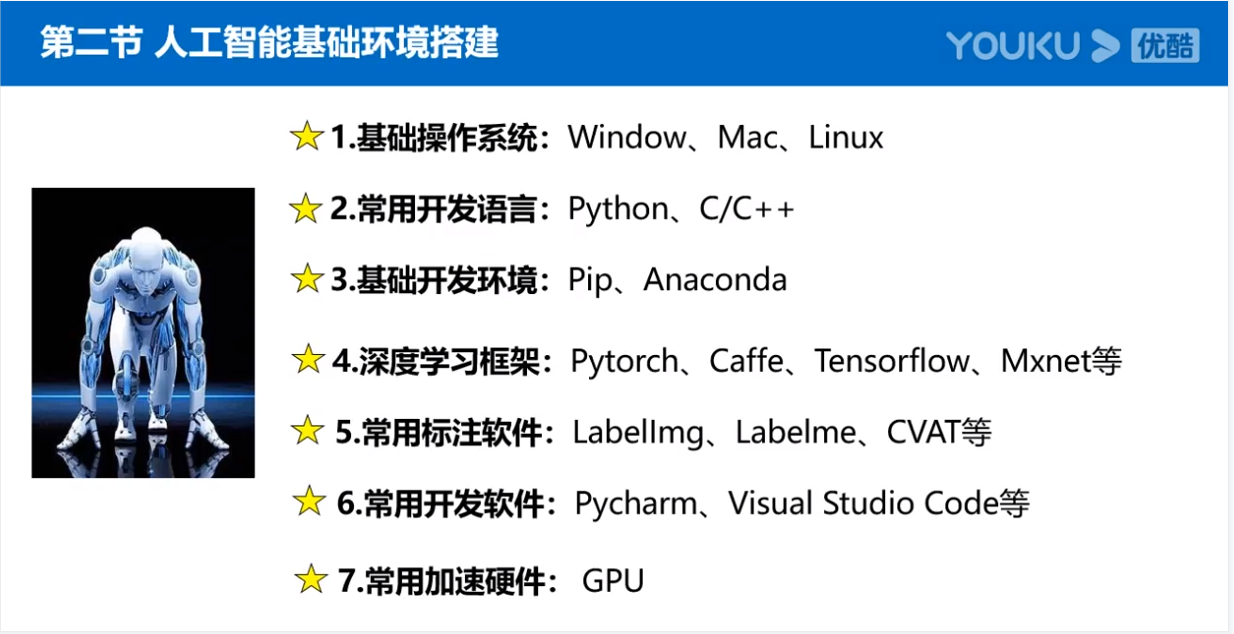
安装的整个步骤,可以按照Conda->Python->算法库->Pycharm的流程。
- 第一步安装好Conda,建立一个环境管理系统。
- 在此基础上,第二步,我们可以用Conda命令,新建一个Python3.8的项目环境。
- 第三步,在这个环境中,安装项目中需要用的一些算法库。
- 第四步,磨刀不误砍柴工,我们再安装Pycharm软件,在上面三步设置好以后,更便捷的进行编程操作。
环境安装
1、conda的安装
1.1 conda的下载(官网),也可以从大白给的链接进行下载
1.2 conda的安装
① Windows下安装Conda。双击exe文件、同意、所有用户、下一步、将安装路径添加到环境变量
② Mac下安装Conda。安装参考流程: https://zhuanlan.zhihu.com/p/51137150
③ Linux下安装Conda安装参考流程: https://zhuanlan.zhihu.com/p/164886255
2、利用conda安装python
2.1 新建conda环境
通过Anaconda Prompt进入conda的终端;利用代码conda env list查看当前所有的conda环境;键入conda create -n dabai python=3.8即可新建一个名为dabai的conda环境,里面内置的python版本为3.8。
注意:如果长时间一直是安装中的状态,可以按下ctrl+z,可能已经安装好。
2.2 遇到的问题
① 我20年在自己的Windows笔记本上装过conda,但是此后一直都在公司的Linux下进行开发。今天用conda新建项目环境时报错如下:
(F:\Python_software\Anaconda3) C:\Users\Qian0733>conda create -n dabai python=3.8Fetching package metadata ....WARNING: The remote server could not find the noarch directory for therequested channel with url: https://pypi.tuna.tsinghua.edu.cn/simpleIt is possible you have given conda an invalid channel. Please double-checkyour conda configuration using `conda config --show`.If the requested url is in fact a valid conda channel, please request that thechannel administrator create `noarch/repodata.json` and associated`noarch/repodata.json.bz2` files, even if `noarch/repodata.json` is empty.$ mkdir noarch$ echo '{}' > noarch/repodata.json$ bzip2 -k noarch/repodata.json..WARNING: The remote server could not find the noarch directory for therequested channel with url: http://pypi.douban.com/simpleIt is possible you have given conda an invalid channel. Please double-checkyour conda configuration using `conda config --show`.If the requested url is in fact a valid conda channel, please request that thechannel administrator create `noarch/repodata.json` and associated`noarch/repodata.json.bz2` files, even if `noarch/repodata.json` is empty.$ mkdir noarch$ echo '{}' > noarch/repodata.json$ bzip2 -k noarch/repodata.json...PackageNotFoundError: Packages missing in current channels:- python 3.8*We have searched for the packages in the following channels:- https://pypi.tuna.tsinghua.edu.cn/simple/win-64- https://pypi.tuna.tsinghua.edu.cn/simple/noarch- http://pypi.douban.com/simple/win-64- http://pypi.douban.com/simple/noarch- http://mirrors.tuna.tsinghua.edu.cn/anaconda/pkgs/free/win-64- http://mirrors.tuna.tsinghua.edu.cn/anaconda/pkgs/free/noarch
通过关键语句a valid conda channel找到问题出在源上(参考文章),因此马上找到知乎上一篇conda换源文章(含Windows、Linux)。
Windows下的换源比较简单,只要在conda终端键入conda config --remove-key channels即可。再通过conda config --show就能看到conda源恢复为默认设置了。设置前后的源如下:
channels: # 以前设置的源- https://pypi.tuna.tsinghua.edu.cn/simple- http://pypi.douban.com/simple- http://mirrors.tuna.tsinghua.edu.cn/anaconda/pkgs/free/
channels: # 恢复默认的源- defaults
此后按照教程新建python3.8的代码环境。至此一切顺利···
Fetching package metadata .............Solving package specifications: .Package plan for installation in environment F:\Python_software\Anaconda3\envs\dabai:The following NEW packages will be INSTALLED:ca-certificates: 2021.10.26-haa95532_2 defaultscertifi: 2021.10.8-py38haa95532_0 defaultsopenssl: 1.1.1l-h2bbff1b_0 defaultspip: 21.2.2-py38haa95532_0 defaultspython: 3.8.12-h6244533_0 defaultssetuptools: 58.0.4-py38haa95532_0 defaultssqlite: 3.36.0-h2bbff1b_0 defaultsvc: 14.2-h21ff451_1 defaultsvs2015_runtime: 14.27.29016-h5e58377_2 defaultswheel: 0.37.0-pyhd3eb1b0_1 defaultswincertstore: 0.2-py38haa95532_2 defaultsProceed ([y]/n)? yca-certificate 100% |###############################| Time: 0:00:00 401.40 kB/svs2015_runtime 100% |###############################| Time: 0:00:02 903.77 kB/svc-14.2-h21ff4 100% |###############################| Time: 0:00:00 2.76 MB/sopenssl-1.1.1l 100% |###############################| Time: 0:00:03 1.88 MB/ssqlite-3.36.0- 100% |###############################| Time: 0:00:01 819.81 kB/spython-3.8.12- 100% |###############################| Time: 0:00:09 2.16 MB/scertifi-2021.1 100% |###############################| Time: 0:00:00 566.71 kB/swheel-0.37.0-p 100% |###############################| Time: 0:00:00 120.19 kB/swincertstore-0 100% |###############################| Time: 0:00:00 6.75 MB/ssetuptools-58. 100% |###############################| Time: 0:00:00 1.47 MB/spip-21.2.2-py3 100% |###############################| Time: 0:00:02 904.80 kB/s## To activate this environment, use:# > activate dabai## To deactivate an active environment, use:# > deactivate## * for power-users using bash, you must source#
② 不能通过conda activate dabai代码进入新建的环境
报错信息为CommandNotFoundError: 'activate',键入conda显示出相关的所有命令及其作用,具体如下:
usage: conda [-h] [-V] command ...conda is a tool for managing and deploying applications, environments and packages.Options:positional arguments:commandinfo Display information about current conda install.help Displays a list of available conda commands and their helpstrings.list List linked packages in a conda environment.search Search for packages and display their information. The inputis a Python regular expression. To perform a search with asearch string that starts with a -, separate the search fromthe options with --, like 'conda search -- -h'. A * in theresults means that package is installed in the currentenvironment. A . means that package is not installed but iscached in the pkgs directory.create Create a new conda environment from a list of specifiedpackages.install Installs a list of packages into a specified condaenvironment.update Updates conda packages to the latest compatible version. Thiscommand accepts a list of package names and updates them tothe latest versions that are compatible with all otherpackages in the environment. Conda attempts to install thenewest versions of the requested packages. To accomplishthis, it may update some packages that are already installed,or install additional packages. To prevent existing packagesfrom updating, use the --no-update-deps option. This mayforce conda to install older versions of the requestedpackages, and it does not prevent additional dependencypackages from being installed. If you wish to skip dependencychecking altogether, use the '--force' option. This mayresult in an environment with incompatible packages, so thisoption must be used with great caution.upgrade Alias for conda update. See conda update --help.remove Remove a list of packages from a specified conda environment.uninstall Alias for conda remove. See conda remove --help.config Modify configuration values in .condarc. This is modeledafter the git config command. Writes to the user .condarcfile (C:\Users\Qian0733\.condarc) by default.clean Remove unused packages and caches.package Low-level conda package utility. (EXPERIMENTAL)optional arguments:-h, --help Show this help message and exit.-V, --version Show the conda version number and exit.other commands, such as "conda build", are available when additional condapackages (e.g. conda-build) are installed
确实没有看到与activate有关的命令说明,回头再去新创建的环境说明中看到省略conda即可进入新环境:
# To activate this environment, use:# > activate dabai
③ python版本环境不匹配
之前新建环境的时候,反馈的信息是新建了一个3.8.12的python环境;但是我用python --version得到的反馈信息是python 3.6.3???whats wrong with this one?
(F:\Python_software\Anaconda3) F:\Python_software\Anaconda3>activate dabai(dabai) F:\Python_software\Anaconda3>python --versionPython 3.6.3 :: Anaconda, Inc.
该问题在重启电脑后解决
(dabai) C:\Users\Qian0733>where pythonF:\Python_software\Anaconda3\envs\dabai\python.exeC:\Users\Qian0733\AppData\Local\Microsoft\WindowsApps\python.exe(dabai) C:\Users\Qian0733>python --versionPython 3.8.12
2.3 conda常用的几个命令
- conda list :查看安装了哪些包
- conda env list 或 conda info -e :查看当前存在哪些虚拟环境
- 【Windows下】activate xx: 进入名称叫xx的conda环境,名称这里大家也可以填写自己对应的名称
- 【Windows下】deactivate: 退出conda环境
3、安装算法库
3.1 OpenCV的安装
在conda终端键入pip install -i [https://pypi.doubanio.com/simple](https://pypi.doubanio.com/simple) opencv-python ,通过豆瓣镜像源网站加速下载该算法包。
3.2 安装验证
通过python交互的方式,输入import cv2看是否报错。
4、安装pycharm
4.1 Pycharm软件的下载
Pycharm的下载链接为: https://www.jetbrains.com/pycharm/download/#section=windows
专业版的功能比较多,不过通常情况下我们只需要选择Community(社区版)即可,免费且功能也够用。
4.2 Pycharm软件的安装
一路“Next”;Create Desktop Shortcut:创建桌面快捷方式;Create Associations:关联文件打开方式,即.py文件是否默认用PyCharm打开。;
Note:选择安装目录,Pycharm需要的内存较多,建议将其安装在D盘或者E盘,不建议放在系统盘C盘:
4.3 如何把conda创建的环境和pycharm联系起来一起用。
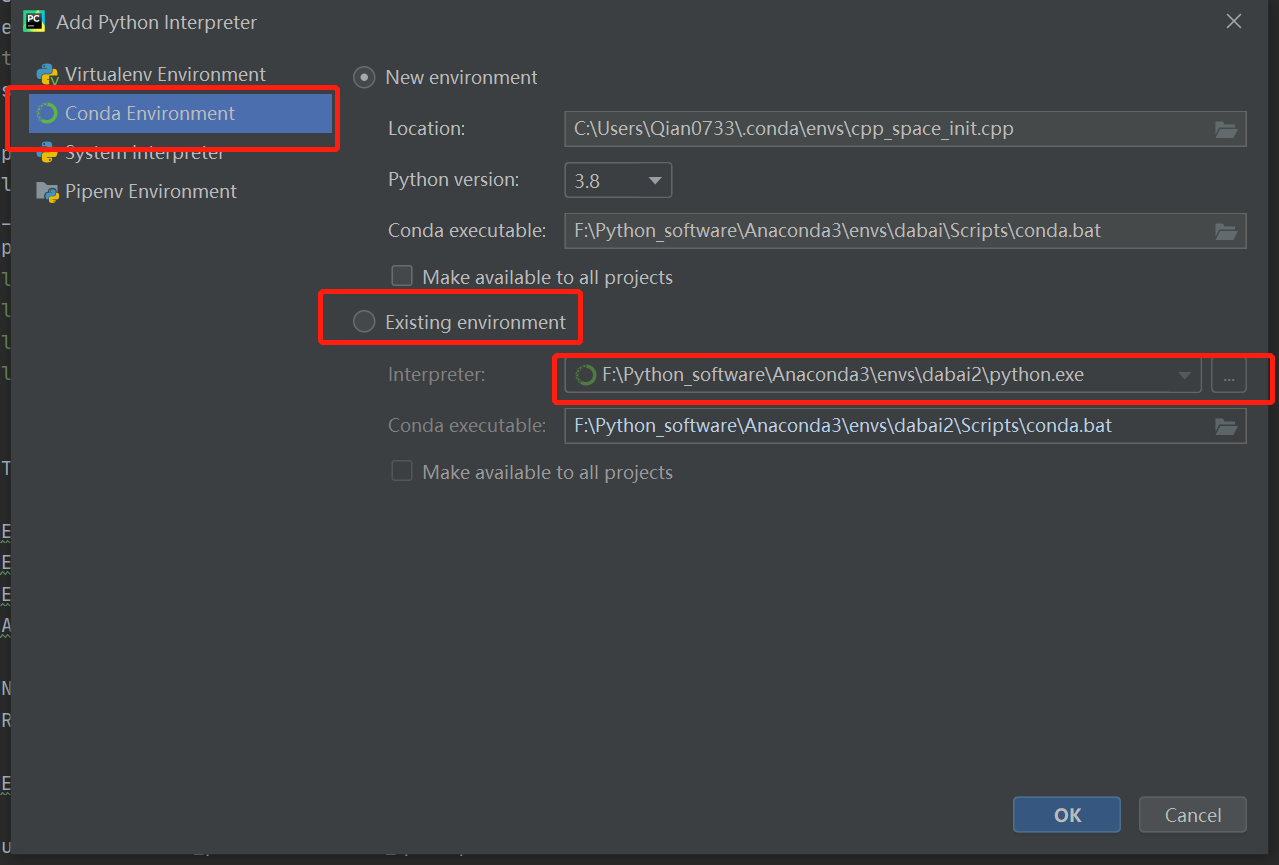
pycharm的右下角可以设置代码运行环境和python解释器的版本。点击Add interpreter会跳出一个新界面,在这个界面中①选择最左侧的conda环境——②中间的existing环境——③并找到你在conda终端中配置好的环境地址。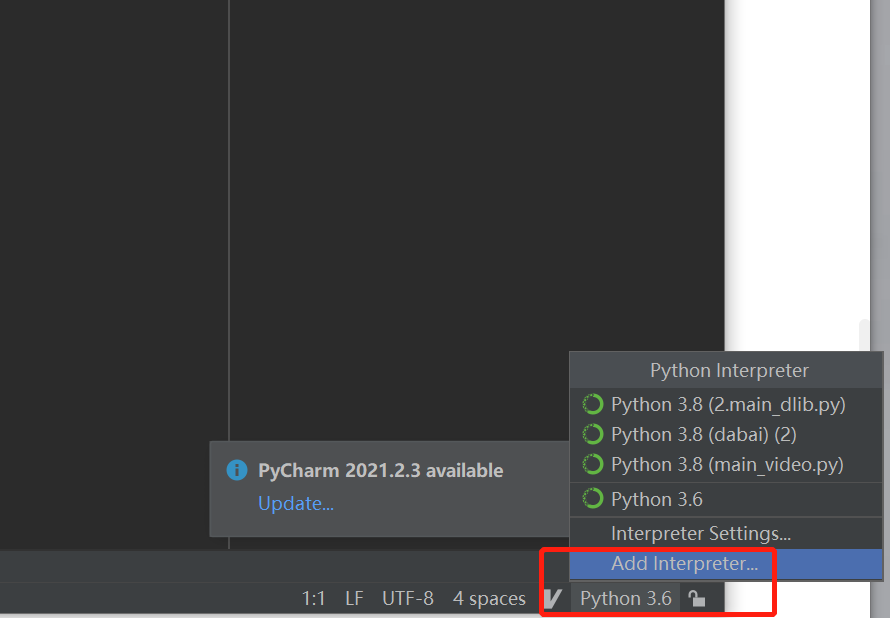
算法实践
可参考大白的视频:https://v.qq.com/x/page/o3301ekee7k.html
1、读取图像(相关知识点)
- cv2.imread(图像路径,读取模式=0,1,-1) # 读取模式包含:灰度图(1通道);正常图像(3通道);含透明通道的RGBA图像(4通道)
- OpenCV的图像shape分别是:HWC
- img = cv2.resize(图像,预期高宽元组)
- cv2.imshow(“image”, img)
- cv2.waitKey(0) # 显示图片停顿的时间,如果是0,则一直显示。如果是100,则显示100ms
2、读取视频
- cap = cv2.VideoCapture(opt.video_path) #用于获取视频的函数,当video_path为数字0时,会调用笔记本本地的摄像头 。如果想用usb摄像头,可以尝试用数字1或者2。
- while cap.isOpened(): # 判断视频是否是打开状态
- ret, frame = cap.read() # 利用read函数逐帧读取图像 ;其中ret是布尔值,用于表示是否读取到图像
- frame_id要在视频打开前设置好,在视频循环时候进行累加,可以作为退出循环(视频读取)的依据。
- 可以通过imshow的方式展示读取到的视频,设置好停顿时间就能获得流畅的显示体验。

若有收获,就点个赞吧
0 人点赞


