Docker文档:
https://docs.docker.com/get-docker/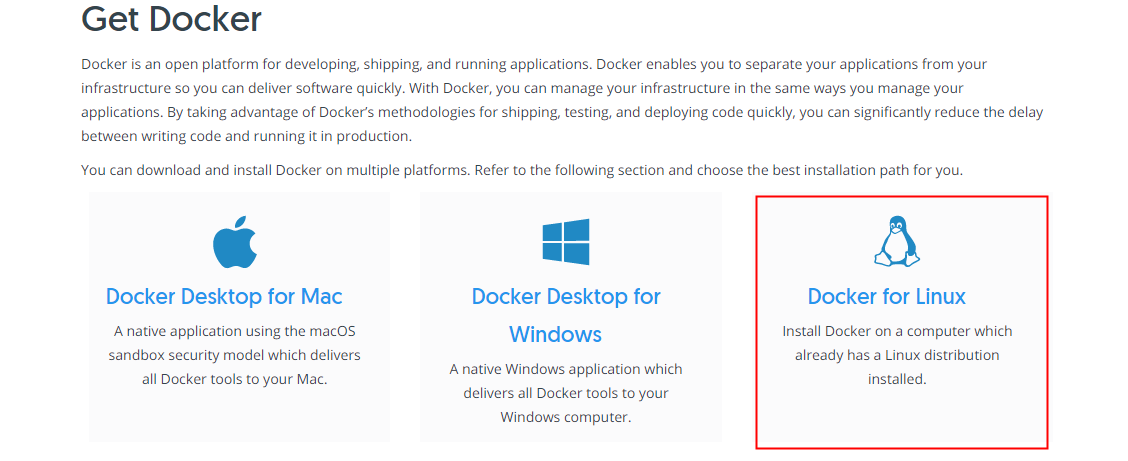
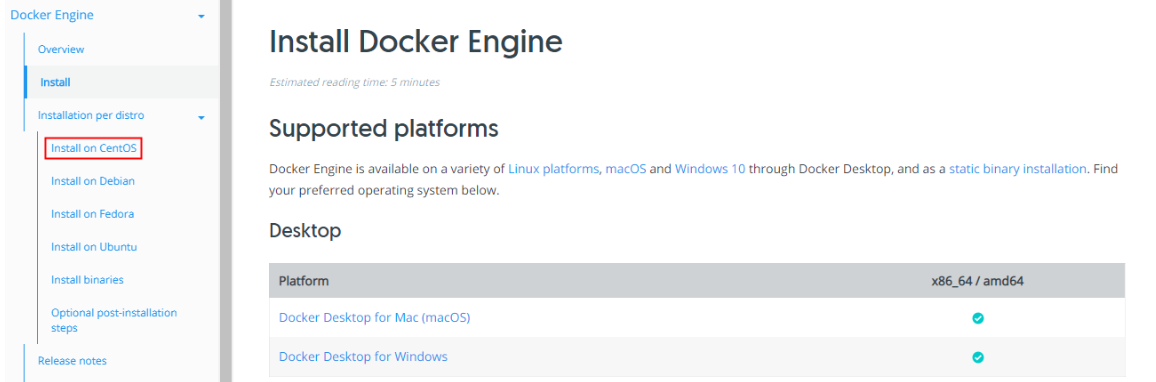
安装Docker引擎
先决条件:
操作系统要求:要安装Docker引擎,需要CentOS 7的维护版本。不支持或测试存档版本。
必须启用centos-extras存储库。默认情况下该存储库是启用的,但是如果您已经禁用了它,则需要重新启用它。
1.卸载旧版本
yum remove docker \docker-client \docker-client-latest \docker-common \docker-latest \docker-latest-logrotate \docker-logrotate \docker-engine
如果yum报告没有安装这些包,也是可以的。
/var/lib/docker/的内容,包括镜像、容器、卷和网络。Docker引擎包现在称为Docker -ce
2.安装基础包
yum install -y yum-utils
安装 yum-utils 包(它提供 yum-config-manager 实用工具)并设置稳定存储库。
3.添加镜像仓库
默认国外源:yum-config-manager \--add-repo \https://download.docker.com/linux/centos/docker-ce.repo阿里云:yum-config-manager \--add-repo \http://mirrors.aliyun.com/docker-ce/linux/centos/docker-ce.repo
4.更新yum软件包索引
yum makecache fast
5.安装 Docker引擎
yum install docker-ce docker-ce-cli containerd.io
安装特定版本的Docker:
yum install docker-ce-<VERSION_STRING> docker-ce-cli-<VERSION_STRING> containerd.io
6.启动并加入开机自启动
systemctl start dockersystemctl enable docker
判断是否安装成功:
[root@localhost ~]# docker versionClient: Docker Engine - CommunityVersion: **19.03.13**API version: 1.40Go version: **go1.13.15**Git commit: 4484c46d9dBuilt: Wed Sep 16 17:03:45 2020OS/Arch: linux/amd64Experimental: false**Server: Docker Engine - Community**Engine:Version: 19.03.13API version: 1.40 (minimum version 1.12)Go version: go1.13.15Git commit: 4484c46d9dBuilt: Wed Sep 16 17:02:21 2020OS/Arch: **linux/amd64**Experimental: falsecontainerd:Version: 1.3.7GitCommit: 8fba4e9a7d01810a393d5d25a3621dc101981175runc:Version: 1.0.0-rc10GitCommit: dc9208a3303feef5b3839f4323d9beb36df0a9dddocker-init:Version: 0.18.0GitCommit: fec3683[root@localhost ~]#
7.测试hello-world
通过运行 hello-world 镜像来验证 Docker Engine 安装是否正确。
docker run hello-world
[root@localhost ~]# docker run hello-world
Unable to find image 'hello-world:latest' locally   #寻找镜像
latest: Pulling from library/hello-world  #从library远程拉取hello-world镜像
0e03bdcc26d7: Pull complete
Digest: sha256:8c5aeeb6a5f3ba4883347d3747a7249f491766ca1caa47e5da5dfcf6b9b717c0
Status: Downloaded newer image for hello-world:latest

Hello from Docker!   #Docker安装成功
This message shows that your installation appears to be working correctly.

To generate this message, Docker took the following steps:
 1. The Docker client contacted the Docker daemon.
 2. The Docker daemon pulled the "hello-world" image from the Docker Hub.
    (amd64)
 3. The Docker daemon created a new container from that image which runs the
    executable that produces the output you are currently reading.
 4. The Docker daemon streamed that output to the Docker client, which sent it
    to your terminal.

To try something more ambitious, you can run an Ubuntu container with:
 $ docker run -it ubuntu bash

Share images, automate workflows, and more with a free Docker ID:
 https://hub.docker.com/

For more examples and ideas, visit:
 https://docs.docker.com/get-started/
8.查看hello-world镜像
[root@localhost ~]# docker images
REPOSITORY          TAG                 IMAGE ID            CREATED             SIZE
hello-world         latest              bf756fb1ae65        9 months ago        13.3kB
[root@localhost ~]#
9.卸载 Docker 引擎
卸载 Docker Engine、 CLI 和 Containerd 软件包:
yum remove docker-ce docker-ce-cli containerd.io
不会自动删除主机上的映像、容器、卷或自定义配置文件。您必须手动删除任何已编辑的配置文件。删除所有镜像,容器和卷:
rm -rf /var/lib/docker
配置阿里云镜像加速
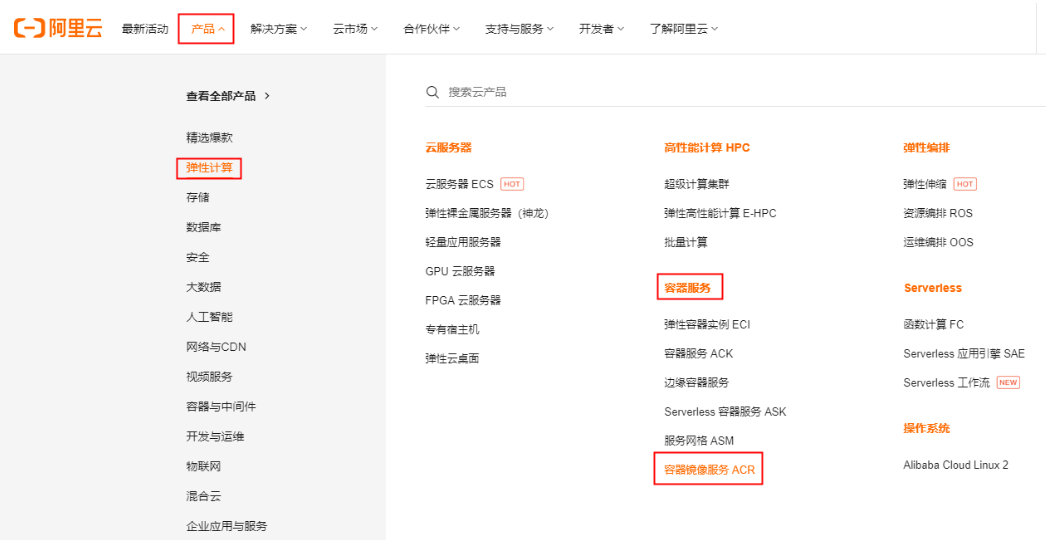
1.找到镜像加速器
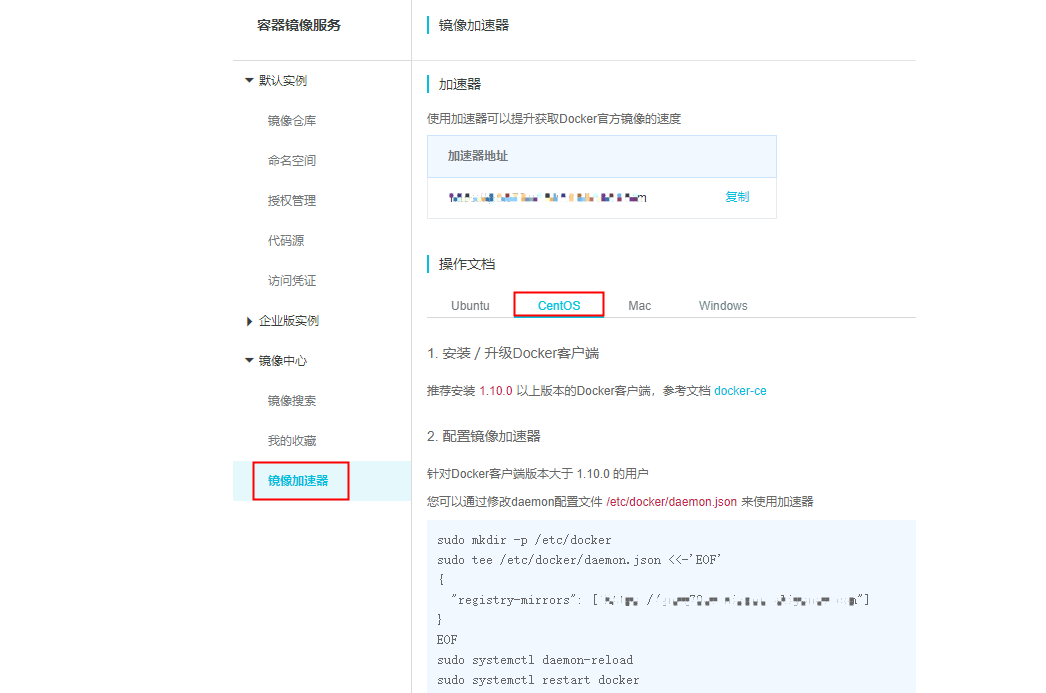
2.配置镜像加速器
针对Docker客户端版本大于 1.10.0 的用户
您可以通过修改daemon配置文件/etc/docker/daemon.json来使用加速器
sudo mkdir -p /etc/docker

sudo tee /etc/docker/daemon.json <<-'EOF'
{
  "registry-mirrors": ["https://自己.mirror.aliyuncs.com"]
}
EOF

sudo systemctl daemon-reload

sudo systemctl restart docker
回顾hello-world了解Docker运行原理

底层原理
1.Docker是怎么工作的?
Docker是一个Client-Server结构的系统,Docker的守护进程运行在服务器上。通过Socket客户端访问!

若有收获,就点个赞吧
0 人点赞


