1. Intro.js

介绍
Intro.js 由于其用户友好的解决方案而被广泛使用,并拥有1.9万个GitHub star。其最重要的功能是:
- 无依赖项:不需要任何其他依赖项
- 体积小,速度快:体积较小,因此引导过程顺畅而直观。JavaScript文件的总大小为10KB, CSS为2.5KB。
- 用户友好:导航是用户友好的,并提供可根据您的喜好选择的各种主题。
- 浏览器兼容性:可在所有主要浏览器上使用,例如Google Chrome,Mozilla Firefox,Opera,Safari和Internet Explorer。
- 文档:文档非常出色,其中包含要介绍的每个元素的示例。
Intro.js地址:Intro.js
如何安装
要使用Intro.js,您需要安装npm和Node.js。或者,您可以从以下位置获取Intro.js:
- 它的GitHub存储库:使用 git clone https://github.com/usablica/intro.js.git
- 使用 bower
bower install intro.js - save
- 使用 NPM
npm install intro.js - save
- CDNs (jsdeliver.com, cdnjs.com)
如何使用
一旦安装了intro.js,只需三个简单的步骤即可将其添加到项目中:
- 将JS和CSS文件(intro.js和introjs.css)添加到您的项目中。如果需要从右到左的语言支持,还可以添加introjs-rtl.min.css。
- 将属性data-intro和data-step添加到相关的HTML元素中。这将为特定元素启用intro.js。
- 调用以下JavaScript函数:
introJs().start();
使用以下附加参数在特定元素或类上调用Intro.js。
introJs(".introduction-farm").start();
2.Shepherd

Shepherd有8.1k GitHub星,其网站演示了它的工作原理。其主要功能如下:
- 可访问性:提供键盘导航支持,符合a11y规范,并且还使用JavaScript启用DOM元素内部的焦点捕获。
- 高度可定制:允许在不影响性能的情况下更改外观。
- 可以很容易地嵌入到项目的前端框架中。
- 文档:文档涵盖了安装和自定义,包括项目的主题和样式。
Shepherd地址:https://shepherdjs.dev/
如何安装
Shepherd与许多主要的前端框架集成在一起,并提供了以下包装器以方便使用:
- Angular:angular-shepherd是一个Angular包装器,与Angular 8+兼容。
- Ember:ember-shepherd是一个ember包装器,已通过Ember.js> = v3.8进行了测试,并且与Ember CLI v12.3兼容。
- React:react-shepherd是一个React包装器。
- Vue:vue-shepherd是Vue包装器。
您可以使用npm或yarn直接安装这些包装器:
npm install shepherd.js -saveyarn add shepherd.js
也可以通过CDN的JsDeliver直接将其拉出:
<script src="https://cdn.jsdelivr.net/npm/shepherd.js@5.0.1/dist/js/shepherd.js"></script>
如何使用
一旦安装了Shepherd,就可以引入CSS和JS文件,如下所示:
<link rel="stylesheet" href="shepherd.js/dist/css/shepherd.css"/><script src="shepherd.js/dist/js/shepherd.min.js"></script>
下面是一个创建Shepherd之旅并添加带有DOM元素的步骤的示例。
const tour = new Shepherd.Tour({defaultStepOptions: {cancelIcon: {enabled: true},classes: 'class-1 class-2',scrollTo: { behavior: 'smooth', block: 'center' }}});tour.addStep({title: 'Creating a Shepherd Tour',text: `Creating a Shepherd tour is easy. too!\Just create a \`Tour\` instance, and add as many steps as you want.`,attachTo: {element: '.hero-example',on: 'bottom'},buttons: [{action() {return this.back();},classes: 'shepherd-button-secondary',text: 'Back'},{action() {return this.next();},text: 'Next'}],id: 'creating'});tour.start();
3.Bootstrap Tour

Twitter Bootstrap通过Bootstrap Tour提供了自己的免费导览实现,GitHub上拥有4,315个星。
引导弹出窗口易于构建。这是用于引导程序的基于jQuery的插件,并使用DOM和JavaScript配置的功能来构建导览。就像添加JS和CSS文件一样简单,并提供了详细深入的文档。
Bootstrap Tour地址:https://bootstraptour.com/
如何安装
您可以简单地使用bootstrap的CSS和JS文件:
<link href="bootstrap.min.css" rel="stylesheet"><link href="bootstrap-tour.min.css" rel="stylesheet">...<script src="jquery.min.js"></script><script src="bootstrap.min.js"></script><script src="bootstrap-tour.min.js"></script>
或使用独立的CSS或JavaScript文件:
<link href="bootstrap-tour-standalone.min.css" rel="stylesheet">...<script src="jquery.min.js"></script><script src="bootstrap-tour-standalone.min.js"></script>
如何使用
初始设置后,您可以创建导览的实例,并添加具有元素详细信息的步骤,如下所示:
// Instantiate the tourvar tour = new Tour({steps: [{element: "#my-element",title: "Title of my step",content: "Content of my step"},{element: "#my-other-element",title: "Title of my step",content: "Content of my step"}]});// Initialize the tourtour.init();// Start the tourtour.start();
4.Chardin.js

它使用JQuery插件显示指令,GitHub页面包含说明和文档,并具有4.9k GitHub star。
Chardin.js地址:http://heelhook.github.io/chardin.js/
如何安装
您可以 fork GitHub存储库或下载所需的CSS和JS文件 chardinjs.css和 chardinjs.min.js并将它们添加到HTML页面。
<link href="chardinjs.css" rel="stylesheet"><script src="chardinjs.min.js"></script>
如何使用
设置后,您可以向文档中添加说明,以下是向图像元素添加指令的示例。data-intro设置要显示的文本,数据位置决定文本的位置。
<img src="img/chardin.png" data-intro="An awesome 18th-century painter, who found beauty in everyday, common things." data-position="right" />
要以顺序模式运行Chardin,您需要使用不同的指令,例如data-chardin-sequenced =“ true”,data-chardin-auto =“ true”和data-chardin-delay =“ 100”来自动显示指令通过元素的运动。
<body data-chardin-sequenced="true" data-chardin-auto="false" data-chardin-delay="800" >
一旦这些元素与指令一起准备好了,您就可以通过单击按钮来初始化库,或者让它自动运行,库也可以被限制在一个特定的容器中。
$('body').chardinJs();$('body').on('click', 'button[data-toggle="chardinjs"]', function (e) {e.preventDefault();return ($('body').data('chardinJs')).toggle();});// Run Explicitly$('body').chardinJs('start')// Confine to container$('.container').chardinJs('start')
Chardin.js 允许您刷新覆盖层,还提供了构造选项来指定包含文本的URL作为JSON对象,可以将其显示为指令。
5.PageGuide
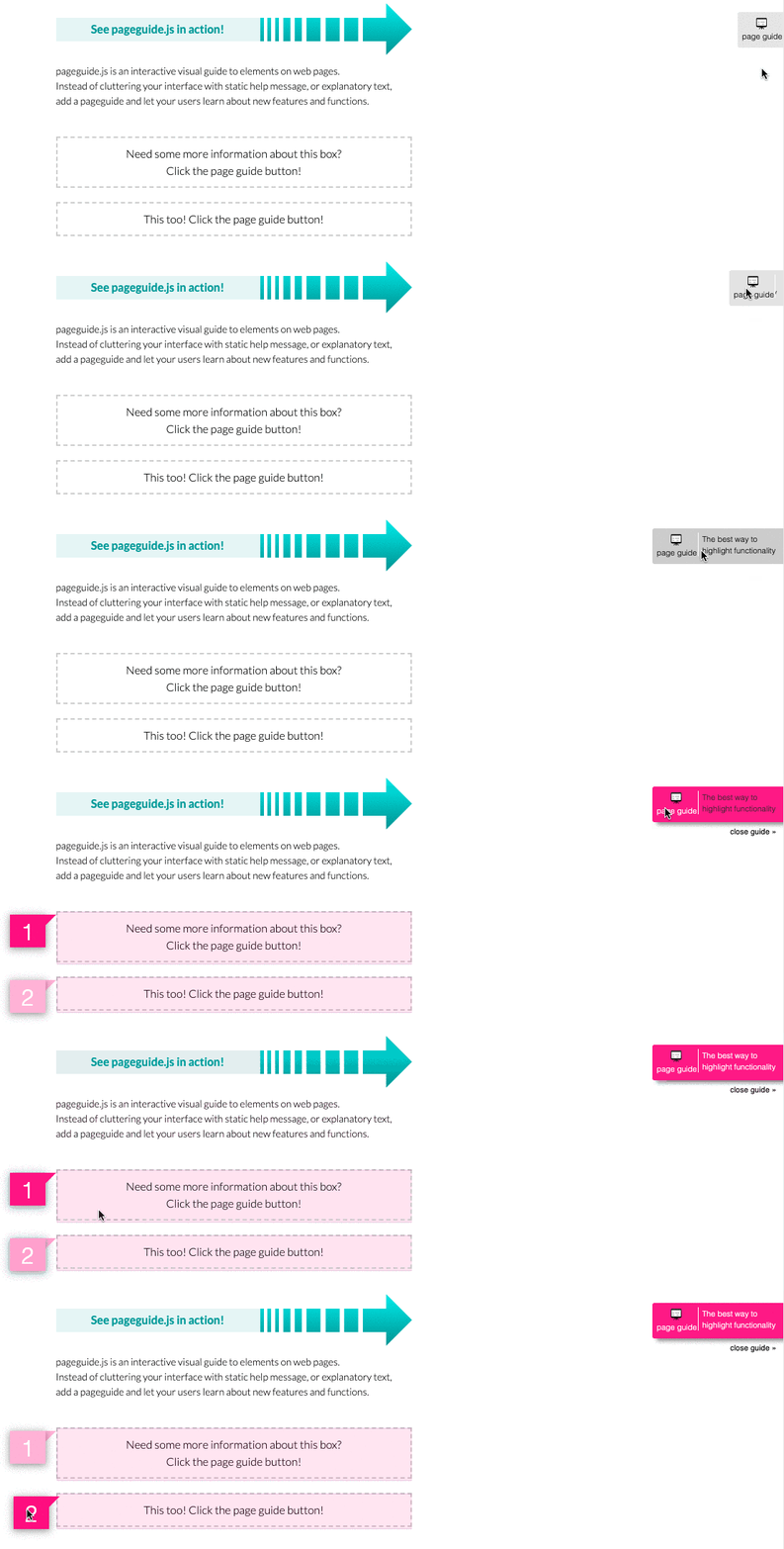
PageGuide是一个基于jQuery和CSS3的交互式、动态和单页应用程序的智能指南。
Pageguide地址:http://tracelytics.github.io/pageguide/
您可以通过以下四种方式之一安装PageGuide:
- 从GitHub下载最新版本
- 克隆仓库:git clone https://github.com/tracelytics/pageguide.git
- 用Bower安装
bower install pageguide
- 使用npm安装
npm install pageguidegrunt server
对于初始设置,请添加pageguide.js和CSS文件,如下所示:
<script src="{YOUR_PATH}/pageguide.min.js"></sc<link rel="stylesheet" href="{YOUR_PATH}/pageguide.css">
如何使用
将以下代码添加到HTML文件中以初始化PageGuide:
$(document).ready(function() {tl.pg.init({ /* optional preferences go here */ });});
在 <ul> 中指定选择器,PageGuide将与之匹配以显示文本。下面是将pageguide.js添加到页面底部的示例。
<ul id="tlyPageGuide" data-tourtitle="REPLACE THIS WITH A TITLE"><li class="tlypageguide_left" data-tourtarget=".first_element_to_target"><div>Here is the first item description. The number will appear to the left of the element.</div></li><li class="tlypageguide_right" data-tourtarget="#second_element_to_target"><div>Here is the second item description. The number will appear to the right of the element.</div></li><li class="tlypageguide_top" data-tourtarget=".third_element_to_target > div.is_here"><div>Here is the third item description. The number will appear above the element.</div></li><li class="tlypageguide_bottom" data-tourtarget="#fourth_element_to_target"><div>Here is the fourth item description. The number will appear below the element.</div></li></ul>
PageGuide用于在页面上显示静态消息,从而减少混乱。
6. Hopscotch

其主要目的是解决可用性,直观性和性能问题。
GitHub有4.3万颗星,在压缩状态下只有8kb。
虽然它不需要依赖,但如果页面上有可用的jQuery,它也可以使用。Hopscotch 提供了:
- 事件回调:支持onStart,onNext和onClose事件的回调。
- 使用HTML5会话存储来保持页面间浏览的状态。
- i18n:支持国际化。
- 轻量标注:使用一种方便的方法来创建标注。
- 浏览器兼容性:它与所有浏览器兼容。
- 可自定义:它允许CSS调整,气泡标记和页面交互。
LinkedInAttic/hopscotchThis 地址:https://github.com/LinkedInAttic/hopscotch
如何安装
使用Grunt.js构建Hopscotch。这将运行带有新工件的测试套件。然后将两个文件hopscotch.js和hopscotch.css包含到HTML页面中。
如何使用
初始设置完成后,您可以使用JSON初始化导览。
// First define your tour.var tour = {"id": "hello-hopscotch","steps": [{"target": "profile-picture","placement": "right","title": "Profile Picture","content": "This is your profile picture. Looking good!"},{"target": "find-conn","placement": "bottom","title": "Find Connections","content": "The internet is always more fun when you connect with others. Find some connections by clicking here."}]};// Then start the tour.hopscotch.startTour(tour);
Hopscotch 可以使用Jasmine测试框架进行测试,并可以与Travis CI进行持续集成。
7. Tourist.js
Tourist.js是一个简单的库,最适合单页应用程序而不是多页网站。它可以在每个步骤控制界面。使用Tourist,您可以为需要打开窗口或菜单的步骤创建一个指南,可以使用特定元素的指令指定一系列步骤。
尽管没有网站,但拥有12k星的GitHub页面包含大量文档。
easelinc/touristTourist.js地址:https://github.com/easelinc/tourist
如何安装
您可以使用以下bower命令安装Tourist.js:
bower install tourist
Tourist需要jQuery和Backbone,并且能够与Bootstrap 3 popovers一起使用或[QTip2 提示连同Bootstrap 3 CSS。
“ tourist.js” JavaScript文件和可选的CSS文件可用于自定义样式。
<script src="tourist.js"></script><!-- Optional! --><link rel="stylesheet" href="tourist.css" type="text/css" media="screen">
如何使用
初始设置后,您可以创建步骤并将其添加到导览实例中,如下所示:
var steps = [{// this is a step objectcontent: '<p>Hey user, check this out!</p>',highlightTarget: true,nextButton: true,target: $('#thing1'),my: 'bottom center',at: 'top center'}, {...}, ...]var tour = new Tourist.Tour({steps: steps,tipOptions:{ showEffect: 'slidein' }});tour.start();
它还允许您使用Tourist.tip对提示进行自定义实现。
总结
实现导览和指南是向用户介绍应用程序的一种简单方法。这些工具大多数都使用具有简单初始化功能的CSS和JavaScript文件。这些工具被许多顶尖公司使用。您的导览和指南的外观和功能将取决于您选择的库,正确的导航可以使您的应用程序更直观,对用户更有吸引力。
原文:https://blog.bitsrc.io/7-awesome-javascript-web-app-tour-libraries-6b5d220fb862

若有收获,就点个赞吧
0 人点赞


