原生API编写富文本编辑器004
遗留的问题:
- 设置的字体是使用 font属性,而非CSS
- 设置的字号只接受1-7, 并且是以 size 属性而非 CSS控制,超出大小无法设置。
- color使用HTML的input时,始终有一个input框在那里,并且如果手动触发click显示调色板,则调色板的位置无法自动跟随
- link 只能创建或取消,无法修改,无法指定是以何种方式打开
- link和image填写框聚焦时编辑器选区会被取消
设置字体字号使用的是HTML属性与标签,而非CSS

可以看到,在默认情况下,我们对文本的大多数操作都是使用HTML属性或标签的方式完成样式设置的。
如果想让浏览器使用CSS来设置这些样式,那么在编辑器加载前,执行styleWithCSS 命令,将设置的模式设置为css模式即可:
window.onload= function() {document.execCommand('styleWithCSS', false, '');//...

可以看到,这样浏览器就使用css来设置对应样式了,但又有新的问题,即字号不是我们想的按照像素设置的,而是按照浏览器定义的大小描述来设置的。
link和image填写框聚焦时编辑器选区会被取消
这个问题可以通过两种方式解决:
- 我们现在的可编辑区域是一个div,而我们的input框与该div同属一个文档,所以当input获得焦点时,可编辑区域就会失去焦点从而失去选区,所以我们只需要将div换成一个
frame,将可编辑区放置到iframe里的文档中,这样就不会抢夺焦点了。 - 输入框不使用自己写的input,而是使用浏览器的prompt 框,这样也不会与div抢夺焦点。
我们后面使用第一种方式改造,第二种方式有兴趣的读者朋友可以自行尝试。
// index.html<iframe id="editorContent" class="editor-content" contenteditable="true" frameborder="0"></iframe>
//index.css.editor-content {width: 100%;height: 500px;overflow: auto;padding-top: 20px;}
// index.jsvar editor;window.onload= function() {editor = document.getElementById("editorContent").contentWindow;//获取iframe Window 对象editor.document.designMode = 'On'; //打开设计模式editor.document.contentEditable = true;// 设置元素为可编辑editor.document.execCommand('styleWithCSS', false, '');// 后续文件中所有document.execCommand 改为 editor.document.execCommand, 例如:const rs = editor.document.execCommand('fontName', true, target.value);
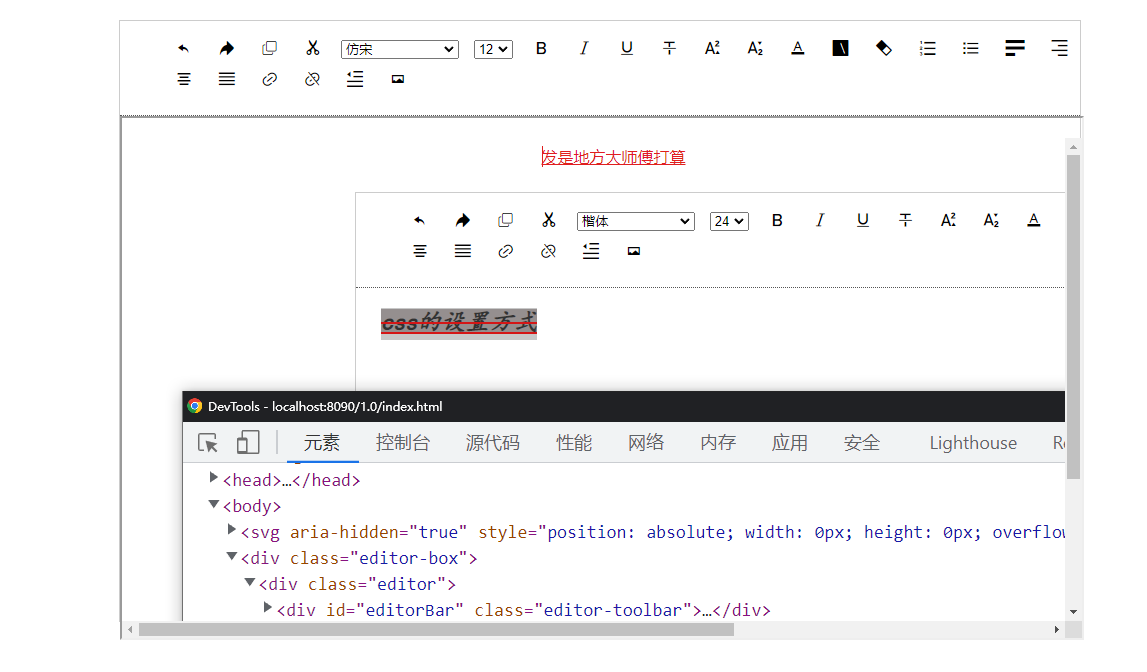
其它问题
要解决其它问题,则需要引入浏览器的另外两个API:range 与 selection;
我们下一节再说。
以上代码可在1.0.5 分支上找到。
代码优化
之前我们为了讲解功能实现的具体逻辑和原理,使用的是过程式编码方式,看着很不优雅,而且有很多冗余,下来我们就一步一步优化一下实现方式。
工具条动态生成
我们现在的工具条所有按钮,都是写死在html中的,每个按钮一个li标签,但是这样,一是按钮越多,代码就越多,二是不方便扩展,每次新增一个功能按钮,都要去改html模板。
我们改为使用js动态生成dom的方式来改写。
// index.jswindow.onload= function() {createEditorBar();// ...function createEditorBar() {let $tpl ='<ul>';const commandsMap = {'undo': {icon: 'chexiao',title: '撤销',},'redo': {icon: 'zhongzuo',title: '重做',},'copy': {icon: 'fuzhi',title: '复制',},'cut': {icon: 'jianqie',title: '剪切',},'fontName': {icon: 'ziti',title: '字体',},'fontSize': {icon: 'zihao',title: '字号',},'bold': {icon: 'zitijiacu',title: '加粗',},'italic': {icon: 'zitixieti',title: '斜体',},'underline': {icon: 'zitixiahuaxian',title: '下划线',},'strikeThrough': {icon: 'zitishanchuxian',title: '删除线',},'superscript': {icon: 'zitishangbiao',title: '上标',},'subscript': {icon: 'zitixiabiao',title: '下标',},'fontColor': {icon: 'qianjingse',title: '字体颜色',},'backColor': {icon: 'zitibeijingse',title: '字体背景色',},'removeFormat': {icon: 'qingchugeshi',title: '清除格式',},'insertOrderedList': {icon: 'youxuliebiao',title: '有序列表',},'insertUnorderedList': {icon: 'wuxuliebiao',title: '无序列表',},'justifyLeft': {icon: 'juzuoduiqi',title: '居左对齐',},'justifyRight': {icon: 'juyouduiqi',title: '居右对齐',},'justifyCenter': {icon: 'juzhongduiqi',title: '居中对齐',},'justifyFull': {icon: 'liangduanduiqi',title: '两端对齐',},'createLink': {icon: 'charulianjie',title: '插入链接',},'unlink': {icon: 'quxiaolianjie',title: '取消链接',},'indent': {icon: 'shouhangsuojin',title: '首行缩进',},'insertImage': {icon: 'tupian',title: '插入图片',},};for (key in commandsMap) {$tpl += `<li><button command="${key}"><i class="iconfont icon-${commandsMap[key].icon}" title="${commandsMap[key].title}"></i></button></li>`;}$tpl += '</ul>';const editorBar = document.getElementById('editorBar');editorBar.innerHTML = $tpl;}
// index.html<div id="editorBar" class="editor-toolbar"></div>
统一的下拉框生成方法
目前的下拉框,我们都是新生成按钮,然后再在编辑器初始化的时候动态生成将按钮替换掉的,而且每一个下拉框都有一个单独的生成方法,代码冗余比较多,我们统一使用相同方法生成下拉框的dom,并且在生成工具条的时候直接渲染。
// index.jsconst commandsMap = {//...'fontName': {icon: 'ziti',title: '字体',options: [{key: '仿宋',value: "'仿宋'",},{key: '黑体',value: "'黑体'",},{key: '楷体',value: "'楷体'",},{key: '宋体',value: "'宋体'",},{key: '微软雅黑',value: "'微软雅黑'",},{key: '新宋体',value: "'新宋体'",},{key: 'Calibri',value: "'Calibri'",},{key: 'Consolas',value: "'Consolas'",},{key: 'Droid Sans',value: "'Droid Sans'",},{key: 'Microsoft YaHei',value: "'Microsoft YaHei'",},],styleName: 'font-family',},'fontSize': {icon: 'zihao',title: '字号',options: [{key: '12',value: '12px',},{key: '13',value: '13px',},{key: '16',value: '16px',},{key: '18',value: '18px',},{key: '24',value: '24px',},{key: '32',value: '32px',},{key: '48',value: '48px',},],styleName: 'font-size',},}//...for (key in commandsMap) {if (commandsMap[key].options) {let id = key + 'Selector';let customStyleName = commandsMap[key].styleName;$tpl += getSelectTpl(id, commandsMap[key].options, customStyleName);} else {$tpl += `<li><button command="${key}"><i class="iconfont icon-${commandsMap[key].icon}" title="${commandsMap[key].title}"></i></button></li>`;}}function getSelectTpl(id, options, customStyleName) {let $tpl= `<li><select id="${id}">`;for (let i = 0; i < options.length; i++) {$tpl += `<option value="${options[i].value}" style="${customStyleName}: ${options[i].value}">${options[i].key}</option>`;}$tpl += '</select></li>';return $tpl;}const editorBar = document.getElementById('editorBar');editorBar.innerHTML = $tpl;addSelectorEventListener('fontName');addSelectorEventListener('fontSize');function addSelectorEventListener(key) {const $el = document.getElementById(key + 'Selector');$el.addEventListener('change', function(e) {eval('select' + key.substr(0, 1).toUpperCase() + key.substr(1) + '()');});}function selectFontName() {const target = document.getElementById('fontNameSelector');const rs = editor.document.execCommand('fontName', true, target.value);}function selectFontSize() {const valueMap = {'12px': 1,'13px': 2,'16px': 3,'18px': 4,'24px': 5,'32px': 6,'48px': 7,};const target = document.getElementById('fontSizeSelector');const value = valueMap[target.value];const rs = editor.document.execCommand('fontSize', true, value);}
统一的对话框生成方法
目前输入超级链接和网络图片地址都使用了一个简单的对话框,这两部分的代码有很多重复和冗余,需要进行优化。
var dialogFun;case 'createLink':showDialog(btn, 'link');break;case 'insertImage':showDialog(btn, 'image');break;function showDialog(btn, type) {const upperType = firstLetterToUppercase(type);const tpl = getDialogTpl(type);showDialogTpl(btn, tpl);const dialog = document.getElementById(type + 'Dialog');dialog.focus();const createDialogBtn = document.getElementById('create' + upperType + 'Btn');dialogFun = createDialog.bind(this, type);createDialogBtn.addEventListener('click', dialogFun, false);}function getDialogTpl(type) {const upperType = firstLetterToUppercase(type);const tpl = `<input type="text" id="${type}Dialog" /><button id="create${upperType}Btn">确定</button>`;return tpl;}function showDialogTpl(btn, tpl) {const $dialog = document.getElementById('editorDialog');$dialog.innerHTML = tpl;$dialog.style.top = (btn.offsetTop + btn.offsetHeight + 15) + 'px';$dialog.style.left = btn.offsetLeft + 'px';$dialog.style.display = 'block';}function createDialog(type) {const upperType = firstLetterToUppercase(type);const dialog = document.getElementById(type + 'Dialog');editor.document.execCommand('create' + upperType, 'false', dialog.value);const createDialogBtn = document.getElementById('create' + upperType + 'Btn');createDialogBtn.removeEventListener('click', dialogFun, false);hideDialog();}function firstLetterToUppercase(str) {return str.substr(0, 1).toUpperCase() + str.substr(1);}function hideDialog() {const $dialog = document.getElementById('editorDialog');$dialog.innerHTML = '';$dialog.style.display = 'none';}
至此,我们完成了基础的代码优化,其实就是提取了一些公共方法,通过参数不同来控制不同的输出。
以上代码可以在 1.0.6 分支上找到
问题
现在又有新的问题了,现在我们的所有方法都是暴露在全局环境下的,甚至还有一些全局变量,如果我们的应用中只有一个编辑器实例还好,但是如果同一个页面有两个编辑器,就会很麻烦。
所以,下一节我们将对代码进行面向对象的改造,让同一个页面可以生成多个不同的编辑器实例,各个实例之间可以互不干扰。

若有收获,就点个赞吧
0 人点赞


