1 practical extensions
1.1 Visual Studio Code Commitizen Support
1.2 Prettier - Code formatter
1.3 Auto Rename Tag
1.4 ESLint
1.5 Path Intellisense

1.6 Code Runner

1.7 Git Lens

1.8 Tabnine AI AutoComplete
vscode是个成熟的编辑器了,它已经学会了自己写代码
当你输入前面一部分代码之后,会自动提示后面部分,只需tab即可
2 artistical extensions
2.1 Material Icon Theme
2.2 ES7+ React/Redux/React -Native snippets
2.3 Error Lens
2.4 Bracket Pair Colorizer 2
彩色括号,当括号多了看不清时可以用这个,比较清楚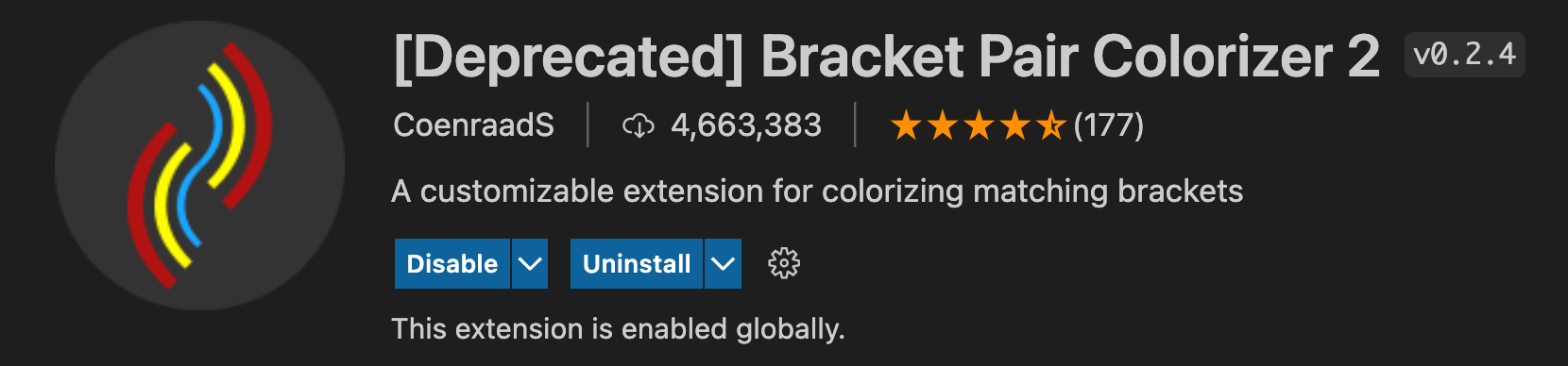
3 settings
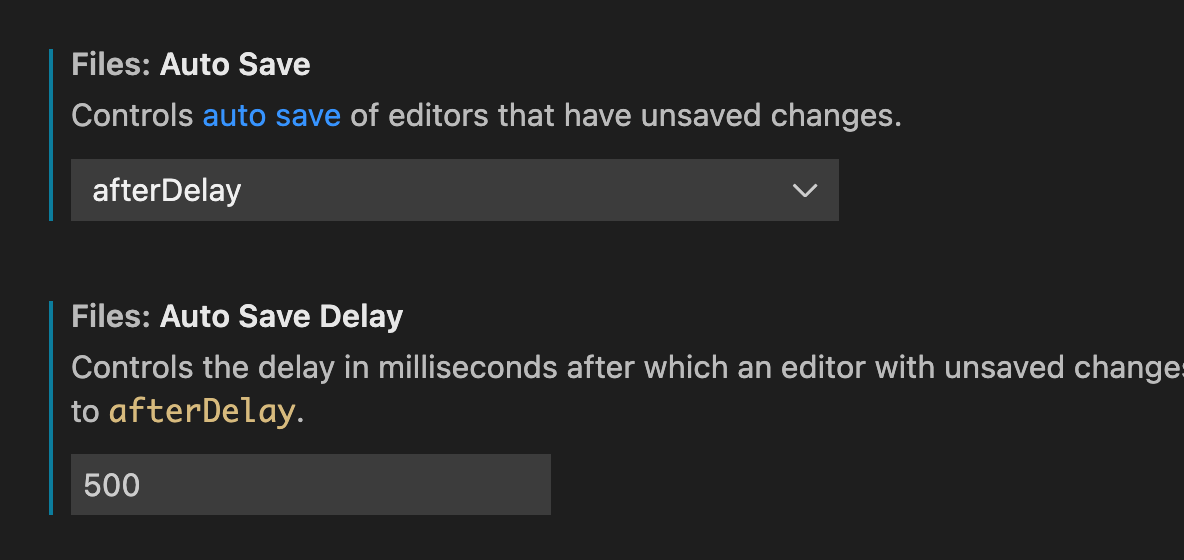
3.1 autosave
3.2 terminal优化
安装参考oh-my-zsh github官网
或者直接运行下面这行代码
sh -c "$(curl -fsSL https://raw.githubusercontent.com/ohmyzsh/ohmyzsh/master/tools/install.sh)"
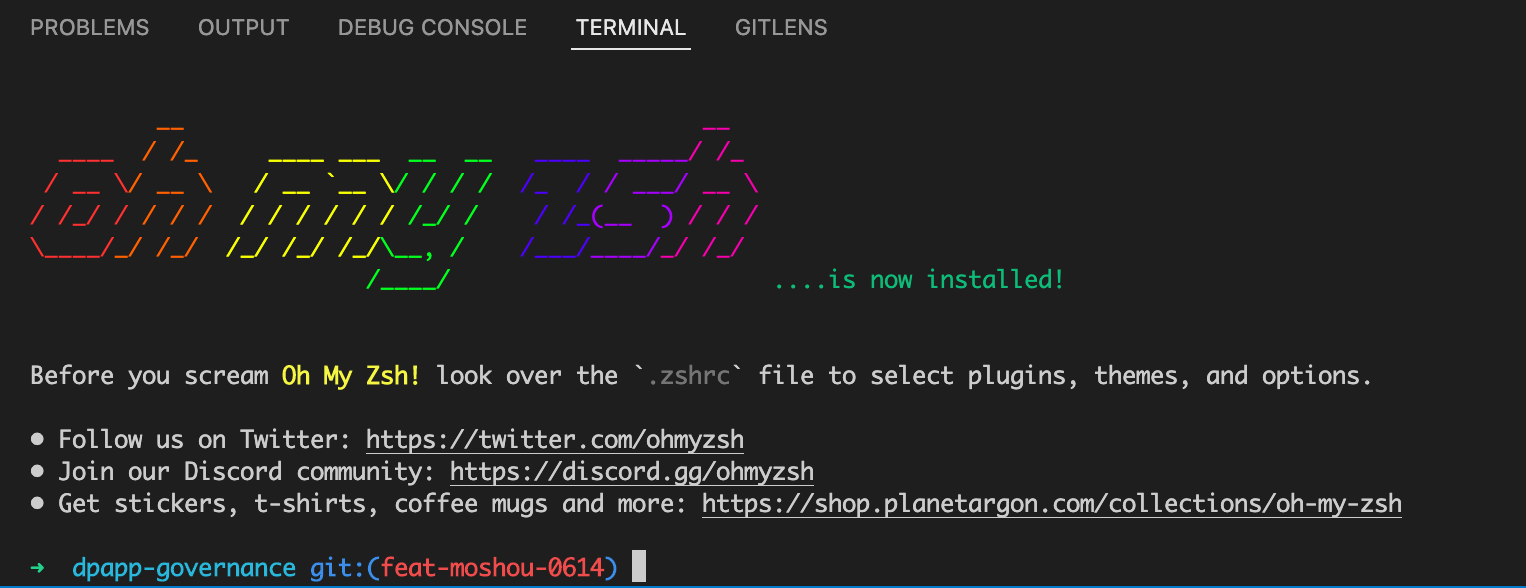
想要更花里胡哨的可以网上找,基本默认的即可
:::tips
进阶补充
配置zsh terminal全局快捷键(以下为mac演示,win系统自行百度)
找到个人文件夹 — 找到.zshrc文件 — 拉到最后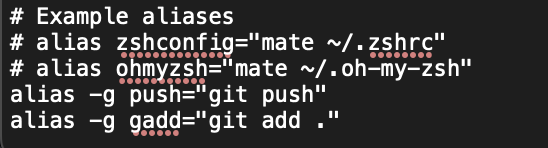
按如图方式进行配置,-g为全局可选项
:::
3.3 自动格式化配置
setting — 搜索json — 找到下图点击edit
直接复制下面整段,全部替换即可
{"workbench.startupEditor": "none","editor.formatOnSave": true,"files.autoSave": "onFocusChange","editor.defaultFormatter": "esbenp.prettier-vscode","git.confirmSync": false,// react"[javascriptreact]": {"editor.defaultFormatter": "esbenp.prettier-vscode"},"[typescriptreact]": {"editor.defaultFormatter": "vscode.typescript-language-features"},"explorer.confirmDelete": false,"editor.fontSize": 15,"workbench.iconTheme": "material-icon-theme","git.enableSmartCommit": true,// 修改注释颜色"editor.tokenColorCustomizations": {"comments": {"fontStyle": "bold","foreground": "#70c394"}},// 配置文件类型识别"files.associations": {"*.js": "javascript","*.json": "jsonc","*.cjson": "jsonc","*.wxss": "css","*.wxs": "javascript"},"extensions.ignoreRecommendations": false,"files.exclude": {"**/.DS_Store": true,"**/.git": true,"**/.hg": true,"**/.svn": true,"**/CVS": true,"**/node_modules": false,"**/tmp": true},"explorer.confirmDragAndDrop": false,"typescript.updateImportsOnFileMove.enabled": "prompt","editor.tabSize": 2,"[json]": {},"editor.tabCompletion": "on","vsicons.projectDetection.autoReload": true,"editor.fontFamily": "Monaco, 'Courier New', monospace, Meslo LG M for Powerline","[html]": {"editor.defaultFormatter": "vscode.html-language-features"},"debug.console.fontSize": 14,"vsicons.dontShowNewVersionMessage": true,"editor.minimap.enabled": true,"emmet.extensionsPath": [""],// vue eslint start 保存时自动格式化代码// eslint配置项,保存时自动修复错误"editor.codeActionsOnSave": {"source.fixAll": true},"vetur.ignoreProjectWarning": true,// 让vetur使用vs自带的js格式化工具// uni-app和vue 项目使用"vetur.format.defaultFormatter.js": "vscode-typescript","javascript.format.semicolons": "insert",// 指定 *.js 文件的格式化工具为vscode自带"[javascript]": {"editor.defaultFormatter": "vscode.typescript-language-features"},// // 默认使用prettier格式化支持的文件"prettier.jsxBracketSameLine": true,// 函数前面加个空格"javascript.format.insertSpaceBeforeFunctionParenthesis": true,"prettier.singleQuote": false,// 当按tab键的时候,会自动提示"emmet.triggerExpansionOnTab": true,"emmet.showAbbreviationSuggestions": true,"emmet.includeLanguages": {// jsx的提示"javascript": "javascriptreact","vue-html": "html","vue": "html","wxml": "html"},// end"[jsonc]": {"editor.defaultFormatter": "vscode.json-language-features"},// @路径提示"path-intellisense.mappings": {"@": "${workspaceRoot}/src"},"security.workspace.trust.untrustedFiles": "open","git.ignoreMissingGitWarning": true,"eslint.enable": true,"eslint.alwaysShowStatus": true,"eslint.format.enable": true,"eslint.lintTask.enable": true,"eslint.quiet": true,"eslint.validate": ["javascript","javascriptreact","typescript","typescriptreact",],"launch": {"configurations": [],"compounds": []},}
修改后代码将在保存之后自动格式化,省去调代码格式的时间
4 代码规范
4.1 Commit规范
- feat: 新功能
- fix: 修复问题
- docs: 修改文档
- style: 修改代码格式,不影响代码逻辑
- refactor: 重构代码,理论上不影响现有功能
- perf: 提升性能
- test: 增加修改测试用例
- chore: 修改工具相关(包括但不限于文档、代码生成等)
- deps: 升级依赖
4.2 css规范
- 定位(position、left、right、top、bottom、z-index)
- 盒子模型(display、float、width、height、margin、padding、border、border-radius)
- 排印(font、color、background、line-height、text-align)
5 常用git操作
# 提交全家桶
git add .
git commit -m "message"
git push
  # 如果没有绑定上流分支,则使用下面这行代码固定
git push --set-upstream origin branchNameInCloud
  # 或者直接输入希望push的分支名
git push origin branchNameInCloud

# clone代码
git clone http://...

# 分支操作
git checkout <branchName> # 切换分支
git checkout -b <newBranchName> # 新增本地分支并切换
git branch -d <branchName> # 删除分支
git merge branchName

  ## 高亮行也可替换为以下两行
  git branch <newBranchName>
  git checkout <newBranchName>

# stash相关
git stash # 将目前的diff存入stash中
git stash pop # 弹出stash中第一个diff
git stash list # 查看所有
git stash clear # 清空stash

若有收获,就点个赞吧
0 人点赞


