需求背景
我们可以看到很多富有生活气息的独立站或者平台,都在使用这个功能,卖家可以在图片上添加按钮,将图片中的产品设置为可购买的。在这个功能的帮助下,使用富有生活气息的图片可以激发买家的购物欲望,当你的一张图片中某个产品吸引了买家的眼球,买家只需点击几下鼠标就可能将购物欲望变成了转化。
现存一些主题很多是不包含此功能的,那么这个功能加起来到底是不是那么麻烦呢?带着这些疑问我们往下看。
1. 实现原理
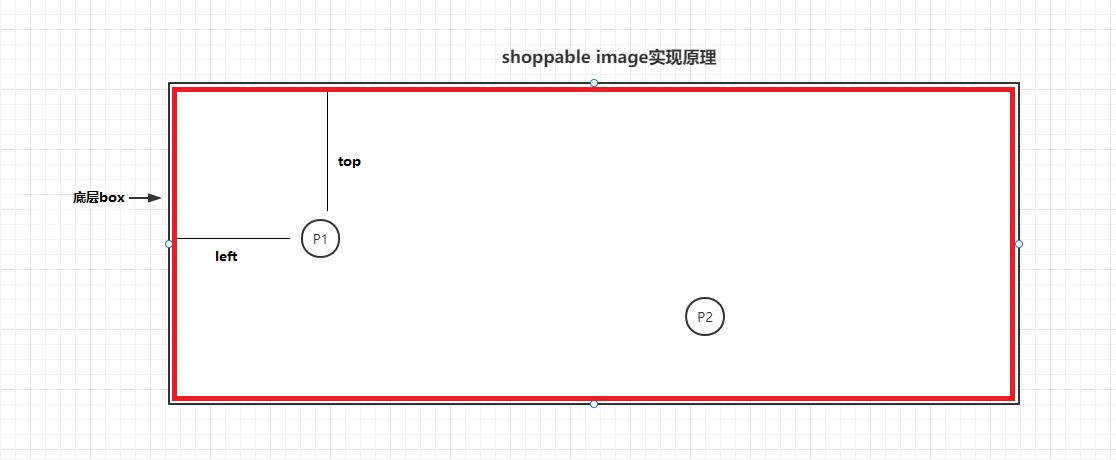
底层box将图片和商品标记框包裹起来,例如图中p1, 相对box进行绝对定位。点击商品标记框,加载出商品信息并进行展示。
需要注意的细节:
- 要想图片展示最佳的效果,图片展示的大小需要靠图片自身进行填充。因此商品标记框的位置也许要根据比例来进行设置才不会变。
点击之后商品信息加载显示,这个地方是比较容易踩坑的地方。
博主现在看到很多的弹层是在设置商品的时候,直接将商品数据渲染到热点商品位置了。这种形式不是说不好,现在比如只有一个这个组件,是ok的。但是有10个或者更多的话,商品数据加载多了会间接的影响dom加载的大小,并且在后端all_products取商品的时候也会有一定的影响。因此比较推荐的是使用异步的方式进行加载,加载出来的数据加上标记,不需要重复进行加载。效果几乎和初始的时候加载数据差不多,但是避免了那些缺点。
2. 如何实现
按照我们的实现原理只需要添加3个文件就可以实现此功能。并且这个实现和主题无关。
目前图片未添加懒加载支持,商品的quick view功能,因为不同主题的实现方式不同。笔者只是抛砖引玉,至于能做成啥样的,还是得看大家的脑洞了。
Section : shoppable-image.liquid , shoppable-ajax-product.liquid
Snippets: shoppable-image-product.liquid
{%- capture hotspot_products -%}{%- for block in section.blocks -%}{%- if block.settings.product != blank -%}{%- render 'shoppable-image-product',type: 'component',productHandle: block.settings.product,top: block.settings.top,left: block.settings.left-%}{%- endif -%}{%- endfor -%}{%- endcapture -%}{%- capture shoppable_id -%}shoppable-{{ section.id }}{%- endcapture -%}<div class="shoppable-container" id="{{ shoppable_id }}">{%- if section.settings.title != blank -%}<div class="shoppable-head">{{ section.settings.title }}</div>{%- endif -%}<div class="shoppable-body"><div class="shoppable-body__image"><img src="{{ section.settings.image | img_url: 'master' }}" /></div><div class="shoppable-body__products">{{ hotspot_products }}</div></div></div><style>#{{ shoppable_id }} .shoppable-head {text-align: center;margin: 10px 0;font-size: 20px;font-weight: bold;}#{{ shoppable_id }} .shoppable-body{position: relative;}#{{ shoppable_id }} .shoppable-body .shoppable-body__image {width: 100%;}#{{ shoppable_id }} .shoppable-body .shoppable-body__image img {width: 100%;}#{{ shoppable_id }} .shoppable-body .shoppable-body__products {position: absolute;top: 0;left: 0;width: 100%;height: 100%;}#{{ shoppable_id }} .shoppable-body .shoppable-body__products .product-data {position: absolute;width: 30px;height: 30px;cursor: pointer;background-color: #0006;border-radius: 50%;outline: none;box-shadow: none;transition: background-color .15s cubic-bezier(.4,0,.2,1),box-shadow .15s cubic-bezier(.4,0,.2,1);}#{{ shoppable_id }} .shoppable-body .shoppable-body__products .product-data:hover {z-index: 299;box-sizing: border-box;box-shadow: 0 0 0 2px #fff inset, 0 1px 4px #00000026;}#{{ shoppable_id }} .shoppable-body .shoppable-body__products .product-data .product-data__card{display: none;}#{{ shoppable_id }} .shoppable-body .shoppable-body__products .product-data:hover .product-data__card {display: block;width: 200px;background: #fff;font-size: 12px;position: absolute;transform: translate( -50% ,30px);box-shadow: 0 2px 12px 0 rgb(0 0 0 / 10%);}#{{ shoppable_id }} .shoppable-body .shoppable-body__products .product-data__pointer {position: absolute;display: block;bottom: 50%;left: 50%;width: 14px;height: 14px;cursor: pointer;background-color: #fff;border-radius: 50%;transition: transform .15s cubic-bezier(.4,0,.2,1);transform: translate(-50%,50%);}#{{ shoppable_id }} .view__detail {text-align: center;padding: 0 0 20px;}#{{ shoppable_id }} .view__image {display: flex;justify-content: center;}#{{ shoppable_id }} .view__detail .detail__title {color: #000;text-decoration: none;}#{{ shoppable_id }} .view__detail .btn-options {background: #000;padding: 5px;color: #fff;text-decoration: none;}</style><script>var selector = '#{{ shoppable_id }} .product-data';function loadProduct(el) {if ($(el).hasClass('data-loaded')) {return;}var handle = $(el).attr('data-handle');fetch(`/products/${handle}?section_id=shoppable-ajax-product`).then(function(response) {return response.text();}).then(function(html) {var nodeHtml = $(html).find('.data-wapper').html();$(el).find('.product-data__card').html(nodeHtml);$(el).addClass('data-loaded');});}$(selector).on('hover', function() {loadProduct(this);});$(document).ready(function() {$(selector).each(function(_, node) {loadProduct(node);});});</script>{% schema %}{"name": "Shoppable image","class": "shoppable-image--section","max_blocks": 5,"settings": [{"type": "text","id": "title","label": "标题","default": "标题"},{"type": "image_picker","id": "image","label": "图片"}],"blocks": [{"type": "hotspot","name": "配置商品","settings": [{"type": "product","id": "product","label": "Product"},{"type": "range","id": "top","label": "图片距box顶部偏移位置","min": 0,"max": 100,"step": 1,"unit": "%","default": 50},{"type": "range","id": "left","label": "图片距离box左侧偏移位置","min": 0,"max": 100,"step": 1,"unit": "%","default": 50}]}],"presets": [{"name": "Shoppable image","category": "Image"}]}{% endschema %}
{%- render 'shoppable-image-product', product: product -%}
{%- comment -%}入参:type: ajax 通过ajax方式加载 / component 通过组件方式加载productHandle: 商品handleproduct: 商品数据top: 偏移box, top 位置百分比left: 偏移box, left位置百分比{%- endcomment -%}{%- capture shoppable_product -%}<div class="data-wapper"><div class="view__image"><a class="grid-view-item__link grid-view-item__image" href="{{ product.url | within: collection }}"><img src="{{ product.featured_image | img_url: '180x' }}" alt=""></a></div><div class="view__detail"><a href="{{ product.url | within: collection }}" class="detail__title">{{ product.title }}</a><div class="detail__meta">{{ product.price | money_with_currency }}</div><a class="btn-options" href="{{ product.url | within: collection }}">SELECT OPTIONS</a></div></div>{%- endcapture -%}{%- if type == 'component' -%}<div class="product-data" data-handle="{{ productHandle }}" style="position:absolute; left: {{ left }}%; top: {{ top }}%" ><div class="product-data__pointer"></div><div class="product-data__card"></div></div>{%- else -%}{{ shoppable_product }}{%- endif -%}
3. 展示效果
店铺地址: https://asen-practice.myshopify.com/ 密码:test
Tips: 如有引用请标注源文章地址
感谢 高帅帅 同学对本期教程的赞助!
关注我的【小红书】,第一时间掌握更新动态
你的鼓励就是我创作的动力!

若有收获,就点个赞吧
0 人点赞


