docker-compose.yml
version: "3"services:mysql:container_name: mysql8image: mysql/mysql-server:8.0.18-1.1.13command: --default-authentication-plugin=mysql_native_passwordports:- 3306:3306- 33060:33060environment:MYSQL_ROOT_PASSWORD: 123456MYSQL_USER: hxyMYSQL_PASSWORD: hxyvolumes:- ./conf/my.cnf:/etc/mysql/my.cnf- ./conf/conf.d:/etc/mysql/conf.d- ./data:/var/lib/mysql- ./log:/var/log/mysql
MYSQL_USER、MYSQL_PASSWORD配置 mysql 新用户账号密码
在./conf目录下新建my.cnf,配置以下内容
!includedir /etc/mysql/conf.d
这样 /etc/mysql/conf.d 下的 .cnf 配置文件就会被加载
在 ./conf/conf.d 新建文件 mysql.cnf,内容如下:
[mysqld]# -----binlog 相关配置 start---------# 打开 binlog 需要指定 server-idserver-id=1# binlog 地址log_bin=/var/log/mysql/mysql-bin.log# binlog 过期数据expire_logs_days=10# binlog 文件最大大小max_binlog_size=100M# binlog 格式,有 row/statement/mixed 三种格式binlog_format=row# -----binlog 相关配置 end---------bind-address=0.0.0.0
如果不打开 binlog,可以不用配置 binlog 相关配置 参考:https://snapshooter.com/learn/mysql/enable-and-use-binary-log-mysql
启动:
docker-compose up -d
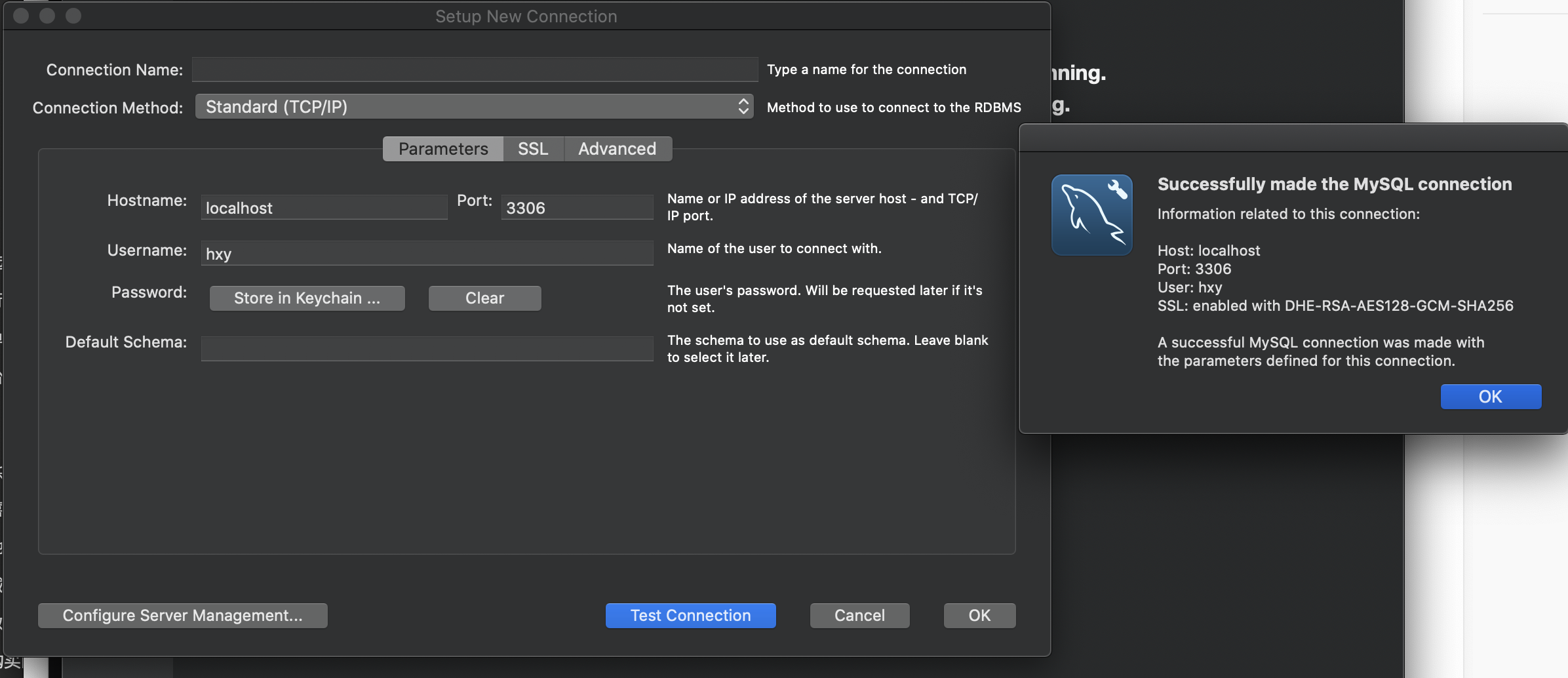
客户端连接:
mysql+mysqld-exporter
version: "3"services:mysql:container_name: mysql8image: mysql/mysql-server:8.0.18-1.1.13command: --default-authentication-plugin=mysql_native_passwordports:- 3306:3306- 33060:33060environment:MYSQL_ROOT_PASSWORD: 123456MYSQL_USER: hxyMYSQL_PASSWORD: hxyvolumes:- ./conf/my.cnf:/etc/mysql/my.cnf- ./conf/conf.d:/etc/mysql/conf.d- ./data:/var/lib/mysql- ./log:/var/log/mysqlnetworks:- mysql-networkmysqld-exporter:container_name: mysqld-exporterimage: prom/mysqld-exporter:v0.12.1ports:- 9104:9104environment:DATA_SOURCE_NAME: "hxy:hxy@(mysql:3306)/"networks:- mysql-networkdepends_on:- mysqlnetworks:mysql-network:
浏览器访问 http://localhost:9104 ,出现 mysql 监控参数,证明配置成功
...mysql_global_status_commands_total{command="create_function"} 0mysql_global_status_commands_total{command="create_index"} 0mysql_global_status_commands_total{command="create_procedure"} 0mysql_global_status_commands_total{command="create_resource_group"} 0mysql_global_status_commands_total{command="create_role"} 0mysql_global_status_commands_total{command="create_server"} 0mysql_global_status_commands_total{command="create_spatial_reference_system"} 0mysql_global_status_commands_total{command="create_table"} 34mysql_global_status_commands_total{command="create_trigger"} 0mysql_global_status_commands_total{command="create_udf"} 0mysql_global_status_commands_total{command="create_user"} 0mysql_global_status_commands_total{command="create_view"} 0mysql_global_status_commands_total{command="dealloc_sql"} 0mysql_global_status_commands_total{command="delete"} 0...
链接:https://registry.hub.docker.com/r/prom/mysqld-exporter
常用操作
进入 mysql 容器
$ mysql -uroot -pEnter password:
查看用户权限
语法:show grants for '{user}'@'{host}'
$ show grants for 'hxy'@'%';+-------------------------------------------------------------------+| Grants for hxy@% |+-------------------------------------------------------------------+| GRANT USAGE ON *.* TO `hxy`@`%` || GRANT ALL PRIVILEGES ON `testdb`.* TO `hxy`@`%` WITH GRANT OPTION |+-------------------------------------------------------------------+
用户授权
给用户授予某个库的所有权限
语法:grant all privileges on{db_name}.{table_name} to {user}@'{host}' [WITH GRANT OPTION]
$ grant all privileges on `testdb`.* to hxy@'%';Query OK, 0 rows affected (0.00 sec)
WITH GRANT OPTION 表示该用户可以将该权限授予其他用户
撤销权限
语法:revoke all on{db_name}.{table_name} from {user}@'{host}';
$ revoke all on `testdb`.* from hxy@'%';Query OK, 0 rows affected (0.01 sec)
踩坑经历
- 如果不挂载 my.cnf 文件,并配置
!includedir,mysql 并不会加载 /etc/mysql/conf.d 下的配置文件,这点在 dockerhub 中没讲

https://hub.docker.com/_/mysql?tab=description
进入 mysql 容器,使用 mysql --help | grep my.cnf -C 1
# mysql --help | grep /my.cnf -C 1Default options are read from the following files in the given order:/etc/my.cnf /etc/mysql/my.cnf /usr/etc/my.cnf ~/.my.cnfThe following groups are read: mysql client
可以看到 mysql 读取配置文件的优先级是/etc/my.cnf /etc/mysql/my.cnf /usr/etc/my.cnf ~/.my.cnf,然后在容器中只看到/etc/my.cnf这一个配置文件,该配置文件的内容如下
# For advice on how to change settings please see# http://dev.mysql.com/doc/refman/5.7/en/server-configuration-defaults.html[mysqld]## Remove leading # and set to the amount of RAM for the most important data# cache in MySQL. Start at 70% of total RAM for dedicated server, else 10%.# innodb_buffer_pool_size = 128M## Remove leading # to turn on a very important data integrity option: logging# changes to the binary log between backups.# log_bin## Remove leading # to set options mainly useful for reporting servers.# The server defaults are faster for transactions and fast SELECTs.# Adjust sizes as needed, experiment to find the optimal values.# join_buffer_size = 128M# sort_buffer_size = 2M# read_rnd_buffer_size = 2Mskip-host-cacheskip-name-resolvedatadir=/var/lib/mysqlsocket=/var/lib/mysql/mysql.socksecure-file-priv=/var/lib/mysql-filesuser=mysql# Disabling symbolic-links is recommended to prevent assorted security riskssymbolic-links=0#log-error=/var/log/mysqld.logpid-file=/var/run/mysqld/mysqld.pid
可以看到,my.cnf 并没有使用 !includedir 加载 /etc/mysql/conf.d 目录下的配置文件
- 即使加了
!includedir配置后,启动的时候,mysql 还是不会读取 /etc/mysql/conf.d 目录下的配置文件
docker-compose.yml 中挂载了 ./conf/my.cnf 到 /etc/mysql/conf.d/my.cnf,并且在 ./conf/my.cnf 下加了 !includedir 配置,指定加载 /etc/mysql/conf.d 下的配置文件
!includedir /etc/mysql/conf.d
在 /etc/mysql/conf.d 下新建 mysql.cnf 配置文件,配置如下
[mysqld]server-id=1log_bin=/var/log/mysql/mysql-bin.logexpire_logs_days=10max_binlog_size=100Mbinlog_format=row
然后启动 mysql 容器,进入到容器中发现 binlog 还是处于 off 状态
$ docker exec -it mysql5.7 /bin/bashbash-4.2# mysql -uroot -p123456 -e "show variables like '%log_bin%';"mysql: [Warning] Using a password on the command line interface can be insecure.+---------------------------------+--------------------------------+| Variable_name | Value |+---------------------------------+--------------------------------+| log_bin | OFF || log_bin_basename | || log_bin_index | || log_bin_trust_function_creators | OFF || log_bin_use_v1_row_events | OFF || sql_log_bin | ON |+---------------------------------+--------------------------------+
log_bin = OFF 证明没打开 binlog
证明 mysql.cnf 配置不起作用/mysql 没加载到该配置,接着还是使用 mysql —help 查看是什么情况,执行命令发现有一行 warning 如下
# mysql --helpWarning: World-writable config file '/etc/mysql/conf.d' is ignored
该 warning 的意思是 /etc/mysql/conf.d 的权限太大,mysql 认为所有人都可以修改该目录下的文件,不安全,所以忽略该配置文件,因为我之前将这个目录的权限修改为 777,所以才会出现这种情况,将权限修改为 644 就可以了
chmod 644 /etc/mysql/conf.d
这里,删除容器重新build容器也是可以的
- 镜像为什么使用 mysql/mysql-server:8.0.18-1.1.13
这里有点忘了,因为 dockerhub 里,mysql 的镜像并不是这个,不知道为什么要用这个,后面有空再研究
dockerhub - mysql: https://hub.docker.com/_/mysql?tab=tags

若有收获,就点个赞吧
0 人点赞


