DockerHub
1、地址https://hub.docker.com/注册自己的账号
2、确定这个账号可以登录
3、在我们的服务器上提交自己的镜像
[root@s4801841 ~]# docker login --helpUsage: docker login [OPTIONS] [SERVER]Log in to a Docker registry.If no server is specified, the default is defined by the daemon.Options:-p, --password string Password--password-stdin Take the password from stdin-u, --username string Username
4、登录完成后就可以提交镜像了,就是一步 docker push
# 登录docker
docker login -u 账户

# 结合之前所学的commit命令打包镜像发布(注意:自己发布的版本尽量带版本号[TAG]不然可能会出问题)
[root@s4801841 ~]# docker ps
CONTAINER ID        IMAGE               COMMAND             CREATED             STATUS              PORTS               NAMES
4eb93d93eed8        a3fe352c5377        "/bin/bash"         3 days ago          Up 3 days                               sweet_turing
[root@s4801841 ~]# docker commit -m="小刀娱乐网站爬取环境" -a="QQ:2966748189" 4eb93d93eed8 xiaodaoyule-pyhton:1.0
sha256:c8a1d2cc43e9ae635708b39981f4cc72a33e4f4d1f51c8c86f54c9538ba397a6
[root@s4801841 ~]#
[root@s4801841 ~]#
[root@s4801841 ~]# docker images
REPOSITORY           TAG                 IMAGE ID            CREATED             SIZE
xiaodaoyule-pyhton   1.0                 c8a1d2cc43e9        5 seconds ago       917MB
mycentos             1.0                 190cbc783959        8 hours ago         295MB
sjtest               1.0                 3f74f6a0e371        2 days ago          215MB
python               1.1                 c1f80263be11        3 days ago          916MB
python               latest              a3fe352c5377        9 days ago          886MB
mysql                latest              4f1413420360        10 days ago         545MB
centos               latest              0d120b6ccaa8        3 months ago        215MB
[root@s4801841 ~]# docker push xiaodaoyule-pyhton:1.0
The push refers to repository [docker.io/library/xiaodaoyule-pyhton]
9da6f4988c85: Preparing
a90a4e55d4e6: Preparing
cc343e3cd1d7: Preparing
7ca07421f35c: Preparing
c4a6d8ca5d2c: Preparing
059ed1793a98: Waiting
712264374d24: Waiting
475b4eb79695: Waiting
f3be340a54b9: Waiting
114ca5b7280f: Waiting
denied: requested access to the resource is denied //这个代表失败了解决方法
[root@s4801841 ~]#


# 失败解决方法
[root@s4801841 ~]# docker images
REPOSITORY           TAG                 IMAGE ID            CREATED             SIZE
xiaodaoyule-pyhton   1.0                 c8a1d2cc43e9        7 minutes ago       917MB
mycentos             1.0                 190cbc783959        8 hours ago         295MB
sjtest               1.0                 3f74f6a0e371        2 days ago          215MB
python               1.1                 c1f80263be11        3 days ago          916MB
python               latest              a3fe352c5377        9 days ago          886MB
mysql                latest              4f1413420360        10 days ago         545MB
centos               latest              0d120b6ccaa8        3 months ago        215MB
[root@s4801841 ~]# docker tag c8a1d2cc43e9 sjviper/xiaodaoyule-python:1.0
[root@s4801841 ~]# docker push sjviper/xiaodaoyule-python:1.0
The push refers to repository [docker.io/sjviper/xiaodaoyule-python]
9da6f4988c85: Pushing [======================================>            ]  23.99MB/30.88MB
a90a4e55d4e6: Pushed
cc343e3cd1d7: Pushed
7ca07421f35c: Pushing [=============>                                     ]  15.54MB/57.21MB
c4a6d8ca5d2c: Pushing [==================================================>]   18.5MB
059ed1793a98: Pushing [====>                                              ]  48.63MB/510MB
712264374d24: Pushing [==>                                                ]  7.702MB/145.5MB
475b4eb79695: Waiting
f3be340a54b9: Waiting
114ca5b7280f: Waiting

# 这样就是成功发布了
发布到阿里云镜像
1、登录阿里云
2、找到容器镜像服务
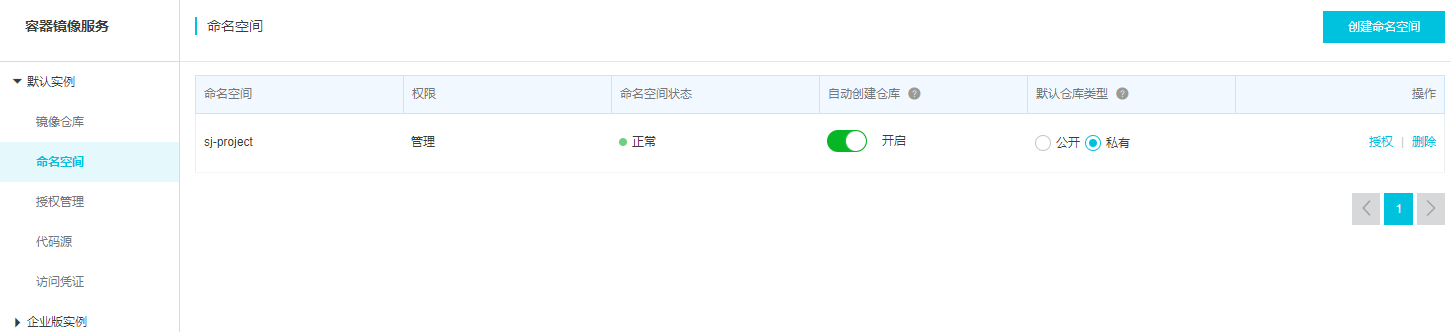
3、创建命名空间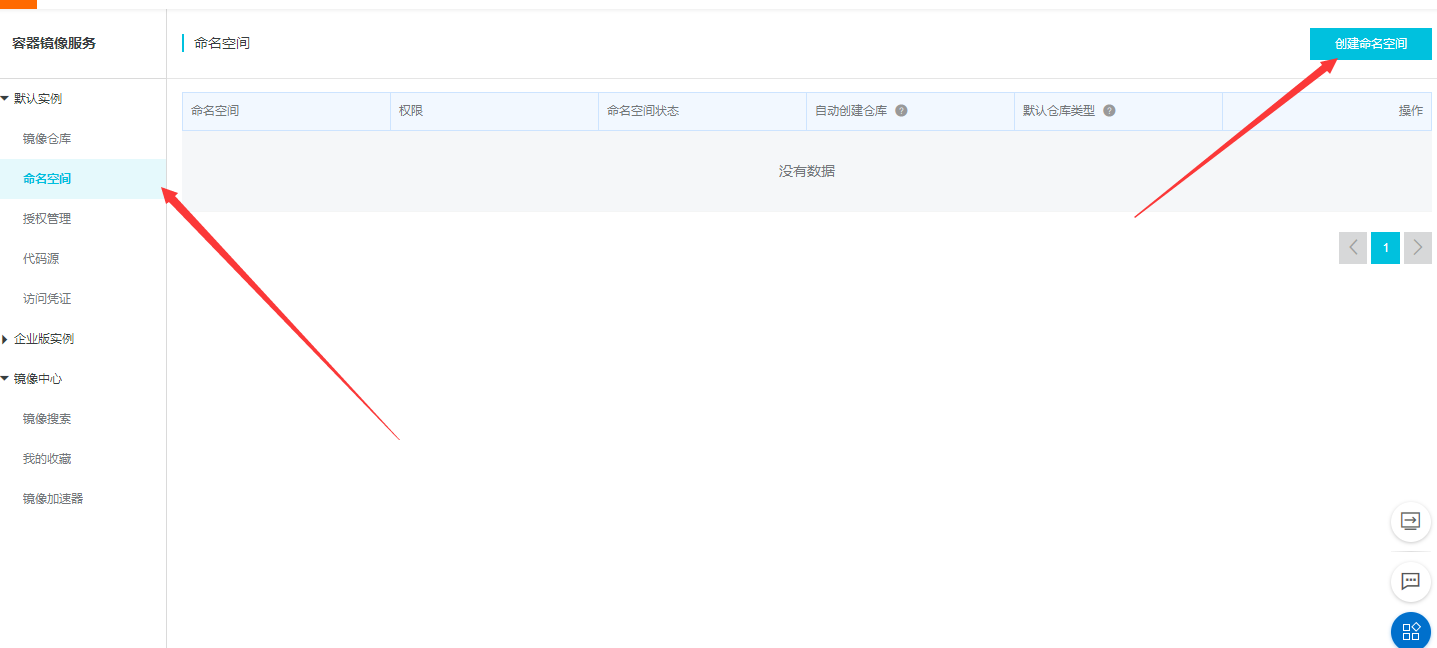
4、创建容器镜像
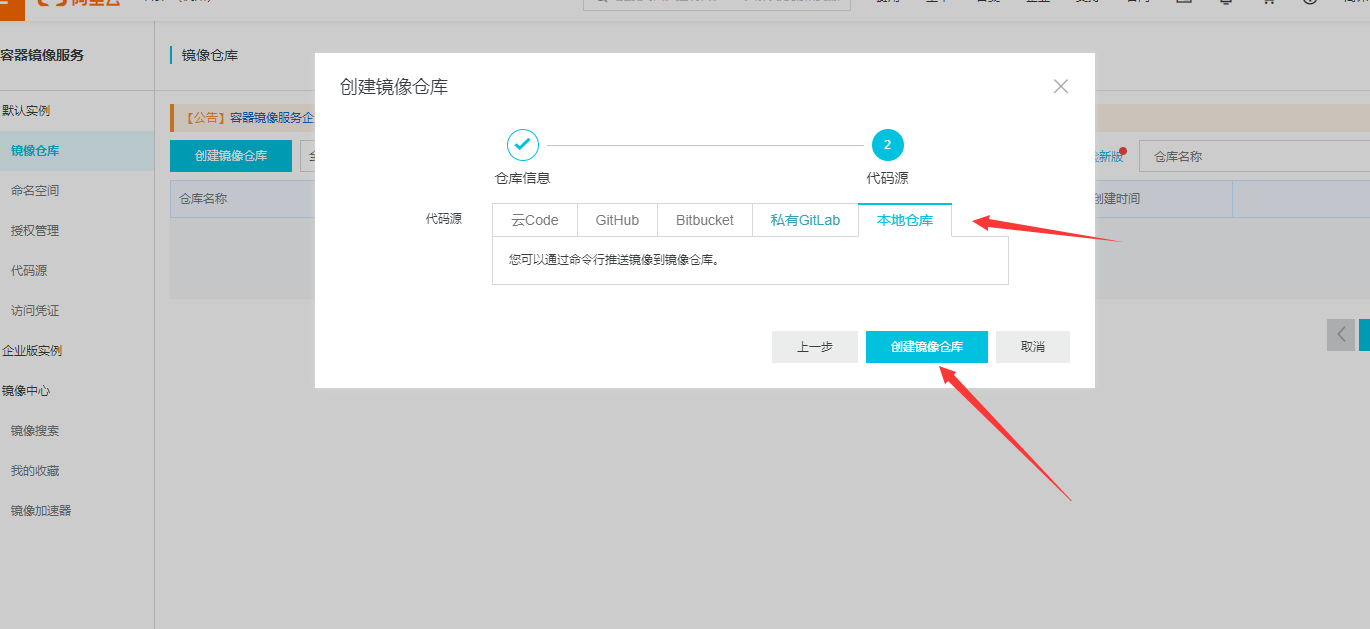

5、浏览一下刚刚这个仓库的信息,根据阿里云仓库的提示步骤继续操作。
总结:


若有收获,就点个赞吧
0 人点赞


