部署Gitlab Server
关闭防火墙及selinux,然后创建gitlab.repo,开启邮件服务postfix,
systemctl stop firewalld && systemctl disable firewalld && setenforce 0 && sed -i ‘/^SELINUX=/c SELINUX=DISABLED’ /etc/selinux/config
安装gitlab仓库 gitlab.repo
阿里源
[root@cicd-gitlab ~]# vim /etc/yum.repos.d/gitlab-ce.repo
[gitlab-ce]
name=gitlab-ce
baseurl=http://mirrors.tuna.tsinghua.edu.cn/gitlab-ce/yum/el7
Repo_gpgcheck=0
Enabled=1
gpgcheck=0
清华源:
[root@cicd-gitlab ~]# vim gitlab-ce.repo
[gitlab-ce]
name=Gitlab CE Repository
baseurl=https://mirrors.tuna.tsinghua.edu.cn/gitlab-ce/yum/el$releasever/
gpgcheck=0
enabled=1
[root@cicd-gitlab ~]# vim gitlab-ee.repo
[gitlab-ee]
name=Gitlab EE Repository
baseurl=https://mirrors.tuna.tsinghua.edu.cn/gitlab-ee/yum/el$releasever/
gpgcheck=0
enabled=1
官方源:
[root@cicd-gitlab ~]# vim runner_gitlab-ci-multi-runner.repo
[runner_gitlab-ci-multi-runner]
name=runner_gitlab-ci-multi-runner
baseurl=https://packages.gitlab.com/runner/gitlab-ci-multi-runner/el/7/$basearch
repo_gpgcheck=1
gpgcheck=0
enabled=1
gpgkey=https://packages.gitlab.com/runner/gitlab-ci-multi-runner/gpgkey
sslverify=1
sslcacert=/etc/pki/tls/certs/ca-bundle.crt
metadata_expire=300
[runner_gitlab-ci-multi-runner-source]
name=runner_gitlab-ci-multi-runner-source
baseurl=https://packages.gitlab.com/runner/gitlab-ci-multi-runner/el/7/SRPMS
repo_gpgcheck=1
gpgcheck=0
enabled=1
gpgkey=https://packages.gitlab.com/runner/gitlab-ci-multi-runner/gpgkey
sslverify=1
sslcacert=/etc/pki/tls/certs/ca-bundle.crt
metadata_expire=300
curl https://packages.gitlab.com/install/repositories/gitlab/gitlab-ee/script.rpm.sh | sudo bash
安装gitlab-ce(社区版,gitlab-ee(企业版))及其依赖包,这里只安装社区版。
yum -y install openssh-server openssh-clients postfix cronie policycoreutils-python gitlab-ce
安装过后查看版本号,可到/opt/gitlab/,查看version-mainfest.txt的第一行
修改/etc/gitlab/gitlab.rb配置文件
## GitLab URL
##! URL on which GitLab will be reachable.
##! For more details on configuring external_url see:
##! https://docs.gitlab.com/omnibus/settings/configuration.html#configuring-the-external-url-for-gitlab
# 没有域名,可以设置为本机IP地址
external_url ‘http://10.0.1.86‘ #可以是域名 也可以是ip地址,域名的话需要做本地解析
然后进行初始化
gitlab-ctl reconfigure
1、Gitlab 服务管理
[root@cicd-gitlab ~]# gitlab-ctl start # 启动所有 gitlab 组件;
[root@cicd-gitlab ~]# gitlab-ctl stop # 停止所有 gitlab 组件;
[root@cicd-gitlab ~]# gitlab-ctl restart # 重启所有 gitlab 组件;
[root@cicd-gitlab ~]# gitlab-ctl status # 查看服务状态;
[root@cicd-gitlab ~]# gitlab-ctl reconfigure # 初始化服务;
[root@cicd-gitlab ~]# vim /etc/gitlab/gitlab.rb # 修改默认的配置文件;
[root@cicd-gitlab ~]# gitlab-ctl tail # 查看日志;
2、登陆 Gitlab
在浏览器中输入 http://192.168.152.148,然后 change password: ,并使用root用户登录 即可 (后续动作根据提示操作)
登录注意:
1. 执行命令, 进入交互界面
gitlab-rails console -e production
2. 执行如下命令, 修改root密码为你想要的密码, 无需重启即可完成设置
u=User.where(id:1).first # u定义为root用户
u.password=’你的密码’ # 设置root密码, 注意需要符合密码强度
u.password_confirmation=’你的密码’ # 确认当前密码
u.save! # 保存操作
quit # 退出交互界面
利用客户端使用gitlab server版本库
首先做本地解析,将gitlab server端的域名解析添加到客户端/etc/hosts文件中,
创建密钥对,上传到gitlab server中的SSH秘钥选项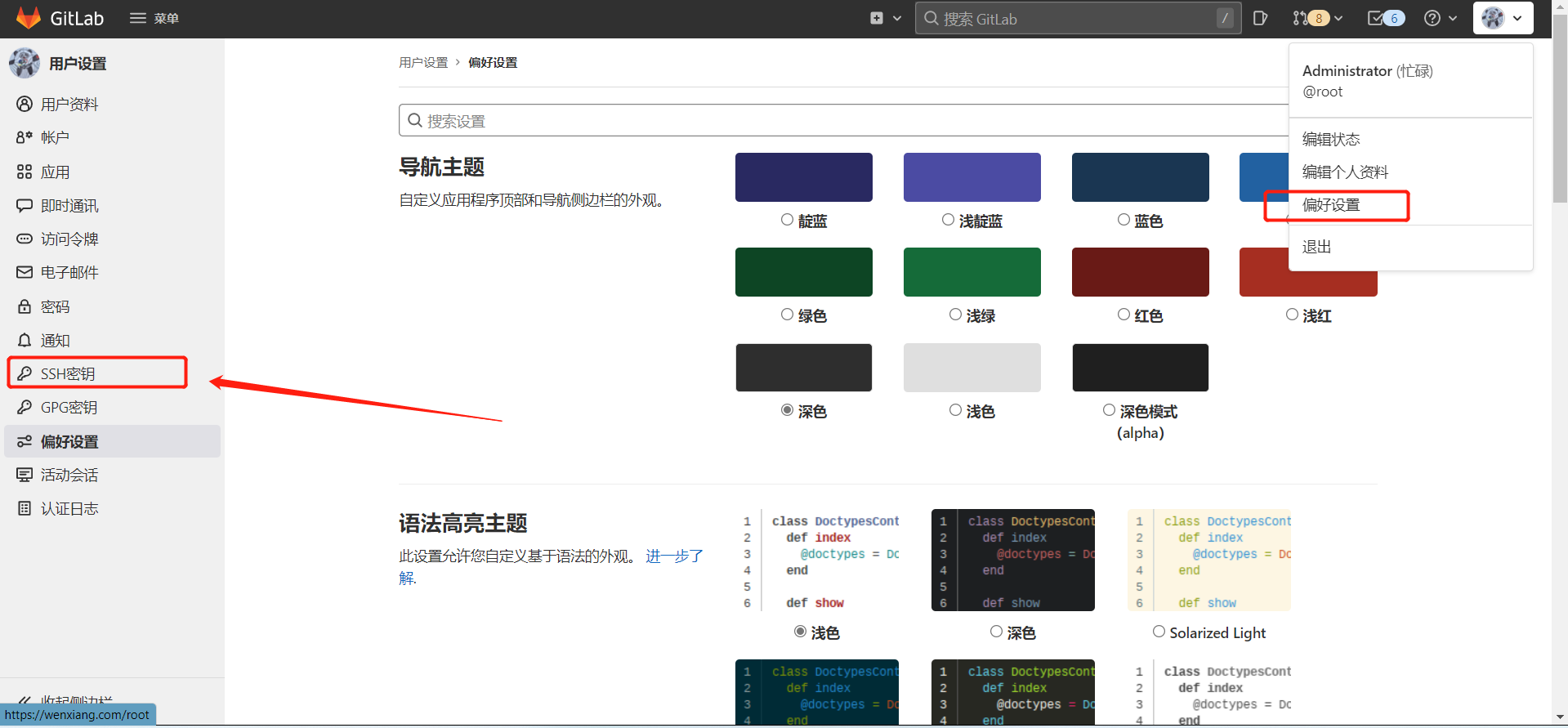
然后在gitlab server端选择要使用的版本库,在客户端使用git clone git@…….git 进行克隆
随后在客户端进行git add . && git commit -m “…”&& git push -u origin “…”进行推送版本库
可以到gitlab server端创建合并,并且交由管理员审批合并

若有收获,就点个赞吧
0 人点赞


