学习数据模板的过程中,遇到过几种不同的使用方法:
- 代码中嵌套
- 资源引用 key
- DataType 引用 后台类型,例如:Student类等等
- DataType 引用 XmlDataProvider
- Style 设置
其中有部分内容在上两篇文章中有讲,这里再次讲解 . . .
下面让我们来试一试它们是怎么用的 . . .
下面的所有例子都是使用 ListBox来演示,他的Item类型为 Student 类. . .
Student 类定义如下:
class Student{public int Id { get; set; }public string Name { get; set; }public int Age { get; set; }}• 1• 2• 3• 4• 5
其中包含 Id、姓名、年龄几个属性 . . .
代码中嵌套
我们将 ListBox的内容使用一个模板,下面这种模板风格我称之为内容嵌套模板:
<Grid>
        <ListBox x:Name="lb">
            <ListBox.ItemTemplate>
                <DataTemplate>
                    <StackPanel Orientation="Horizontal">
                        <TextBlock Text="{Binding Id}" Width="60"/>
                        <TextBlock Text="{Binding Name}" Width="120"/>
                        <TextBlock Text="{Binding Age}" Width="60"/>
                    </StackPanel>
                </DataTemplate>
            </ListBox.ItemTemplate>
        </ListBox>
</Grid>
模板内容是将三个 TextBlock的内容分别绑定 Student类的各个属性,并设置宽度. . .
为 ListBox的 itemsSource赋值:
List<Student> list = new List<Student>()
{
    new Student(){Id = 1,Name = "huameng", Age = 20},
    new Student(){Id = 2,Name = "flower", Age = 30},
    new Student(){Id = 3,Name = "dreams", Age = 22},
    new Student(){Id = 4,Name = "cong", Age = 24},
    new Student(){Id = 5,Name = "xiaoxu", Age = 11},
    new Student(){Id = 6,Name = "giaogiao", Age = 23},
};
this.lb.ItemsSource = list;
结果效果图如下: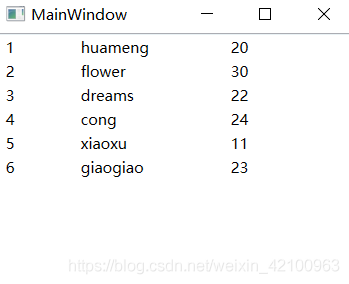
资源引用 key
我们可以将DataTemplate当作一个资源来引用它,代码如下:
<Window.Resources>
        <DataTemplate x:Key="dt">
            <StackPanel Orientation="Horizontal">
                <TextBlock Text="{Binding Id}" Width="60"/>
                <TextBlock Text="{Binding Name}" Width="120"/>
                <TextBlock Text="{Binding Age}" Width="60"/>
            </StackPanel>
        </DataTemplate>
    </Window.Resources>
    <Grid>
        <ListBox x:Name="lb" ItemTemplate="{StaticResource dt}"/>
    </Grid>
效果图如下: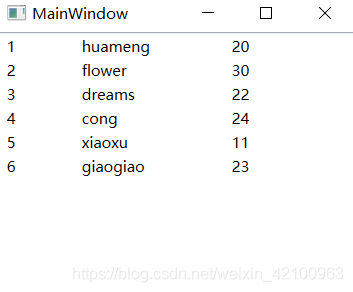
DataType 引用 后台类型
前两篇文章中,我们使用DataType为某一种类型设置模板,下面的例子是使用后台的Student类当作类型来设置,在之前的文章中,这个例子没有出现过 . . .
我们把之前在后台定义的一些数据,这次直接定义在XAML中,代码如下:
<Window.Resources>
        <DataTemplate DataType="{x:Type local:Student}">
            <StackPanel Orientation="Horizontal">
                <TextBlock Text="{Binding Id}" Width="60"/>
                <TextBlock Text="{Binding Name}" Width="120"/>
                <TextBlock Text="{Binding Age}" Width="60"/>
            </StackPanel>
        </DataTemplate>
        <e:ArrayList x:Key="al">
            <local:Student Id = "1" Name = "huameng" Age = "20"/>
            <local:Student Id = "2" Name = "flower" Age = "30"/>
            <local:Student Id = "3" Name = "dreams" Age = "22"/>
            <local:Student Id = "4" Name = "cong" Age = "24"/>
            <local:Student Id = "5" Name = "xiaoxu" Age = "11"/>
            <local:Student Id = "6" Name = "giaogiao" Age = "23"/>
        </e:ArrayList>
</Window.Resources>
<Grid>
    <ListBox x:Name="lb" ItemsSource="{Binding Source={StaticResource al}}"/>
</Grid>
这样我们就不需要在后台那样定义数据了这里用DataType可以为Student类型的数据定义统一的模板 . . .
效果图如下: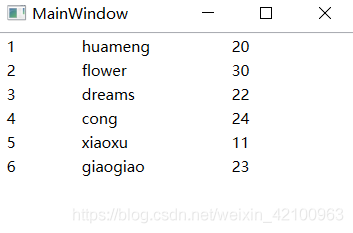
DataType 引用 XmlDataProvider
像上面这个例子,我们定义数据还要定义专门的数据类型,这样会把后台与UI 难免的会联系在一起,这样就违反了WPF的设计理念 . . . 我们可以Xml来存储数据,然后在资源中引用,下面的这些数据,我们直接定义在XmlDataProvider中,方便本例的操作 . . .
代码如下:
<Window.Resources>
        <DataTemplate DataType="Student">
            <StackPanel Orientation="Horizontal">
                <TextBlock Text="{Binding XPath=@Id}" Width="60"/>
                <TextBlock Text="{Binding XPath=@Name}" Width="120"/>
                <TextBlock Text="{Binding XPath=@Age}" Width="60"/>
            </StackPanel>
        </DataTemplate>
        <XmlDataProvider x:Key="xdp" XPath="Students/Student">
            <x:XData>
                <Students xmlns="">
                    <Student Id = "1" Name = "huameng" Age = "20"/>
                    <Student Id = "2" Name = "flower" Age = "30"/>
                    <Student Id = "3" Name = "dreams" Age = "22"/>
                    <Student Id = "4" Name = "cong" Age = "24"/>
                    <Student Id = "5" Name = "xiaoxu" Age = "11"/>
                    <Student Id = "6" Name = "giaogiao" Age = "23"/>
                </Students>
            </x:XData>
        </XmlDataProvider>
</Window.Resources>
<StackPanel>
        <ListBox x:Name="lb" ItemsSource="{Binding Source={StaticResource xdp}}"/>
</StackPanel>
效果图如下: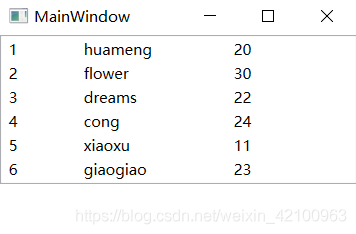
Style 设置
我们可以在 Style中设置我们需要的模板,控件模板 Template,或者我们本例需要的数据模板ContentTemplate . . .
<Window.Resources>
        <Style TargetType="ListBoxItem">
            <Style.Setters>
                <Setter Property="ContentTemplate">
                    <Setter.Value>
                        <DataTemplate DataType="Student">
                            <StackPanel Orientation="Horizontal">
                                <TextBlock Text="{Binding XPath=@Id}" Width="60"/>
                                <TextBlock Text="{Binding XPath=@Name}" Width="120"/>
                                <TextBlock Text="{Binding XPath=@Age}" Width="60"/>
                            </StackPanel>
                        </DataTemplate>
                    </Setter.Value>
                </Setter>
            </Style.Setters>
        </Style>

        <XmlDataProvider x:Key="xdp" XPath="Students/Student">
            <x:XData>
                <Students xmlns="">
                    <Student Id = "1" Name = "huameng" Age = "20"/>
                    <Student Id = "2" Name = "flower" Age = "30"/>
                    <Student Id = "3" Name = "dreams" Age = "22"/>
                    <Student Id = "4" Name = "cong" Age = "24"/>
                    <Student Id = "5" Name = "xiaoxu" Age = "11"/>
                    <Student Id = "6" Name = "giaogiao" Age = "23"/>
                </Students>
            </x:XData>
        </XmlDataProvider>
</Window.Resources>
<StackPanel>
        <ListBox ItemsSource="{Binding Source={StaticResource xdp}}"/>
</StackPanel>

若有收获,就点个赞吧
0 人点赞


