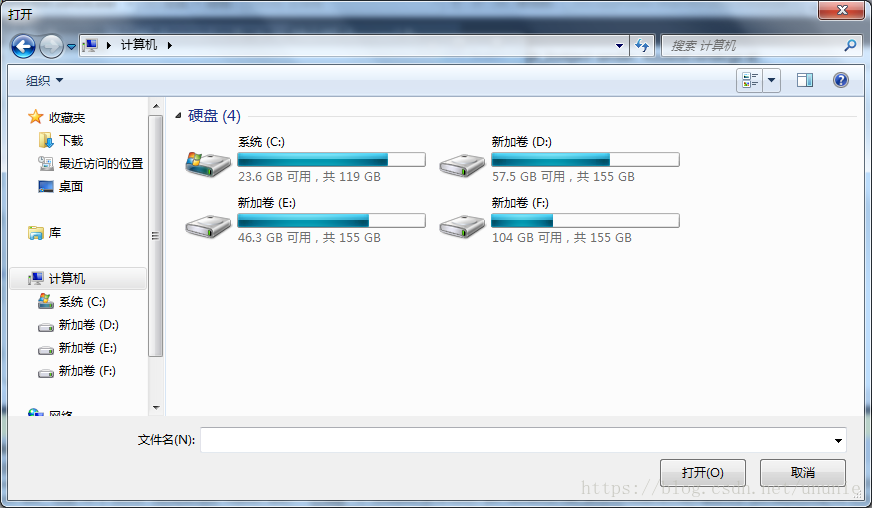
1、选择对话框
部分:
// 在WPF中,OpenFileDialog位于Microsoft.Win32名称空间Microsoft.Win32.OpenFileDialog dialog =new Microsoft.Win32.OpenFileDialog();dialog.Filter = "文本文件|*.txt";if (dialog.ShowDialog() == true){lblFileName.Content = dialog.FileName;}
完整:
public string SelectFileWpf(){var openFileDialog = new Microsoft.Win32.OpenFileDialog(){Filter = "Text documents (.txt)|*.txt|All files (*.*)|*.*"};var result = openFileDialog.ShowDialog();if (result == true){return openFileDialog.FileName;}else{return null;}}
2、选择文件夹对话框
- a、添加 System.Windows.Forms 的引用
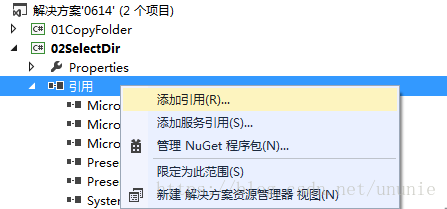
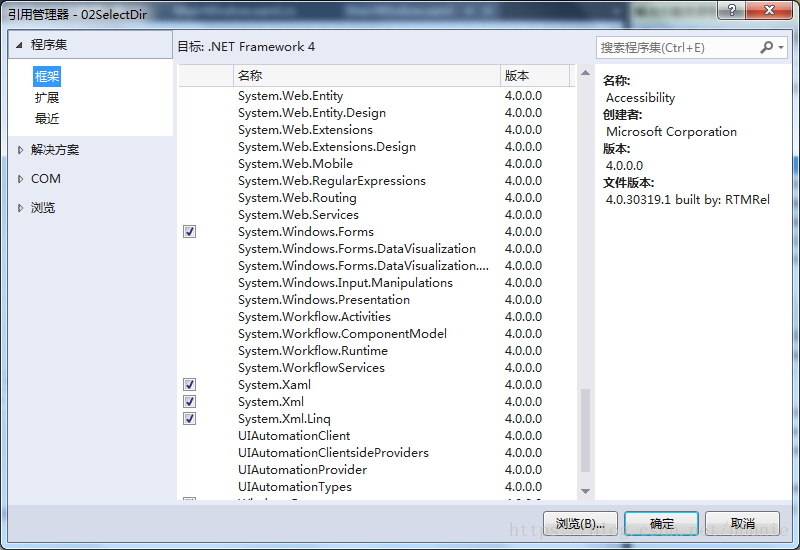
b、引用命名空间,为避免类名冲突可以给命名空间别名
using WinForm = System.Windows.Forms;
c、使用 System.Windows.Forms 命名空间下的 FolderBrowserDialog 类
WinForm.FolderBrowserDialog dialog = new WinForm.FolderBrowserDialog();dialog.ShowDialog();
效果如下: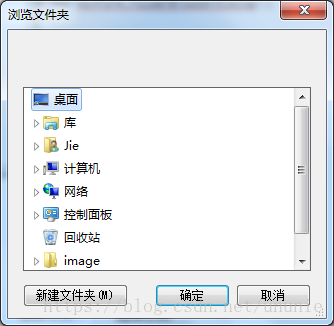
- a、打开程序包管理器控制台
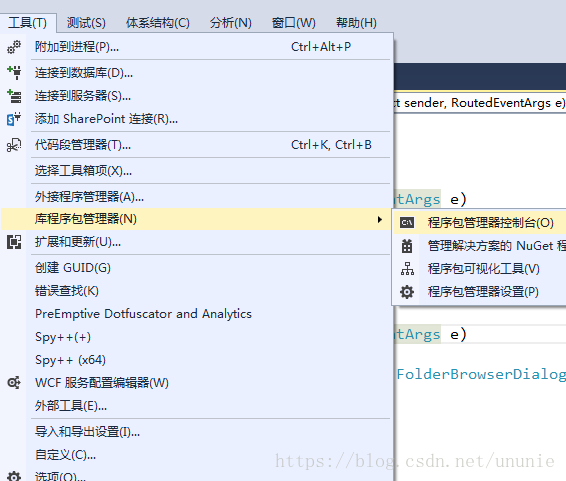
b、安装WindowsAPICodePack-Shell包,使用Install-Package WindowsAPICodePack-Shell命令。
注意对应的项目

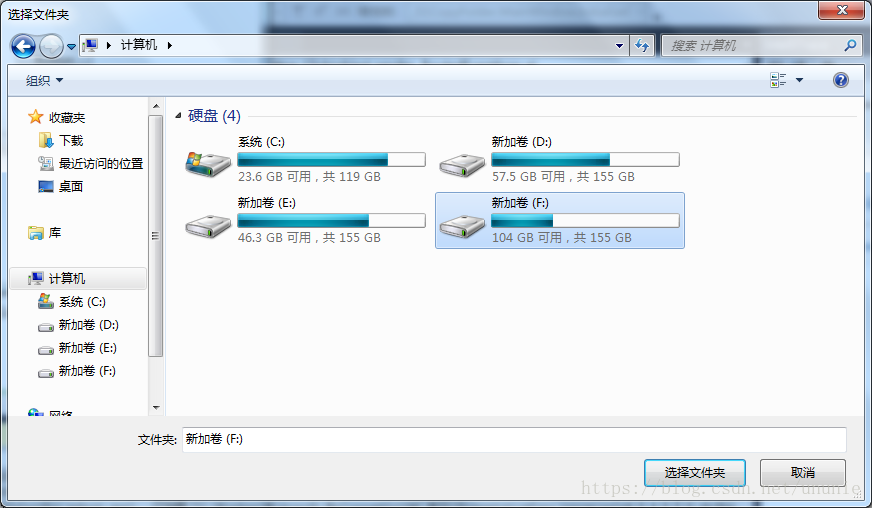
c、使用CommonOpenFileDialog类打开对话框
CommonOpenFileDialog dialog = new CommonOpenFileDialog();dialog.IsFolderPicker = true;//设置为选择文件夹dialog.ShowDialog();
效果如下:
3、另存为对话框
SaveFileDialog类位于PresentationFramework.dll 的Microsoft.Win32命名空间
public static string ChooseSaveFile(string title,string initFolder){SaveFileDialog dlg = new SaveFileDialog();dlg.Title = title;dlg.FileName = "User.txt"; // Default file namedlg.DefaultExt = ".txt"; // Default file extensiondlg.Filter = "Text documents|*.txt"; // Filter files by extensiondlg.InitialDirectory = initFolder;// Process save file dialog box resultsif (dlg.ShowDialog() == true){return dlg.FileName;}else{return null;}}

若有收获,就点个赞吧
0 人点赞


