- 配置
- git理论
- 文件操作
- git分支
- 查看分支列表
- 删除分支
- 强制删除分支
- 新建分支
- 更换分支
- 新建并更换分支
- 合并代码
- Rebase c470f1a..f8d9c75 onto c470f1a (2 commands)
- Commands:
- p, pick
= use commit - r, reword
= use commit, but edit the commit message - e, edit
= use commit, but stop for amending - s, squash
= use commit, but meld into previous commit - f, fixup
= like “squash”, but discard this commit’s log message - x, exec
= run command (the rest of the line) using shell - b, break = stop here (continue rebase later with ‘git rebase —continue’)
- d, drop
= remove commit - l, label
- t, reset
- m, merge [-C
| -c ] - . create a merge commit using the original merge commit’s
- . message (or the oneline, if no original merge commit was
- . specified). Use -c
to reword the commit message. - These lines can be re-ordered; they are executed from top to bottom.
- If you remove a line here THAT COMMIT WILL BE LOST.
- However, if you remove everything, the rebase will be aborted.
配置
# 配置清单git config -l# 系统配置git config --system -l# 用户配置git config --global -l
环境变量只是为了在全局使用应用
git理论
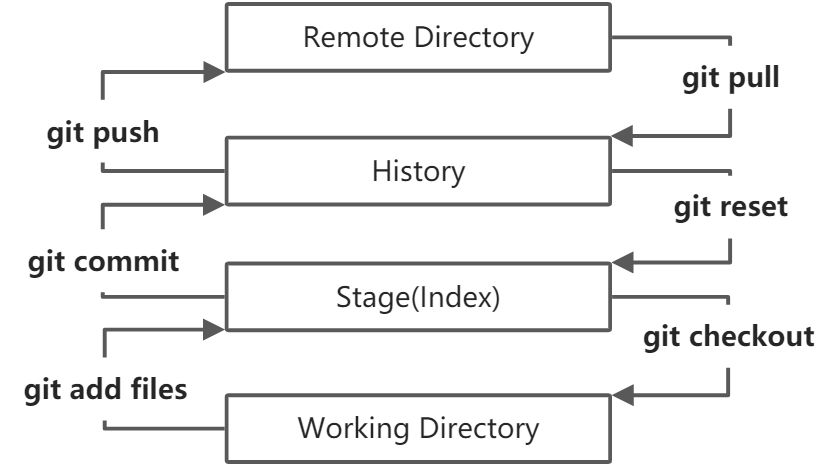
git本地有三个工作区
- 工作目录(Working Directory)
- 平时存放代码的地方
- 暂存区(Stage/Index)
- 用于临时存放改动,本质上是一个文件,保存即将提交的文件列表信息
- 资源库(Repository或Git Directory)
- 提交的所有版本数据,其中HEAD指向最新放入仓库的版本
- ps:远程仓库(Remote Directory)
- 托管代码的服务器
文件操作
文件状态
# 查看状态git status# 版本控制忽略文件 .gitignore
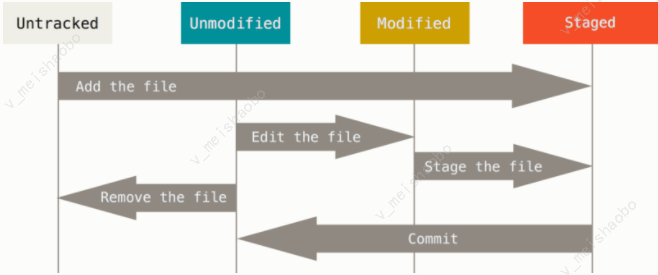
Untracked:未跟踪
# 添加到暂存区,状态流转为Stagegit add [filename]
Unmodify:未修改
# 修改文件后,状态流转为Modifiedgit rm [filename]# 移出版本库,状态流转为Untracked
Modified:文件已修改
# 修改后再次add,状态流转为Stagegit add [filename]# 丢弃修改,状态流转为Unmodifygit checkout [filename]
Staged:暂存状态
# 提交到本地仓库,状态流转为Unmodifygit commit# 取消暂存,状态流转为Modifiedgit reset HEAD [filename]
git分支
```bash
查看分支列表
git branch
删除分支
git branch -d [branchname]
强制删除分支
git branch -D [branchname]
新建分支
git branch [branchname]
更换分支
git checkout [branchname] git switch [branchname]
新建并更换分支
git branch -b [branchname] git switch -c [branchname]
合并代码
git merge [branchname]
<a name="w5U1D"></a>### Other<a name="hYmRD"></a>#### 检查/回退```bash# 检查状态git status# 查看修改git diff
每当觉得文件修改到一定程度的时候,就可以“保存一个快照”,这个快照在Git中被称为commit。
# 查看历史记录git log# 查看历史记录(一行展示)git log --pretty=oneline# 回退版本git reset --hard HEAD^# HEAD^上一个版本,HEAD^^上两个版本,HEAD~100回退一百个版本# 可回到"未来"某个版本git reset --hard [commit_id(版本号)]
版本号没必要写全,前几位就可以了,Git会自动去找。当然也不能只写前一两位,因为Git可能会找到多个版本号,就无法确定是哪一个了
# 记录了每一次命令git reflog
暂存区和工作区
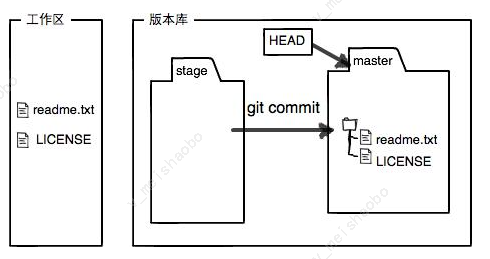
Git的版本库里存了很多东西,其中最重要的就是称为stage(或者叫index)的暂存区,还有Git为我们自动创建的第一个分支master,以及指向master的一个指针叫HEAD。
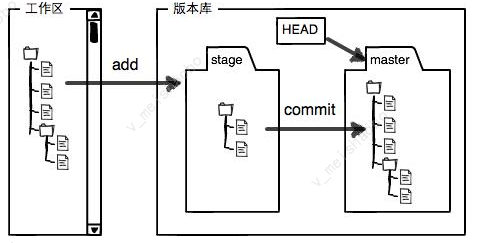
# 一旦提交后,如果又没有对工作区做任何修改,那么工作区就是“干净”的$ git statusOn branch masternothing to commit, working tree clean
撤销
git commit —amend
此命令会重新提交,且保存后覆盖原有提交信息 例如:你提交后发现忘记了暂存某些需要的修改,可以像下面这样操作
git commit -m 'initial commit'git add forgotten_filegit commit --amend
取消对文件的修改/取消暂存的文件
# 文件在工作区的修改全部撤销git checkout -- <filename># 一种是<filename>自修改后还没有被放到暂存区,现在,撤销修改就回到和版本库一模一样的状态# 一种是<filename>已经添加到暂存区后,又作了修改,现在,撤销修改就回到添加到暂存区后的状态# 就是让这个文件回到最近一次git commit或git add时的状态# 可以把暂存区的修改撤销(unstage)git reset HEAD <filename># git reset命令既可以回退版本,也可以把暂存区的修改回退到工作区# 当我们用HEAD时,表示最新的版本
git checkout — file命令中的—很重要,没有—,就变成了“切换到另一个分支”的命令,我们在后面的分支管理中会再次遇到git checkout命令
# 放弃工作目录中的更改git restore <file># 撤销暂存区的修改(unstage)git restore --staged <file>
分支管理
HEAD严格来说不是指向提交,而是指向master,master才是指向提交的,所以,HEAD指向的就是当前分支。
git merge命令用于合并指定分支到当前分支。
# 不使用Fast forward模式合并分支,就会在merge时生成一个新的commit# 这样,从分支历史上就可以看出分支信息git merge --no-ff -m <message> <branchname>
暂存工作区
# 暂时"储藏"工作区git stash# 查看"储藏"列表git stash list# 恢复"储藏"git stash apply# 删除"储藏"git stash drop# 恢复并删除"储藏"git stash pop# 恢复指定stashgit stash apply stash@{0}# 删除指定stashgit stash drop stash@{0}# 将指定提交复制到当前分支git cherry-pick <commit>
标签管理
标签也是版本库的一个快照。
# 打标签git tag <name># 查看标签git tag# 指定commit打标签git tag <name> <commit_id,HASH字符串># 查看提交的简略信息,每条数据单行呈现git log --pretty=oneline --abbrev-commit# 指定查看标签信息git show <tagname># 创建带有说明的标签git tag -a <name> -m <message> <commit_id># 删除标签git tag -d <tagname># 推送标签到远程仓库git push origin <tagname># 推送全部未推送的本地标签git push origin --tags# 删除远程标签,先删除本地标签git tag -d <tagname>git push origin :ref/tags/<tagname>
注意:标签总是和某个commit挂钩。如果这个commit既出现在master分支,又出现在dev分支,那么在这两个分支上都可以看到这个标签。
git删除特定历史commit
$ git reflogf8d9c75 (HEAD -> master) HEAD@{0}: commit: third commit29dd461 HEAD@{1}: commit: second commitc470f1a HEAD@{2}: commit (initial): first commit
- 找到需要删除的commit之前一条提交记录
例:需要删除 29dd461 HEAD@{1}: commit: second commit
git rebase -i c470f1a
- 执行上述代码 ```bash pick 29dd461 second commit pick f8d9c75 third commit
Rebase c470f1a..f8d9c75 onto c470f1a (2 commands)
#
Commands:
p, pick = use commit
r, reword = use commit, but edit the commit message
e, edit = use commit, but stop for amending
s, squash = use commit, but meld into previous commit
f, fixup = like “squash”, but discard this commit’s log message
x, exec
b, break = stop here (continue rebase later with ‘git rebase —continue’)
d, drop = remove commit
l, label
t, reset
m, merge [-C | -c ]
. create a merge commit using the original merge commit’s
. message (or the oneline, if no original merge commit was
. specified). Use -c to reword the commit message.
#
These lines can be re-ordered; they are executed from top to bottom.
#
If you remove a line here THAT COMMIT WILL BE LOST.
#
However, if you remove everything, the rebase will be aborted.
#
3. 根据提示修改**pick**> "i":进入输入模式-- INSERT --> "Esc":回到命令模式> "**:**":进入编辑模式```bash# 输入模式下修改pick->dropdrop 29dd461 second commitpick f8d9c75 third commit# d, drop <commit> = remove commit# 退回命令模式# 进入编辑模式wq保存并退出:wq
git log查看提交记录 ```bash $ git log commit e61c550ce7ee66244c21ae8ca8b930d79ce8b7e7 (HEAD -> master) Author: * Date: Wed Jun 22 17:23:02 2022 +0800
third commit
commit c470f1a150a3ac00a7de2cf2ce5450e9fa3ae762 Author: * Date: Wed Jun 22 17:21:55 2022 +0800
first commit
```

若有收获,就点个赞吧
0 人点赞


