本地调式问题
web.config标准配置如下:
<?xml version="1.0" encoding="utf-8"?><configuration><appSettings><add key="aspnet:UseTaskFriendlySynchronizationContext" value="true"/></appSettings><system.web><compilation debug="true" targetFramework="4.5.2"/><httpRuntime targetFramework="4.5.2"/></system.web><system.serviceModel><services><service name="MapTemplateWCF.MapService" behaviorConfiguration="servicebehavior"><endpoint address="" binding="webHttpBinding" bindingConfiguration="" name="endpoint1" contract="MapTemplateWCF.IMapService"behaviorConfiguration="NewBehavior0"/></service></services><behaviors><endpointBehaviors><behavior name="NewBehavior0"><enableWebScript/><webHttp/></behavior></endpointBehaviors><serviceBehaviors><behavior name="servicebehavior"><serviceMetadata httpGetEnabled="true"/><serviceDebug includeExceptionDetailInFaults="false"/></behavior></serviceBehaviors></behaviors><protocolMapping><add binding="basicHttpsBinding" scheme="https"/></protocolMapping><serviceHostingEnvironment aspNetCompatibilityEnabled="true" multipleSiteBindingsEnabled="true"/></system.serviceModel><system.webServer><httpProtocol><customHeaders><add name="Access-Control-Allow-Origin" value="*"/></customHeaders></httpProtocol><modules runAllManagedModulesForAllRequests="true"/><!--To browse web app root directory during debugging, set the value below to true.Set to false before deployment to avoid disclosing web app folder information.--><directoryBrowse enabled="true"/></system.webServer></configuration>
在VS2019中查看调试的配置: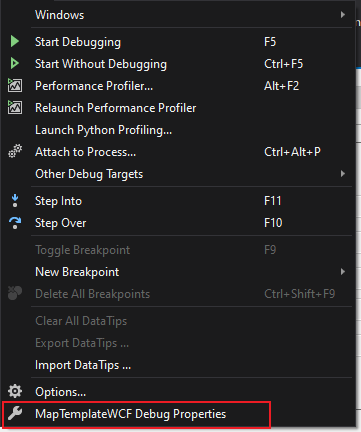
获取调式的虚拟路径:
单击IIS调试:
单击后缀为svc的文件
出现以下界面说明配置无误,在URL栏中获取服务地址
此时web服务不要关掉,即要确保VS处于调试状态,并且你已经设置了断点: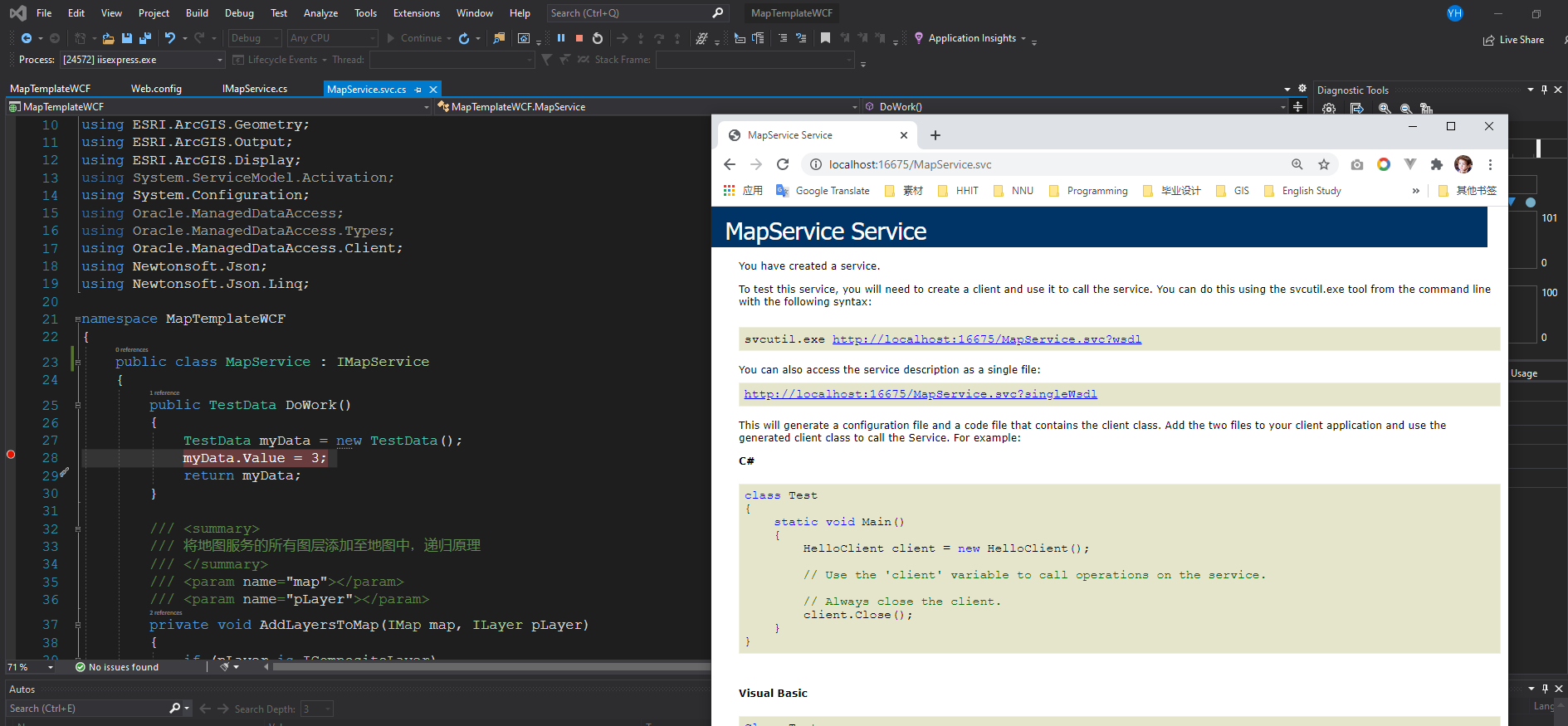
打开Postman,创建一个新的连接,单击Send:
成功进入断点处:
远程调试问题
首先要发布一个IIS服务,且要求防火墙允许跨域访问(见文章:Win10让局域网内其他电脑通过IP访问网站的方法)
这是我创建好的站点(物理路径中要包含web.config):

如下,web服务的访问没有任何问题
然后回到VS2019,在Debug Properties中进行如下设置:
然后再按照本地服务那样远程调试即可
如果出现对话框,里面内容显示:Unable to start debugging on the web server. You do not have permissions to debug the web server process. You need to either be running as…
确保所有用户的授权是完全控制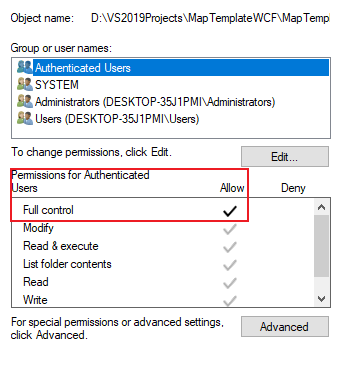
然后关闭VS2019,右击以管理员的权限运行,问题即可得解决。
参考资料
- stackoverflow :Unable to start debugging on the web server using visual studio 2012. https://stackoverflow.com/questions/24082215/unable-to-start-debugging-on-the-web-server-using-visual-studio-2012

若有收获,就点个赞吧
0 人点赞


