- title: Awesome command line slide | 记一次分享命令行的幻灯片description: 一个关于 command line 的 slide
redirect: 2020-09-14-awosome-command-line-slide - 输出:1
- formatter
- http [flags] [METHOD] URL [ITEM [ITEM]]
- 新建一个文件
- 新建两个文件
- 编辑一个已存在的文件
- diff 比较两个文件
- 新打开一个窗口
- With these few lines of code, users of your script can now do the “usual thing” on the command-line, for example:
—file=outfile -q - git
title: Awesome command line slide | 记一次分享命令行的幻灯片description: 一个关于 command line 的 slide
redirect: 2020-09-14-awosome-command-line-slide
description: 一个关于 command line 的 slide
CLI =>
Command line interface =>
命令行界面
Why command line
What’s wrong with GUI?
- GUI 与其他工具交互太难了,你不能像 shell 一样,将一个 GUI 程序的输出作为另一个程序的输入
- 鼠标操作太慢了
- 跨平台。我只用终端和浏览器,那么我的工具栈基本上都是跨平台的(跨平台的语言、换行符
- 服务器上,难以使用 GUI 程序

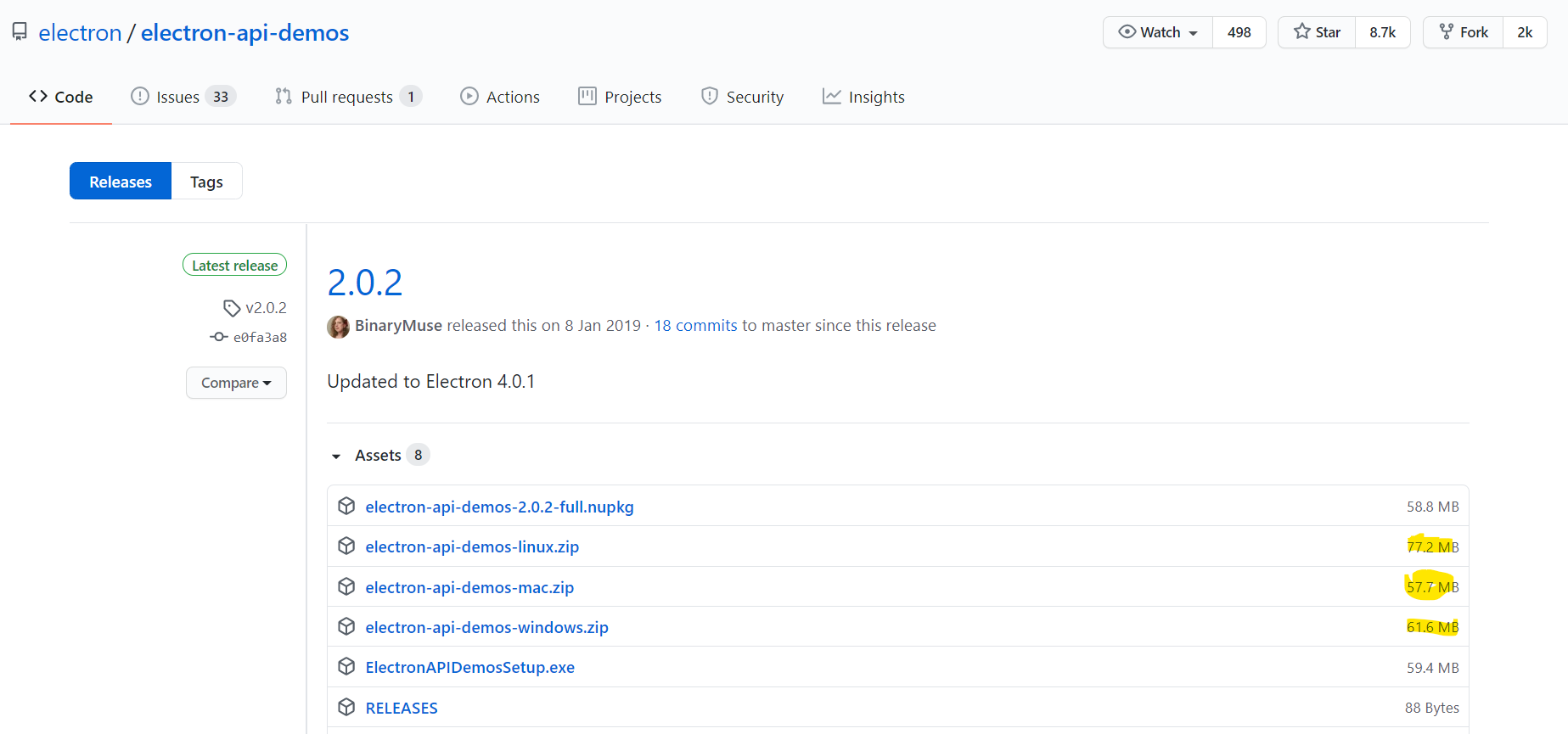
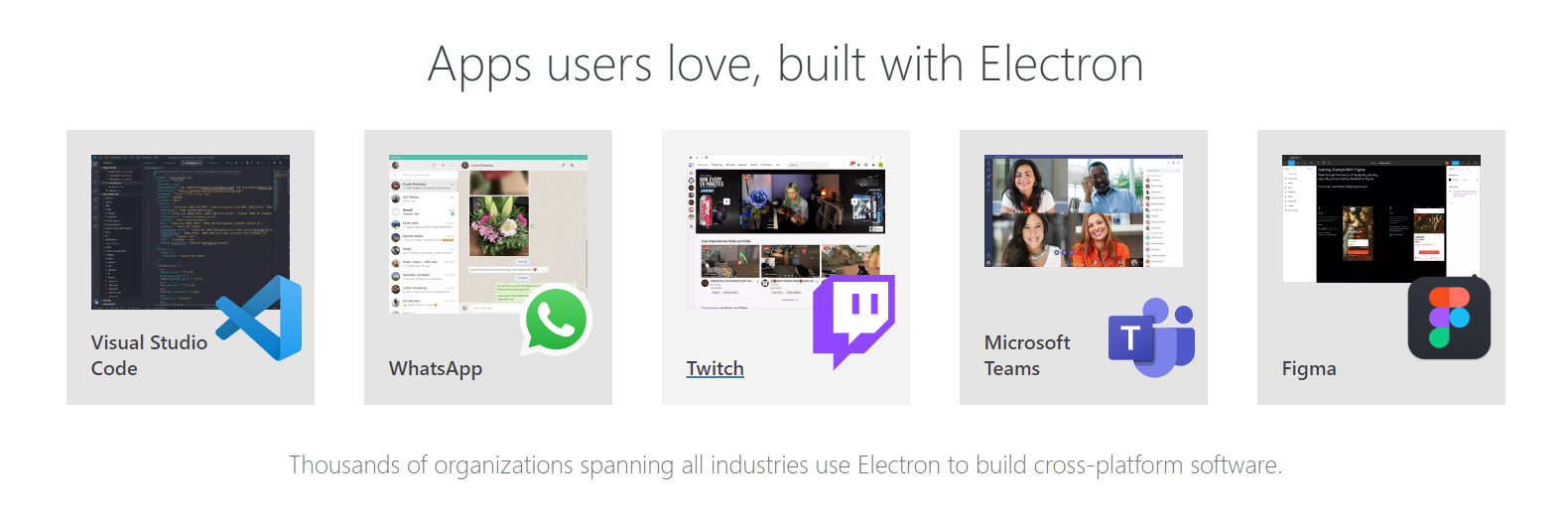
- GUI 消耗资源太多了,尤其是越来越多的 Electron 应用
Unix 哲学
Mike Gancarz的《UNIX哲学》
The UNIX Philosophy 9条训格之言:
- 小即是美
- 让程序只做好一件事
- 尽可能早地创建原型
- 可移植性比效率更重要
- 数据应该保存为文本文件
- 尽可能地榨取软件的全部价值
- 使用 shell 脚本来提高效率和可移植性
- 避免使用可定制性低下的用户界面
- 所有程序都是数据的过滤器1. 小即是美
- 让程序只做好一件事
KISS 原则
KISS 原则是英语 Keep It Simple, Stupid 的首字母缩略字,是一种归纳过的经验原则9. 所有程序都是数据的过滤器
map filter reduce
// https://twitter.com/steveluscher/status/741089564329054208// Map/filter/reduce in a tweet:map([🌽, 🐮, 🐔], cook)=> [🍿, 🍔, 🍳]filter([🍿, 🍔, 🍳], isVegetarian)=> [🍿, 🍳]reduce([🍿, 🍳], eat)=> 💩
如何开始使用一个新的命令行工具
- install
Unix/Linux
yum apt dnf homebrew…
windoww
scoop https://scoop.sh/
- choco https://chocolatey.org/
- …
- Document
- man
- help -h —help
man bashmv --help
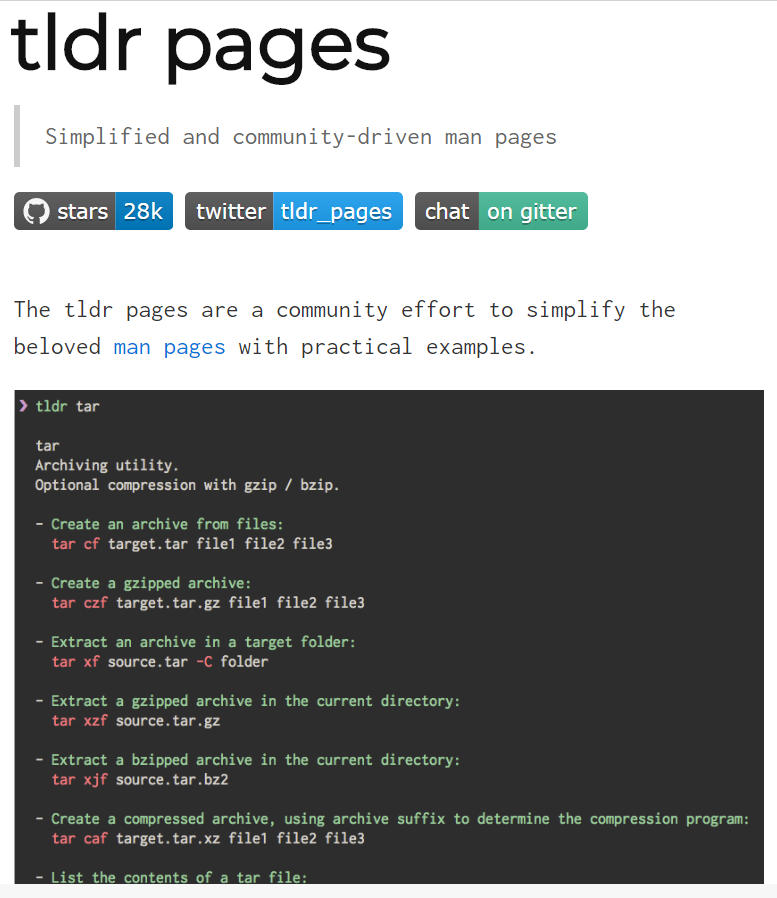
- Tl;Dr
too long; didn’t read
参数
| System | Style | Example | | —- | —- | —- |
| Unix | 风格参数,前面加单破折线 - | {{command}} -h |
| BSD | 风格参数,前面不加破折线 | {{command}} help |
| GNU | 风格参数,前面加双破折线 | {{command}} —help |
java -vjava --versionjava -version
find ‘-r’ IN
- !
- >
- |### Pipline
在类Unix操作系统(以及一些其他借用了这个设计的操作系统,如Windows)中,管道(英语:Pipeline)是一系列将标准输入输出链接起来的进程,其中每一个进程的输出被直接作为下一个进程的输入。 每一个链接都由匿名管道实现[来源请求]。管道中的组成元素也被称作过滤程序
这个概念是由道格拉斯·麦克罗伊为Unix 命令行发明的,因与物理上的管道相似而得名
Pipline Example 1
ls -l | less
在这个例子中,ls用于在Unix下列出目录内容,less是一个有搜索功能的交互式的文本分页器。这个管线使得用户可以在列出的目录内容比屏幕长时目录上下翻页
Pipline example 2
curl "http://en.wikipedia.org/wiki/Pipeline_(Unix)" | \sed 's/[^a-zA-Z ]/ /g' | \tr 'A-Z ' 'a-z\n' | \grep '[a-z]' | \sort -u | \comm -23 - /usr/share/dict/words | \less
- curl 获取该网页的HTML内容(在有些系统上可以使用wget)
- sed 移除非空格的字符和网页内容的字母,并以空格取代之
- tr 把大写字母改成小写字母,并把行列里的空格换成新行(每个词现在各占有独立的一行)
- grep 过滤得到那些至少有一个小写字母的行(删除空行)
- sort 将“单词”(也就是每一个行)按照字母顺序排序,并且通过命令行的-u参数来删除重复的行
- comm 查找两个文件中的共同行,-23过滤掉只有第二个文件拥有的行、两个文件共有的行,仅仅留下只在第一个文件中有的行在文件名的位置上的-参数表示要求comm使用标准输入(在这个例子里,他的标准输入来自于管道上游的标准输出)作为输入,而不是以普通文件作为输入最终得到一串没有出现在/usr/share/dict/words之中的“单词”(也就是一行)
- less 允许用户翻页浏览结果
!
``` $ echo foo bar baz foo bar baz $ !! echo foo bar baz foo bar baz
#### >
echo 1 > 1.txt # 将数字 1 写入文件 1.txt
cat 1.txt # 输出 1.txt 的内容
输出:1
echo 2 >> 1.txt # 将数字 2 写入文件 1.txt 的末行
cat 1.txt | clip.exe # 通过管道将文件 1.txt 的内容传输到 windows 的剪切板
### shortcuts**bash**|keyboard| Command Editing Shortcuts|| --- | --- ||CTRL+A CTRL+E| Go to the start/end of the command line||CTRL+R| Search the history backwards||CTRL+L| Clear the screen||CTRL+C| Terminate the command|- [https://kapeli.com/cheat_sheets/Bash_Shortcuts.docset/Contents/Resources/Documents/index](https://kapeli.com/cheat_sheets/Bash_Shortcuts.docset/Contents/Resources/Documents/index)-### 有趣的命令行工具-🚀jq-🚀cURL-🚀Httpie-🚀ffmpeg-🚀clip.exe-🚀code.exe-🦄 you-get [https://github.com/soimort/you-get](https://github.com/soimort/you-get)-🦄 aria2 [https://github.com/aria2/aria2](https://github.com/aria2/aria2)[](https://asciinema.org/a/236096)<br />**jq**> Document: [https://stedolan.github.io/jq/tutorial/](https://stedolan.github.io/jq/tutorial/)
$ curl ‘https://api.github.com/repos/stedolan/jq/commits?per_page=5‘ | jq ‘.’
formatter
[ { “sha”: “d25341478381063d1c76e81b3a52e0592a7c997f”, “commit”: { “author”: { “name”: “Stephen Dolan”, “email”: “mu@netsoc.tcd.ie”, “date”: “2013-06-22T16:30:59Z” }, “committer”: { “name”: “Stephen Dolan”, “email”: “mu@netsoc.tcd.ie”, “date”: “2013-06-22T16:30:59Z” }, “message”: “Merge pull request #162 from stedolan/utf8-fixes\n\nUtf8 fixes. Closes #161”, “tree”: { “sha”: “6ab697a8dfb5a96e124666bf6d6213822599fb40”, “url”: “https://api.github.com/repos/stedolan/jq/git/trees/6ab697a8dfb5a96e124666bf6d6213822599fb40“ }, “url”: “https://api.github.com/repos/stedolan/jq/git/commits/d25341478381063d1c76e81b3a52e0592a7c997f“, “comment_count”: 0 }, “url”: “https://api.github.com/repos/stedolan/jq/commits/d25341478381063d1c76e81b3a52e0592a7c997f“, “html_url”: “https://github.com/stedolan/jq/commit/d25341478381063d1c76e81b3a52e0592a7c997f“, “comments_url”: “https://api.github.com/repos/stedolan/jq/commits/d25341478381063d1c76e81b3a52e0592a7c997f/comments“, “author”: { “login”: “stedolan”, …
**Httpie**
> Pages: [https://httpie.org/](https://httpie.org/)

http PUT httpbin.org/put X-API-Token:123 name=John
http [flags] [METHOD] URL [ITEM [ITEM]]
**code**
新建一个文件
code README.md
新建两个文件
code foo.md bar.md
编辑一个已存在的文件
code foo.md
diff 比较两个文件
code -d foo.md bar.md code —diff foo.md bar.md
新打开一个窗口
code -n
### WSL
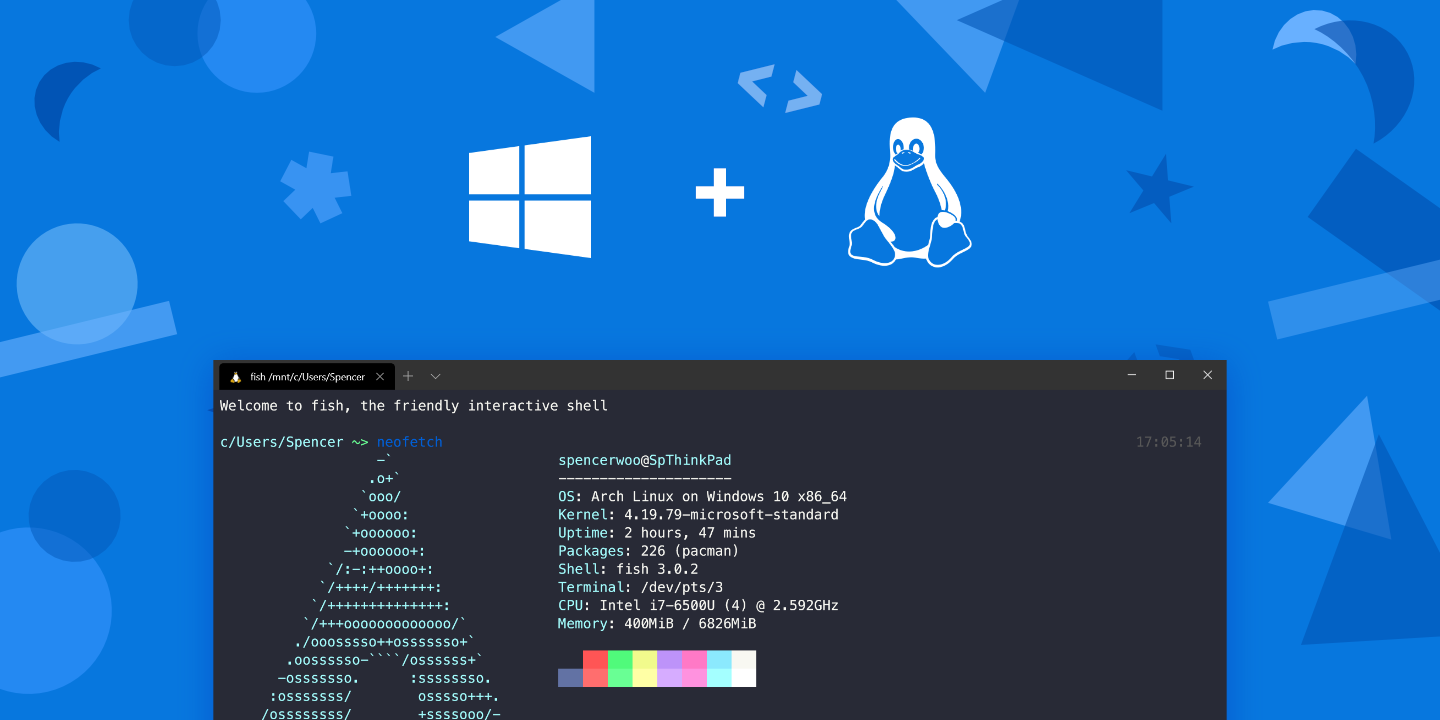
> WSL 的全称叫做:Windows Subsystem for Linux,即「适用于 Linux 的 Windows 子系统」。WSL 的诞生让 Windows 用户(开发人员)按原样运行 GNU/Linux 环境 —— 包括大多数命令行工具、实用工具和应用程序 —— 且不会产生虚拟机开销。
- [https://dowww.spencerwoo.com/](https://dowww.spencerwoo.com/)
- [https://www.jenkins.io/zh/doc/pipeline/tour/hello-world/](https://www.jenkins.io/zh/doc/pipeline/tour/hello-world/)
### Terminals
**Linux/Unix**
- bash
- zsh [https://ohmyz.sh/](https://ohmyz.sh/)
- fish [https://fishshell.com/](https://fishshell.com/)
**windows**
- windows Terminal [https://github.com/microsoft/terminal](https://github.com/microsoft/terminal)
- WSL Terminal
- powershell
- cmd
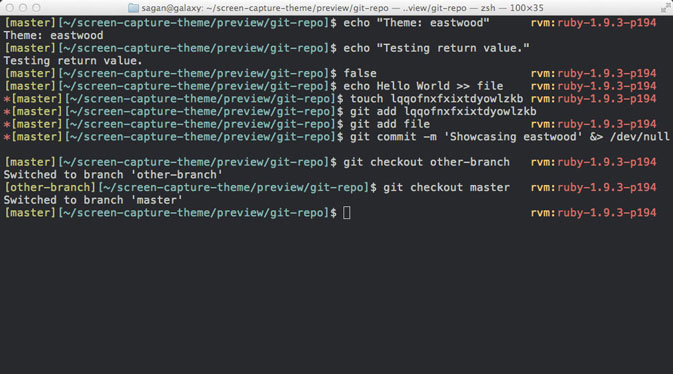
### 编辑器
- vim / emacs => vscode
code —help
Visual Studio Code 1.43.1
Usage: code.exe [options][paths…]
To read output from another program, append ‘-‘ (e.g. ‘echo Hello World | code.exe -‘)
Options
-d —diff
Extensions Management —extensions-dir
--force
argument to avoid
prompts.
—uninstall-extension Troubleshooting
—verbose Print verbose output (implies —wait).
—log
### REPL

> 读取﹣求值﹣输出循环


- ipython [https://ipython.org/install.html](https:_ipython.org_install)
import java.util.Scanner;
public class AiMain { public static void main(String[] args) { Scanner sc = new Scanner(System.in); String str; while (true) { str = sc.next(); str = str.replace(“吗”, “”); str = str.replace(“?”, “!”); str = str.replace(“? “, “! “); System.out.println(str); } } }
### dbcli

- pgcli - Postgres Client with Auto-completion and Syntax Highlighting
- mycli - MySQL/MariaDB/Percona Client with Auto-completion and Syntax Highlighting
- litecli - SQLite Client with Auto-completion and Syntax Highlighting
- mssql-cli - Microsoft SQL Server Client with Auto-completion and Syntax Highlighting
- athenacli - AWS Athena Client with Auto-completion and Syntax Highlighting
- vcli - VerticaDB client
- iredis - Client for Redis with AutoCompletion and Syntax Highlighting### dotfile

dotfiles 就是软件的配置文件。一般用于软件设置,可以通过备份 dotfiles 的方式,同步软件设置<br />同步原理<br />
主要是应用了ln软连接的功能,命名格式如下:
ln [参数][目标文件或目录]
**dotfile example**

-
`.bash_profile`


-
`.bash_prompt`


-
`.bashrc`


-
`.curlrc`


-
`.curlrc: Add back connect-timeout`


-
`.exports`


-
`.exports: Hide zsh warning on macOS`


-
`.gdbinit`


-
`.gitattributes`


-
`.gitattributes: Disable normalizing line endings globally`


-
`.gitconfig`


-
`.gitignore`


-
`.gvimrc`


-
`.hgignore`


-
`.hushlogin`


-
`.inputrc`


-
`.macos`


-
`.osx`


-
`.screenrc`


-
`.tmux.conf`


-
`.vimrc`


-
`.wgetrc`


-
[[https://leohxj.gitbooks.io/a-programmer-prepares/content/software/mac/dotfiles.html](https:_leohxj.gitbooks.io_a-programmer-prepares_content_software_mac_dotfiles)<br />
[https://github.com/mathiasbynens/dotfiles](https://github.com/mathiasbynens/dotfiles)]([https://leohxj.gitbooks.io/a-programmer-prepares/content/software/mac/dotfiles.html](https:_leohxj.gitbooks.io_a-programmer-prepares_content_software_mac_dotfiles)<br />
[https://github.com/mathiasbynens/dotfiles](https://github.com/mathiasbynens/dotfiles))


-
[https://blog.spencerwoo.com/2020/07/how-i-manage-my-dotfiles/###](https://blog.spencerwoo.com/2020/07/how-i-manage-my-dotfiles/###) 如何写一个命令行


1. 选择开发语言(eg: Python\Rust\Go...)
1. 选择一个库
1. 加点颜色> optparse: [https://docs.python.org/zh-cn/3.8/library/optparse.html](https:_docs.python.org_zh-cn_3.8_library_optparse)
from optparse import OptionParser … parser = OptionParser() parser.add_option(“-f”, “—file”, dest=”filename”, help=”write report to FILE”, metavar=”FILE”) parser.add_option(“-q”, “—quiet”, action=”store_false”, dest=”verbose”, default=True, help=”don’t print status messages to stdout”)
(options, args) = parser.parse_args()
With these few lines of code, users of your script can now do the “usual thing” on the command-line, for example:
—file=outfile -q
**python-prompt-toolkit**
> [https://github.com/prompt-toolkit/python-prompt-toolkit](https://github.com/prompt-toolkit/python-prompt-toolkit)

class FuzzCommand { public static void main(String[] args) { // do some stuffs System.out.print(args[0]) } // javac FuzzCommand.java // java FuzzCommand Fuzz
**color**
def enable(): HEADER = ‘\033[95m’ OKBLUE = ‘\033[94m’ OKGREEN = ‘\033[92m’ WARNING = ‘\033[93m’ FAIL = ‘\033[91m’ ENDC = ‘\033[0m’ BOLD = “\033[1m”
def disable(): HEADER = ‘’ OKBLUE = ‘’ OKGREEN = ‘’ WARNING = ‘’ FAIL = ‘’ ENDC = ‘’
def infog(msg): print(OKGREEN + msg + ENDC)
def info(msg): print(OKBLUE + msg + ENDC)
def warn(msg): print(WARNING + msg + ENDC)
def err(msg): print(FAIL + msg + ENDC)
enable()
### 如何写一个脚本

1.
选择一门开发语言

- Shell
- Bash
- Powershell


- Python
- Go
- Rust


**$profile**
git
function invoke-git { [alias(‘g’)] param( [parameter(mandatory = $true, position = 0)] [string] $cmd,
[parameter(mandatory = $false, valuefromremainingarguments = $true)]
[string[]]
$params
)
switch ($cmd) {
# add
'a' { git add $params }
# branch
'b' { git branch $params }
# checkout
'c' { git checkout $params }
# clone repo
'cl' { git clone $params }
# commit
'co' { git commit $params }
# fetch
'f' { git fetch $params }
# init
'i' { git init $params }
# log
'l' { git log $params }
# pretty log
'll' { git log --graph --pretty=format:'%cred%h%creset -%c(yellow)%d%creset %s %cgreen(%cr) %c(bold blue)<%an>%creset' --abbrev-commit }
# merge
'm' { git merge $params }
# pull
'pl' { git pull $params }
# push
'ps' { git push $params }
# rebase
'r' { git rebase $params }
# reset changes
'rs' { git reset $params }
# status
's' { git status $params }
# tag
't' { git tag $params }
# catchall
default { git $cmd $params }
} }
```
Reference
- https://kapeli.com/cheat_sheets/Bash_Shortcuts.docset/Contents/Resources/Documents/index
- https://github.com/fliptheweb/bash-shortcuts-cheat-sheet
- https://github.com/laixintao/myslides/blob/master/awesome-commandline/awesome-commandline.md
- https://revealjs.com
- https://www.dbcli.com/about/
- https://www.zhihu.com/question/267095526
- https://www.gnu.org/prep/standards/html_node/Option-Table.html#Option-Table
- https://wiki.archlinux.org/index.php/Dotfiles
- https://zh.wikipedia.org/wiki/%E7%AE%A1%E9%81%93_(Unix))

若有收获,就点个赞吧
0 人点赞


