安装编译环境
yum install git gcc gcc-c++ make automake vim wget libevent -y //安装libfastcommon基础库 mkdir /root/fastdfs cd /root/fastdfs git clone https://github.com/happyfish100/libfastcommon.git —depth 1 cd libfastcommon/ ./make.sh && ./make.sh install
安装FastDFS
cd /root/fastdfs wget https://github.com/happyfish100/fastdfs/archive/V5.11.tar.gz tar -zxvf V5.11.tar.gz cd fastdfs-5.11 ./make.sh && ./make.sh install //配置文件准备 cp /etc/fdfs/tracker.conf.sample /etc/fdfs/tracker.conf cp /etc/fdfs/storage.conf.sample /etc/fdfs/storage.conf cp /etc/fdfs/client.conf.sample /etc/fdfs/client.conf cp /root/fastdfs/fastdfs-5.11/conf/http.conf /etc/fdfs
cp /root/fastdfs/fastdfs-5.11/conf/mime.types /etc/fdfs
配置文件修改
vim /etc/fdfs/tracker.conf
需要修改的内容如下
port=22122
base_path=/home/fastdfs vim /etc/fdfs/storage.conf
需要修改的内容如下
port=23000
base_path=/home/fastdfs # 数据和日志文件存储根目录
store_path0=/home/fastdfs # 第一个存储目录
tracker_server=192.168.211.136:22122
http访问文件的端口(默认8888,看情况修改,和nginx中保持一致)
http.server_port=8888
启动
mkdir /home/fastdfs -p
/usr/bin/fdfs_trackerd /etc/fdfs/tracker.conf restart
/usr/bin/fdfs_storaged /etc/fdfs/storage.conf restart
查看所有运行的端口
netstat -ntlp
测试上传
vim /etc/fdfs/client.conf
需要修改的内容如下
base_path=/home/fastdfs
tracker服务器IP和端口
tracker_server=192.168.211.136:22122 //在Linux中上传一张图片名称是1.png
保存后测试,返回ID表示成功 如:group1/M00/00/00/xxx.png
/usr/bin/fdfs_upload_file /etc/fdfs/client.conf /root/fastdfs/1.png
group1/M00/00/00/wKjTiF7h5EWASb5aAACGZa9JdFo611.png group1/M00/00/00/wKjRkl-Zi9WAXoMTAAEqAIvftNE169.jpg
安装fastdfs-nginx-module
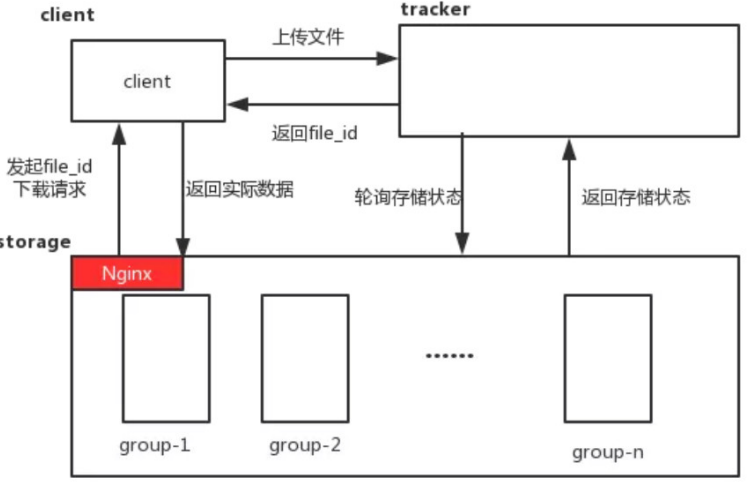
cd /root/fastdfs
wget https://github.com/happyfish100/fastdfs-nginx-module/archive/V1.20.tar.gz
解压
tar -xvf V1.20.tar.gz
cd fastdfs-nginx-module-1.20/src
vim config
修改第5 行 和 15 行 修改成
ngx_module_incs=”/usr/include/fastdfs /usr/include/fastcommon/“
CORE_INCS=”$CORE_INCS /usr/include/fastdfs /usr/include/fastcommon/“
cp mod_fastdfs.conf /etc/fdfs/
vim /etc/fdfs/mod_fastdfs.conf
需要修改的内容如下
tracker_server=192.168.211.136:22122
url_have_group_name=true
store_path0=/home/fastdfs
mkdir -p /var/temp/nginx/client
安装Nginx

若有收获,就点个赞吧
0 人点赞


