1. Configuration for WebDriver
1.1 Install RDP Wrapper
Solutions for Remoate Desktop Service in Windows 10
You can Download from https://github.com/stascorp/rdpwrap/releases, Here is screenshots.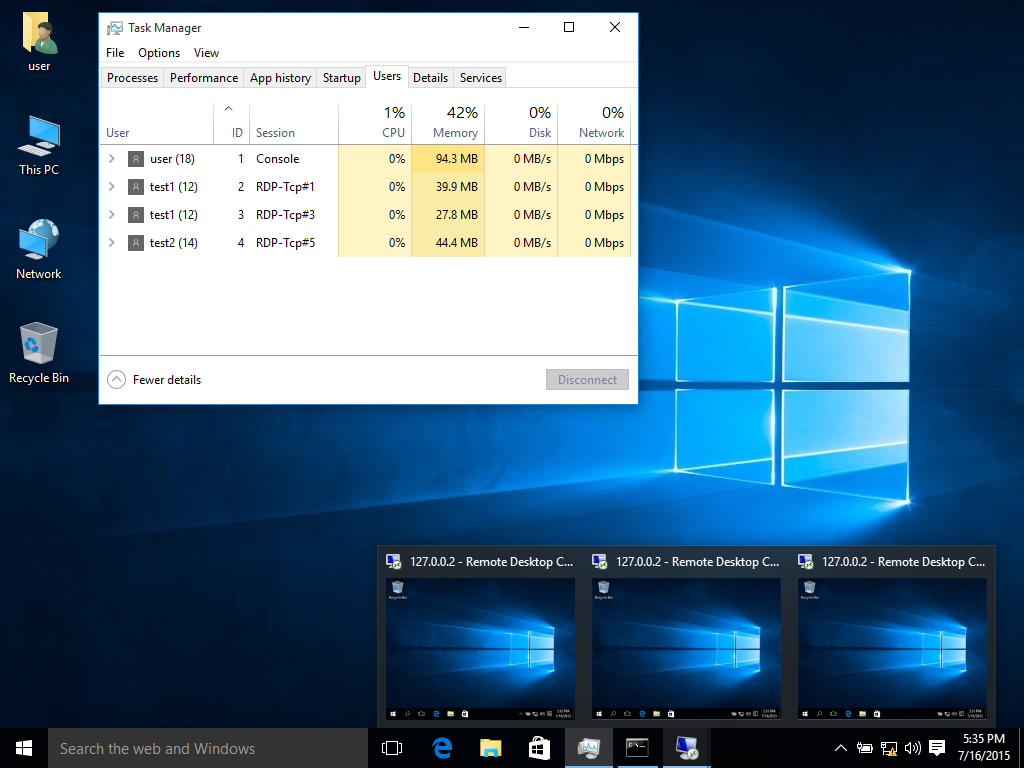
There are six files in RDP Wrapper:
Step 1:
open install.bat , and then you will see tips as follows.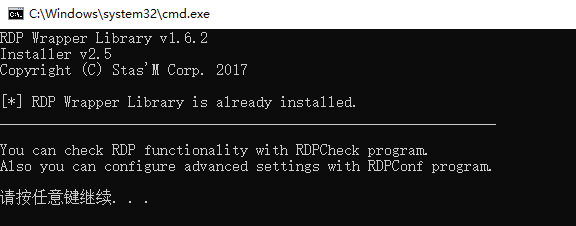
Step 2:
open RDPConf.exe, and confirm Listener state should in Listening and [fully supported] Status
1.2 Install Node.js
Visit and download from https://nodejs.org, Nice and Cool.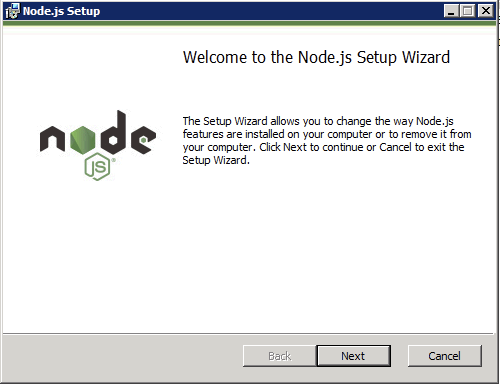
1.3 Install Java
Same way: https://java.com/zh_CN/download/
1.4 Enable IIS
‘Control Panel’ -> ‘Programs’ -> ‘Enable or Disable Windows Features’
1.5 Init F2etest-webdriver
- Download f2etest-webdriver from https://github.com/alibaba/f2etest
- Execute “批量设置节点用户.bat”,Input nodes number that you need.
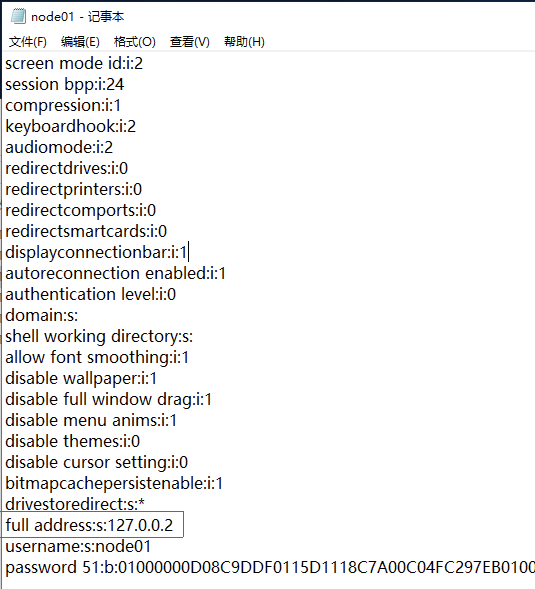
- Edit
c:\f2etest-webdriver\rdp\nodeX.rdp- update full address to 127.0.0.2
- update encrypt password from RDP.exe
1.6 Get the MicrosoftWebDriver
Find the match version and Download MicrosoftWebDriver
https://developer.microsoft.com/en-us/microsoft-edge/tools/webdriver/
Put it under the c:\f2etest-webdriver\webdriver folder
1.7 Run nodes and validate in uirecorder

2. Configuration for Browser
2.1 set IIS
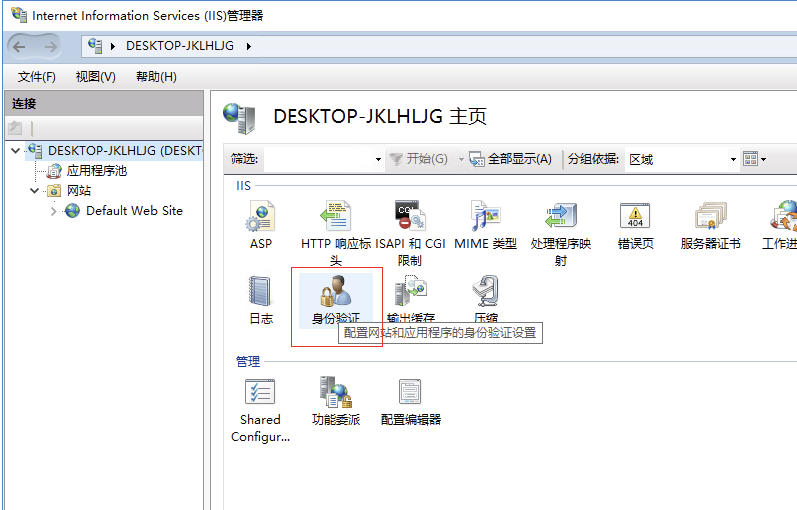
enable anonymous authentication, enter administrator and PASSWORD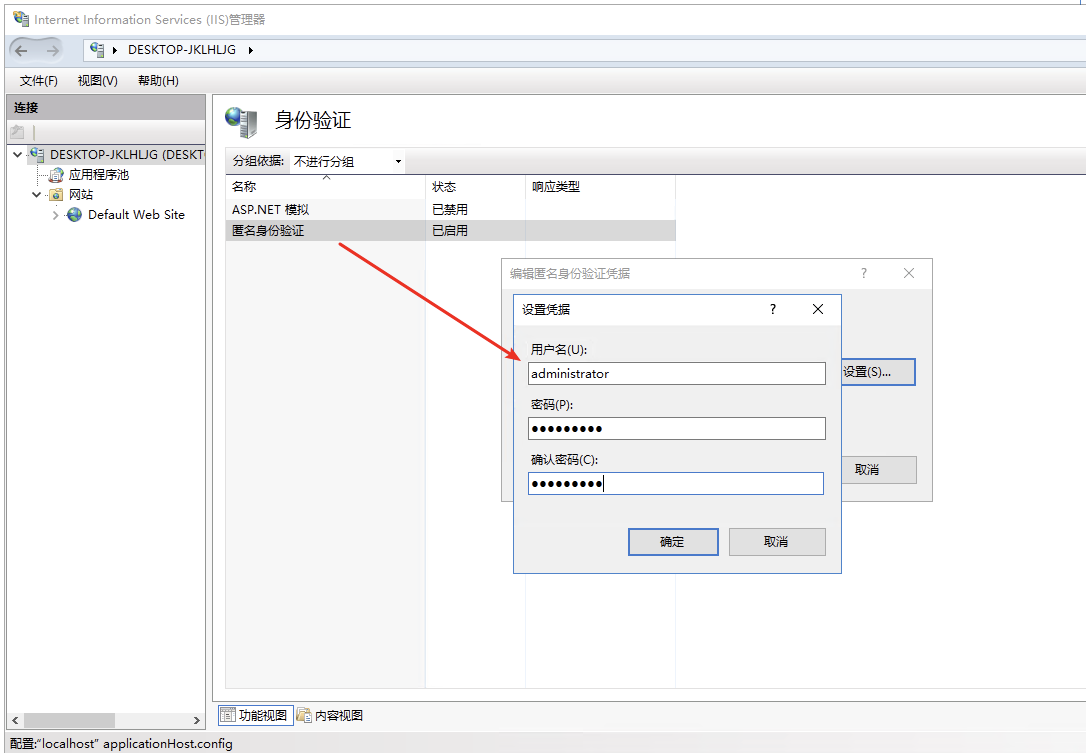
2.2 init set user api
- Download f2etest-browsers from https://github.com/alibaba/f2etest
- Copy setuser.asp under C:\inetpub\wwwroot
- Visit http://127.0.0.1/setuser.asp?username=test&password=hello123&key=f2etest, and you will see “OK” in this page

[Todo Desktop settings]

若有收获,就点个赞吧
0 人点赞


