❗❗❗ 先弄第四个步骤,如果操作完发现没问题,那么其他步骤都不用看
eslint rules 中文网站:http://eslint.cn/docs/rules/
最近eslint更新后,项目里前端协同作业遭到了令人脑壳疼的麻烦,经历了几个晚上的折磨,堪堪找到一个解决方法:
**
一、插件安装
在VScode前端IDE里找到插件扩展商店 ,在这里陆续搜索并安装Eslint
  , Vetur
 ,以及Prettier
 。 后面的小数字是版本,这里唯一需要注意的是安装Vetur时默认是最新版本,但是最近的更新它的最新版和Eslint有很多冲突,所以这里退回到0.23.0版本。步骤如下:
选择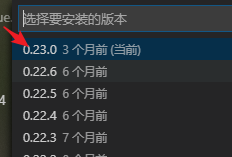 等待安装完成会需要点击重新加载VScode。
二、Prettier的依赖安装
在VScode终端输入 
npm install --save-dev --save-exact prettier
三、VScode的settings.json 文件配置
在VScode的左下角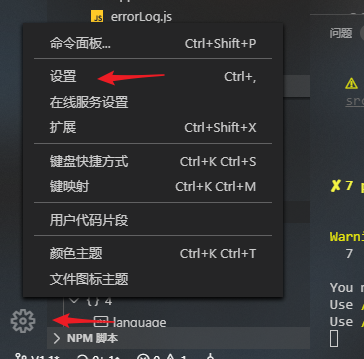 ,打开设置,
然后在设置页面的右上角点开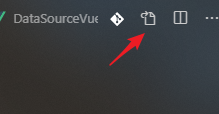 这个小图标,把下面的这段代码覆盖进去
// 将设置放入此文件中以覆盖默认设置{//自动保存"files.autoSave": "off",// 以像素为单位控制字号。"editor.fontSize": 20,//一个制表符等于的空格数"editor.tabSize": 2,// 自动更新扩展"extensions.autoUpdate": false,//关掉自动更新"update.mode": "none",// 通过使用 tab 键 补全代码"emmet.triggerExpansionOnTab": true,"window.zoomLevel": 0,"workbench.startupEditor": "newUntitledFile","workbench.sideBar.location": "left","explorer.confirmDelete": false,"editor.minimap.enabled": true,"workbench.iconTheme": "material-icon-theme","explorer.confirmDragAndDrop": false,"files.associations": {"*.wxss": "css","*.wpy": "vue","*.cjson": "jsonc","*.wxs": "javascript"},"eslint.validate": ["javascript","javascriptreact","html",{"language": "vue","autoFix": true},{"language": "typescript","autoFix": true},"typescriptreact"],"vetur.format.defaultFormatterOptions": {"prettier": {"singleQuote": true,"semi": false},"js-beautify-html": {"wrap_line_length": 120,"wrap_attributes": "auto","end_with_newline": false}},// 从这里往下都给加上"eslint.options": {"plugins": ["html"],"extensions": [".js", ".vue"]},"search.exclude": {"**/node_modules": true,"**/bower_components": true,"**/dist": true},"emmet.syntaxProfiles": {"javascript": "jsx","vue": "html","vue-html": "html"},"git.confirmSync": false,"editor.renderWhitespace": "boundary","editor.cursorBlinking": "smooth","editor.minimap.renderCharacters": false,"window.title": "${dirty}${activeEditorMedium}${separator}${rootName}","editor.codeLens": true,"editor.snippetSuggestions": "top",// 旧的"editor.formatOnSave": true, //#每次保存的时候自动格式化"javascript.format.enable": true, // 启动JavaScript格式化"prettier.eslintIntegration": true, // 让prettier遵循eslint格式美化"workbench.activityBar.visible": true,"workbench.statusBar.visible": true,"editor.formatOnType": true,"editor.codeActionsOnSave": {"source.fixAll.eslint": true},"team.showWelcomeMessage": false,"emmet.includeLanguages": {"wxml": "html"},"eslint.run": "onSave","eslint.debug": true,"eslint.format.enable": true,"minapp-vscode.disableAutoConfig": true,"terminal.integrated.shell.windows": "C:\\WINDOWS\\System32\\WindowsPowerShell\\v1.0\\powershell.exe","vetur.format.defaultFormatter.ts": "vscode-typescript","eslint.alwaysShowStatus": true,"javascript.updateImportsOnFileMove.enabled": "always","[vue]": {"editor.defaultFormatter": "octref.vetur"},//分号"prettier.semi": false,//单引号包裹字符串"prettier.singleQuote": true,//html格式化依赖 默认为none"vetur.format.defaultFormatter.html": "js-beautify-html",//函数前加空格//"javascript.format.insertSpaceBeforeFunctionParenthesis": true,//没有下边这些 上边不生效"vetur.format.defaultFormatter.js": "vscode-typescript","terminal.integrated.rendererType": "dom","workbench.colorTheme": "Default Dark+","vetur.validation.template": true,"eslint.quiet": true // #每次保存的时候将代码按eslint格式进行修复}
这里有些个人爱好的设置我都有注释在代码后面,比如VScode的字号大小。
四、.eslintrc 文件中的rules配置
在项目更目录下,有一个.eslintrc.js文件 ,打开后找到(Ctrl+F直接搜索也可以)rules配置对象
 ,将rules替换成以下代码
rules: {indent: [0], //缩进 // allow async-await"generator-star-spacing": "off", //函数前后空格 // allow debugger during development"no-console": process.env.NODE_ENV === "production" ? "error" : "off","no-debugger": process.env.NODE_ENV === "production" ? "error" : "off", //不允许debugger"no-control-regex": 0, //是否监测正则控制符异常"no-tabs": "off", //不允许使用制表符,包括在注释中"no-dupe-keys": "error", //在创建对象字面量时不允许键重复 {a:1,a:1}"no-dupe-args": "error", //函数参数不能重复"no-duplicate-case": "error", //switch中的case标签不能重复"no-floating-decimal": "error", //禁止省略浮点数中的0 .5 3."no-multiple-empty-lines": ["warn", { max: 100 }], //空行最多不能超过100行"no-mixed-spaces-and-tabs": ["off"], //不允许使用混合空格和制表符进行缩进"spaced-comment": "off", //注释风格要不要有空格什么的"no-multi-spaces": "off", //不能用多余的空格"no-undef": "error", //不能有未定义的变量"no-unused-vars": ["error",{ vars: "all", args: "none", ignoreRestSiblings: false },], //不能有声明后未被使用的变量或参数camelcase: "off", //强制驼峰法命名"comma-dangle": [2, "never"], //对象字面量项尾不能有逗号"comma-spacing": "off", //逗号前后的空格semi: ["error", "never"], //在语句末尾需要分号 忽略块中的最后一个分号 这里我有点不解 import Main from '@/views/Main.vue';会报错 但是现在这样确实是我要的效果"space-after-keywords": ["off", "always"], //关键字后面是否要空一格"space-before-blocks": ["off", "always"], //不以新行开始的块{前面要不要有空格"space-before-function-paren": ["off", "always"], //函数定义时括号前面要不要有空格"space-in-parens": ["off", "never"], //小括号里面要不要有空格"space-infix-ops": "off", //中缀操作符周围要不要有空格"space-return-throw-case": "off", //return throw case后面要不要加空格"space-unary-ops": ["off", { words: true, nonwords: false }], //一元运算符的前/后要不要加空格"spaced-comment": "off", //注释风格要不要有空格什么的quotes: ["off", "single"], //引号类型"no-trailing-spaces": ["off",{ skipBlankLines: true, ignoreComments: true },], //可以在行尾添加尾随空格"keyword-spacing": ["off", { before: true, after: true, overrides: null }], //在关键字前后加空格,overrides允许覆盖指定关键字的间距样式"key-spacing": "off", //强制在对象字面量的键和值之间使用一致的空格"semi-spacing": ["off", { before: false, after: false }], //分号前后空格"no-eq-null": "off", //禁止对null使用==或!=运算符eqeqeq: ["off"], //对象比较时不强制考虑类型安全}
五、可能需要添加一个.prettierrc 文件
本来在settings.js里面已经配置过使用 prettier 为美化代码的标准了,而且也生效了,但有时候遇到版本更新时又偶尔会失效,这个文件是为这种情况预留的一个激活文件,遇到代码格式化无效的时候,可以打开它然后保存一下就激活了,这个文件里面甚至都可以没有什么内容。
这个文件放在根目录下和.eslintrc.js平级的位置:
{"semi": false,"singleQuote": false}
悄悄的告诉你一个消极的方法,在config文件夹下的index.js文件中,把useEslint改成false,万事大吉。

若有收获,就点个赞吧
0 人点赞


