基础挂载
部署Tomcat
我们从docker hub上找一个tomcat,下载下来运行。
[root@VM-8-9-centos ~]# docker pull tomcat:9.0.54-jre8-openjdk9.0.54-jre8-openjdk: Pulling from library/tomcatbb7d5a84853b: Pull completef02b617c6a8c: Pull completed32e17419b7e: Pull completeab18cfab55f9: Pull complete793716e93ecb: Pull complete7471530a63ae: Pull complete4ed2aaa3447c: Pull complete62a6a042d551: Pull complete51ff22efe151: Pull complete2edc40f6b11d: Pull completeDigest: sha256:93f50aacd649b05da7222ddc941ec6491758507837332e6d6294d23dda1e7decStatus: Downloaded newer image for tomcat:9.0.54-jre8-openjdkdocker.io/library/tomcat:9.0.54-jre8-openjdk[root@VM-8-9-centos ~]# docker imagesREPOSITORY TAG IMAGE ID CREATED SIZEtomcat 9.0.54-jre8-openjdk 07ec6fa0983a 3 days ago 294MB[root@VM-8-9-centos ~]# docker run -d -it -p 80:8080 tomcat:9.0.54-jre8-openjdk880f57e48ca42b7ed2057303a5518c14f97760ccd2ca5f818866e3d63d499efa[root@VM-8-9-centos ~]# docker ps -aCONTAINER ID IMAGE COMMAND CREATED STATUS PORTS NAMES880f57e48ca4 tomcat:9.0.54-jre8-openjdk "catalina.sh run" 5 seconds ago Up 4 seconds 0.0.0.0:80->8080/tcp, :::80->8080/tcp boring_moser[root@VM-8-9-centos ~]# curl localhost<!doctype html><html lang="en"><head><title>HTTP Status 404 – Not Found</title><style type="text/css">body {font-family:Tahoma,Arial,sans-serif;} h1, h2, h3, b {color:white;background-color:#525D76;} h1 {font-size:22px;} h2 {font-size:16px;} h3 {font-size:14px;} p {font-size:12px;} a {color:black;} .line {height:1px;background-color:#525D76;border:none;}</style></head><body><h1>HTTP Status 404 – Not Found</h1><hr class="line" /><p><b>Type</b> Status Report</p><p><b>Description</b> The origin server did not find a current representation for the target resource or is not willing to discl[
进入tomcat的镜像看看。
[root@VM-8-9-centos webapps]# docker exec -it 88 /bin/bashroot@880f57e48ca4:/usr/local/tomcat# pwd/usr/local/tomcatroot@880f57e48ca4:/usr/local/tomcat# ls -ltotal 156-rw-r--r-- 1 root root 18970 Sep 28 13:51 BUILDING.txt-rw-r--r-- 1 root root 6210 Sep 28 13:51 CONTRIBUTING.md-rw-r--r-- 1 root root 57092 Sep 28 13:51 LICENSE-rw-r--r-- 1 root root 2333 Sep 28 13:51 NOTICE-rw-r--r-- 1 root root 3372 Sep 28 13:51 README.md-rw-r--r-- 1 root root 6898 Sep 28 13:51 RELEASE-NOTES-rw-r--r-- 1 root root 16507 Sep 28 13:51 RUNNING.txtdrwxr-xr-x 2 root root 4096 Oct 13 14:27 bindrwxr-xr-x 1 root root 4096 Oct 17 01:07 confdrwxr-xr-x 2 root root 4096 Oct 13 14:27 libdrwxrwxrwx 1 root root 4096 Oct 17 01:07 logsdrwxr-xr-x 2 root root 4096 Oct 13 14:27 native-jni-libdrwxrwxrwx 2 root root 4096 Oct 13 14:27 tempdrwxr-xr-x 2 root root 4096 Oct 13 14:27 webappsdrwxr-xr-x 7 root root 4096 Sep 28 13:51 webapps.distdrwxrwxrwx 2 root root 4096 Sep 28 13:51 work
/usr/local/tomcat就是tomcat的工作目录,所以,只要进入webapps目录里面创建一个符合servlet要求的应用就能工作。
root@880f57e48ca4:/usr/local/tomcat/webapps# mkdir test-volumeroot@880f57e48ca4:/usr/local/tomcat/webapps# cd test-volume/root@880f57e48ca4:/usr/local/tomcat/webapps/test-volume# mkdir libroot@880f57e48ca4:/usr/local/tomcat/webapps/test-volume# mkdir WEB-INFroot@880f57e48ca4:/usr/local/tomcat/webapps/test-volume# echo 'hello world' > hello.htmlroot@880f57e48ca4:/usr/local/tomcat/webapps/test-volume# curl localhost:8080/test-volume/hello.htmlhello world
挂载目录
如果我们开发了一个war类型的应用,想把它放在docker里的webapps里面,一个办法是使用dockerfile构建一个我们自己的tomcat,这样tomcat一启动就可以将这个服务发布出去。另一个方法就是将这个目录挂载出去,这样就可以将应用放在宿主机上的挂载目录里面,也就可以发布出去了。
[root@VM-8-9-centos webapps]# docker ps -aCONTAINER ID IMAGE COMMAND CREATED STATUS PORTS NAMES[root@VM-8-9-centos docker]# docker run -d -it -p 80:8080 -v /usr/local/webapps/:/usr/local/tomcat/webapps/ tomcat:9.0.54-jre8-openjdkb7b1b29fdbb5a55cfe31ff66dad18ec04828edba92b1f23001a81dfa2c83f8df[root@VM-8-9-centos local]# cd webapps/[root@VM-8-9-centos webapps]# mkdir test-volume[root@VM-8-9-centos webapps]# cd test-volume/[root@VM-8-9-centos test-volume]# mkdir lib[root@VM-8-9-centos test-volume]# mkdir WEB-INF[root@VM-8-9-centos test-volume]# echo 'hello world' > hello.html[root@VM-8-9-centos test-volume]# lltotal 12-rw-r--r-- 1 root root 12 Oct 17 09:41 hello.htmldrwxr-xr-x 2 root root 4096 Oct 17 09:41 libdrwxr-xr-x 2 root root 4096 Oct 17 09:41 WEB-INF[root@VM-8-9-centos webapps]# curl localhost/test-volume/hello.htmlhello world
此时我们进入docker的/usr/local/tomcat/webapps目录。
[root@VM-8-9-centos webapps]# docker exec -it b7 /bin/bashroot@b7b1b29fdbb5:/usr/local/tomcat# cd wwebapps/ webapps.dist/ work/root@b7b1b29fdbb5:/usr/local/tomcat# cd webappsroot@b7b1b29fdbb5:/usr/local/tomcat/webapps# ls -ltotal 8drwxr-xr-x 4 root root 4096 Oct 17 01:41 test-volumeroot@b7b1b29fdbb5:/usr/local/tomcat/webapps# cd test-volumeroot@b7b1b29fdbb5:/usr/local/tomcat/webapps/test-volume# ls -ltotal 12drwxr-xr-x 2 root root 4096 Oct 17 01:41 WEB-INF-rw-r--r-- 1 root root 12 Oct 17 01:41 hello.htmldrwxr-xr-x 2 root root 4096 Oct 17 01:41 lib
我们再从容器内部修改一下hello.html
[root@VM-8-9-centos webapps]# docker exec -it b7 /bin/bashroot@b7b1b29fdbb5:/usr/local/tomcat# cd webappsroot@b7b1b29fdbb5:/usr/local/tomcat/webapps# ls -ltotal 8drwxr-xr-x 4 root root 4096 Oct 17 01:41 test-volumeroot@b7b1b29fdbb5:/usr/local/tomcat/webapps# cd test-volumeroot@b7b1b29fdbb5:/usr/local/tomcat/webapps/test-volume# ls -ltotal 12drwxr-xr-x 2 root root 4096 Oct 17 01:41 WEB-INF-rw-r--r-- 1 root root 12 Oct 17 01:41 hello.htmldrwxr-xr-x 2 root root 4096 Oct 17 01:41 libroot@b7b1b29fdbb5:/usr/local/tomcat/webapps/test-volume# echo 'volume, hello world' > hello.htmlroot@b7b1b29fdbb5:/usr/local/tomcat/webapps/test-volume# exitexit[root@VM-8-9-centos webapps]# curl localhost/test-volume/hello.htmlvolume, hello world[root@VM-8-9-centos webapps]# cd test-volume/[root@VM-8-9-centos test-volume]# cat hello.htmlvolume, hello world
可以发现此时容器内部的修改也可以传导到宿主机上。
如果我们想让挂载点不能在容器中修改,只能在宿主机上修改,只需要使用ro或rw参数即可。
# :ro表示只能在宿主机上修改,容器内只能读取# :rw表示容器内和宿主机都能读写,默认的权限docker run -d -it -v 宿主机绝对路径:容器内路径:ro 镜像IDdocker run -d -it -v 宿主机绝对路径:容器内路径:rw 镜像ID
Linux链接
Linux中所有的文件都由两部分构成。
- 索引结点:包含此文件的信息,如文件权限、文件主、文件大小等。
- 数据:文件的实际内容,有没有数据都可以。

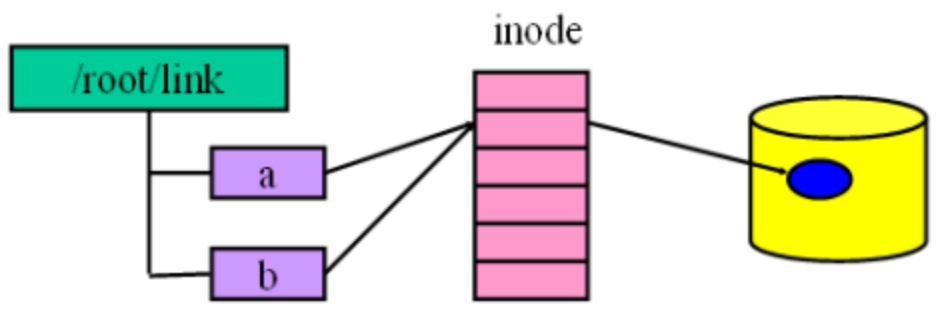
链接就是把文件名和计算机文件系统使用的节点号链接起来。因此我们可以用多个文件名与同一个文件进行链接,这些文件名可以在同一目录或不同目录。
- 硬链接:硬链接是多一个文件名和inode结点关联。由于它依赖于inode,所以不能在不同的文件系统之间做硬链接。硬链接不能用于目录。用法:
ln <被链接的文件> <新的文件名>
- 软连接:软连接是再拓展出一份inode,这个inode指向的区域保存如何找到真正数据的信息。用法:
ln -s <被链接的文件> <新的文件名>

需要注意的是,硬链接不能作用于目录,软连接可以作用于目录。
[root@VM-8-9-centos local]# ln /usr/local/webapps /usr/local/hard-webappsln: /usr/local/webapps: hard link not allowed for directory[root@VM-8-9-centos local]# ln -s /usr/local/webapps /usr/local/soft-webapps[root@VM-8-9-centos local]# lltotal 60drwxr-xr-x. 2 root root 4096 Nov 3 2020 bin-rw-r--r-- 1 root root 633 Oct 17 09:16 developdrwxr-xr-x 2 root root 4096 Oct 10 10:17 dockerdrwxr-xr-x. 2 root root 4096 Nov 3 2020 etcdrwxr-xr-x. 2 root root 4096 Nov 3 2020 gamesdrwxr-xr-x. 2 root root 4096 Nov 3 2020 includedrwxr-xr-x. 3 root root 4096 Nov 3 2020 libdrwxr-xr-x. 4 root root 4096 Jun 18 11:27 lib64drwxr-xr-x. 2 root root 4096 Nov 3 2020 libexecdrwxr-xr-x 12 root root 4096 Oct 1 12:25 qclouddrwxr-xr-x 3 root root 4096 Oct 1 12:25 sadrwxr-xr-x. 2 root root 4096 Nov 3 2020 sbindrwxr-xr-x. 5 root root 4096 Nov 3 2020 sharelrwxrwxrwx 1 root root 18 Oct 17 10:21 soft-webapps -> /usr/local/webappsdrwxr-xr-x. 2 root root 4096 Nov 3 2020 srcdrwxr-xr-x 2 root root 4096 Oct 17 10:18 webapps
vim的限制
[root@VM-8-9-centos webapps]# touch 123.txt[root@VM-8-9-centos webapps]# ln -s /usr/local/webapps/123.txt /usr/local/webapps/sl-123.txt[root@VM-8-9-centos webapps]# lltotal 0-rw-r--r-- 1 root root 0 Oct 17 10:35 123.txtlrwxrwxrwx 1 root root 26 Oct 17 10:35 sl-123.txt -> /usr/local/webapps/123.txt[root@VM-8-9-centos webapps]# ls -i655572 123.txt 655573 sl-123.txt[root@VM-8-9-centos webapps]# vim 123.txt[root@VM-8-9-centos webapps]# ls -i655576 123.txt 655573 sl-123.txt[root@VM-8-9-centos webapps]# cat sl-123.txt123
vim在编辑文件的时候使用的是复制-删除-替换的方法,所以我们会发现在vim保存数据之后,文件的inode会发生变化。但是这种变化是可以传导至软连接身上的。
想要vim修改文件时不修改inode,就需要配置vim不能使用复制-删除-替换的更新文件方法。
需要在$HOME/.vimrc中配置:set backupcopy=yes。
[root@VM-8-9-centos ~]# echo 'set backupcopy=yes' > ~/.vimrc[root@VM-8-9-centos webapps]# ls -i655576 123.txt 655573 sl-123.txt[root@VM-8-9-centos webapps]# vim 123.txt[root@VM-8-9-centos webapps]# ls -i655576 123.txt 655573 sl-123.txt[root@VM-8-9-centos webapps]# cat 123.txt123123[root@VM-8-9-centos webapps]# cat sl-123.txt123123
挂载文件
挂载文件的命令和挂载目录时一样的,但是需要注意一下,如果挂载的文件在宿主机上不存在,默认时创建目录,不会创建文件。所以在挂载文件之前,一定要先在宿主机上创建文件。
[root@VM-8-9-centos webapps]# touch test.txt[root@VM-8-9-centos webapps]# lltotal 4-rw-r--r-- 1 root root 8 Oct 17 10:45 123.txtlrwxrwxrwx 1 root root 26 Oct 17 10:35 sl-123.txt -> /usr/local/webapps/123.txt-rw-r--r-- 1 root root 0 Oct 17 10:58 test.txt[root@VM-8-9-centos webapps]# docker run -d -it -p 80:8080 -v /usr/local/webapps/test.txt:/usr/local/tomcat/webapps/test.txt tomcat:9.0.54-jre8-openjdka47e5697f9efe4374e7cbbaa21bb54ac7623470fa7edc90d768776449d26d06a[root@VM-8-9-centos webapps]# echo '123' > test.txt[root@VM-8-9-centos webapps]# docker exec -it a4 /bin/bashroot@a47e5697f9ef:/usr/local/tomcat/webapps# cat test.txt123root@a47e5697f9ef:/usr/local/tomcat/webapps# exit;exit[root@VM-8-9-centos webapps]# lltotal 8-rw-r--r-- 1 root root 8 Oct 17 10:45 123.txtlrwxrwxrwx 1 root root 26 Oct 17 10:35 sl-123.txt -> /usr/local/webapps/123.txt-rw-r--r-- 1 root root 4 Oct 17 10:59 test.txt[root@VM-8-9-centos webapps]# vim test.txt[root@VM-8-9-centos webapps]# cat test.txt123123[root@VM-8-9-centos webapps]# docker exec -it a4 /bin/bashroot@a47e5697f9ef:/usr/local/tomcat# cd webappsroot@a47e5697f9ef:/usr/local/tomcat/webapps# cat test.txt123
上面命令执行的时候我的vim没有设置set backupcopy=yes,所以我们会发现由于inode的变化不能传导到容器内部,容器内部看不见真正的vim修改后的数据。
[root@VM-8-9-centos webapps]# echo 'set backupcopy=yes' > ~/.vimrc[root@VM-8-9-centos webapps]# docker run -d -it -p 80:8080 -v /usr/local/webapps/test.txt:/usr/local/tomcat/webapps/test.txt tomcat:9.0.54-jre8-openjdkf06d9bb91af95e33006f8cda2e666dd66f389fea6e949ec480c2bd27578a2346[root@VM-8-9-centos webapps]# vim test.txt[root@VM-8-9-centos webapps]# cat test.txt123123123[root@VM-8-9-centos webapps]# docker exec -it f0 /bin/bashroot@f06d9bb91af9:/usr/local/tomcat# cd webappsroot@f06d9bb91af9:/usr/local/tomcat/webapps# cat test.txt123123123
如果我们设置了set backupcopy=yes,在宿主机上的更改就能在容器内部看见了。从这个实验可以看出挂载到容器内部的文件的inode不能发生变化。
docker官方是建议不要挂载文件,而是挂载目录:https://github.com/moby/moby/issues/15793。
高级挂载
docker inspect
通过docker inspect可以查看容器的详细配置信息,其中一项就是挂载。
[root@VM-8-9-centos webapps]# docker inspect f0..."Mounts": [{"Type": "bind","Source": "/usr/local/webapps/test.txt","Destination": "/usr/local/tomcat/webapps/test.txt","Mode": "","RW": true,"Propagation": "rprivate"}],...
从这一项配置可以看出,是宿主机的/usr/local/webapps/test.txt挂载到了容器的/usr/local/tomcat/webapps/test.txt。
挂载卷
docker的挂载有三种:
- 匿名挂载:-v 容器内路径
- 具名挂载:-v 卷名:容器内路径
- 指定路径挂载:-v /宿主机路径:容器路径
我们之前使用的都是指定路径挂载,这种方式应该并不是挂载卷,因为通过docker volume ls是看不到的。所以后面所说的挂载卷都指的是前两种挂载,第三种挂载被称为挂载路径。
[root@VM-8-9-centos webapps]# docker volume lsDRIVER VOLUME NAME
挂载卷只能挂载目录,不能挂载文件。
[root@VM-8-9-centos ~]# docker run -d -it -p 80:8080 -v named_valume:/usr/local/tomcat/webapps/test.txt tomcat:9.0.54-jre8-openjdkf02ecc20f52867a77d1e121f2d11f06b7cbd5d8268aacd76753abcea71ab3d12[root@VM-8-9-centos _data]# docker exec -it f0 /bin/bashroot@f02ecc20f528:/usr/local/tomcat# cd webappsroot@f02ecc20f528:/usr/local/tomcat/webapps# ls -ltotal 4drwxr-xr-x 2 root root 4096 Oct 17 04:46 test.txtroot@f02ecc20f528:/usr/local/tomcat/webapps# cat test.txt/cat: test.txt/: Is a directory
卷在宿主机的位置
docker挂载的卷都在/var/lib/docker/volumes/下面,具体的某个卷的路径可以使用docker volume查看。
[root@VM-8-9-centos ~]# docker volume lsDRIVER VOLUME NAMElocal named_valume[root@VM-8-9-centos ~]# docker volume inspect named_valume[{"CreatedAt": "2021-10-17T12:20:31+08:00","Driver": "local","Labels": null,"Mountpoint": "/var/lib/docker/volumes/named_valume/_data","Name": "named_valume","Options": null,"Scope": "local"}]
我们刚才挂载的目录是/var/lib/docker/volumes/named_valume/_data,挂载到了容器的/usr/local/tomcat/webapps/test.txt目录上。
[root@VM-8-9-centos ~]# cd /var/lib/docker/volumes/named_valume/_data[root@VM-8-9-centos _data]# echo '123' > test.txt[root@VM-8-9-centos _data]# docker exec -it f0 /bin/bashroot@f02ecc20f528:/usr/local/tomcat# cd webappsroot@f02ecc20f528:/usr/local/tomcat/webapps# ls -ltotal 4drwxr-xr-x 2 root root 4096 Oct 17 04:46 test.txtroot@f02ecc20f528:/usr/local/tomcat/webapps# cd test.txt/root@f02ecc20f528:/usr/local/tomcat/webapps/test.txt# ls -ltotal 4-rw-r--r-- 1 root root 4 Oct 17 04:46 test.txtroot@f02ecc20f528:/usr/local/tomcat/webapps/test.txt# cat test.txt123
dockerfile创建挂载
匿名挂载和具名挂载的区别是具名挂载的路径是我们指定的,而匿名挂载的路径是自动生成的,所以一般我们是不使用的匿名挂载的。但是在dockerfile中,是无法创建具名挂载的,只能创建匿名挂载。
[root@VM-8-9-centos ~]# lltotal 134348-rw-r--r-- 1 root root 102 Oct 17 13:30 dockerfile[root@VM-8-9-centos ~]# cat dockerfileFROM centosVOLUME ["/volume01", "/volume02"]CMD /bin/bash[root@VM-8-9-centos ~]# docker build -f dockerfile -t mycentos:v1.0 .Sending build context to Docker daemon 137.6MBStep 1/4 : FROM centos---> 5d0da3dc9764Step 2/4 : VOLUME ["/usr/local/volume:/volume"]---> Running in 255311674cefRemoving intermediate container 255311674cef---> 033d7840efa9Step 3/4 : CMD echo "--------mycentos----------"---> Running in 81e9b55bbc48Removing intermediate container 81e9b55bbc48---> 2ecbbf7958c4Step 4/4 : CMD /bin/bash---> Running in 957df254a455Removing intermediate container 957df254a455---> 536ad49e0a35Successfully built 536ad49e0a35Successfully tagged mycentos:v1.0[root@VM-8-9-centos ~]# docker imagesREPOSITORY TAG IMAGE ID CREATED SIZEmycentos v1.0 536ad49e0a35 6 seconds ago 231MBtomcat 9.0.54-jre8-openjdk 07ec6fa0983a 3 days ago 294MBcentos latest 5d0da3dc9764 4 weeks ago 231MB
刚才我们使用dockerfile创建了一个自己的centos,并且创建了两个挂载点,现在启动一下。
[root@VM-8-9-centos ~]# docker run -it -d -v named_volume01:/volume01 mycentos:v1.01ff3e0d6c0a3a708d3d5217731e6017de9936e773475bdbe823c0ce580d71f30[root@VM-8-9-centos ~]# docker volume lsDRIVER VOLUME NAMElocal be10b756b63a1e888fa3c328145946c34c762e45ffbd8c33c42dadc7a3acfec0local named_volume01[root@VM-8-9-centos ~]# docker exec -it 1f /bin/bash[root@1ff3e0d6c0a3 /]# ls -ltotal 56lrwxrwxrwx 1 root root 7 Nov 3 2020 bin -> usr/bindrwxr-xr-x 5 root root 360 Oct 17 07:18 devdrwxr-xr-x 1 root root 4096 Oct 17 07:18 etcdrwxr-xr-x 2 root root 4096 Nov 3 2020 homelrwxrwxrwx 1 root root 7 Nov 3 2020 lib -> usr/liblrwxrwxrwx 1 root root 9 Nov 3 2020 lib64 -> usr/lib64drwx------ 2 root root 4096 Sep 15 14:17 lost+founddrwxr-xr-x 2 root root 4096 Nov 3 2020 mediadrwxr-xr-x 2 root root 4096 Nov 3 2020 mntdrwxr-xr-x 2 root root 4096 Nov 3 2020 optdr-xr-xr-x 117 root root 0 Oct 17 07:18 procdr-xr-x--- 2 root root 4096 Sep 15 14:17 rootdrwxr-xr-x 11 root root 4096 Sep 15 14:17 runlrwxrwxrwx 1 root root 8 Nov 3 2020 sbin -> usr/sbindrwxr-xr-x 2 root root 4096 Nov 3 2020 srvdr-xr-xr-x 13 root root 0 Oct 17 07:18 sysdrwxrwxrwt 7 root root 4096 Sep 15 14:17 tmpdrwxr-xr-x 12 root root 4096 Sep 15 14:17 usrdrwxr-xr-x 20 root root 4096 Sep 15 14:17 vardrwxr-xr-x 2 root root 4096 Oct 17 07:18 volume01drwxr-xr-x 2 root root 4096 Oct 17 07:18 volume02[root@1ff3e0d6c0a3 /]# cd volume01[root@1ff3e0d6c0a3 volume01]# echo '1' > test1[root@1ff3e0d6c0a3 volume01]# cd ../[root@1ff3e0d6c0a3 /]# cd volume02[root@1ff3e0d6c0a3 volume02]# echo '2' > test2[root@1ff3e0d6c0a3 volume02]# exit;exit[root@VM-8-9-centos ~]# cd /var/lib/docker/volumes/be10b756b63a1e888fa3c328145946c34c762e45ffbd8c33c42dadc7a3acfec0/_data/[root@VM-8-9-centos _data]# cat test22[root@VM-8-9-centos _data]# cd /var/lib/docker/volumes/named_volume01/_data/[root@VM-8-9-centos _data]# cat test11
可以看见,对于dockerfile里面的匿名挂载点,如果在启动容器的时候没有基于一个名称,则就是匿名挂载了,如果给予了一个名称,还是具名挂载。
如果想删除挂载,不能使用rm -rf直接删除文件夹,因为这个删除行为无法传导至docker,docker认为此挂载依然存在,所以可能产生问题。需要使用docker volume rm操作。
[root@VM-8-9-centos _data]# docker volume lsDRIVER VOLUME NAMElocal be10b756b63a1e888fa3c328145946c34c762e45ffbd8c33c42dadc7a3acfec0local named_volume01[root@VM-8-9-centos _data]# docker volume rm be10b756b63a1e888fa3c328145946c34c762e45ffbd8c33c42dadc7a3acfec0 named_volume01be10b756b63a1e888fa3c328145946c34c762e45ffbd8c33c42dadc7a3acfec0named_volume01[root@VM-8-9-centos _data]# docker volume lsDRIVER VOLUME NAME
拓展
docker不仅支持宿主机到容器的挂载,还支持容器之间的挂载。但是这几乎没有用,因为容器之间的数据不应该是共享的,如果真的要共享,也是应该共享宿主机的某一个目录。
实际上,生产的应用,一般配置文件的管理交给类似于nacos之类的外部化配置管理系统。容器数据的管理通常交给k8s。所以这一块不再举例了。

若有收获,就点个赞吧
0 人点赞


