准备环境: 3台 Centos8 都能上外网,它们的 IP 分别为:192.168.22.1(k8smaster)、192.168.22.2(k8snode01)、192.168.22.3(k8snode02) 版本说明: centos 8 kubernetes v1.18.0 docker v19.03.13
| 服务器系统、Docker版本 | IP | 主机名 |
|---|---|---|
| Centos 8 x86_64、Docker v19.03.13 | 192.168.22.1 内网互通、外网正常 | k8smaster 主节点 |
| Centos 8 x86_64、Docker v19.03.13 | 192.168.22.2 内网互通、外网正常 | k8snode01 Node节点 |
| Centos 8 x86_64、Docker v19.03.13 | 192.168.22.3 内网互通、外网正常 | k8snode02 Node节点 |
修改主机名(三台都要设置,分别为:k8smaster、k8snode01、k8snode02):
$ hostnamectl set-hostname k8s...
关闭防火墙 (master、node01、node02都要设置):
$ systemctl stop firewalld.service && systemctl disable firewalld.service关闭SELinux (master、node01、node02都要设置):
$ setenforce 0 && sed -i 's/^SELINUX=enforcing$/SELINUX=permissive/' /etc/selinux/config关闭 swap (master、node01、node02都要设置):
$ swapoff -a && sed -ri 's/.*swap.*/#&/' /etc/fstab添加 hosts 解析 (master 中设置):
$ cat >> /etc/hosts << EOF
192.168.22.1 k8smaster
192.168.22.2 k8snode01
192.168.22.3 k8snode02
EOF
加载 br_netfilter 模块 (master、node01、node02都要加载):
$ cat <<EOF | sudo tee /etc/modules-load.d/k8s.conf
br_netfilter
EOF
将桥接的IPV4流量传递到 iptables 的链 (master 、node01、node02都要设置):
$ cat <<EOF | sudo tee /etc/sysctl.d/k8s.conf
net.bridge.bridge-nf-call-ip6tables = 1
net.bridge.bridge-nf-call-iptables = 1
EOF
生效配置 (master、node01、node02都要生效):
$ sudo sysctl --system时间同步(master、node01、node02的时间都要同步。命令:date 测试是否同步,如不同步请联网进行时间同步)
全球知名 NTP 服务器地址大全:https://www.yuque.com/docs/share/394413fd-2b2f-4959-b1a5-edebb4a0fae8 ,
```shell $ yum install -y chrony && systemctl stop chronyd.service && vim /etc/chrony.conf注释掉第一行,增添国内的NTP服务器
pool 2.centos.pool.ntp.org iburst
pool ntp.ntsc.ac.cn iburst
保存退出
手动同步时间并加入开机自启
$ chronyc sources -v && systemctl enable chronyd.service && systemctl start chronyd.service
10. 安装 docker v19版本 (master、node01、node02都要安装)<br />
```shell
1、安装地址:https://www.yuque.com/docs/share/09243b23-73dc-49b4-9fab-9bbe82779c3c
2、安装之后配置镜像加速服务:https://www.yuque.com/docs/share/5fa07c4f-9e1f-4bc7-ab86-1ed7c4ec12b7
- 安装 kubeadm、kubelet、kubectl(master、node01、node02都要安装):
```shell
$ cat <
/etc/yum.repos.d/kubernetes.repo [kubernetes] name=Kubernetes baseurl=https://mirrors.aliyun.com/kubernetes/yum/repos/kubernetes-el7-x86_64/ enabled=1 gpgcheck=1 repo_gpgcheck=1 gpgkey=https://mirrors.aliyun.com/kubernetes/yum/doc/yum-key.gpg https://mirrors.aliyun.com/kubernetes/yum/doc/rpm-package-key.gpg EOF $ yum install -y kubelet-1.18.0 kubeadm-1.18.0 kubectl-1.18.0 $ systemctl enable kubelet
如你可以科学上网请使用下面的官方源(如无法科学上网请使用上面的阿里云源):
$ cat <<EOF | sudo tee /etc/yum.repos.d/kubernetes.repo [kubernetes] name=Kubernetes baseurl=https://packages.cloud.google.com/yum/repos/kubernetes-el7-\$basearch enabled=1 gpgcheck=1 repo_gpgcheck=1 gpgkey=https://packages.cloud.google.com/yum/doc/yum-key.gpg https://packages.cloud.google.com/yum/doc/rpm-package-key.gpg exclude=kubelet kubeadm kubectl EOF $ yum install -y kubelet-1.19.0 kubeadm-1.18.0 kubectl-1.18.0 $ systemctl enable kubelet
12. 部署 kubenetes master 节点(在 master 中部署):
```shell
$ kubeadm init \
--apiserver-advertise-address=192.168.22.1 \
--image-repository registry.aliyuncs.com/google_containers \
--kubernetes-version v1.18.0 \
--service-cidr=10.96.0.0/12 \
--pod-network-cidr=10.244.0.0/16


#1 apiserver 写 master 的地址
#2 默认镜像是从 Google 拉取,如无法科学上网使用上面的阿里云源镜像拉取操作
#3 你已经安装的 k8s 版本
#4/5 指访问连接的 IP  其中cidr IP无特殊要求,不跟当前的 IP 冲突即可
- 初始化成功(成功截图):
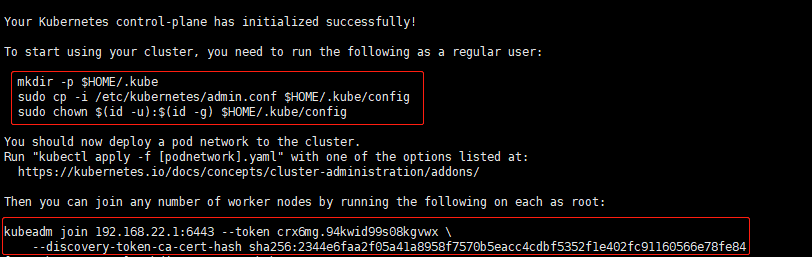
执行下面操作:
$ mkdir -p $HOME/.kube
sudo cp -i /etc/kubernetes/admin.conf $HOME/.kube/config
sudo chown $(id -u):$(id -g) $HOME/.kube/config
查看 node 节点:
$ kubectl get nodes
NAME        STATUS     ROLES                  AGE     VERSION
k8smaster   NotReady   control-plane,master   2m23s   v1.18.0
将 node 加入 master(在 node01、node02 执行),sha256要和上面成功截图的数值一致
$ kubeadm join 192.168.22.1:6443 --token crx6mg.94kwid99s08kgvwx \
--discovery-token-ca-cert-hash sha256:2344e6faa2f05a41a8958f7570b5eacc4cdbf5352f1e402fc91160566e78fe84
查看 node 节点情况:
$ kubectl get nodes
NAME        STATUS     ROLES    AGE    VERSION
k8smaster   NotReady   master   3m9s   v1.18.0
k8snode01   NotReady   <none>   10s    v1.18.0
k8snode02   NotReady   <none>   3s     v1.18.0
查看 Docker 镜像:

- 部署 CNI 网络 插件 (master 节点中部署):
```shell $ wget https://raw.githubusercontent.com/coreos/flannel/master/Documentation/kube-flannel.yml —2021-02-24 16:00:22— https://raw.githubusercontent.com/coreos/flannel/master/Documentation/kube-flannel.yml 正在解析主机 raw.githubusercontent.com (raw.githubusercontent.com)… 185.199.108.133, 185.199.110.133, 185.199.109.133, … 正在连接 raw.githubusercontent.com (raw.githubusercontent.com)|185.199.108.133|:443… 已连接。 已发出 HTTP 请求,正在等待回应… 200 OK 长度:4821 (4.7K) [text/plain] 正在保存至: “kube-flannel.yml”
kube-flannel.yml 100%[========================================================================================>] 4.71K —.-KB/s 用时 0s
2021-02-24 16:00:23 (110 MB/s) - 已保存 “kube-flannel.yml” [4821/4821])
$ kubectl apply -f https://raw.githubusercontent.com/coreos/flannel/master/Documentation/kube-flannel.yml podsecuritypolicy.policy/psp.flannel.unprivileged created clusterrole.rbac.authorization.k8s.io/flannel created clusterrolebinding.rbac.authorization.k8s.io/flannel created serviceaccount/flannel created configmap/kube-flannel-cfg created daemonset.apps/kube-flannel-ds created
20. 查看 CNI 网络插件进度 (master中查看),初次部署耐心等待完成,状态全部为:Running
```shell
$ kubectl get pods -n kube-system
NAME                                READY   STATUS    RESTARTS   AGE
coredns-7ff77c879f-98fbw            1/1     Running   0          12m
coredns-7ff77c879f-kt5qx            1/1     Running   0          12m
etcd-k8smaster                      1/1     Running   0          12m
kube-apiserver-k8smaster            1/1     Running   0          12m
kube-controller-manager-k8smaster   1/1     Running   0          12m
kube-flannel-ds-bv27x               1/1     Running   0          3m4s
kube-flannel-ds-lx2qs               1/1     Running   0          3m4s
kube-flannel-ds-rjrqv               1/1     Running   0          3m4s
kube-proxy-2x5px                    1/1     Running   0          12m
kube-proxy-mz422                    1/1     Running   0          3m44s
kube-proxy-vx8vl                    1/1     Running   0          9m41s
kube-scheduler-k8smaster            1/1     Running   0          12m
再次查看 node 节点情况 ,状态全部为::Ready
$ kubectl get nodes
NAME        STATUS   ROLES    AGE     VERSION
k8smaster   Ready    master   12m     v1.18.0
k8snode01   Ready    <none>   9m54s   v1.18.0
k8snode02   Ready    <none>   3m57s   v1.18.0
查看集群的健康状态:
```shell $ kubectl get cs NAME STATUS MESSAGE ERROR controller-manager Healthy ok
scheduler Healthy ok
etcd-0 Healthy {“health”:”true”}
$ kubectl cluster-info Kubernetes master is running at https://192.168.22.1:6443 KubeDNS is running at https://192.168.22.1:6443/api/v1/namespaces/kube-system/services/kube-dns:dns/proxy
To further debug and diagnose cluster problems, use ‘kubectl cluster-info dump’.
23. 拉取一个 Nginx 进行测试( master 中进行):<br />
```shell
$ kubectl create deployment nginx --image=nginx
拉取完成,查看 pod(状态为: Running):
$ kubectl get pods
NAME                    READY   STATUS    RESTARTS   AGE
nginx-f89759699-bf46j   1/1     Running   0          11s
对外暴露 80 端口:
$ kubectl expose deployment nginx --port=80 --type=NodePort查看端口情况:
```shell $ kubectl get pod,svc NAME READY STATUS RESTARTS AGE pod/nginx-f89759699-bf46j 1/1 Running 0 60s
NAME TYPE CLUSTER-IP EXTERNAL-IP PORT(S) AGE
service/kubernetes ClusterIP 10.96.0.1
26. 使用 2个 node 节点的 IP+端口 在浏览器中 进行访问:<br />
```shell
http://192.168.22.2:31325
http://192.168.22.3:31325

若有收获,就点个赞吧
0 人点赞


