安装环境
- Linux机器
准备工作
安装docker
使用脚本安装docker
curl -fsSL https://get.docker.com | bash -s docker --mirror Aliyun
配置docker用户
sudo groupadd dockersudo gpasswd -a $USER dockernewgrp docker
启动docker
systemctl start docker
安装docker-compose
sudo curl -L "https://github.com/docker/compose/releases/download/1.24.1/docker-compose-$(uname -s)-$(uname -m)" -o /usr/local/bin/docker-composesudo chmod +x /usr/local/bin/docker-compose
harbor安装过程中可能出现docker-compose未安装或者权限不足,需要创建个软连接
sudo ln -s /usr/local/bin/docker-compose /usr/bin/docker-compose
安装Harbor
下载harbor包
wget https://storage.googleapis.com/harbor-releases/release-1.8.0/harbor-online-installer-v1.8.1.tgz
解压harbor包
tar zxvf harbor-online-installer-v1.8.1.tgz

cd harbor
编辑harbor.yml
修改hostname为本机ip地址
hostname: 192.168.10.122
修改data路径
# The default data volume
data_volume: /home/zqxu/xzq/harbor_data
修改log路径
log:
  # The directory on your host that store log
  location: /home/zqxu/xzq/harbor/log
其它参数,可以根据实际情况修改,配置文件如下:
# Configuration file of Harbor

# The IP address or hostname to access admin UI and registry service.
# DO NOT use localhost or 127.0.0.1, because Harbor needs to be accessed by external clients.
hostname: 115.239.209.123

# http related config
http:
  # port for http, default is 80. If https enabled, this port will redirect to https port
  port: 80

# https related config
# https:
#   # https port for harbor, default is 443
#   port: 443
#   # The path of cert and key files for nginx
#   certificate: /your/certificate/path
#   private_key: /your/private/key/path

# Uncomment external_url if you want to enable external proxy
# And when it enabled the hostname will no longer used
# external_url: https://reg.mydomain.com:8433

# The initial password of Harbor admin
# It only works in first time to install harbor
# Remember Change the admin password from UI after launching Harbor.
harbor_admin_password: Harbor12345

# Harbor DB configuration
database:
  # The password for the root user of Harbor DB. Change this before any production use.
  password: root123

# The default data volume
data_volume: /home/zqxu/xzq/harbor_data

# Harbor Storage settings by default is using /data dir on local filesystem
# Uncomment storage_service setting If you want to using external storage
# storage_service:
#   # ca_bundle is the path to the custom root ca certificate, which will be injected into the truststore
#   # of registry's and chart repository's containers.  This is usually needed when the user hosts a internal storage with self signed certificate.
#   ca_bundle:

#   # storage backend, default is filesystem, options include filesystem, azure, gcs, s3, swift and oss
#   # for more info about this configuration please refer https://docs.docker.com/registry/configuration/
#   filesystem:
#     maxthreads: 100
#   # set disable to true when you want to disable registry redirect
#   redirect:
#     disabled: false

# Clair configuration
clair:
  # The interval of clair updaters, the unit is hour, set to 0 to disable the updaters.
  updaters_interval: 12

  # Config http proxy for Clair, e.g. http://my.proxy.com:3128
  # Clair doesn't need to connect to harbor internal components via http proxy.
  http_proxy:
  https_proxy:
  no_proxy: 127.0.0.1,localhost,core,registry

jobservice:
  # Maximum number of job workers in job service
  max_job_workers: 10

chart:
  # Change the value of absolute_url to enabled can enable absolute url in chart
  absolute_url: disabled

# Log configurations
log:
  # options are debug, info, warning, error, fatal
  level: info
  # Log files are rotated log_rotate_count times before being removed. If count is 0, old versions are removed rather than rotated.
  rotate_count: 50
  # Log files are rotated only if they grow bigger than log_rotate_size bytes. If size is followed by k, the size is assumed to be in kilobytes.
  # If the M is used, the size is in megabytes, and if G is used, the size is in gigabytes. So size 100, size 100k, size 100M and size 100G
  # are all valid.
  rotate_size: 200M
  # The directory on your host that store log
  location: /home/zqxu/xzq/harbor/log

#This attribute is for migrator to detect the version of the .cfg file, DO NOT MODIFY!
_version: 1.8.0

# Uncomment external_database if using external database.
# external_database:
#   harbor:
#     host: harbor_db_host
#     port: harbor_db_port
#     db_name: harbor_db_name
#     username: harbor_db_username
#     password: harbor_db_password
#     ssl_mode: disable
#   clair:
#     host: clair_db_host
#     port: clair_db_port
#     db_name: clair_db_name
#     username: clair_db_username
#     password: clair_db_password
#     ssl_mode: disable
#   notary_signer:
#     host: notary_signer_db_host
#     port: notary_signer_db_port
#     db_name: notary_signer_db_name
#     username: notary_signer_db_username
#     password: notary_signer_db_password
#     ssl_mode: disable
#   notary_server:
#     host: notary_server_db_host
#     port: notary_server_db_port
#     db_name: notary_server_db_name
#     username: notary_server_db_username
#     password: notary_server_db_password
#     ssl_mode: disable

# Uncomment external_redis if using external Redis server
# external_redis:
#   host: redis
#   port: 6379
#   password:
#   # db_index 0 is for core, it's unchangeable
#   registry_db_index: 1
#   jobservice_db_index: 2
#   chartmuseum_db_index: 3

# Uncomment uaa for trusting the certificate of uaa instance that is hosted via self-signed cert.
# uaa:
#   ca_file: /path/to/ca
执行安装脚本
./install.sh
安装成功
✔ ----Harbor has been installed and started successfully.

----Now you should be able to visit the admin portal at http://192.168.10.122.
For more details, please visit https://github.com/goharbor/harbor .
之后如果你想修改某一个配置,先修改上面harbor.yaml这个文件,之后重新执行install.sh这个文件就可以了。
访问Harbor
$hostname:上文harbor.yaml中配置的hostname的值
访问harbor页面
http://$hostname/
使用默认的账号:admin,密码:Harbor12345登录验证
创建项目
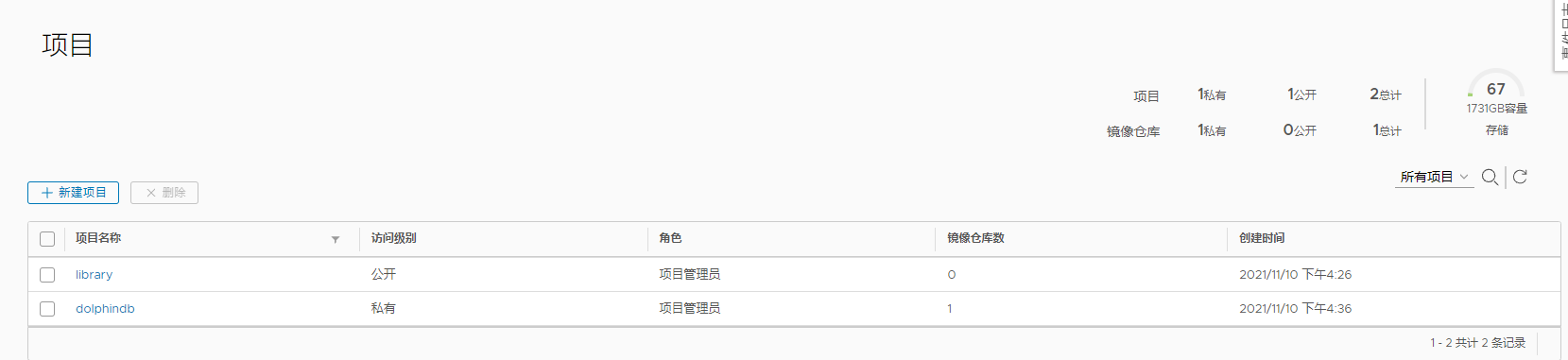
点击创建项目,创建项目dolphindb.
Docker访问
配置docker
编辑执行docker命令的机器的/etc/docker/daemon.json文件(没有的话创建一个)
{
    "insecure-registries":[
        "$hostname"
    ]
}
注意格式,编辑错误docker会启动不起来。
重启docker
sudo systemctl restart docker
登录docker
docker login $hostname -u admin -p Harbor12345
push镜像
# 需要先登录harbor页面,创建项目dolphindb.
docker push $hostname/dolphindb/dolphindb-partner:v1.0

若有收获,就点个赞吧
0 人点赞


