Push Branch To Remote
In order to push a Git branch to remote, you need to execute the “git push” command and specify the remote as well as the branch name to be pushed.
$ git push <remote> <branch>
For example, if you need to push a branch named “feature” to the “origin” remote, you would execute the following query
$ git push origin feature
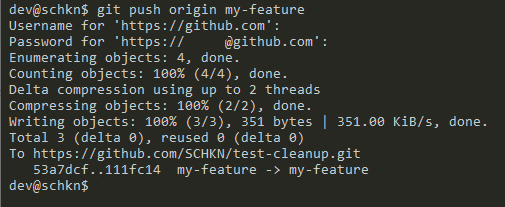
If you are not already on the branch that you want to push, you can execute the “git checkout” command to switch to your branch.
If your upstream branch is not already created, you will need to create it by running the “git push” command with the “-u” option for upstream.
$ git push -u origin feature
Congratulations, you have successfully pushed your branch to your remote!
Push Branch to Another Branch
In some cases, you may want to push your changes to another branch on the remote repository.
In order to push your branch to another remote branch, use the “git push” command and specify the remote name, the name of your local branch as the name of the remote branch.
$ git push <remote> <local_branch>:<remote_name>
As an example, let’s say that you have created a local branch named “my-feature”.
$ git branchmaster* my-featurefeature
However, you want to push your changes to the remote branch named “feature” on your repository.
In order to push your branch to the “feature” branch, you would execute the following command
$ git push origin my-feature:featureEnumerating objects: 6, done.Counting objects: 100% (6/6), done.Delta compression using up to 2 threadsCompressing objects: 100% (3/3), done.Writing objects: 100% (3/3), 513 bytes | 513.00 KiB/s, done.Total 3 (delta 1), reused 0 (delta 0)remote: Resolving deltas: 100% (1/1), completed with 1 local object.To https://github.com/SCHKN/repo.gitb1c4c91..9ae0aa6 my-feature -> feature
In order to push your branch to another branch, you may need to merge the remote branch to your current local branch.
In order to be merged, the tip of the remote branch cannot be behind the branch you are trying to push.
Before pushing, make sure to pull the changes from the remote branch and integrate them with your current local branch.
$ git pull$ git checkout my-feature$ git merge origin/feature$ git push origin my-feature:feature
Note : when merging the remote branch, you are merging your local branch with the upstream branch of your local repository.
Congratulations, you pushed your branch to another branch on your repository!
Push Branch to Another Repository
In order to push a branch to another repository, you need to execute the “git push” command, and specify the correct remote name as well as the branch to be pushed.
$ git push <remote> <branch>
In order to see the remotes defined in your repository, you have to execute the “git remote” command with the “-v” option for “verbose”.
$ git remote -vorigin https://github.com/user/repo.git (fetch)origin https://github.com/user/repo.git (push)custom https://github.com/user/custom.git (fetch)custom https://github.com/user/custom.git (push)
In the previous examples, we pushed our branch to the “origin” remote but we can choose to publish it to the “custom” remote if we want.
$ git push custom feature
Awesome, you pushed your branch to another remote repository!
Troubleshooting
In some cases, you may run into errors while trying to push a Git branch to a remote.
Failed to push some refs

The error message states that the a pushed branch tip is behind its remote (references are behind)
In order to fix this, you need first to pull the recent changes from your remote branches with the “git pull” command.
$ git pull
When pulling the changes, you may run into merge conflicts, run the conflicts and perform a commit again with your results.
Now that the files are merged, you may try to push your branch to the remote again.
$ git push origin featureEnumerating objects: 6, done.Counting objects: 100% (6/6), done.Delta compression using up to 2 threadsCompressing objects: 100% (3/3), done.Writing objects: 100% (3/3), 513 bytes | 513.00 KiB/s, done.Total 3 (delta 1), reused 0 (delta 0)remote: Resolving deltas: 100% (1/1), completed with 1 local object.To https://github.com/SCHKN/repo.gitb1c4c91..9ae0aa6 feature -> feature
Conclusion
In this tutorial, you learnt how you can push a Git branch to a remote with the “git push” command.
You learnt that you can easily specify your branch and your remote if you want to send your changes to other repositories.
If you are interested in Software Engineering or in Git, we have many other tutorials on the subject, so make sure to check it out!

若有收获,就点个赞吧
0 人点赞


