清除浮动的方式
清除浮动方式一:(IE6没问题)
给父元素设置height属性,不推荐这样处理
清除浮动方式二:(IE6没问题)
给元素设置clear属性
缺点:margin属性会失效,设置不了
后续:可以通过给他们的父元素设置border边框,再设置margin-top(其他类似)值大于前面浮动元素的height值,可以显示效果。
清除浮动方式三:(隔墙法,不常用)(IE6没问题)
外墙法:给两个盒子之间添加一个div(块及元素),设置此div的clear:both。
通过这种方法可以设置第二个盒子的margin-top值,但是不能设置第一个盒子的margin-bottom值,解决方法是通过给中间的div设置height来实现中间的间隔距离
内墙法:在第一个盒子中所有子元素最后添加一个额外的duv(块级元素),设置此div的clear:both。
可以使用margin-top和margin-bottom,设置额外添加的div(块级元素)的高度也可以
内外墙的区别:内墙可以撑起第一个盒子的高度和宽度,外墙法不行
清除浮动方式四:(IE6不正常)
通过伪元素选择器: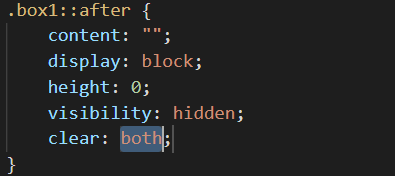
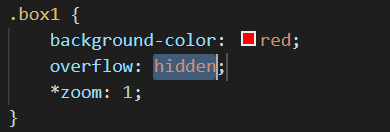
兼容IE6的方式:
添加下面一句
清除浮动方式五:(IE6不正常)
解决vuex在刷新页面时,state中数据丢失的情况
在App.vue中添加如下代码
created() {
// 在页面加载时读取sessionStorage里的状态信息
if (sessionStorage.getItem(‘store’)) {
this.store.state,
JSON.parse(sessionStorage.getItem(‘store’))
)
)
}
// 在页面刷新时将vuex里的信息保存到sessionStorage里
window.addEventListener(‘beforeunload’, () => {
sessionStorage.setItem(‘store’, JSON.stringify(this.$store.state))
})
}
设置element-ui中el-input的激活状态边框颜色
.el-input__inner:focus{
border-color: rgba(255, 255, 255, 0.2);
}
H5开发调用相机功能
//accept:表示要打开的文件类型 capture:表示可以捕获到系统默认的设备
相机和相册
相机
录像
多选
调用打电话
window.location.href = tel://${res.data.secretNo}
在vue中使用webpack-merge插件修改当前路由参数
scode格式化文档变双引号,加分号的问题
{
“singleQuote”:true,
“semi”:false
}
vscode格式化文档会清除()前面的空格,导致报错
‘space-before-function-paren’: ‘off’
vscode修改端口号方法:
在根目录中新建一个vue.config.js文件里面添加内容
module.exports = {
devServer: {
port: 8085
}
}
element-ui菜单边线去掉
修改滚动条样式
::-webkit-scrollbar{
width:5px;
height:3px;
}
::webkit-scrollbar-thumb{
background-color: #a1a1a1;
border-radius: 5px;
}
html引用ttf字体文件
@font-face {
font-family: MyFontName;//自定义字体名称
src: url(../Gloss_And_Bloom.ttf)
}
vue可以使用qrcode动态生成二维码
第一步:
npm i qrcodejs2 —save
第二步:
import QRCode from ‘qrcodejs2’
第三步:
第四部:
data中设置对应的值
qrcodeAddress: ‘https://www.baidu.com/‘
第五步:
methods: {
qrcode() {
const qrcode = new QRCode(‘qrcode’, {
render: ‘canvas’, // 也可以替换为table
width: 122,
height: 122,
text: this.qrcodeAddress, // 二维码地址
colorDark: ‘#000’,
colorLight: ‘#fff’
})
return qrcode
}
}
picker使用https://gitee.com/jiwenchuan/vue-jsite-picker?_from=gitee_search
通过window.performance.navigation.type == 1 判断页面是否是刷新
快速创建连续数字的数组
const numbers = […Array(100).keys()] // [0, 1, 2, …, 98, 99]
原生实现图片上传
<inputclass="photograph"type="file"name="files"accept="image/*"@change="(e) => handleFiles(e, 'back')"/>handleFiles(e, frontOrBack) {// if (this.saveData.photos.length >= 10) {// e.target.value = "";// this.showMsg("最多只能选择10张图片");// return;// }var file = e.target.files[0]; //获取File对象,这里是上传单张图片,[0]代表第一张图片。如果多张,就是一个var file = e.target.files;var type = file.type.split("/")[0]; //按照惯例,不应该由前端判断格式,因为这里是根据后缀名判断的,修改后缀名仍旧可以上传,理应由后端根据文件格式来判断。if (type != "image") {this.showMsg("只能选择图片");return;}// var size = file.size / 1024 / 1024;// if (size > 2) {// this.showMsg("图片大小不得超过2M");// return;// }let formFile = new FormData();formFile.append("type", "0");formFile.append("file", file);let that = this;if (frontOrBack == "front") {Request.fetchByAuth2("engineer/upload?type=0", formFile, (res) => {if (res.resultID == ResponseCode.Success) {that.frontPhoto = res.data;} else {this.showMsg("上传失败");}});} else if (frontOrBack == "back") {Request.fetchByAuth2("engineer/upload?type=1", formFile, (res) => {if (res.resultID == ResponseCode.Success) {that.backPhoto = res.data;} else {this.showMsg("上传失败");}});}},// 预览图片 react上handleFile = () => {let inputFile = document.getElementsByName('file')[0];let file = inputFile.files[0];let reader = new FileReader();reader.readAsDataURL(file)reader.onload = (event) => {this.setState({// 此处有多余参数showImg: event.target.result,imgType: file.type,imgSize: file.size,lastModifiedDate: file.lastModifiedDate,imgName: file.name,file: file})}}
在ios设备上自动播放媒体音乐
watch: {// 在ios中,系统不会自动加载歌曲,所以,oncamplay不会自动执行,在pc和android系统会自动加载歌曲,oncamplay会自动执行// 通过ondurationchange事件监听:当歌曲加载完成以后执行,因为只有歌曲加载完成以后,才能获取到(audio的生命周期种设置)currentIndex() {this.$refs.audio.ondurationchange = () => {this.totalTime = this.$refs.audio.duration;if (this.isPlaying) {this.$refs.audio.play();} else {this.$refs.audio.pause();}};},}
函数节流和函数防抖
// 函数节流function throttle(fun, overTime) {let oldTime = null;return function () {let newTime = + new Date()if (newTime - oldTime > overTime || !oldTime) {fun();oldTime = newTime}}}let fun =()=>{console.log('move')}let move = setInterval(throttle(fun,1000),100)// 函数防抖function debounce(fun, waitTime) {var timer = null;return function () {var that = thisif (timer) {clearTimeout(timer);timer = null;}timer = setTimeout(function () {fun.apply(that, arguments)}, waitTime)}}var fun = function () {console.log('move')}setInterval(debounce(fun,500),1000) // 第一次在1500ms后触发,之后每1000ms触发一次
特殊细节
'' == false // true0 == false // true[] == false // true{} == false //报错,symtaxerrornull == false // falseNaN == false // falseundefined == false // falseconst a == [1,2]const b == [1,2]const c == "1,2"a == b // falsea == c // truenull >= 0 null <= 0 // truenull == 0 null < 0 null > 0 // falsebody {-webkit-tap-highlight-color: rgba(0,0,0,0); // 处理按压时热区出现蓝色背景问题}
vue的sync修饰符
title:父子组件传递的值(函数名)
在子组件中调用this.$emit(‘updata:title’,要改变的值)
在父组件中可以使用:title.sync=”对应的变量名”
// 锚点跳转的地方 <br />hrefTo(id){<br /> document.getElementById(id).scrollIntoView();<br /> }
vscode把代码缩起来:ctrl+k + 0
el.getBoundingClientRect().right // 获取该dom右边距距离屏幕左边的距离
scrollIntoView() // 该元素滚动到某位置
MutationObserver // 接口提供了监视对DOM树所做更改的能力
IntersectionObserver // 对应元素进入页面
// 打印
@media print {
@page {
margin: 0;
}
body {
padding: 2cm;
}
}

若有收获,就点个赞吧
0 人点赞


