上一篇讲述了 Activity 构建布局的过程,及测量其耗时的方法。这一篇在此基础上给出优化构建布局的方案。
这是 Android 性能优化系列文章的第四篇,文章列表如下:
测试布局如下图所示: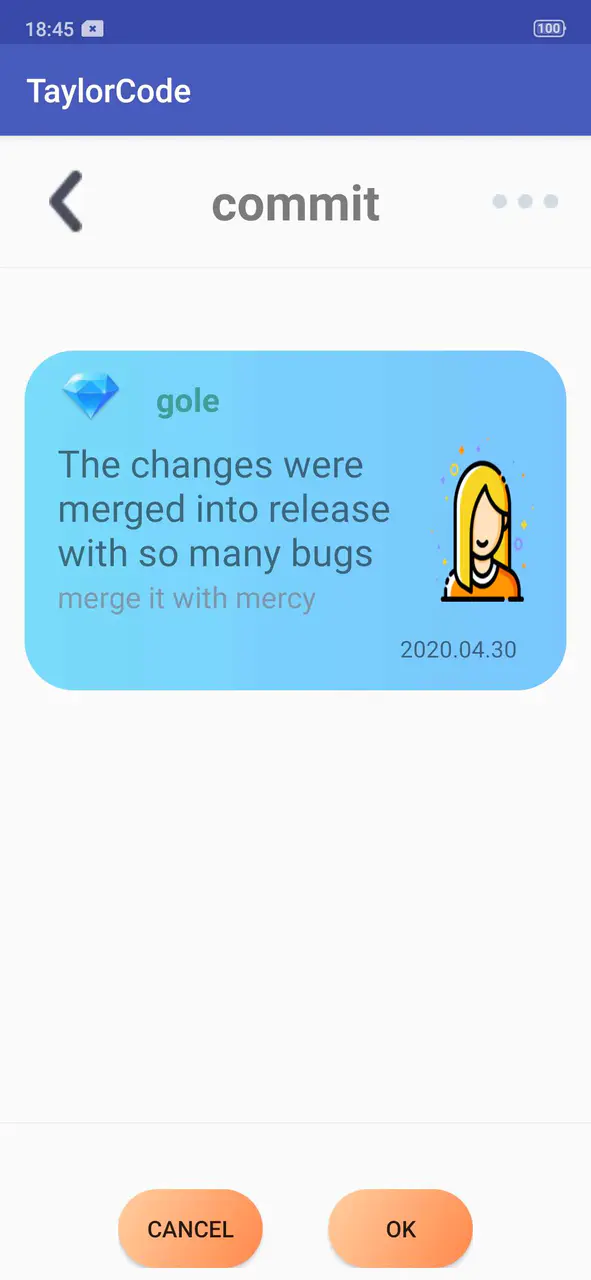 与之对应的 xml 文件如下(有点长,可以直接跳过):
<?xml version="1.0" encoding="utf-8"?><LinearLayout xmlns:android="http://schemas.android.com/apk/res/android"android:layout_width="match_parent"android:layout_height="match_parent"android:orientation="vertical"><RelativeLayoutandroid:layout_width="match_parent"android:layout_height="80dp"android:paddingStart="20dp"android:paddingTop="10dp"android:paddingEnd="20dp"android:paddingBottom="10dp"><ImageViewandroid:layout_width="40dp"android:layout_height="40dp"android:layout_alignParentStart="true"android:layout_centerVertical="true"android:src="@drawable/ic_back_black" /><TextViewandroid:layout_width="wrap_content"android:layout_height="wrap_content"android:layout_centerInParent="true"android:text="commit"android:textSize="30sp"android:textStyle="bold" /><ImageViewandroid:layout_width="40dp"android:layout_height="40dp"android:layout_alignParentEnd="true"android:layout_centerVertical="true"android:src="@drawable/ic_member_more" /></RelativeLayout><Viewandroid:layout_width="match_parent"android:layout_height="1dp"android:background="#eeeeee" /><LinearLayoutandroid:layout_width="match_parent"android:layout_height="wrap_content"android:orientation="vertical"android:paddingStart="5dp"android:paddingTop="30sp"android:paddingEnd="5dp"android:paddingBottom="30dp"><LinearLayoutandroid:layout_width="match_parent"android:layout_height="wrap_content"android:layout_marginStart="10dp"android:layout_marginEnd="10dp"android:background="@drawable/tag_checked_shape"android:orientation="vertical"><LinearLayoutandroid:layout_width="wrap_content"android:layout_height="wrap_content"android:orientation="horizontal"><ImageViewandroid:layout_width="40dp"android:layout_height="40dp"android:src="@drawable/diamond_tag" /><TextViewandroid:layout_width="wrap_content"android:layout_height="wrap_content"android:layout_marginLeft="10dp"android:gravity="center"android:padding="10dp"android:text="gole"android:textColor="#389793"android:textSize="20sp"android:textStyle="bold" /></LinearLayout><LinearLayoutandroid:layout_width="match_parent"android:layout_height="wrap_content"android:orientation="horizontal"android:weightSum="8"><LinearLayoutandroid:layout_width="wrap_content"android:layout_height="wrap_content"android:layout_weight="5"android:orientation="vertical"><TextViewandroid:layout_width="wrap_content"android:layout_height="wrap_content"android:text="The changes were merged into release with so many bugs"android:textSize="23sp" /><TextViewandroid:layout_width="wrap_content"android:layout_height="wrap_content"android:text="merge it with mercy"android:textColor="#c4747E8B"android:textSize="18sp" /></LinearLayout><ImageViewandroid:layout_width="100dp"android:layout_height="100dp"android:layout_weight="3"android:scaleType="fitXY"android:src="@drawable/user_portrait_gender_female" /></LinearLayout><RelativeLayoutandroid:layout_width="match_parent"android:layout_height="wrap_content"android:layout_marginTop="10dp"android:paddingEnd="10dp"android:paddingBottom="10dp"><TextViewandroid:layout_width="wrap_content"android:layout_height="wrap_content"android:layout_alignParentEnd="true"android:text="2020.04.30" /></RelativeLayout></LinearLayout></LinearLayout><Viewandroid:layout_width="match_parent"android:layout_height="1dp"android:background="#eeeeee" /><RelativeLayoutandroid:layout_width="match_parent"android:layout_height="wrap_content"android:layout_marginTop="40dp"><LinearLayoutandroid:layout_width="wrap_content"android:layout_height="wrap_content"android:layout_centerInParent="true"android:orientation="horizontal"><Buttonandroid:layout_width="wrap_content"android:layout_height="wrap_content"android:layout_gravity="left"android:layout_marginEnd="20dp"android:background="@drawable/bg_orange_btn"android:text="cancel" /><Buttonandroid:layout_width="wrap_content"android:layout_height="wrap_content"android:layout_gravity="right"android:layout_marginStart="20dp"android:background="@drawable/bg_orange_btn"android:text="OK" /></LinearLayout></RelativeLayout></LinearLayout>复制代码
为了验证“嵌套布局是否会延长解析时间?”,特意用RelativeLayout+LinearLayout写了上面最深 5 层嵌套的布局。
把它设置为 Activity 的 ContentView,经多次测量构建平均耗时为 24.2 ms 。(布局略简单,复杂度远低于真实项目中的界面,遂真实项目中的优化空间更大)
动态构建布局
如果把 xml 中的布局称为静态布局的话,那用 Kotlin 代码构建布局就可以称为动态布局。
正如上一篇分析的那样,静态布局避免不了两个耗时的步骤:
- 通过 IO 操作将布局文件读至内存。
- 遍历布局文件中每一个标签,通过反射构建控件实例并填入 View 树。
那弃用静态布局,直接使用 Kotlin 代码构建布局,能节约多少时间?
于是我用纯 Kotlin 代码重写了一遍布局,写完。。。差点吐了,代码如下:
private fun buildLayout(): View {
        return LinearLayout(this).apply {
            orientation = LinearLayout.VERTICAL
            layoutParams = ViewGroup.LayoutParams(ViewGroup.LayoutParams.MATCH_PARENT, ViewGroup.LayoutParams.MATCH_PARENT)
            RelativeLayout(this@Factory2Activity2).apply {
                layoutParams = ViewGroup.LayoutParams(ViewGroup.LayoutParams.MATCH_PARENT, 80f.dp())
                setPadding(20f.dp(), 10f.dp(), 20.0f.dp(), 10f.dp())
                ImageView(this@Factory2Activity2).apply {
                    layoutParams = RelativeLayout.LayoutParams(40f.dp(), 40f.dp()).apply {
                        addRule(RelativeLayout.ALIGN_PARENT_START, RelativeLayout.TRUE)
                        addRule(RelativeLayout.CENTER_VERTICAL, RelativeLayout.TRUE)
                    }
                    setImageResource(R.drawable.ic_back_black)
                }.also { addView(it) }
                TextView(this@Factory2Activity2).apply {
                    layoutParams =
                        RelativeLayout.LayoutParams(RelativeLayout.LayoutParams.WRAP_CONTENT, RelativeLayout.LayoutParams.WRAP_CONTENT).apply {
                            addRule(RelativeLayout.CENTER_IN_PARENT, RelativeLayout.TRUE)
                        }
                    text = "commit"
                    setTextSize(TypedValue.COMPLEX_UNIT_SP, 30f)
                    setTypeface(null, Typeface.BOLD)
                }.also { addView(it) }
                ImageView(this@Factory2Activity2).apply {
                    layoutParams =
                        RelativeLayout.LayoutParams(40f.dp(), 40f.dp()).apply {
                            addRule(RelativeLayout.ALIGN_PARENT_END, RelativeLayout.TRUE)
                            addRule(RelativeLayout.CENTER_VERTICAL, RelativeLayout.TRUE)
                        }
                    setImageResource(R.drawable.ic_member_more)
                }.also { addView(it) }
            }.also { addView(it) }
            View(this@Factory2Activity2).apply {
                layoutParams = ViewGroup.LayoutParams(ViewGroup.LayoutParams.MATCH_PARENT, 1f.dp())
                setBackgroundColor(Color.parseColor("#eeeeee"))
            }.also { addView(it) }
            NestedScrollView(this@Factory2Activity2).apply {
                layoutParams = LinearLayout.LayoutParams(ViewGroup.LayoutParams.MATCH_PARENT, 500f.dp()).apply {
                    topMargin = 20f.dp()
                }
                isScrollbarFadingEnabled = true
                LinearLayout(this@Factory2Activity2).apply {
                    layoutParams = ViewGroup.LayoutParams(ViewGroup.LayoutParams.MATCH_PARENT, ViewGroup.LayoutParams.WRAP_CONTENT)
                    orientation = LinearLayout.VERTICAL
                    setPadding(5f.dp(), 5f.dp(), 30f.dp(), 30f.dp())
                    LinearLayout(this@Factory2Activity2).apply {
                        layoutParams = LinearLayout.LayoutParams(ViewGroup.LayoutParams.MATCH_PARENT, ViewGroup.LayoutParams.WRAP_CONTENT).apply {
                            marginStart = 10f.dp()
                            marginEnd = 10f.dp()
                        }
                        orientation = LinearLayout.VERTICAL
                        setBackgroundResource(R.drawable.tag_checked_shape)
                        LinearLayout(this@Factory2Activity2).apply {
                            layoutParams = LinearLayout.LayoutParams(ViewGroup.LayoutParams.WRAP_CONTENT, ViewGroup.LayoutParams.WRAP_CONTENT)
                            orientation = LinearLayout.HORIZONTAL
                            ImageView(this@Factory2Activity2).apply {
                                layoutParams = LinearLayout.LayoutParams(40f.dp(), 40f.dp())
                                setImageResource(R.drawable.diamond_tag)
                            }.also { addView(it) }
                            TextView(this@Factory2Activity2).apply {
                                layoutParams =
                                    LinearLayout.LayoutParams(ViewGroup.LayoutParams.WRAP_CONTENT, ViewGroup.LayoutParams.WRAP_CONTENT).apply {
                                        marginStart = 10f.dp()
                                    }
                                gravity = Gravity.CENTER
                                setPadding(10f.dp(), 10f.dp(), 10f.dp(), 10f.dp())
                                text = "gole"
                                setTextColor(Color.parseColor("#389793"))
                                setTextSize(TypedValue.COMPLEX_UNIT_SP, 20F)
                                this.setTypeface(null, Typeface.BOLD)
                            }.also { addView(it) }
                        }.also { addView(it) }
                        LinearLayout(this@Factory2Activity2).apply {
                            layoutParams = LinearLayout.LayoutParams(ViewGroup.LayoutParams.MATCH_PARENT, ViewGroup.LayoutParams.WRAP_CONTENT)
                            orientation = LinearLayout.HORIZONTAL
                            weightSum = 8f
                            LinearLayout(this@Factory2Activity2).apply {
                                layoutParams =
                                    LinearLayout.LayoutParams(ViewGroup.LayoutParams.WRAP_CONTENT, ViewGroup.LayoutParams.WRAP_CONTENT).apply {
                                        weight = 5f
                                    }
                                orientation = LinearLayout.VERTICAL
                                TextView(this@Factory2Activity2).apply {
                                    layoutParams = LinearLayout.LayoutParams(ViewGroup.LayoutParams.WRAP_CONTENT, ViewGroup.LayoutParams.WRAP_CONTENT)
                                    text = "The changes were merged into release with so many bugs"
                                    setTextSize(TypedValue.COMPLEX_UNIT_SP, 23f)
                                }.also { addView(it) }
                                TextView(this@Factory2Activity2).apply {
                                    layoutParams = LinearLayout.LayoutParams(ViewGroup.LayoutParams.WRAP_CONTENT, ViewGroup.LayoutParams.WRAP_CONTENT)
                                    text = "merge it with mercy"
                                    setTextColor(Color.parseColor("#c4747E8B"))
                                    setTextSize(TypedValue.COMPLEX_UNIT_SP, 18f)
                                }.also { addView(it) }
                            }.also { addView(it) }
                            ImageView(this@Factory2Activity2).apply {
                                layoutParams = LinearLayout.LayoutParams(100f.dp(), 100f.dp()).apply {
                                    weight = 3f
                                }
                                scaleType = ImageView.ScaleType.FIT_XY
                                setImageResource(R.drawable.user_portrait_gender_female)
                            }.also { addView(it) }
                        }.also { addView(it) }
                        RelativeLayout(this@Factory2Activity2).apply {
                            layoutParams = LinearLayout.LayoutParams(ViewGroup.LayoutParams.MATCH_PARENT, ViewGroup.LayoutParams.WRAP_CONTENT).apply {
                                topMargin = 10f.dp()
                            }
                            setPadding(0, 0, 10f.dp(), 10f.dp())
                            TextView(this@Factory2Activity2).apply {
                                layoutParams =
                                    RelativeLayout.LayoutParams(RelativeLayout.LayoutParams.WRAP_CONTENT, RelativeLayout.LayoutParams.WRAP_CONTENT)
                                        .apply {
                                            addRule(RelativeLayout.ALIGN_PARENT_END, RelativeLayout.TRUE)
                                        }
                                text = "2020.04.30"
                            }.also { addView(it) }
                        }.also { addView(it) }
                    }.also { addView(it) }
                }.also { addView(it) }
            }.also { addView(it) }
            View(this@Factory2Activity2).apply {
                layoutParams = LinearLayout.LayoutParams(LinearLayout.LayoutParams.MATCH_PARENT, 1f.dp())
                setBackgroundColor(Color.parseColor("#eeeeee"))
            }.also { addView(it) }
            RelativeLayout(this@Factory2Activity2).apply {
                layoutParams = LinearLayout.LayoutParams(LinearLayout.LayoutParams.MATCH_PARENT, LinearLayout.LayoutParams.WRAP_CONTENT).apply {
                    topMargin = 40f.dp()
                }
                LinearLayout(this@Factory2Activity2).apply {
                    layoutParams = RelativeLayout.LayoutParams(ViewGroup.LayoutParams.WRAP_CONTENT, ViewGroup.LayoutParams.WRAP_CONTENT).apply {
                        addRule(RelativeLayout.CENTER_IN_PARENT, RelativeLayout.TRUE)
                    }
                    orientation = LinearLayout.HORIZONTAL
                    Button(this@Factory2Activity2).apply {
                        layoutParams =
                            LinearLayout.LayoutParams(LinearLayout.LayoutParams.WRAP_CONTENT, LinearLayout.LayoutParams.WRAP_CONTENT).apply {
                                rightMargin = 20f.dp()
                                gravity = Gravity.LEFT
                            }
                        setBackgroundResource(R.drawable.bg_orange_btn)
                        text = "cancel"
                    }.also {
                        addView(it)
                    }
                    Button(this@Factory2Activity2).apply {
                        layoutParams =
                            LinearLayout.LayoutParams(LinearLayout.LayoutParams.WRAP_CONTENT, LinearLayout.LayoutParams.WRAP_CONTENT).apply {
                                leftMargin = 20f.dp()
                                gravity = Gravity.RIGHT
                            }
                        setBackgroundResource(R.drawable.bg_orange_btn)
                        text = "OK"
                    }.also { addView(it) }
                }.also { addView(it) }
            }.also { addView(it) }
        }
    }
复制代码
用伪代码描述上述代码,结构就是这样的:
容器控件.apply {
    子控件.apply {
        //设置控件属性
    }.also { addView(it) }
}
复制代码
代码又臭又长又冗余,完全没有可读性。若要微调其中显示宝石的控件,你可以试下,反正我是找不到那个控件了。
但跑了一下测试代码,惊喜地发现构建布局的平均耗时只有 1.32 ms,时间是静态布局的 1/20 。
一开始我以为是嵌套布局导致特别耗时,于是用ConstraintLayout将嵌套扁平化,代码如下:
<?xml version="1.0" encoding="utf-8"?>
<androidx.constraintlayout.widget.ConstraintLayout xmlns:android="http://schemas.android.com/apk/res/android"
    xmlns:app="http://schemas.android.com/apk/res-auto"
    android:layout_width="match_parent"
    android:layout_height="match_parent">
    <ImageView
        android:id="@+id/ivBack"
        android:layout_width="40dp"
        android:layout_height="40dp"
        android:layout_marginStart="20dp"
        android:layout_marginTop="20dp"
        android:src="@drawable/ic_back_black"
        app:layout_constraintStart_toStartOf="parent"
        app:layout_constraintTop_toTopOf="parent" />
    <TextView
        android:id="@+id/tvCommit"
        android:layout_width="wrap_content"
        android:layout_height="wrap_content"
        android:text="commit"
        android:textSize="30sp"
        android:textStyle="bold"
        app:layout_constraintBottom_toBottomOf="@id/ivBack"
        app:layout_constraintEnd_toEndOf="parent"
        app:layout_constraintStart_toStartOf="parent"
        app:layout_constraintTop_toTopOf="@id/ivBack" />
    <ImageView
        android:id="@+id/ivMore"
        android:layout_width="40dp"
        android:layout_height="40dp"
        android:layout_marginEnd="20dp"
        android:src="@drawable/ic_member_more"
        app:layout_constraintBottom_toBottomOf="@id/ivBack"
        app:layout_constraintEnd_toEndOf="parent"
        app:layout_constraintTop_toTopOf="@id/ivBack" />
    <View
        android:id="@+id/vDivider"
        android:layout_width="match_parent"
        android:layout_height="1dp"
        android:layout_marginTop="10dp"
        android:background="#eeeeee"
        app:layout_constraintTop_toBottomOf="@id/ivBack" />
    <View
        android:id="@+id/bg"
        android:layout_width="0dp"
        android:layout_height="0dp"
        android:background="@drawable/tag_checked_shape"
        app:layout_constraintBottom_toBottomOf="@id/tvTime"
        app:layout_constraintEnd_toEndOf="@id/ivDD"
        app:layout_constraintStart_toStartOf="@id/ivD"
        app:layout_constraintTop_toTopOf="@id/ivD" />
    <ImageView
        android:id="@+id/ivD"
        android:layout_width="40dp"
        android:layout_height="40dp"
        android:layout_marginStart="20dp"
        android:layout_marginTop="40dp"
        android:src="@drawable/diamond_tag"
        app:layout_constraintStart_toStartOf="@id/ivBack"
        app:layout_constraintTop_toBottomOf="@id/vDivider" />
    <TextView
        android:id="@+id/tvTitle"
        android:layout_width="wrap_content"
        android:layout_height="wrap_content"
        android:layout_marginStart="5dp"
        android:gravity="center"
        android:padding="10dp"
        android:text="gole"
        android:textColor="#389793"
        android:textSize="20sp"
        android:textStyle="bold"
        app:layout_constraintBottom_toBottomOf="@id/ivD"
        app:layout_constraintStart_toEndOf="@id/ivD"
        app:layout_constraintTop_toTopOf="@id/ivD" />
    <TextView
        android:id="@+id/tvC"
        android:layout_width="0dp"
        android:layout_height="wrap_content"
        android:layout_marginTop="5dp"
        android:text="The changes were merged into release with so many bugs"
        android:textSize="23sp"
        app:layout_constraintEnd_toStartOf="@id/ivDD"
        app:layout_constraintStart_toStartOf="@id/ivD"
        app:layout_constraintTop_toBottomOf="@id/ivD" />
    <ImageView
        android:id="@+id/ivDD"
        android:layout_width="100dp"
        android:layout_height="100dp"
        android:layout_marginEnd="20dp"
        android:src="@drawable/user_portrait_gender_female"
        app:layout_constraintEnd_toEndOf="parent"
        app:layout_constraintStart_toEndOf="@id/tvC"
        app:layout_constraintTop_toTopOf="@id/tvC" />
    <TextView
        android:id="@+id/tvSub"
        android:layout_width="wrap_content"
        android:layout_height="wrap_content"
        android:text="merge it with mercy"
        android:textColor="#c4747E8B"
        android:textSize="18sp"
        app:layout_constraintStart_toStartOf="@id/ivD"
        app:layout_constraintTop_toBottomOf="@id/tvC" />
    <TextView
        android:id="@+id/tvTime"
        android:layout_width="wrap_content"
        android:layout_height="wrap_content"
        android:layout_marginTop="20dp"
        android:text="2020.04.30"
        app:layout_constraintEnd_toEndOf="@id/ivDD"
        app:layout_constraintTop_toBottomOf="@id/ivDD" />
    <TextView
        android:id="@+id/tvCancel"
        android:layout_width="wrap_content"
        android:layout_height="wrap_content"
        android:layout_marginEnd="30dp"
        android:background="@drawable/bg_orange_btn"
        android:paddingStart="30dp"
        android:paddingTop="10dp"
        android:paddingEnd="30dp"
        android:paddingBottom="10dp"
        android:text="cancel"
        android:layout_marginBottom="20dp"
        android:textSize="20sp"
        android:textStyle="bold"
        app:layout_constraintBottom_toBottomOf="parent"
        app:layout_constraintEnd_toStartOf="@id/tvOK"
        app:layout_constraintHorizontal_chainStyle="packed"
        app:layout_constraintStart_toStartOf="parent" />
    <TextView
        android:id="@+id/tvOK"
        android:layout_width="wrap_content"
        android:layout_height="wrap_content"
        android:background="@drawable/bg_orange_btn"
        android:paddingStart="30dp"
        android:paddingTop="10dp"
        android:layout_marginBottom="20dp"
        android:paddingEnd="30dp"
        android:paddingBottom="10dp"
        android:text="OK"
        android:textSize="20sp"
        android:textStyle="bold"
        app:layout_constraintBottom_toBottomOf="parent"
        app:layout_constraintEnd_toEndOf="parent"
        app:layout_constraintHorizontal_chainStyle="packed"
        app:layout_constraintStart_toEndOf="@id/tvCancel" />
    <View
        app:layout_constraintBottom_toTopOf="@id/tvCancel"
        android:layout_marginBottom="20dp"
        android:background="#eeeeee"
        android:layout_width="match_parent"
        android:layout_height="1dp"/>
</androidx.constraintlayout.widget.ConstraintLayout>
复制代码
这次做到了零嵌套,带着期望重新运行了一遍代码。但解析布局耗时丝毫没有变化。。。好吧
既然静态布局和动态布局有这么大的性能差距,那就改善一下动态布局代码的可读性!!
动态布局DSL
DSL 在之前的文章中有多次亮相,比如 这篇 引出了 DSL 的概念,引用如下:
DSL = domain specific language,即“特定领域语言”,与它对应的一个概念叫“通用编程语言”,通用编程语言有一系列完善的能力来解决几乎所有能被计算机解决的问题,像 Java 就属于这种类型。而特定领域语言只专注于特定的任务,比如 SQL 只专注于操纵数据库,HTML 只专注于表述超文本。
再比 如这篇 是 DSL 在项目中的实战,介绍了如何用 DSL 重新定义构建动画的代码。
同样的思路也可以运用到构建布局上,用 DSL 重新构建上面的布局如下:
private val rootView by lazy {
    ConstraintLayout {
        layout_width = match_parent
        layout_height = match_parent
        ImageView {
            layout_id = "ivBack"
            layout_width = 40
            layout_height = 40
            margin_start = 20
            margin_top = 20
            src = R.drawable.ic_back_black
            start_toStartOf = parent_id
            top_toTopOf = parent_id
            onClick = { onBackClick() }
        }
        TextView {
            layout_width = wrap_content
            layout_height = wrap_content
            text = "commit"
            textSize = 30f
            textStyle = bold
            align_vertical_to = "ivBack"
            center_horizontal = true
        }
        ImageView {
            layout_width = 40
            layout_height = 40
            src = R.drawable.ic_member_more
            align_vertical_to = "ivBack"
            end_toEndOf = parent_id
            margin_end = 20
        }
        View {
            layout_id = "vDivider"
            layout_width = match_parent
            layout_height = 1
            margin_top = 10
            background_color = "#eeeeee"
            top_toBottomOf = "ivBack"
        }
        Layer {
            layout_id = "layer"
            layout_width = wrap_content
            layout_height = wrap_content
            referenceIds = "ivDiamond,tvTitle,tvContent,ivAvatar,tvTime,tvSub"
            background_res = R.drawable.tag_checked_shape
            start_toStartOf = "ivDiamond"
            top_toTopOf = "ivDiamond"
            bottom_toBottomOf = "tvTime"
            end_toEndOf = "tvTime"
        }
        ImageView {
            layout_id = "ivDiamond"
            layout_width = 40
            layout_height = 40
            margin_start = 20
            margin_top = 40
            src = R.drawable.diamond_tag
            start_toStartOf = "ivBack"
            top_toBottomOf = "vDivider"
        }
        TextView {
            layout_id = "tvTitle"
            layout_width = wrap_content
            layout_height = wrap_content
            margin_start = 5
            gravity = gravity_center
            text = "gole"
            padding = 10
            textColor = "#389793"
            textSize = 20f
            textStyle = bold
            align_vertical_to = "ivDiamond"
            start_toEndOf = "ivDiamond"
        }
        TextView {
            layout_id = "tvContent"
            layout_width = 0
            layout_height = wrap_content
            margin_top = 5
            text = "The changes were merged into release with so many bugs"
            textSize = 23f
            start_toStartOf = "ivDiamond"
            top_toBottomOf = "ivDiamond"
            end_toStartOf = "ivAvatar"
        }
        ImageView {
            layout_id = "ivAvatar"
            layout_width = 100
            layout_height = 100
            margin_end = 20
            src = R.drawable.user_portrait_gender_female
            end_toEndOf = parent_id
            start_toEndOf = "tvContent"
            top_toTopOf = "tvContent"
        }
        TextView {
            layout_id = "tvSub"
            layout_width = wrap_content
            layout_height = wrap_content
            text = "merge it with mercy"
            textColor = "#c4747E8B"
            textSize = 18f
            start_toStartOf = "ivDiamond"
            top_toBottomOf = "tvContent"
        }
        TextView {
            layout_id = "tvTime"
            layout_width = wrap_content
            layout_height = wrap_content
            margin_top = 20
            text = "2020.04.30"
            end_toEndOf = "ivAvatar"
            top_toBottomOf = "ivAvatar"
        }
        TextView {
            layout_id = "tvCancel"
            layout_width = wrap_content
            layout_height = wrap_content
            margin_end = 30
            background_res = R.drawable.bg_orange_btn
            padding_start = 30
            padding_top = 10
            padding_end = 30
            padding_bottom = 10
            text = "cancel"
            margin_bottom = 20
            textSize = 20f
            textStyle = bold
            bottom_toBottomOf = parent_id
            end_toStartOf = "tvOk"
            start_toStartOf = parent_id
            horizontal_chain_style = packed
        }
        TextView {
            layout_id = "tvOk"
            layout_width = wrap_content
            layout_height = wrap_content
            background_res = R.drawable.bg_orange_btn
            padding_start = 30
            padding_top = 10
            margin_bottom = 20
            padding_end = 30
            padding_bottom = 10
            text = "Ok"
            textSize = 20f
            textStyle = bold
            bottom_toBottomOf = parent_id
            end_toEndOf = parent_id
            horizontal_chain_style = packed
            start_toEndOf = "tvCancel"
        }
    }
}
复制代码
重构之后的动态布局代码,有了和静态布局一样的可读性,甚至比静态布局更简洁了。
构建控件
代码中每一个控件的类名都是一个扩展方法,构建容器控件的方法如下:
inline fun Context.ConstraintLayout(init: ConstraintLayout.() -> Unit): ConstraintLayout =
    ConstraintLayout(this).apply(init)
复制代码
容器控件的构造都通过Context的扩展方法实现,只要有Context的地方就能构建布局。
扩展方法会直接调用构造函数并应用为其初始化属性的 lambda。该 lambda 是一个带接收者的labmda,它的接收者是ConstraintLayout,Kotlin 独有的这个特性使得 lambda 函数体中可以额外地多访问一个对象的非私有成员。本例中 lambda 表达式init的函数体中可以访问ConstraintLayout的所有非私有成员,这样就能轻松地在函数体中设置控件属性。
有了这个扩展函数,就可以这样构建容器控件(可先忽略属性赋值逻辑,下一节再介绍):
ConstraintLayout {
    layout_width = match_parent
    layout_height = match_parent
}
复制代码
上述这段等价于下面的 xml:
<androidx.constraintlayout.widget.ConstraintLayout
    android:layout_width="match_parent"
    android:layout_height="match_parent">
复制代码
相较于 xml,省略了一些重复信息,显得更简洁。
构建子控件通过ViewGroup的扩展方法实现:
inline fun ViewGroup.TextView(init: TextView.() -> Unit) =
    TextView(context).apply(init).also { addView(it) }
复制代码
子控件构建完毕后需要填入容器控件,定义成ViewGroup的扩展方法就能方便的调用addView()。
控件的构建方法都通过关键词inline进行了内联,编译器会将带有inline函数体中的代码平铺到调用处,这样就避免了一次函数调用,函数调用也有时间和空间上的开销(在栈中创建栈帧)。默认情况下、每个 Kotlin 中的 lambda 都会被编译成一个匿名类,除非 lambda 被内联。被内联的构建方法使得构建布局时不会发生函数调用,并且也不会创建匿名内部类。
现在就可以像这样为容器控件添加子控件了:
ConstraintLayout {
    layout_width = match_parent
    layout_height = match_parent

    TextView {
        layout_width = wrap_content
        layout_height = wrap_content
    }
}
复制代码
这样定义的缺点是:只能在ViewGroup中构建TextView,若有单独构建的需求,可以模仿容器控件的构建方法:
inline fun Context.TextView(init: TextView.() -> Unit) =
    TextView(this).apply(init)
复制代码
设置控件属性
xml 中每一个属性都有对应的 Java 方法,直接调用方法使得动态构建代码可读性很差。
有什么办法可以把方法调用转化成属性赋值语句?—— 扩展属性:
inline var View.background_color: String
    get() {
        return ""
    }
    set(value) {
        setBackgroundColor(Color.parseColor(value))
    }
复制代码
为View增加了名为background_color的扩展属性,它是String类型的变量,需为其定义取值和设置方法。当该属性被赋值时,set()方法会被调用,在其中调用了View.setBackgroundColor()来设置背景色。
现在就可以像这样设置控件背景色了:
ConstraintLayout {
    layout_width = match_parent
    layout_height = match_parent
    background_color = "#ffff00"
}
复制代码
特别地,对于下面这种“可或”的属性:
<TextView
    android:layout_width="wrap_content"
    android:layout_height="wrap_content"
    android:gravity="center_horizontal|top"/>
复制代码
改为+:
TextView {
    layout_width = wrap_content
    layout_height = wrap_content
    gravity = gravity_center_horizontal + gravity_top
}
复制代码
增量修改布局属性
上面的例子中,背景色是一个独立的属性,即修改它不会影响到其他属性。但修改布局属性都是批量的。当只想修改其中一个属性值时,就必须增量修改:
inline var View.padding_top: Int
    get() {
        return 0
    }
    set(value) {
        setPadding(paddingLeft, value.dp(), paddingRight, paddingBottom)
    }
复制代码
padding_top被定义为View的扩展属性,所以在set()方法中能轻松访问到View原有的paddingLeft,paddingRight,paddingBottom,以便使这三个属性保持原样,而只修改paddingTop。dp()是一个扩展方法,用来将 Int 值根据当前屏幕密度转换成 dp 值:
fun Int.dp(): Int =
    TypedValue.applyDimension(
        TypedValue.COMPLEX_UNIT_DIP,
        this.toFloat(),
        Resources.getSystem().displayMetrics
    ).toInt()
复制代码
为控件设置宽高也需要增量修改:
inline var View.layout_width: Int
    get() {
        return 0
    }
    set(value) {
        val w = if (value > 0) value.dp() else value
        val h = layoutParams?.height ?: 0
        layoutParams = ViewGroup.MarginLayoutParams(w, h)
    }
复制代码
在设置宽时,读取原有高,并新建ViewGroup.MarginLayoutParams,重新为layoutParams赋值。为了通用性,选择了ViewGroup.MarginLayoutParams,它是所有其他LayoutParams的父类。
一个更复杂的例子是ContraintLayout中的相对布局属性:
inline var View.start_toStartOf: String
    get() {
        return ""
    }
    set(value) {
        layoutParams = layoutParams.append {
            //'toLayoutId()是生成控件id的方法,下一节会介绍'
            startToStart = value.toLayoutId()
            startToEnd = -1
        }
    }
复制代码
在 xml 中每一个相对布局属性都对应于ContraintLayout.LayoutParams实例中的一个 Int 值(控件 ID 是 Int 类型)。所以必须获取原LayoutParams实例并为对应的新增属性赋值,就像这样:
inline var View.start_toStartOf: String
    get() {
        return ""
    }
    set(value) {
        layoutParams = layoutParams.apply {
            startToStart = 控件ID
            //'-1表示没有相对约束'
            startToEnd = -1
        }
    }
复制代码
但设置宽高时,构造的是ViewGroup.MarginLayoutParams实例,它并没有相对布局的属性。所以需要将原ViewGroup.MarginLayoutParams中的宽高和边距值复制出来,重新构建一个ContraintLayout.LayoutParams:
fun ViewGroup.LayoutParams.append(set: ConstraintLayout.LayoutParams.() -> Unit) =
    //'如果是限制布局则直接增量赋值'
    (this as? ConstraintLayout.LayoutParams)?.apply(set) ?:
    //'否则将边距布局参数值拷贝到限制布局参数中,再增量赋值'
    (this as? ViewGroup.MarginLayoutParams)?.toConstraintLayoutParam()?.apply(set)
//'将边距布局参数转换成限制布局参数'
fun ViewGroup.MarginLayoutParams.toConstraintLayoutParam() =
    ConstraintLayout.LayoutParams(width, height).also { it ->
        it.topMargin = this.topMargin
        it.bottomMargin = this.bottomMargin
        it.marginStart = this.marginStart
        it.marginEnd = this.marginEnd
    }
复制代码
这个方案有一个缺点:必须先为控件设置宽高,再设置相对布局属性。
生成控件ID
View.setId(int id)接收 int 类型的值,但 int 值没有语义,起不到标记控件的作用,所以扩展属性layout_id是 String 类型的:
inline var View.layout_id: String
    get() {
        return ""
    }
    set(value) {
        id = value.toLayoutId()
    }
//'将String转化成对应的Int值'
fun String.toLayoutId():Int{
    var id = java.lang.String(this).bytes.sum()
    if (id == 48) id = 0
    return id
}
复制代码
String 必须转化成 Int 才能调用View.setId(),采用的方法是:先将 String 转化成 byte 数组,然后对数组累加。但 Kotlin 中的 String 没有getBytes(),所以只能显示地构造java.lang.String。
之所以要硬编码48是因为:
public class ConstraintLayout extends ViewGroup {
    public static class LayoutParams extends MarginLayoutParams {
        public static final int PARENT_ID = 0;
    }
}
复制代码
而我把该常量重新定义成 String 类型:
val parent_id = "0"
复制代码
通过toLayoutId()算法,"0"对应值为 48。
更好的办法是找出toLayoutId()算法的逆算法,即当该函数输出为 0 时,输入应该是多少?可惜并想不出如何实现。望知道的小伙伴点拨~
现在就可以像这样设置控件 ID 了:
ConstraintLayout {
    layout_id = "cl"
    layout_width = match_parent
    layout_height = match_parent
    background_color = "#ffff00"
    ImageView {
        layout_id = "ivBack"
        layout_width = 40
        layout_height = 40
        src = R.drawable.ic_back_black
        start_toStartOf = parent_id
        top_toTopOf = parent_id
    }
}
复制代码
重命名控件属性
为了让构建语法尽可能的精简,原先带有类名的常量都被重新定义了,比如:
val match_parent = ViewGroup.LayoutParams.MATCH_PARENT
val wrap_content = ViewGroup.LayoutParams.WRAP_CONTENT
val constraint_start = ConstraintProperties.START
val constraint_end = ConstraintProperties.END
val constraint_top = ConstraintProperties.TOP
val constraint_bottom = ConstraintProperties.BOTTOM
val constraint_baseline = ConstraintProperties.BASELINE
val constraint_parent = ConstraintProperties.PARENT_ID
复制代码
新增属性
利用扩展属性,还可以任意动态新增一些原先 xml 中没有的属性。
在ConstraintLayout中如果想纵向对齐一个控件,需要将两个属性的值设置为目标控件ID,分别是top_toTopOf和bottom_toBottomOf,若通过扩展属性就能简化这个步骤:
inline var View.align_vertical_to: String
    get() {
        return ""
    }
    set(value) {
        top_toTopOf = value
        bottom_toBottomOf = value
    }
复制代码
其中的top_toTopOf和bottom_toBottomOf和上面列举的start_toStartOf类似,不再赘述。
同样的,还可以定义align_horizontal_to。
下面的代码通过扩展属性来设置点击事件:
var View.onClick: (View) -> Unit
    get() {
        return {}
    }
    set(value) {
        setOnClickListener { v -> value(v) }
    }
复制代码
为View扩展属性onClick,它是函数类型。
然后就可以像这样设置点击事件了:
private fun buildViewByClDsl(): View =
    ConstraintLayout {
        layout_width = match_parent
        layout_height = match_parent
        ImageView {
            layout_id = "ivBack"
            layout_width = 40
            layout_height = 40
            margin_start = 20
            margin_top = 20
            src = R.drawable.ic_back_black
            start_toStartOf = parent_id
            top_toTopOf = parent_id
            onClick = { onBackClick() }
        }
    }
private fun onBackClick() {
    finish()
}
复制代码
RecyclerView没有子控件点击事件监听器,同样可以通过扩展属性来解决这个问题:
//'为 RecyclerView 扩展表项点击监听器属性'
var RecyclerView.onItemClick: (View, Int) -> Unit
    get() {
        return { _, _ -> }
    }
    set(value) {
        setOnItemClickListener(value)
    }
//'为 RecyclerView 扩展表项点击监听器'
fun RecyclerView.setOnItemClickListener(listener: (View, Int) -> Unit) {
    //'为 RecyclerView 子控件设置触摸监听器'
    addOnItemTouchListener(object : RecyclerView.OnItemTouchListener {
        //'构造手势探测器,用于解析单击事件'
        val gestureDetector = GestureDetector(context, object : GestureDetector.OnGestureListener {
            override fun onShowPress(e: MotionEvent?) {
            }
            override fun onSingleTapUp(e: MotionEvent?): Boolean {
                //'当单击事件发生时,寻找单击坐标下的子控件,并回调监听器'
                e?.let {
                    findChildViewUnder(it.x, it.y)?.let { child ->
                        listener(child, getChildAdapterPosition(child))
                    }
                }
                return false
            }
            override fun onDown(e: MotionEvent?): Boolean {
                return false
            }
            override fun onFling(e1: MotionEvent?, e2: MotionEvent?, velocityX: Float, velocityY: Float): Boolean {
                return false
            }
            override fun onScroll(e1: MotionEvent?, e2: MotionEvent?, distanceX: Float, distanceY: Float): Boolean {
                return false
            }
            override fun onLongPress(e: MotionEvent?) {
            }
        })
        override fun onTouchEvent(rv: RecyclerView, e: MotionEvent) {
        }
        //'在拦截触摸事件时,解析触摸事件'
        override fun onInterceptTouchEvent(rv: RecyclerView, e: MotionEvent): Boolean {
            gestureDetector.onTouchEvent(e)
            return false
        }
        override fun onRequestDisallowInterceptTouchEvent(disallowIntercept: Boolean) {
        }
    })
}
复制代码
然后可以像这样为RecyclerView设置表项点击事件:
RecyclerView {
    layout_id = "rvTest"
    layout_width = match_parent
    layout_height = 300
    center_horizontal = true
    top_toBottomOf = "bg"
    onItemClick = { v, i -> onItemClickEvent(v, i) }
}
private fun onItemClickEvent(v: View, i: Int) {
    Log.v("test","onItemClickEvent()  index=${i}")
}
复制代码
findViewById
如何获取控件实例的引用?得益于 DSL 的语法糖,这套动态布局构建有一种新的方法:
class MainActivity : AppCompatActivity() {
    private var ivBack:ImageView? = null
    private var tvTitle:TextView? = null
    private val rootView by lazy {
        ConstraintLayout {
            layout_width = match_parent
            layout_height = match_parent
            ivBack = ImageView {
                layout_id = "ivBack"
                layout_width = 40
                layout_height = 40
                margin_start = 20
                margin_top = 20
                src = R.drawable.ic_back_black
                start_toStartOf = parent_id
                top_toTopOf = parent_id
            }
            tvTitle = TextView {
                layout_width = wrap_content
                layout_height = wrap_content
                text = "commit"
                textSize = 30f
                textStyle = bold
                align_vertical_to = "ivBack"
                center_horizontal = true
            }
        }
    }

    override fun onCreate(savedInstanceState: Bundle?) {
        super.onCreate(savedInstanceState)
        setContentView(rootView)
    }
}
复制代码
除了这种方式,还有一种常规方式:
fun <T : View> View.find(id: String): T = findViewById<T>(id.toLayoutId())
fun <T : View> AppCompatActivity.find(id: String): T = findViewById<T>(id.toLayoutId())
复制代码
作者:唐子玄 链接:https://juejin.im/post/5eb07c3c5188256d924367fb 来源:掘金 著作权归作者所有。商业转载请联系作者获得授权,非商业转载请注明出处。

若有收获,就点个赞吧
0 人点赞


