Docker镜像(image)
image就是一个只读的模板。镜像可以用来创建Docker容器,一个镜像可以创建很多容器。<br />容器与镜像的关系类似于面向对象编程中的对象与类。
| Docker | 面向对象 |
|---|---|
| 容器 | 对象 |
| 镜像 | 类 |
Docker容器(container)
_可以把容器看作是一个简易版的Linux环境_(包括root用户权限、进程空间、用户空间和网络空间等)和运行在其中的应用程序。<br /> 容器的定义和镜像几乎一模一样,也是一堆层的统一视角,唯一区别在于容器的最上面那一层是可读可写的。
Docker仓库(Repository)
仓库(Repository)是集中存放镜像文件的场所。<br /> 仓库(Repository)和仓库注册服务器(Registry)是有区别的。仓库注册服务器上往往存放着多个仓库,每个仓库中又包含了多个镜像、每个镜像有不同的标签(tag)。<br />仓库分为公开仓库(Public)和私有仓库(Private)两种形式。<br />最大的公开仓库是Docker Hub(https://hub.docker.com),存放了数量庞大的镜像供用户下载。国内的公开仓库包括阿里云、网易云等。
docker在线安装(centos7以上安装)
1、Docker要求 CentOS 系统的内核版本高于3.10
通过uname -r 命令查看你当前的内核版本
# uname -r
查看操作系统版本
# cat /etc/redhat-release
2、卸载旧版本(如果安装过旧版本的话)
# yum remove docker docker-common docker-selinux docker-engine
3、查看 yum 源地址
# yum repolist
4、设置yum源,并更新 yum 的包索引
# yum-config-manager —add-repo http://mirrors.aliyun.com/docker-ce/linux/centos/docker-ce.repo
# yum makecache fast
5、可以查看所有仓库中所有docker版本,并选择特定版本安装
# yum list docker-ce —showduplicates | sort -r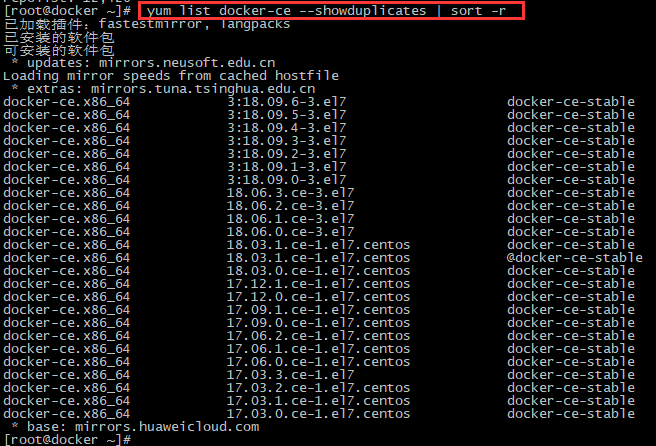
6、安装docker
# yum install docker-ce #由于repo中默认只开启stable仓库,故这里安装的是稳定版18.03.1
# yum install
7、启动并加入开机启动
# systemctl start docker
# systemctl enable docker
8、验证安装是否成功(有client和service两部分表示docker安装启动都成功了)
# docker version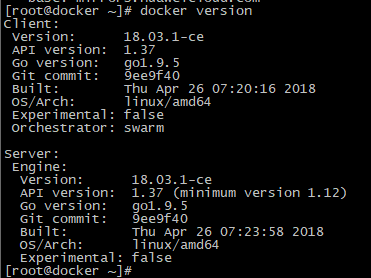
9、卸载docker
# yum -y remove docker-engine
docker离线安装(centos7以上安装)
- 下载docker的安装文件
https://download.docker.com/linux/static/stable/x86_64/
下载的是:docker-18.06.3-ce.tgz 这个压缩文件
- 将docker-18.06.3-ce.tgz文件上传到centos7-linux系统上,用ftp工具上传即可

- 解压
[root@localhost java]# tar -zxvf docker-18.06.3-ce.tgz
- 将解压出来的docker文件复制到 /usr/bin/ 目录下
[root@localhost java]# cp docker/* /usr/bin/
- 进入/etc/systemd/system/目录,并创建docker.service文件
[root@localhost java]# cd /etc/systemd/system/
[root@localhost system]# touch docker.service
- 打开docker.service文件,将以下内容复制
[root@localhost system]# vi docker.service
注意: —insecure-registry=192.168.200.128 此处改为你自己服务器ip
[Unit]Description=Docker Application Container EngineDocumentation=https://docs.docker.comAfter=network-online.target firewalld.serviceWants=network-online.target[Service]Type=notify# the default is not to use systemd for cgroups because the delegate issues still# exists and systemd currently does not support the cgroup feature set required# for containers run by dockerExecStart=/usr/bin/dockerd --selinux-enabled=false --insecure-registry=192.168.200.128ExecReload=/bin/kill -s HUP $MAINPID# Having non-zero Limit*s causes performance problems due to accounting overhead# in the kernel. We recommend using cgroups to do container-local accounting.LimitNOFILE=infinityLimitNPROC=infinityLimitCORE=infinity# Uncomment TasksMax if your systemd version supports it.# Only systemd 226 and above support this version.#TasksMax=infinityTimeoutStartSec=0# set delegate yes so that systemd does not reset the cgroups of docker containersDelegate=yes# kill only the docker process, not all processes in the cgroupKillMode=process# restart the docker process if it exits prematurelyRestart=on-failureStartLimitBurst=3StartLimitInterval=60s[Install]WantedBy=multi-user.target
- 给docker.service文件添加执行权限
[root@localhost system]# chmod 777 /etc/systemd/system/docker.service
- 重新加载配置文件(每次有修改docker.service文件时都要重新加载下)
[root@localhost system]# systemctl daemon-reload
- 启动
[root@localhost system]# systemctl start docker
- 设置开机启动
[root@localhost system]# systemctl enable docker.service
1
- 查看docker状态
[root@localhost system]# systemctl status docker
1
出现下面这个界面就代表docker安装成功。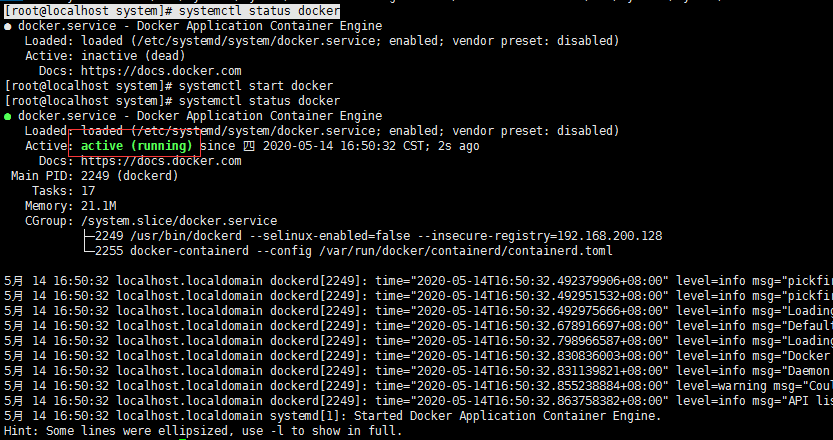
切换镜像源
1.使用阿里云镜像加速
可以通过修改daemon配置文件/etc/docker/daemon.json来使用加速器
[root@localhost docker]# vi /etc/docker/daemon.json
配置如下:
{"registry-mirrors": ["https://puyaqrvl.mirror.aliyuncs.com"]}sudo systemctl daemon-reloadsudo systemctl restart docker
2.使用网易云镜像加速
配置镜像加速器,默认是到国外拉取镜像速度慢,可以配置国内的镜像如:阿里、网易等等。下面配置一下网易的镜像加速器。打开docker的配置文件: /etc/docker/**daemon.json**文件:<br />[root@localhost docker]# vi /etc/docker/daemon.json
配置如下:
{“registry-mirrors”: [“http://hub-mirror.c.163.com"]}
配置完后:wq保存配置并重启docker 一定要重启不然加速是不会生效的!!!
[root@localhost docker]# service docker restart

若有收获,就点个赞吧
0 人点赞


