AP Config
Step1: Turn on the power of the camera and wait for the camera to send out the voice prompt of “Please configure WiFi” or the indicator light flashes. Otherwise, please restore the factory settings.
Step2: Open the “Smaint” APP, click the “+” or “Add Device” button in the upper right corner to enter the “Add Method Selection” page, click “AP Config”, and then follow the instructions in the APP to proceed to the next step to complete the device addition.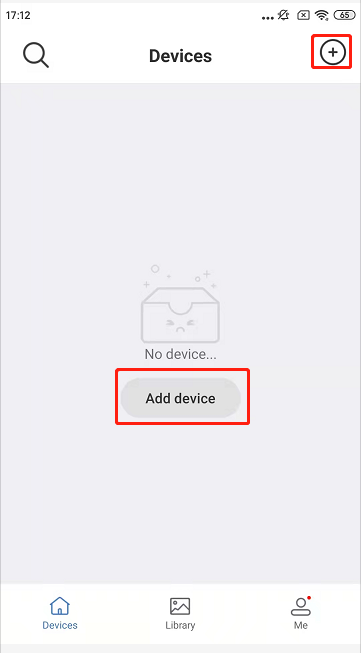
Add device by scanning QR code
Step1: Turn on the power of the camera and wait for the camera to send out the voice prompt of “Please configure WiFi” or the indicator light flashes. Otherwise, please restore the factory settings.
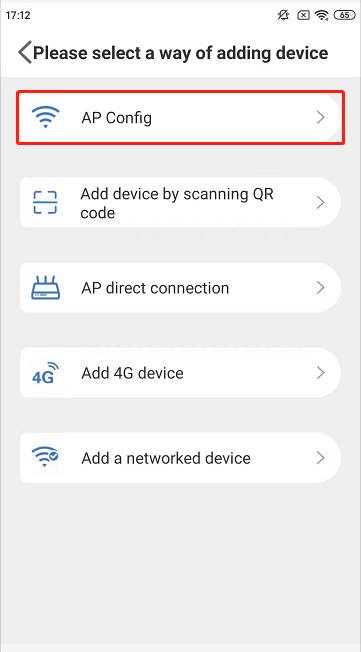
Step2: Open the “Smaint” APP, click the “+” or “Add Device” button in the upper right corner to enter the “Add Method Selection” page, click “Add device by scanning QR code”, and then follow the instructions in the APP to proceed to the next step to complete the device addition.
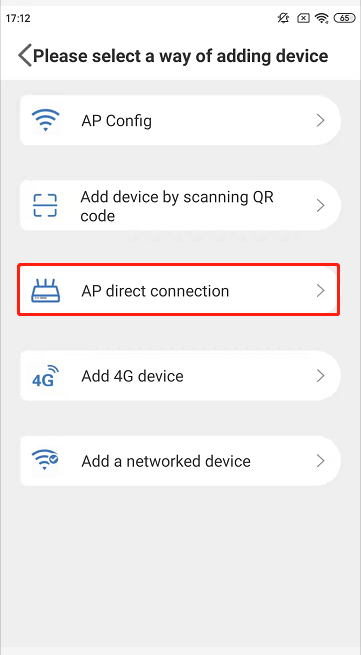
AP direct connection
Step1: Turn on the power of the camera and wait for the camera to send out the voice prompt of “Please configure WiFi” or the indicator light flashes. Otherwise, please restore the factory settings.
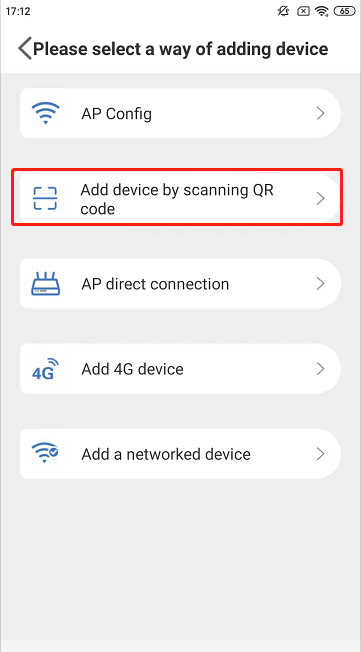
Step2: Open the “Smaint” APP, click the “+” or “Add Device” button in the upper right corner, enter the “Add Method Selection” page, click “AP Direct Connection”, and then follow the instructions in the APP to proceed to the next step to complete the device addition.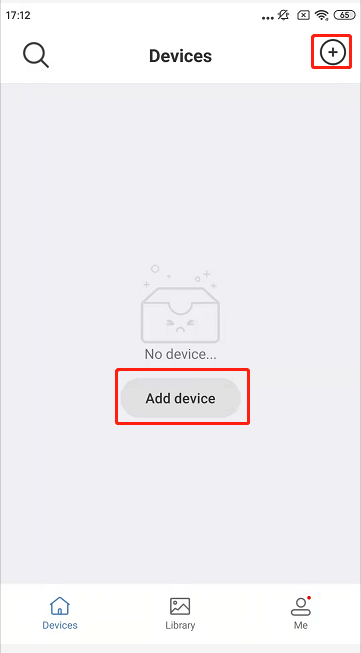
Add 4G device
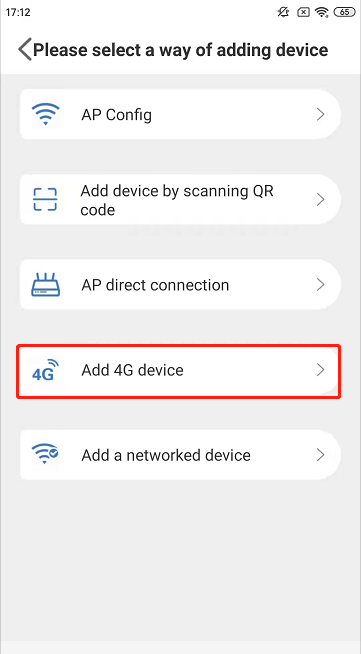
Step1: Open the “Smaint” APP, click the “+” or “Add Device” button in the upper right corner to enter the “Add Method Selection” page, click “Add 4G Device”, and then follow the instructions in the APP to proceed to the next step to complete the device addition.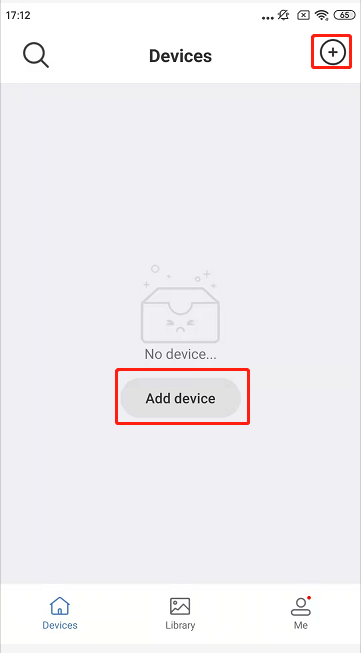
Add a networked device
Step1: Open the “Smaint” APP, click the “+” or “Add Device” button in the upper right corner to enter the “Add Method Selection” page, click “Add a Networked Device”, and then proceed to the next step according to the prompts in the APP to complete the device addition.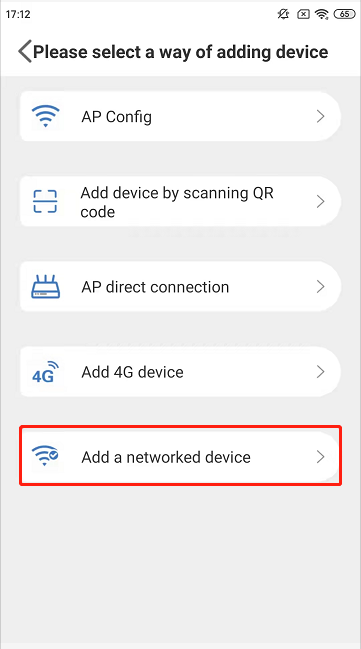

若有收获,就点个赞吧
0 人点赞


