VirtualBox配置Centos7.5环境

  • 只需要配置到关闭SELinux和方法墙

Screen Shot 2021-01-12 at 19.50.55.png

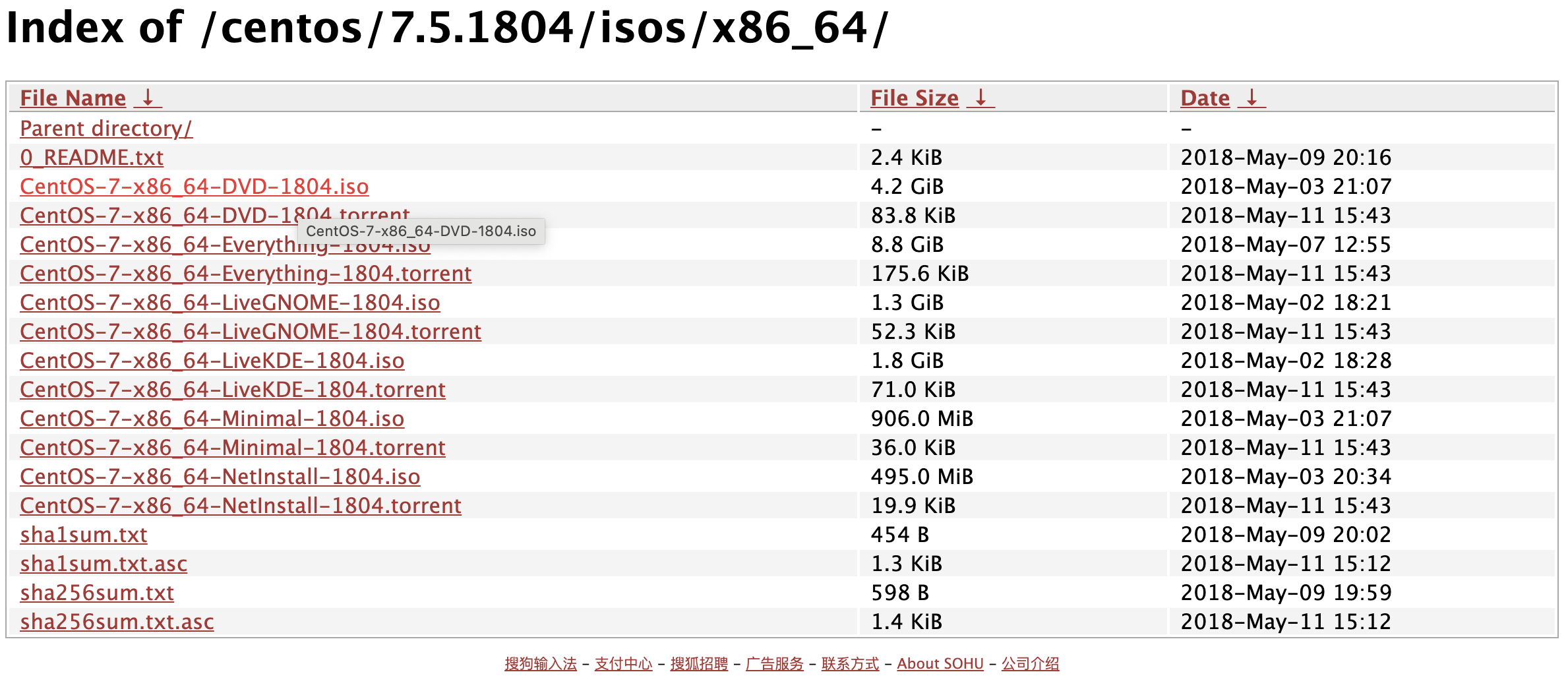
1. 下载ISO镜像

下载地址:https://mirrors.sohu.com/centos/7.5.1804/isos/x86_64/
Screen Shot 2021-01-12 at 19.36.19.png

2. 配置VirtualBox

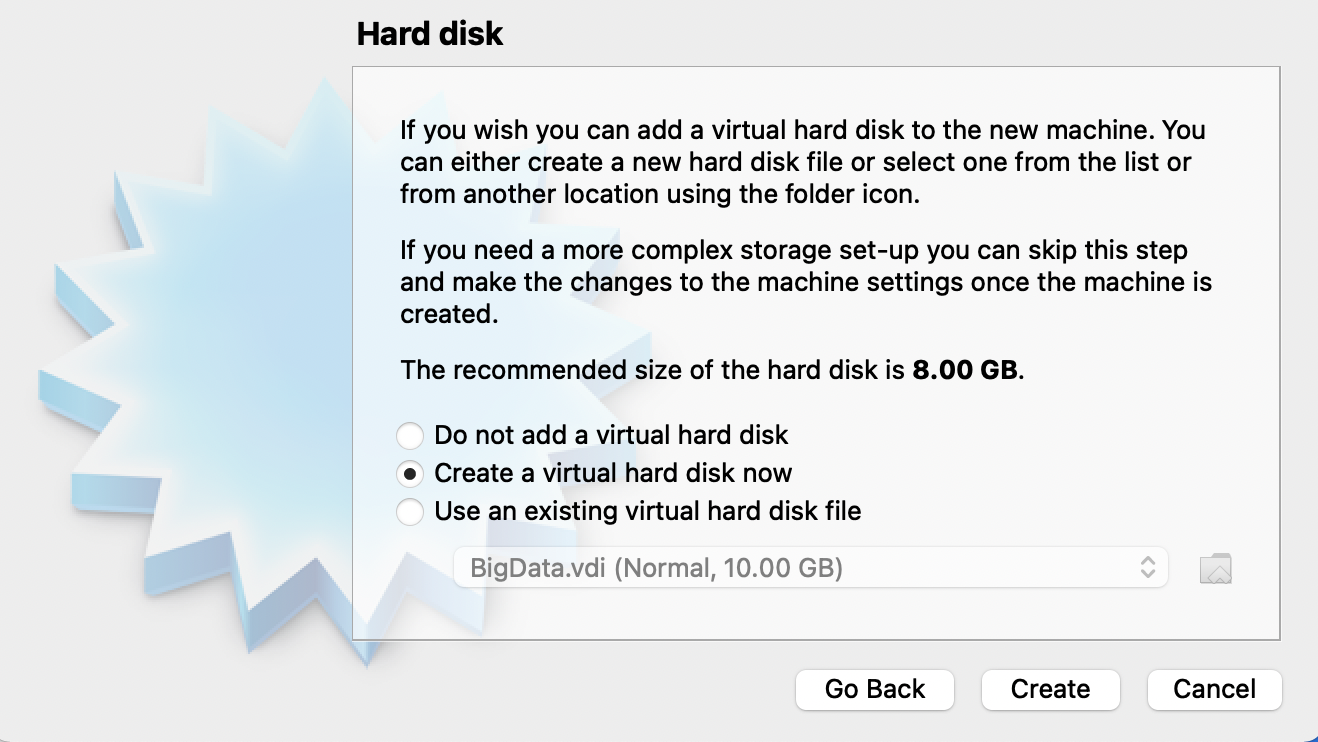
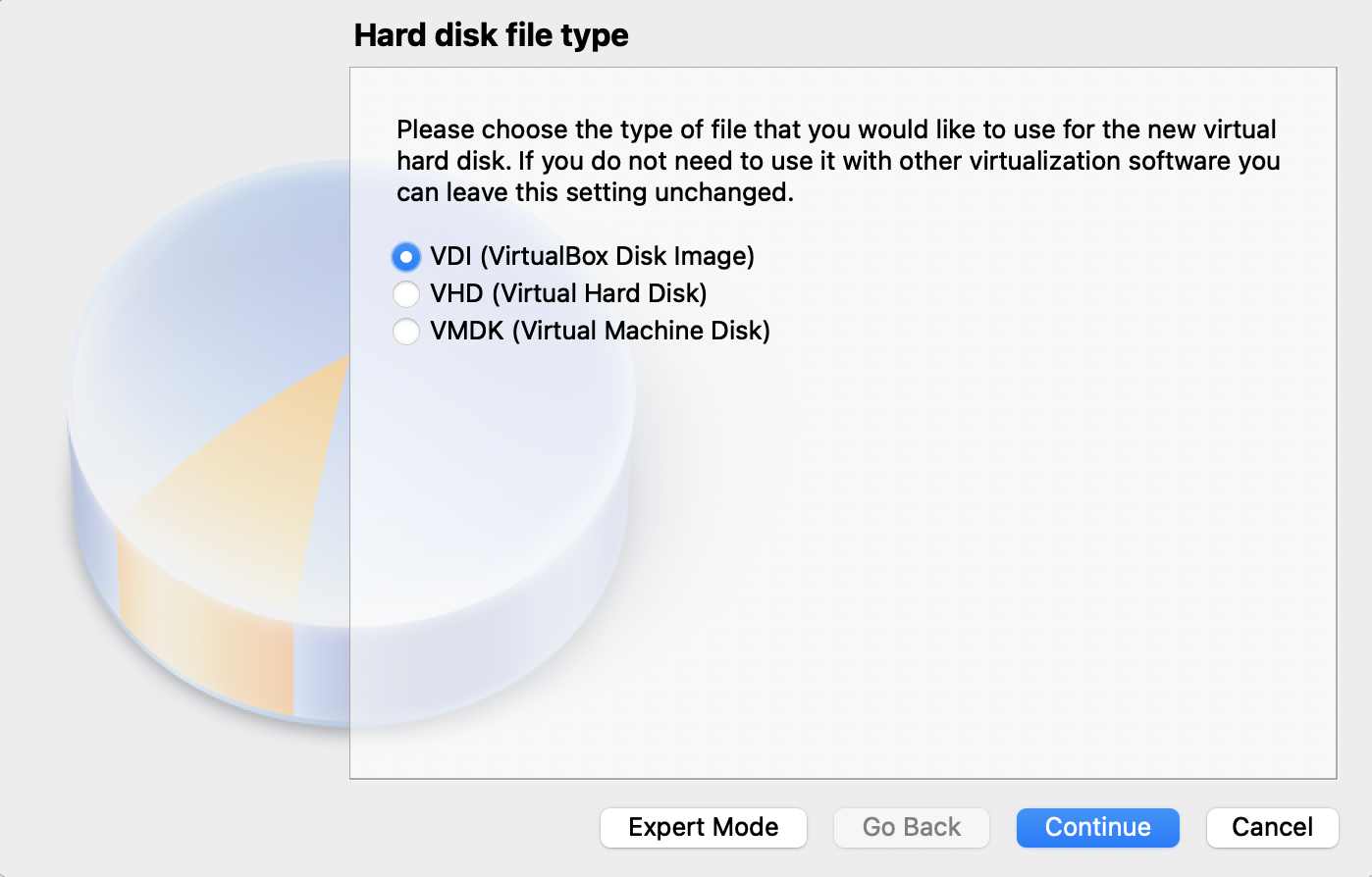
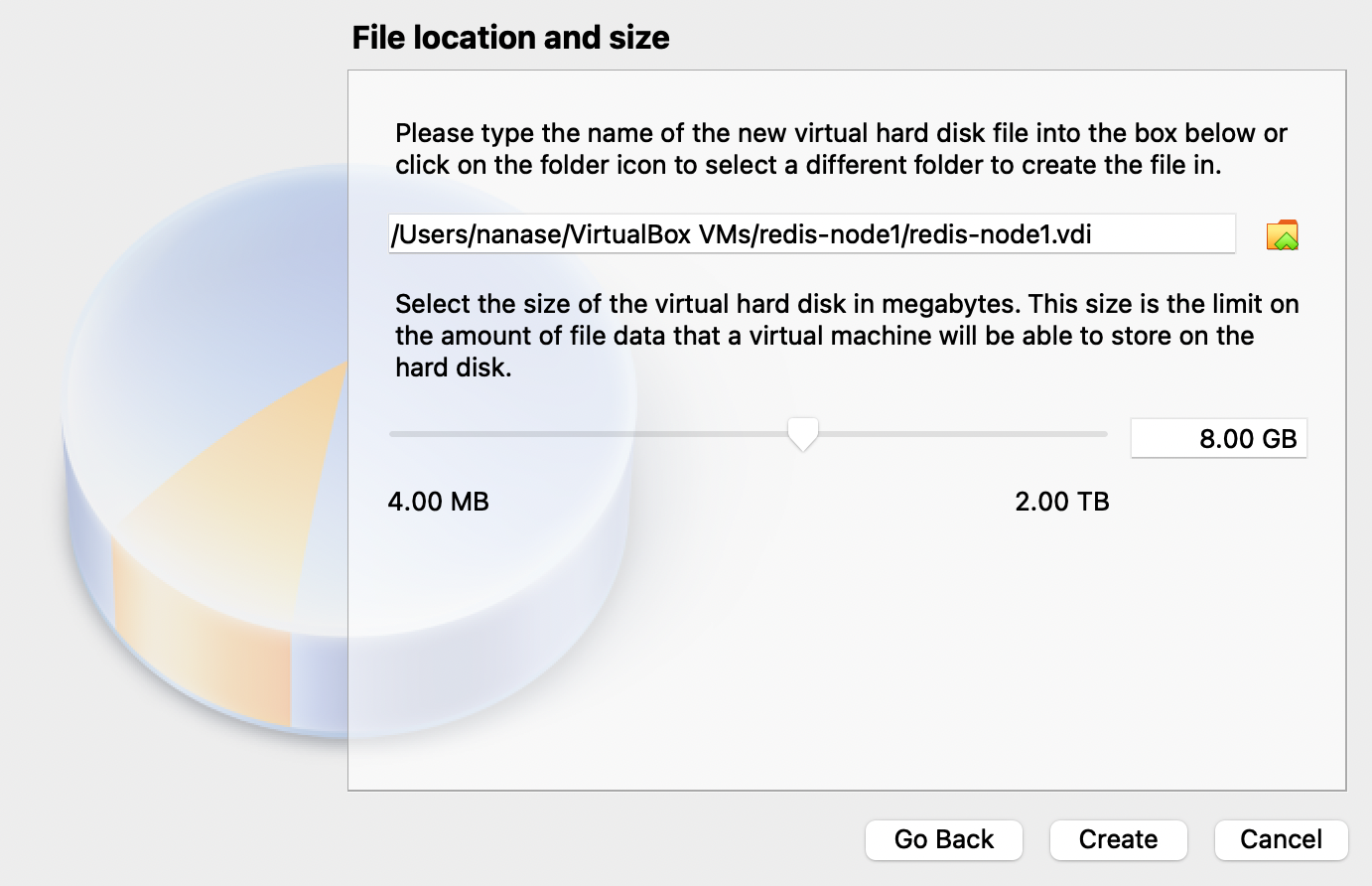
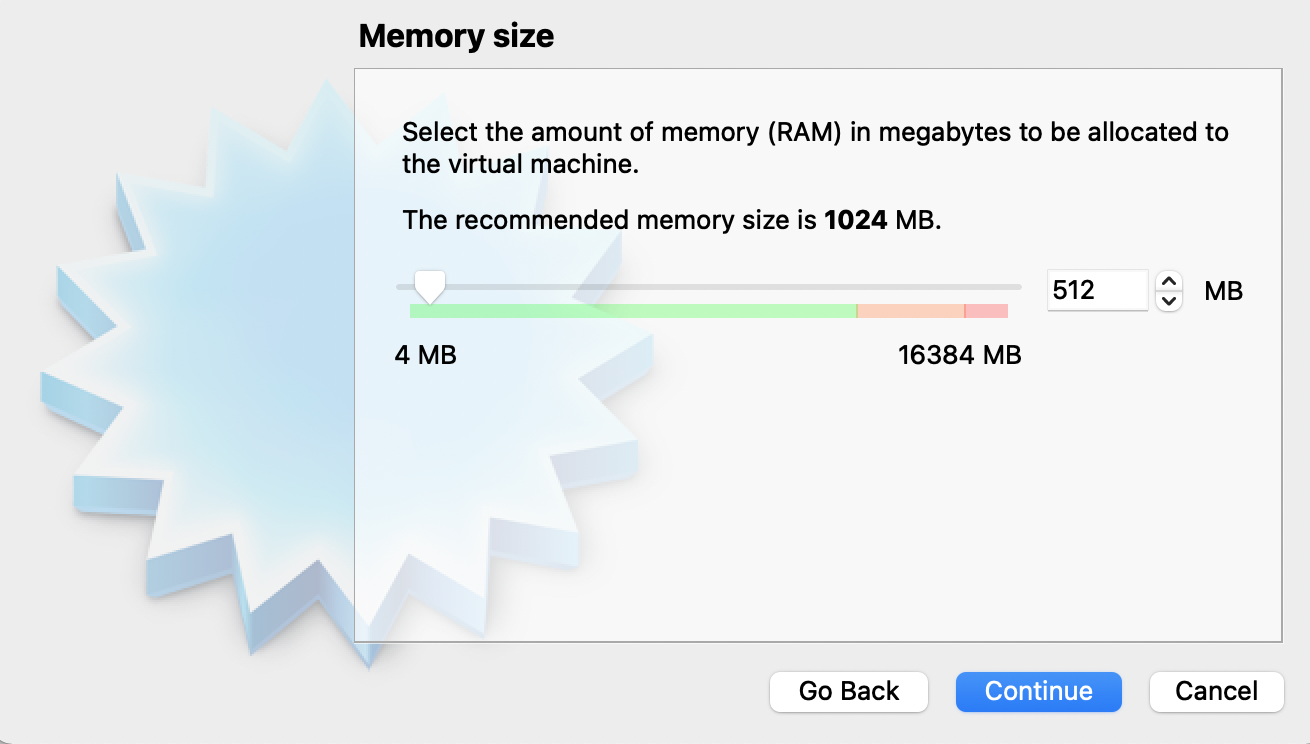
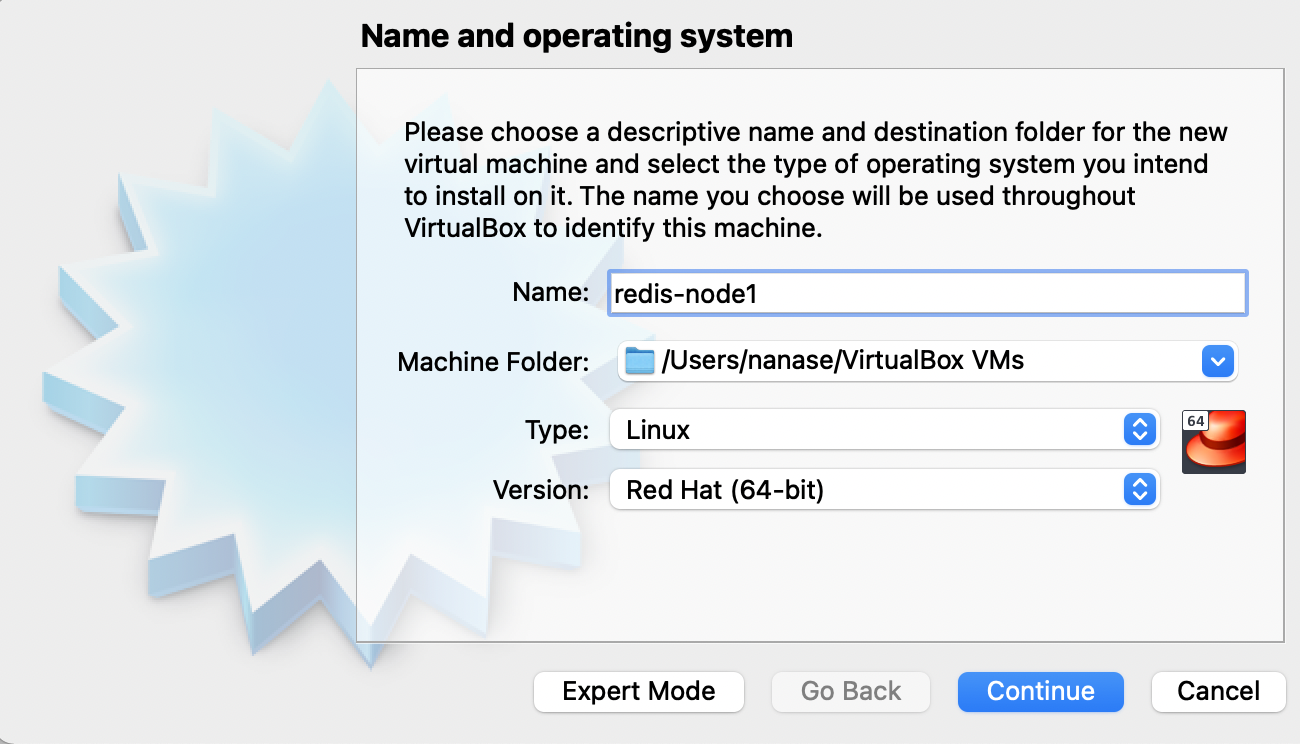
2.1 安装如图所示方式配置

Screen Shot 2021-01-12 at 19.39.28.pngScreen Shot 2021-01-12 at 19.41.27.png

Screen Shot 2021-01-12 at 19.42.04.png
Screen Shot 2021-01-12 at 19.42.18.png
Screen Shot 2021-01-12 at 19.42.35.png
Screen Shot 2021-01-12 at 19.43.10.png

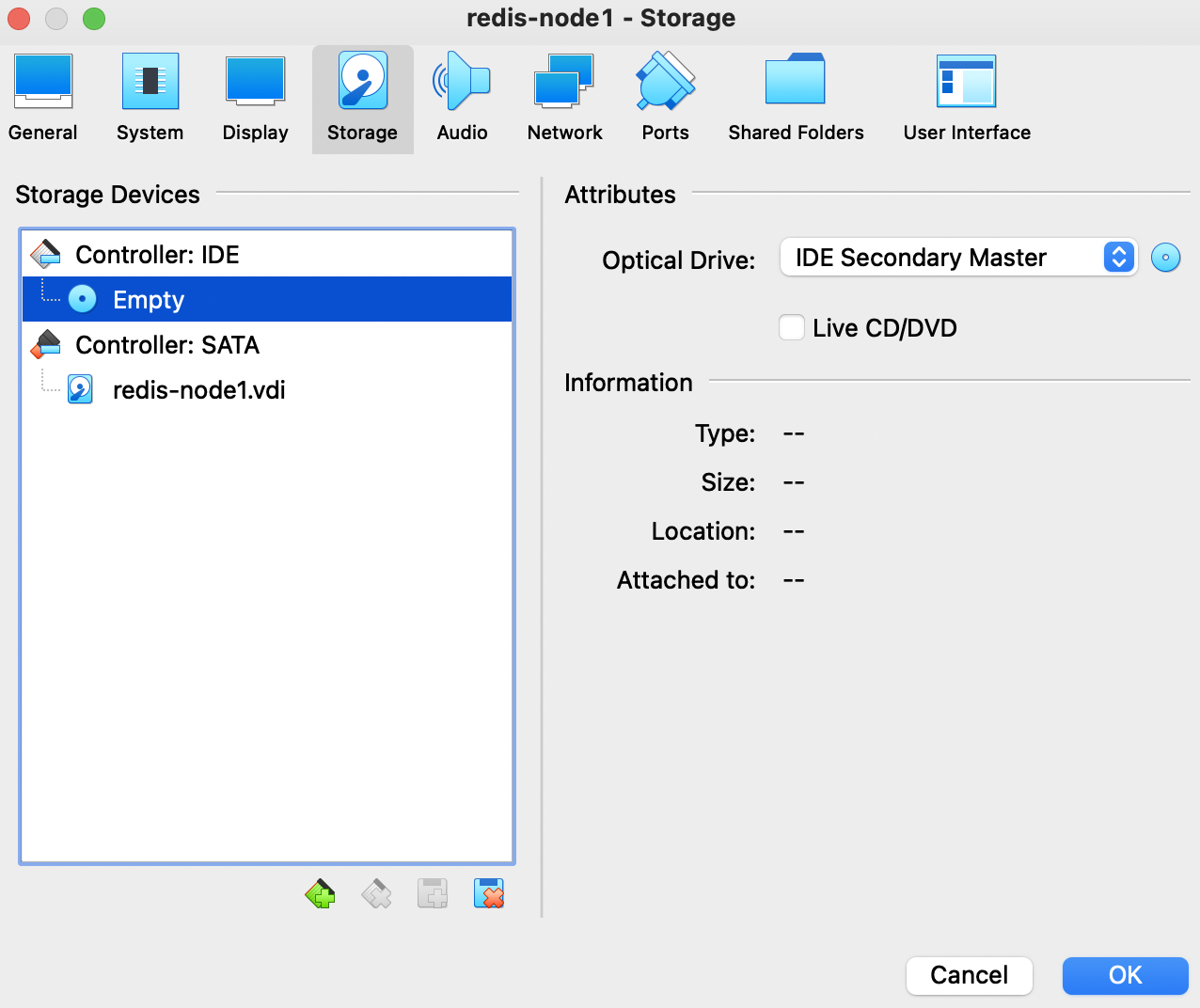
2.2 设置ISO镜像

Screen Shot 2021-01-12 at 19.47.05.pngScreen Shot 2021-01-12 at 19.47.17.pngScreen Shot 2021-01-12 at 19.47.26.png

3. 屏蔽网卡命名

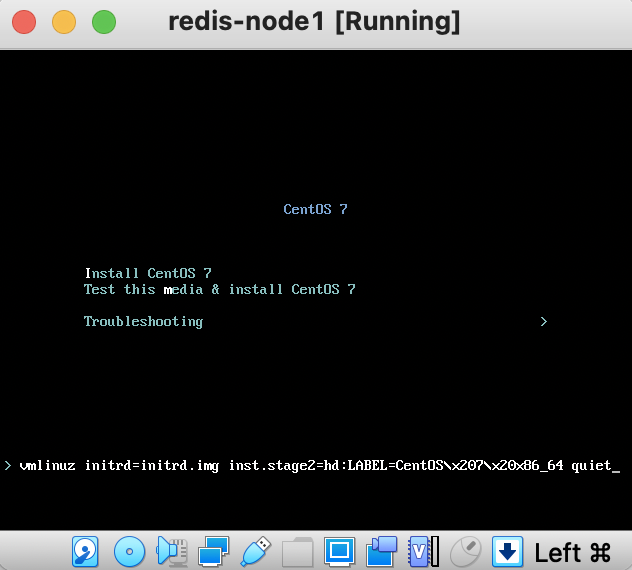
  • 点击 Tab ,打开 kernel 启动选项后,增加 :net.ifnames=0 biosdevname=0
  • 网卡名称会按eth0, eth1的规则命名


3.1 启动redis-node1,在启动界面

3.1.1 按键盘向上键后选中 Install CentOS 7

Screen Shot 2021-01-12 at 20.00.16.png

3.1.2 再按Tab键

Screen Shot 2021-01-12 at 19.54.04.png

3.1.3 增加 net.ifnames=0 biosdevname=0 ,按Enter键

Screen Shot 2021-01-12 at 19.58.15.png

3.1.4 最后会跳转到这个界面

Screen Shot 2021-01-12 at 20.03.29.png

4. 最小化安装

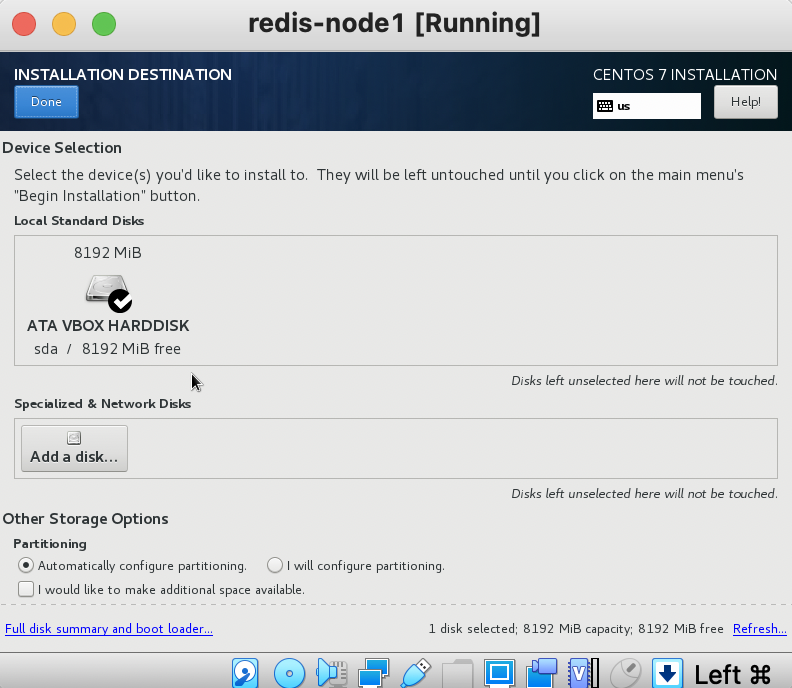
  • 选择自动磁盘分区
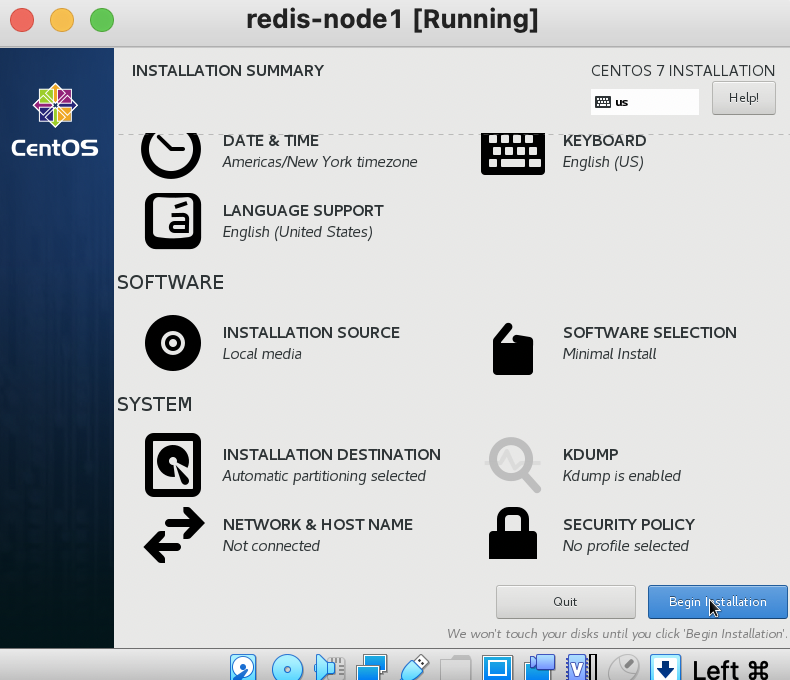
  • 选择最小化安装
  • 安装系统


4.1 按照下图配置

Screen Shot 2021-01-12 at 20.07.54.png

4.1.1 检查是否最小化按照 确保选中 Minimal Install

Screen Shot 2021-01-12 at 20.08.35.png

4.12 确认全盘格式化

Screen Shot 2021-01-12 at 20.09.12.png

Screen Shot 2021-01-12 at 20.12.11.png

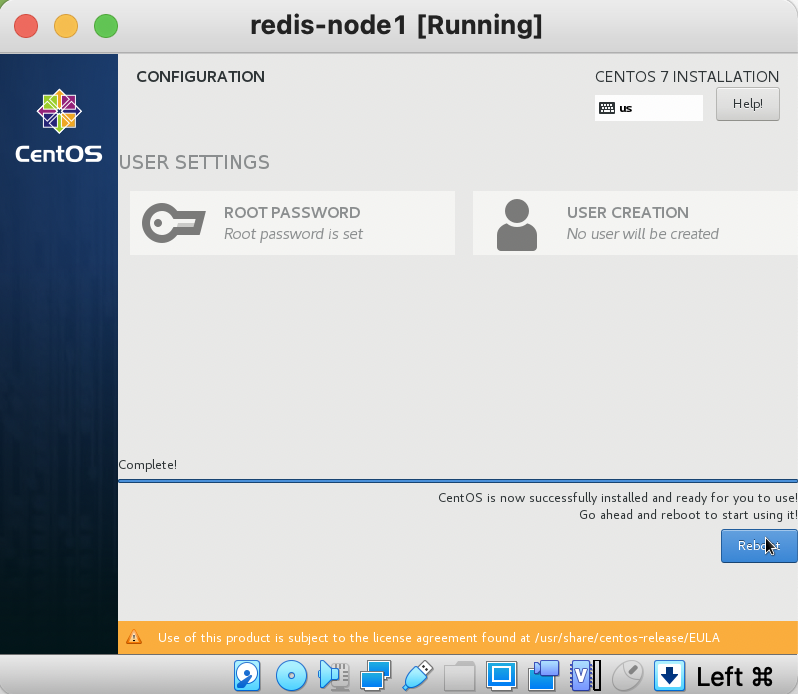
4.1.3 设置root用户密码

Screen Shot 2021-01-12 at 20.12.59.pngScreen Shot 2021-01-12 at 20.13.17.png

4.1.4 等待安装

Screen Shot 2021-01-12 at 20.14.12.png

4.1.5 重启

Screen Shot 2021-01-12 at 20.18.09.png

5. 配置网络

  • 设置Nat Network网段
  • 设置Host Only网段
  • 虚拟机添加网卡
  • 编辑网卡文件,设置主机网络

(首先关闭reids-node1)

5.1 配置Host-only网段

5.1.2 File - Host Network Manager,按照如图配置

Screen Shot 2021-01-12 at 20.27.08.png

5.2 配置NAT网段

5.2.1 Preferences - Network 中配置Network CIDR

Screen Shot 2021-01-12 at 20.32.24.png

5.3 配置虚拟机网卡

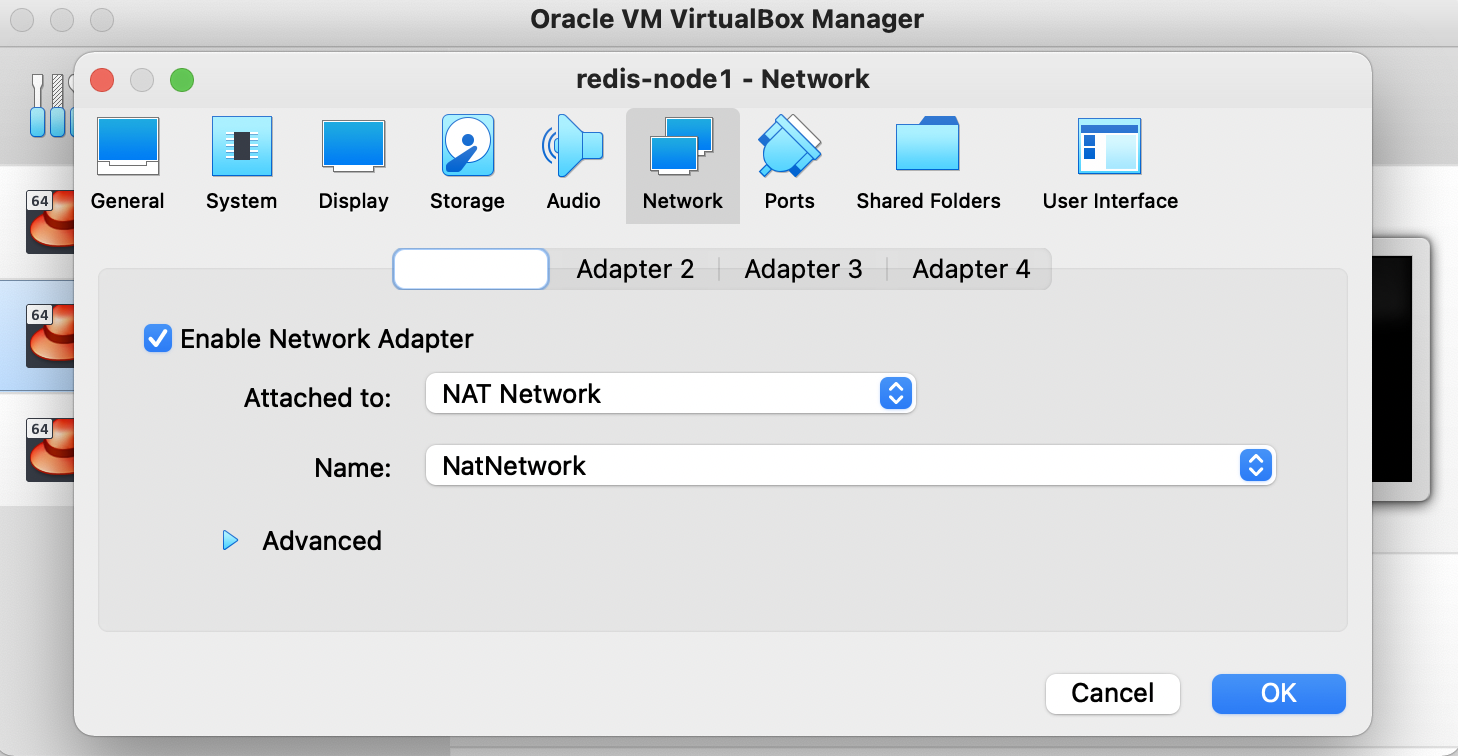
Screen Shot 2021-01-12 at 20.34.18.png
Screen Shot 2021-01-12 at 20.34.40.png

5.4 编辑网卡文件,设置主机网络


5.4.1 启动redis-node1,并登录root用户

5.4.2

cd /etc/sysconfig/network-scripts/
Screen Shot 2021-01-12 at 20.39.39.png
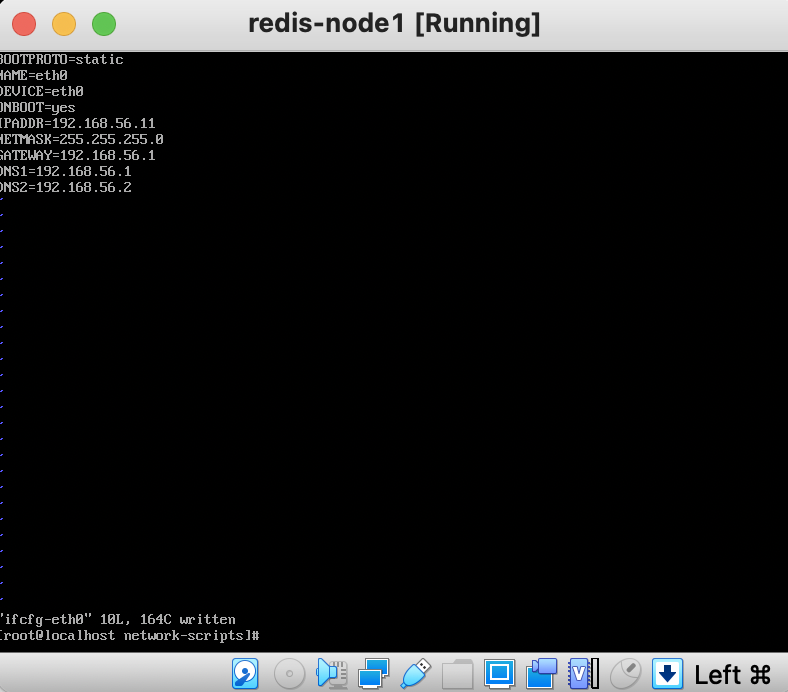
vi ifcfg-eth0
Screen Shot 2021-01-12 at 20.40.12.png
按照下图进行配置
Screen Shot 2021-01-12 at 20.45.49.png
:wq 退出,cp ifcfg-eth0 ifcfg-eth1
Screen Shot 2021-01-12 at 20.48.14.png
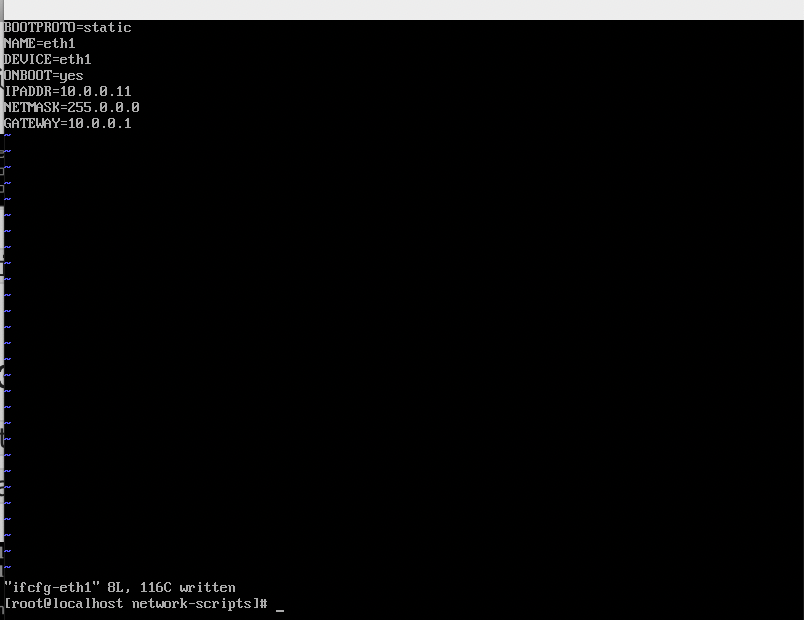
vi ifcfg-eth1 ,按照下图配置
Screen Shot 2021-01-12 at 21.35.38.png

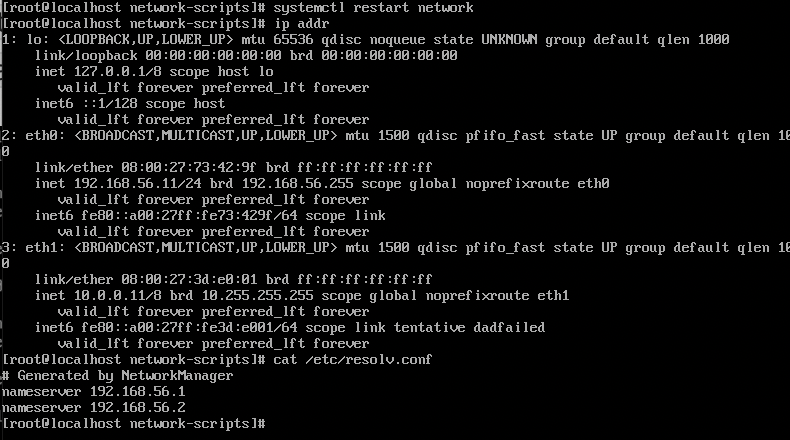
5.4.3 测试网络配置

systemctl restart network
ip addr
cat /etc/resolv.conf
Screen Shot 2021-01-12 at 21.37.16.png

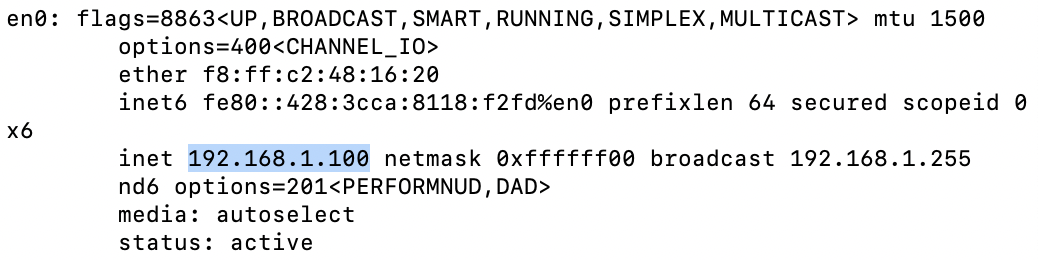
ping 我的主机 192.168.1.100
Screen Shot 2021-01-12 at 20.57.01.pngScreen Shot 2021-01-12 at 20.57.15.png
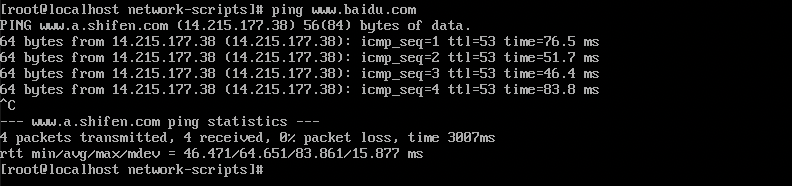
ping www.baidu.com
Screen Shot 2021-01-12 at 21.38.01.png

6. 配置主机

  • 配置本主机名称
    • /etc/hostname
  • 配置其他主机名称解析
    • /etc/hosts

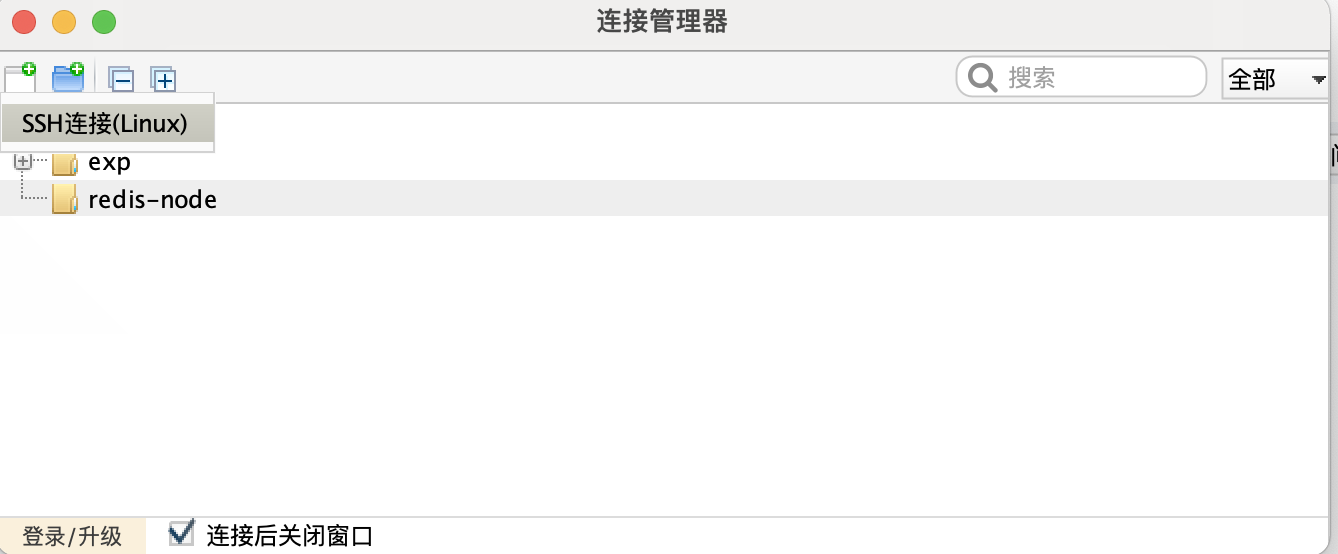
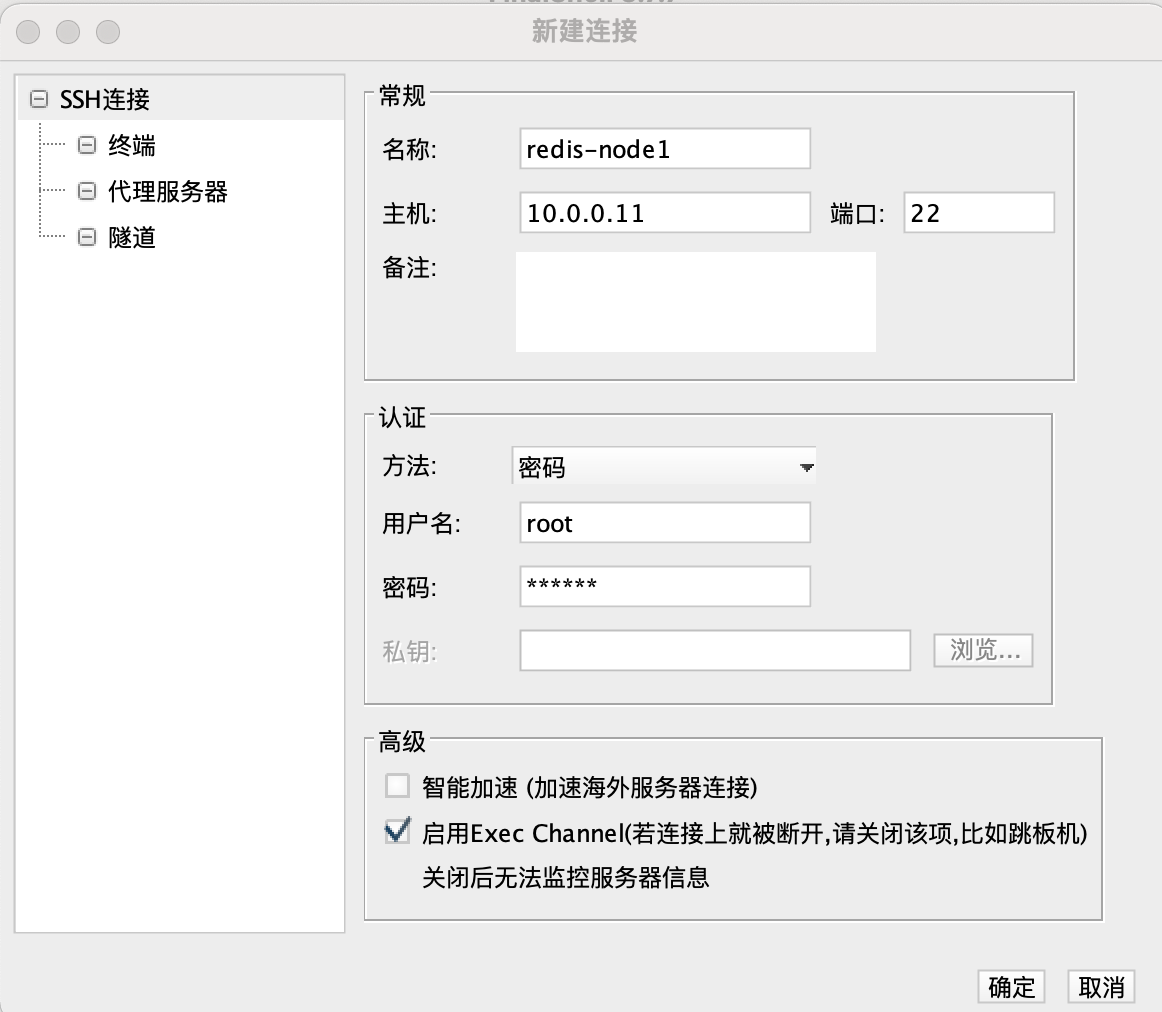
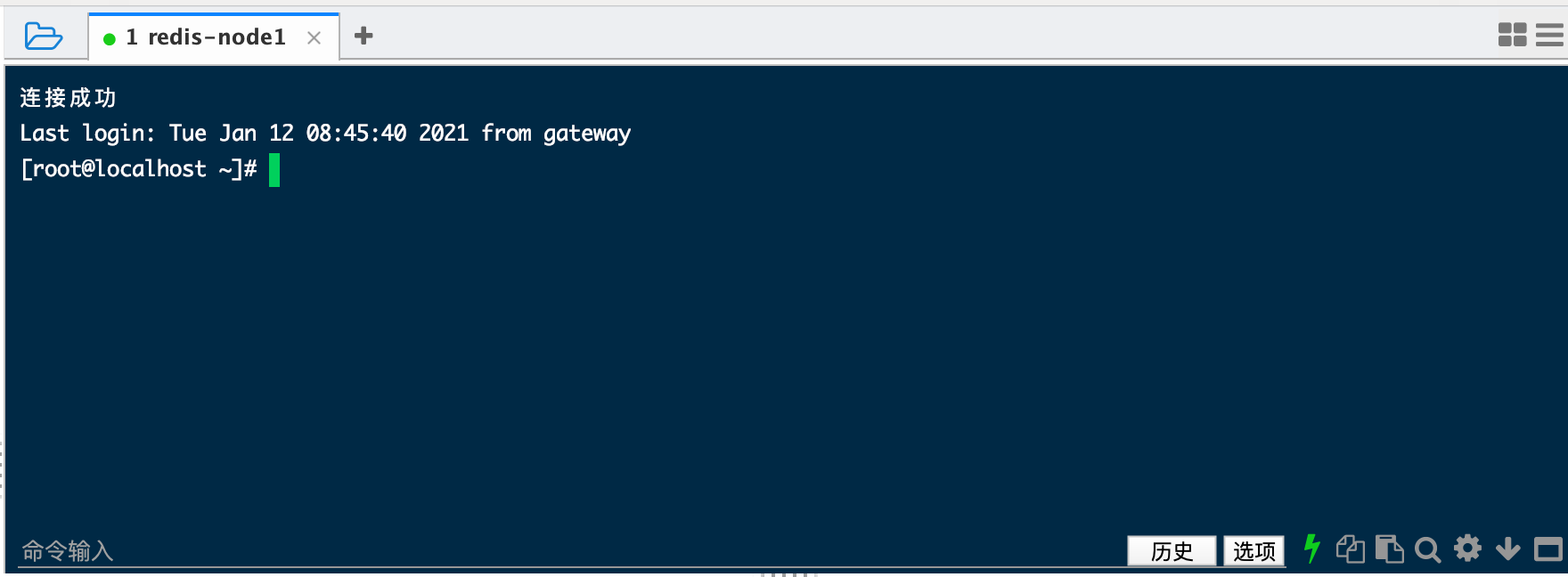
      6.1 打开FinalShell(自行安装),进行连接配置

      Screen Shot 2021-01-12 at 21.02.02.png
      Screen Shot 2021-01-12 at 21.01.30.png
      Screen Shot 2021-01-12 at 21.02.46.png
      Screen Shot 2021-01-12 at 21.45.48.png

      6.2 配置本主机名称

      vi /etc/hostname
      修改主机名称为:redis-node1
      Screen Shot 2021-01-12 at 22.03.06.png
      :wq 退出,reboot 重启后发现修改成功
      Screen Shot 2021-01-12 at 22.04.13.png

      6.3 配置其他主机名称解析(略)

7. 关闭防火墙和SELinux

7.1 关闭防火墙

关闭:systemctl stop firewalld
防止自动启动:systemctl disable firewalld

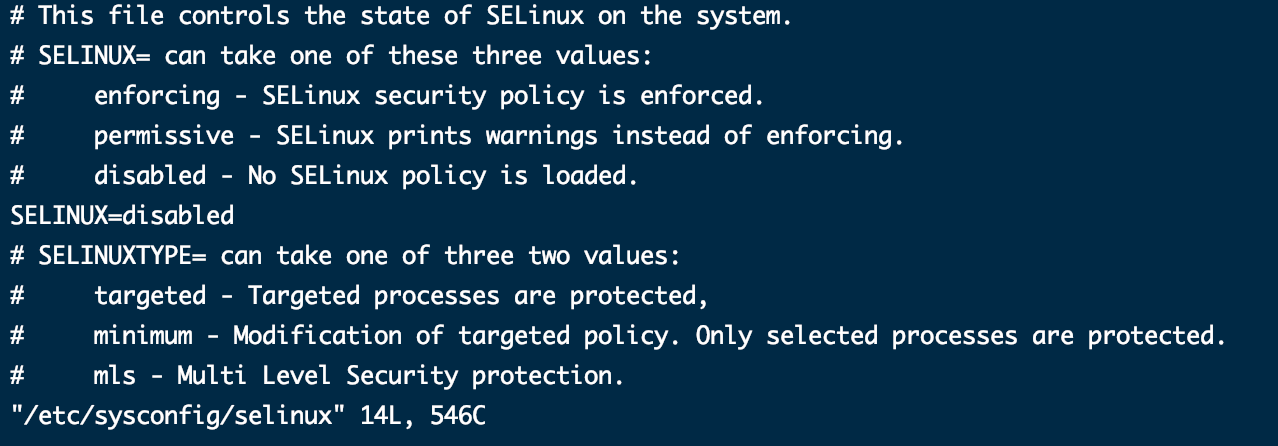
7.2 关闭SELinux

配置:/etc/sysconfig/selinux
vi /etc/sysconfig/selinux
找到SELINUX,将其设置为SELINUX=disabled
Screen Shot 2021-01-13 at 10.55.21.png

8. 配置源(略)

9. 安装软件(略)