1. 内容介绍
1.1 nginx 简介
- 什么是 nginx 和可以做什么事情
- 正向代理
- 反向代理
-
1.2 Nginx 的安装
-
1.3 Nginx 的常用命令和配置文件
1.4 Nginx 配置实例 1 反向代理
1.5 Nginx 配置实例 2 负载均衡
1.6 Nginx 配置实例 3 动静分离
1.7 Nginx 的高可用集群
nginx 配置主从模式
-
2. Nginx 的简介
2.1 什么事Nginx
Nginx 是高性能的 HTTP 和反向代理的服务器,处理高并发能力是十分强大的,能经受高负
载的考验,有报告表明能支持高达 50,000 个并发连接数。
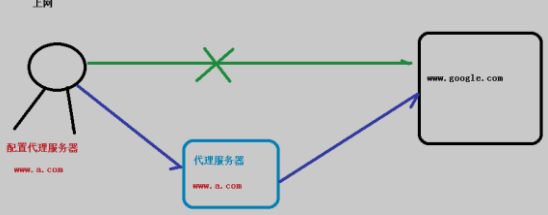
2.2 正向代理
- 需要在客户端配置代理服务器进行指定网站访问
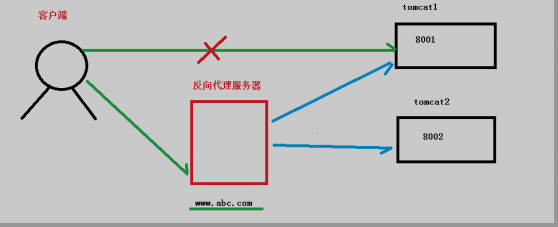
2.3 反向代理
- 暴露的是代理服务器地址,隐藏了真实服务器 IP 地址。
2.4 负载均衡
- 增加服务器的数量,然后将请求分发到各个服务器上,将原先请求集中到单个服务器上的
情况改为将请求分发到多个服务器上,将负载分发到不同的服务器,也就是我们所说的负
载均衡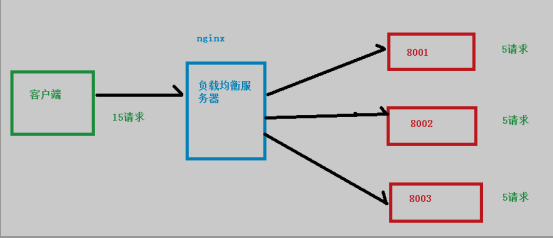
2.5 动静分离

3 Nginx 的安装
3.1 准备工作
- 打开虚拟机,使用远程连接工具连接 linux 操作系统
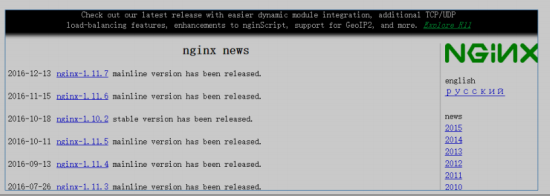
- 到 nginx 官网下载软件 http://nginx.org/
3.2 开始进行 nginx 安装
- 安装 pcre 依赖
1.1 联网下载 pcre 压缩文件依赖
wget http://downloads.sourceforge.net/project/pcre/pcre/8.37/pcre-8.37.tar.gz
1.2 解压压缩文件
使用命令 :tar –xvf pcre-8.37.tar.gz
1.3 ./configure 完成后,回到 pcre 目录下执行 make,最后执行 make install
安装 openssl 、zlib 、 gcc 依赖
yum -y install make zlib zlib-devel gcc-c++ libtool openssl openssl-devel
安装 nginx ```shell
- 使用命令解压
- ./configure
- make && make install 进入目录 /usr/local/nginx/sbin/nginx 启动服务
在 windows 系统中访问 linux 中 nginx,默认不能访问的,因为防火墙问题 (1)关闭防火墙 (2)开放访问的端口号,80 端口
查看开放的端口号 firewall-cmd —list-all 设置开放的端口号 firewall-cmd —add-service=http –permanent firewall-cmd —add-port=80/tcp —permanent 重启防火墙 firewall-cmd –reload
<a name="QAAVn"></a>## 4. **Nginx 的常用的命令**```shell进入 nginx 目录中cd /usr/local/nginx/sbin1、查看 nginx 版本号./nginx -v2、启动 nginx./nginx3、停止 nginx./nginx -s stop4、重新加载 nginx./nginx -s reload
5.Nginx 的配置文件
cd /usr/local/nginx/conf/nginx.conf2、配置文件中的内容包含三部分内容(1)全局块:配置服务器整体运行的配置指令比如 worker_processes 1;处理并发数的配置(2)events 块:影响 Nginx 服务器与用户的网络连接比如 worker_connections 1024; 支持的最大连接数为 1024(3)http 块还包含两部分:http 全局块server 块
6. Nginx 配置实例-反向代理实例 1
1、实现效果(1)打开浏览器,在浏览器地址栏输入地址 www.123.com,跳转到 liunx 系统 tomcat 主页面中2、准备工作(1)在 liunx 系统安装 tomcat,使用默认端口 8080* tomcat 安装文件放到 liunx 系统中,解压* 进入 tomcat 的 bin 目录中,./startup.sh 启动 tomcat 服务器(2)对外开放访问的端口firewall-cmd --add-port=8080/tcp --permanentfirewall-cmd –reload查看已经开放的端口号firewall-cmd --list-all(3)在 windows 系统中通过浏览器访问 tomcat 服务器

若有收获,就点个赞吧
0 人点赞


