- Linux 上安装 weblogic12C (静默安装) (一),linuxweblogic12c
- 一、前期准备
- 二、开始安装
- 关闭cyyunServer
- 后台启动
- http://localhost:7001 &">./startManagedWebLogic.sh server-base http://localhost:7001 &
- http://localhost:7001 &">./startManagedWebLogic.sh server-base http://localhost:7001 &
weblogic卸载for linux
1. 执行. /root/Oracle/Middleware/wlserver_10.3/uninstall/uninstall.sh
2.直接下一步
Linux 上安装 weblogic12C (静默安装) (一),linuxweblogic12c
从12C版本后,bin文件不提供了,改成全系统通用的jar文件 (generic.jar)。试了半天原来那种安装方式不能用了,非得用图形界面安装。由于服务器是在其他地方,肯定不能跑到主机的地址那边。最后终于找到一种静默方式的安装。大家看下文。
一、前期准备
1.新建用户组 weblogic
[root@edwcube3 ~]#
[root@edwcube3 ~]# groupadd weblogic
[root@edwcube3 ~]#
2.新建用户weblogic 并修改用户密码
[root@edwcube3 ~]#
[root@edwcube3 ~]# useradd -g weblogicweblogic //添加用户,并用-g参数来制定 web用户组
[root@edwcube3 ~]
[root@edwcube3 ~]# passwd weblogic //passwd命令修改密码
Changing password for user weblogic.
New UNIX password:
Retype new UNIX password:
passwd: all authentication tokens updated successfully.
[root@edwcube3 ~]#
[root@edwcube3 ~]#
3.如果没有安装jdk的话,还需要安装jdk 第一步:从官网下载压缩包 jdk-7-linux-i586.tar.gz http://download.oracle.com/otn-pub/java/jdk/7/jdk-7-linux-i586.tar.gz
[root@odstest jdk1.7]$ tar -zxv -f jdk-7u55-linux-i586.tar.gz -C ./jdk1.7
第三步.移动文件/usr/local 注:具体位置可以根据用户习惯自己移动
[root@odstest /]# mv ./jdk1.7 /usr/local/jdk1.7
第四步.配置环境变量 环境分量分为整个系统的,已经只针对当前用户设置的,我们这边只对weblogic用户设置 ~/.bashrc :仅对当前用户生效 在 ~/.bashrc 最后添加以下部分
JAVA_HOME=/usr/local/jdk1.7
export JRE_HOME=/usr/local/jdk1.7/jre
export CLASSPATH=.:$JAVA_HOME/lib:$JRE_HOME/lib:$CLASSPATH
export PATH=$JAVA_HOME/bin:$JRE_HOME/bin:$PATH
保存,执行 source ~/.bashrc 。使修改生效 退出,重新登陆,查看是否生效
[weblogic@edwcube3 ~]$ java -version
java version “1.7.0_40”
Java(TM) SE Runtime Environment (build 1.7.0_40-b43)
Java HotSpot(TM) Server VM (build 24.0-b56, mixed mode)
[weblogic@edwcube3 ~]$
[weblogic@edwcube3 ~]$
jdk安装完毕~
二、开始安装
Slient Mode静默方式
首先看命令的格式:
java -jar wls_121200.jar -silent -responseFile file -invPtrLoc file
-response file:响应文件 -invPtrLoc file:初始化环境文件 具体例子:
java -jar wls_121200.jar -silent -responseFile /home/exampleuser/response/wls.rsp -invPtrLoc /home/exampleuser/oraInst.loc
文件详解: 1.创建 oraInst.loc 文件,内容如下
inventory_loc=/home/weblogic/oraInventory1 产品清单目录#用户的组名称,根据实际的修改inst_group=weblogic 组名称
用来保存安装时的一些临时文件,和默认安装的组名称 如果原来安装过Oracle的产品那么这步可以省略,不需要指定oraInventory1 目录 命令能够简写如下:
java -jar wls_121200.jar -silent -responseFile /home/exampleuser/response/wls.rsp
2.创建 wls.rsp 响应文件 这个文件你可以在图形界面安装时,点击保存生产该文件。本机使用的文件内容如下:
[ENGINE]#DO NOT CHANGE THIS.Response File Version=1.0.0.0.0[GENERIC]#weblogic的安装路径,根据自己的需要修改ORACLE_HOME=/home/weblogic/Oracle/Middleware#Set this variable value to the Installation Type selected. e.g. WebLogic Server, Coherence, Complete with Examples.INSTALL_TYPE=WebLogic Server
我这边只选择了最基本的Weblogic Server组件,选择其他会稍有不同。 3.配置文件创建后,就可以进行安装了
[weblogic@localhost liaowh]$ java -jar wls_121200.jar -silent -response /home/weblogic/liaowh/wls12.rsp -invPtrLoc /home/weblogic/liaowh/oraInst.loc正在提取文件............Java HotSpot(TM) Server VM warning: You have loaded library /tmp/orcl305077197089615615.tmp/Disk1/install/linux/libjni.so which might have disabled stack guard. The VM will try to fix the stack guard now.It's highly recommended that you fix the library with 'execstack -c <libfile>', or link it with '-z noexecstack'.
启动 Oracle Universal Installer
等一会,出现
预期的结果: 1.7实际结果: 1.7.0_40检查完成。此次检查的总体结果为: 通过CheckJDKVersion 检查: 成功。正在验证数据...正在复制文件...-----------20%----------40%----------60%----------80%--------100%WebLogic Server 12.1.2.0.0 的 installation 已成功完成。[weblogic@localhost liaowh]$
就表示成功了。 4.接下来要创建域domain
接下来要创建域domain
4.1 创建存放路径
[weblogic@test ~]$ mkdir -p /opt/weblogic/Oracle/Middleware/user_projects/domains/base_domain/
4.2 创建参数文件
创建文件: create_domain.rsp
内容:
################################################################################
read template from ``"/opt/weblogic/Oracle/Middleware/wlserver/common/templates/wls/wls.jar"``;set JavaHome ``"/usr/java/jdk1.7.0_55"``;set ServerStartMode ``"dev"``;find Server ``"AdminServer" as AdminServer;set AdminServer.ListenAddress ``""``;set AdminServer.ListenPort ``"8001"``;set AdminServer.SSL.Enabled ``"true"``;set AdminServer.SSL.ListenPort ``"8002"``;//We can directly create a new managed server.create Server ``"base" as BASE;set BASE.ListenAddress ``""``;set BASE.ListenPort ``"8003"``;//set BASE.SSL.Enabled ``"true"``;//set BASE.SSL.ListenPort "8004″;//Create Machinecreate Machine ``"base" as Machinename;//use templates default weblogic userfind User ``"weblogic" as u1;set u1.password ``"weblogic123"``;//create a new usercreate User ``"weblogic2" as u2;set u2.password ``"weblogic123"``;write domain to ``"/opt/weblogic/Oracle/Middleware/user_projects/domains/base_domain/"``;// The domain name will be ``"demo-domain"close template; |
|---|
#
4.3 静默创建域
cd /opt/weblogic/Oracle/Middleware/wlserver/common/bin
[weblogic@test ~]$ cd Oracle/Middleware/wlserver/common/bin
[weblogic@test bin]$ ./config.sh -mode=silent -silent_script=/opt/weblogic/create_domain.rsp -logfile=/opt/weblogic/create_domain.log
出现如下输出:
<< ``read template from ``"/opt/weblogic/Oracle/Middleware/wlserver/common/templates/wls/wls.jar">> succeed: ``read template from ``"/opt/weblogic/Oracle/Middleware/wlserver/common/templates/wls/wls.jar"<< ``set config option JavaHome to ``"/usr/java/jdk1.7.0_55">> succeed: ``set config option JavaHome to ``"/usr/java/jdk1.7.0_55"<< ``set config option ServerStartMode to ``"dev">> succeed: ``set config option ServerStartMode to ``"dev"<< ``find Server ``"AdminServer" as AdminServer>> succeed: ``find Server ``"AdminServer" as AdminServer<< ``set AdminServer attribute ListenAddress to ``"">> succeed: ``set AdminServer attribute ListenAddress to ``""<< ``set AdminServer attribute ListenPort to ``"8001">> succeed: ``set AdminServer attribute ListenPort to ``"8001"<< ``set AdminServer attribute SSL!Enabled to ``"true">> succeed: ``set AdminServer attribute SSL!Enabled to ``"true"<< ``set AdminServer attribute SSL!ListenPort to ``"8002">> succeed: ``set AdminServer attribute SSL!ListenPort to ``"8002"<< create Server ``"base" as BASE>> succeed: create Server ``"base" as BASE<< ``set BASE attribute ListenAddress to ``"">> succeed: ``set BASE attribute ListenAddress to ``""<< ``set BASE attribute ListenPort to ``"8003">> succeed: ``set BASE attribute ListenPort to ``"8003"<< create Machine ``"base" as Machinename>> succeed: create Machine ``"base" as Machinename<< ``find User ``"weblogic" as u1>> succeed: ``find User ``"weblogic" as u1<< ``set u1 attribute Password to ``"********">> succeed: ``set u1 attribute Password to ``"********"<< create User ``"weblogic2" as u2>> succeed: create User ``"weblogic2" as u2<< ``set u2 attribute Password to ``"********">> succeed: ``set u2 attribute Password to ``"********"<< write Domain to ``"/opt/weblogic/Oracle/Middleware/user_projects/domains/base_domain/"..........................................................................................>> succeed: write Domain to ``"/opt/weblogic/Oracle/Middleware/user_projects/domains/base_domain/"<< close template>> succeed: close template |
|---|
5、WebLogic的后台启动、停止运行的方法
进入目录:/opt/weblogic/Oracle/Middleware/user_projects/domains/base_domain/bin/
[root@test ~]# cd /opt/weblogic/Oracle/Middleware/user_projects/domains/base_domain/bin/
[root@test bin]# nohup ./startWebLogic.sh &
[root@test bin]# nohup ./startWebLogic.sh & 默认日志是在当前启动的目录生成nohup.out
若想自己指定日志名字,可以如下:
[root@test bin]# nohup ./startWebLogic.sh >> 你定义的文件名字 & {nohup ./startWebLogic.sh >日志文件名 &}
最后就可以访问 http://ip:8001/console 进入控制台了
用上面的建的用户登录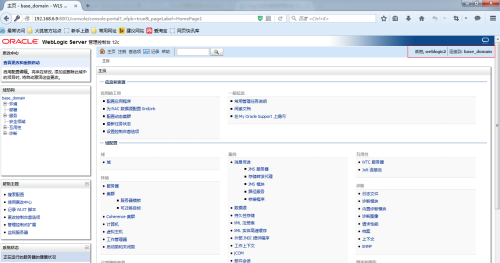
第2章 新建server启动
应用默认运行在AdminServer中,如果用控制台新建了server,比如名为hongjun-01,命令行启动cyyunServer,用startManagedServer命令startManagedServer
cd /usr/local/weblogic12c/domain/bin
./startManagedWebLogic.sh hongjun-01 http://localhost:7001
刷新控制台页面hongjun-01显示启动成功。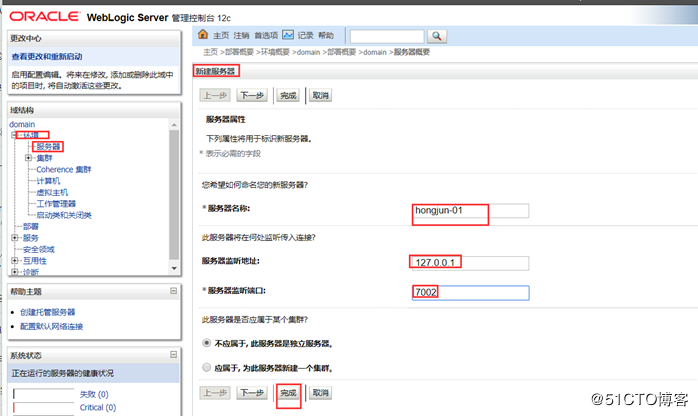

2.1 免密码启动server
[root@tomcat server-base]# cd /application/weblogic12/domain/servers/server-base
[root@tomcat server-base]# mkdir -p security
[root@tomcat security]# vim boot.properties
username=weblogic
password=weblogic12c
cd /usr/local/weblogic12c/domain/bin
关闭cyyunServer
./stopManagedWebLogic.sh server-base http://localhost:7001
后台启动
./startManagedWebLogic.sh server-base http://localhost:7001 &

若有收获,就点个赞吧
0 人点赞


