镜像命令
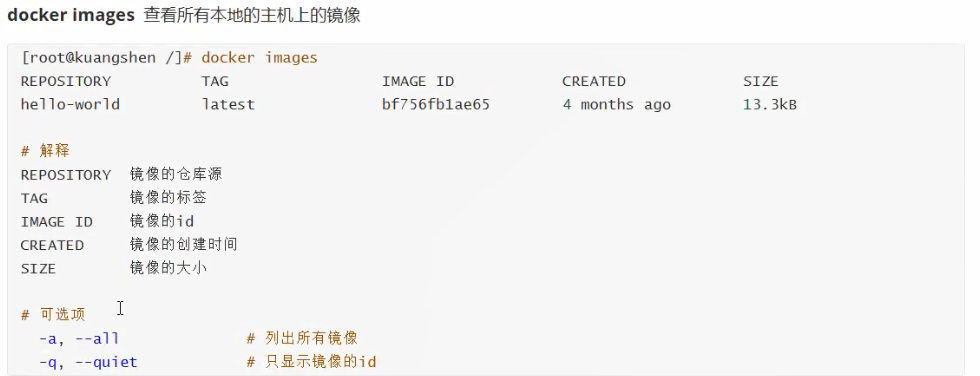
0:docker version #docekr版本信息1:docker info #详细的系统信息2:docker 命令 --help #万能命令3:dcoker -search 【镜像名】4:docker -pull 【镜像名】5:docker rmi -f 镜像id #删除指定的镜像6:docker rmi -f 镜像id 镜像id #删除多个指定的镜像7:docker rmi -f ¥(docker images -aq)#删除全部镜像
容器命令
新建容器并启动
docker pull centos #下载一个centos镜像docker run [可选参数] image#参数说明--name="name"-d 后台方式运行-it 使用交互方式运行,进入容器查看内容-p 指定容器的端口 -p 8080:8080-p ip:主机端口:容器端口(常用)-p 主机端口:容器端口-p 容器端口容器端口-p 随机指定端口
从容器退出到主机
exit#退出直接关闭容器
列出所有运行的容器
docker ps #列出正在运行的容器-a #列出所有正在运行的容器+停止运行的容器-n=? #显示最近创建的容器数-q #只显示容器的id
删除容器
docker rm 容器id #删除指定的容器,不能删除正在运行的容器docker rm -f $(docker ps -aq) #删除所有的容器docker ps -a -q|xargs docker rm #删除所有的容器
启动和停止容器操作
docker start 容器id #启动容器docker restart 容器id #重启容器docker stop 容器id #停止当前正在运行的容器docker kill 容器id #强制停止当前容器
其他常用命令
后台启动容器
#命令 docker run -d 镜像名【root@linux/】# docker run -d centor#问题 docker ps,发现centos停止了#常见的坑:docker 容器使用后台运行,就必须要有一个前台进程,docker发现没有应用,就会自动停止,#nginx,容器启动后,发现自己没有提供服务,就会立即停止,就是没有程序了
查看日志
docker logs -f -t --tail 10 容器id #初始的时候可能没有日志#自己编写一段shell脚本docker run -d centos /bin/sh -c "while true;do echo xxx;sleep 1 ;done"docker psCONTAINER ID IMAGE#容器名 #镜像# 显示日志#-tf #显示日志#--tail number #要显示日志的条数docker logs tf --tail 10 容器id
查看容器内部中信息
docker top 容器id
查看容器内部中元数据
docker insperct 容器id #查看容器内部信息
进入当前正在运行的容器
# 我们通常容器都是使用后台方式运行的,需要进入容器,修改一些配置#命令#方式一docker exec -it 容器id #进入指定容器内部,开启一个新的终端#方式二docker attach 容器id # 正在执行当前代码,显示当前终端,不会启动新的进程#区别#docker exec#docke attach
容器内拷贝文件到主机上
#容器内创建文件touch /home/test.txt#文件拷贝docker cp 容器id :/home/test.txt /home #把容器内部的文件home下的test.txt 拷贝到主机的home文件夹下#拷贝是一个手动过程,未来我们使用-v卷技术,可以实现,自动同步,
小结

常用命令排序
attach Attach to a running container #当前 she11下 attach连接指定运行镜像bild Build an image from a Dockerfile #通过Dockerfile定制镜像commit Create a new image from a container changes#提交当前容器为新的镜像cp Copy files/folders from the containers filesystem to the host path #从容器中持贝指定文件或者目录到宿主机中create Create a new container #创建一个新的容器,同run,但不启动容器diff Inspect changes on a container’s filesystem #查看docker容器变化events Get real time events from the server #从docker服务获取容器实时事件exec Run a command in an existing container #在已存在的容器上运行命令export stream the contents of a container as a tar archive #导出容器的内容流作为一个tar归档文件[对应import]history show the history of an image #展示一个镜像形成历史images List images #列出系统当前镜像import Create a new filesystem image from the contents of a tarball #从tar包中的内容创建一个新的文件系统映像[对应export]info Display system-wide information#显示系统相关信息inspect Return low-level information on a container #查看容器详细信息ki11 Kill a running container #kil1 指定docker容器1oad Load an image from a tar archive #从一个tar 包中加载一个镜像[对应 save]login Register or Login to the docker registry server #注册或者登陆一个docker 源服务器logout Log out from a Docker registry server #从当前 Docker registry 退出logs Fetch the logs of a container #输出当前容器日志信息port Lookup the public-facing port which is NAT-ed to PRIVATE_PORT #查看映射端口对应的容器内部源端pause Pause all processes within a container #暂停容器List containers #列出容器列表pu11 Pu1l an image or a repository from the docker registry server #从docker镜像源服务器拉取指定镜像或者库镜像push Push an image or a repository to the docker registry server #推送指定镜像或者库镜像至docker源服务器restart Restart a running container#重启运行的容器Remove one or more containers #移除一个或者多个容器rmi Remove one or more images #移除一个或多个镜像[无容器使用该镜像才可删除,否则需删除相关容器才可继续或-f强制删除]run Run a command in a new container #创建一个新的容器并运行一个命令save Save an image to a tar archive #保存一个镜像为一个tar包[对应load]search search for an image on the Docker Hub #在docker hub中搜索镜像start start a stopped containers #启动容器stop Stop a running containers #停止容器tag Tag an image into a repository#给源中镜像打标签top Lookup the running processes of a container#查看容器中运行的进程信息unpause Unpause a paused container#取消暂停容器version show the docker version information#查看docker版本号wait Block until a container stops,then print its exit code#截取容器停止时的退出状态值

若有收获,就点个赞吧
0 人点赞


