df
磁盘分区使用情况
df -h
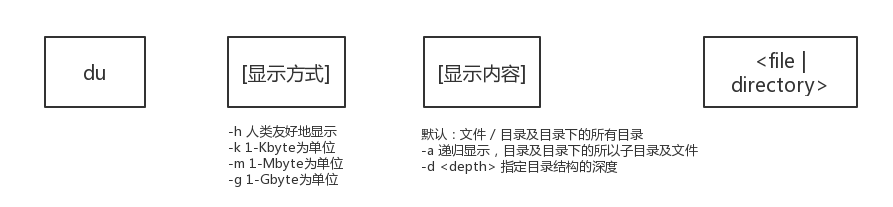
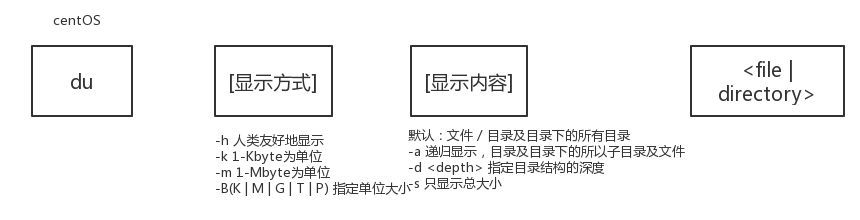
du
显示某个文件的大小:
du -h <file>
显示某个目录的大小:
du -h -d 0 <directory>等价于du -sh <directory>
显示某个目录下所有文件/子目录的大小的列表:
du -hc -d 0 <directory>/*
显示某个目录下所有子目录的大小的列表:
du -hc -d 1 <directory>
递归显示某个目录下所有子目录的大小:
du -ah <directory>
ls
drwxr-x--- 2 root adm 4096 2013-08-07 11:03 apache2drwxr-xr-x 2 root root 4096 2013-08-07 09:43 apparmordrwxr-xr-x 2 root root 4096 2013-08-07 09:44 apt-rw-r----- 1 syslog adm 16802 2013-08-07 14:30 auth.log-rw-r--r-- 1 root root 642 2013-08-07 11:03 boot.logdrwxr-xr-x 2 root root 4096 2013-08-06 18:34 ConsoleKitdrwxr-xr-x 2 root root 4096 2013-08-07 09:44 cups-rw-r----- 1 syslog adm 10824 2013-08-07 11:08 daemon.logdrwxr-xr-x 2 root root 4096 2013-08-07 09:45 dbconfig-common-rw-r----- 1 syslog adm 21582 2013-08-07 11:03 debugdrwxr-xr-x 2 root root 4096 2013-08-07 09:45 dist-upgrade-rw-r--r-- 1 root adm 59891 2013-08-07 11:03 dmesg第一列 : “drwxr-x---” 表示文件的类型 和文件权限第二列: “2”是纯数字 ,表示文件链接个数第三列 : “root” 表示文件的所有者第四列:“adm” 表示为文件的所在群组第五列:“4096”,表示为文件长度(大小)第六列:“2013-08-07 11:03”,表示文件最后更新(修改)时间第七列:“apache2” 表示文件的名称
文件类型:
d :目录
- :文件
l :链接
s :socket
p :named pipe
b :block device
c :character device
文件权限:
r :含义为 “可读”,用数字 4 表示
w:含义为 “可写”用数字 2 表示
X(小X):含义为“可执行”用数字 1 表示
-:含义为“无权限”用数字0 表示
X (大X):含义为只有目标文件对某些用户是可执行的或该目标文件是目录时才追加x 属性。
s:含义为 在文件执行时把进程的属主或组ID置为该文件的文件属主。方式“u+s”设置文件的用 户ID位,“g+s”设置组ID位。
t :含义为保存程序的文本到交换设备上
修改权限:chmod
chmod 777 auth.log #含义为给auth.log文件赋予任何可读,可写,可执行权限
修改所有者:chown
命令 chown 用户名 文件,例如 :chown mysql auth.log #含义为 把 文件 auth.log 的所有者更改为 mysql
修改所在组:chgrp
chgrp [-R] 群组名称 文件名称例如 :chgrp -R mysql apache2 #含义为 ,把 目录apache2 的所在组更改为mysql
软链接vs硬连接
Some nice intuition that might help, using any Linux(ish) console.
Create two files:
$ touch blah1; touch blah2
Enter some Data into them:
$ echo "Cat" > blah1$ echo "Dog" > blah2
(Actually, I could have used echo in the first place, as it creates the files if they don’t exist… but never mind that.)
And as expected:
$cat blah1; cat blah2CatDog
Let’s create hard and soft links:
$ ln blah1 blah1-hard$ ln -s blah2 blah2-soft
Let’s see what just happened:
$ ls -lblah1blah1-hardblah2blah2-soft -> blah2
Changing the name of blah1 does not matter:
$ mv blah1 blah1-new$ cat blah1-hardCat
blah1-hard points to the inode, the contents, of the file - that wasn’t changed.
$ mv blah2 blah2-new$ ls blah2-softblah2-soft$ cat blah2-softcat: blah2-soft: No such file or directory
The contents of the file could not be found because the soft link points to the name, that was changed, and not to the contents. Likewise, If blah1 is deleted, blah1-hard still holds the contents; if blah2 is deleted, blah2-soft is just a link to a non-existing file.
更详细的link
查看磁盘列表
diskutil list
外接硬盘挂载点目录
/Volumes/
测试磁盘读写速度
dd if=/dev/zero of=test.out bs=1m count=1000
linux根目录下的文件夹详解

若有收获,就点个赞吧
0 人点赞


