一、版本控制系统/版本控制器
1. 版本控制系统:
git 分布式 —-没有中心代码库,所有机器之间的地位同等(每台机器上都有相同的代码)

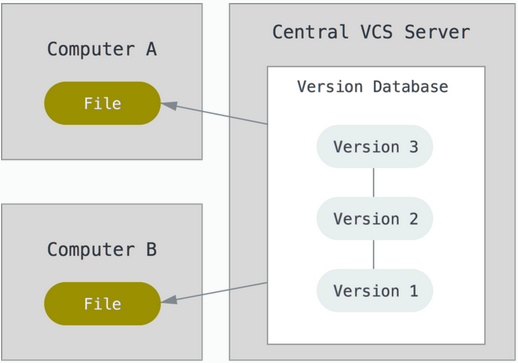
svn 集中管理的 —-有中心代码库,其他都是客户端
2.git与svn介绍
1.git属于分布式版本控制系统:
客户端并不只提取最新版本的文件,而是把原始的代码仓库完整地克隆下来。优点:a.由于任何人每次提取操作,实际上都是一次对代码仓库的完整备份,因此近乎所有的操作都可以在本地执行,速度就是相当的快,并且可以在网络断开的时候操作仍然不受影响,可以频繁的进行提交更新,等到有网络的时候再上传到远程的仓库就可以了。b.git的分支模型,相当的轻量级,被称为“必杀技”。缺点:a.每个开发人员都拥有所有的代码,不利于核心代码的保密(如果有重要代码需要保密,则不建议使用git)
2.svn属于集中化的版本控制系统:
有一个单一的集中管理的服务器,保存所有文件的修订版本,而协同工作的成员通过客户端连接到这台服务器,进行文件上传和更新。优点:a.使用简单,比较符合我们的常规思维b.同步代码比较简单,只要一步操作即可。缺点:a.丢失数据的风险:最显而易见的,由于集中化的特点,如果版本库的服务器磁盘发生故障等,你不能保证所有的数据已经有人提取出来了,最坏的情况是彻底的丢失整个项目的所有历史更改记录。b.网络中断的情况下,协作就无法进行了,因为无法连接服务器进行上传和更新。
3.git 相关概念—-纯命令行
工作区版本库暂存区HEAD版本号版本日志
1.工作区(Working Directory)存放git版本仓库的目录就是工作区(放源代码的地方)2.暂存区:Git的版本库里存了很多东西,其中最重要的就是称为stage(或者叫index)的暂存区,(会将代码添加到缓存区,没有问题之后在提交到版本库)3.版本库(Repository)工作区有一个隐藏目录.git,这个不算工作区,而是Git的版本库。4.HEAD:指向你最近一次提交后的结果。(现在是哪个版本,头就会指向这个版本)


1.添加文件到暂存区:
创建两个文件add到stage:
#git add 文件名
或者
#git add *
从暂存区(stage)提交到当前master分支的HEAD:
git commit -m “版本描述信息” #提交暂存区里的修改到版本库的分支
版本号:最核心用的是id号。每个版本都会有一个id号,也就是commit id,
查看版本号:
版本号可以通过版本日志查看
commit完成的功能类似快照,可以使用git log查看每次的commit记录
[root@vm20 gittest]# git logcommit fbecfa3d04ae5038aa11bf55942e46c840077ace //id号
二、git部署
环境:git-server 192.168.246.214 充当中央服务器client 192.168.246.213所有机器关闭防火墙和selinux安装:所有机器都安装[root@git-server ~]# yum install -y git[root@git-server ~]# git --versiongit version 1.8.3.1准备:因为Git是分布式版本控制系统,所以,每个机器都必须自报家门:你的名字和Email地址。注意git config命令的--global参数,用了这个参数,表示你这台机器上所有的Git仓库都会使用这个配置。所有的机器都添加,只要邮箱和用户不一样就可以。# git config --global user.email "soho@163.com" ----设置邮箱# git config --global user.name "soho" ----加添用户# cat /root/.gitconfig# git config --global color.ui true #语法高亮# git config --list #查看全局配置user.email=ashiyufei@aliyun.comuser.name=shiyufeicolor.ui=true
1、git使用
创建版本库:
1.创建一个空目录:在中心服务器上创建
[root@git-server ~]# mkdir /git-test[root@git-server ~]# useradd git #创建一个git用户用来运行git[root@git-server ~]# passwd git #给用户设置密码[root@git-server ~]# cd /git-test/
2.通过git init命令把这个目录变成Git可以管理的仓库:
第1种情况:可以改代码,还能上传到别人的机器,别人也能从你这里下载但是别人不能上传代码到你的机器上。第2种情况:只是为了上传代码用,别人从这台机器上下载代码也可以上传代码到这台机器上,经常用于核心代码库。
创建裸库: 适用于作为远程中心仓库使用
创建裸库才可以从别处push(传)代码过来,使用—bare参数———裸
git init —bare 库名字
创建一裸库:
[root@git-server git-test]# git init --bare testgitInitialized empty Git repository in /git-test/testgit/[root@git-server ~]# chown git.git /git-test -R #修改权限2.仓库创建完成后查看库目录:[root@git-server git-test]# cd testgit/[root@git-server testgit]# lsbranches config description HEAD hooks info objects refs
1.客户端
1.配置免密登录[root@client ~]# ssh-keygen #生成秘钥[root@client ~]# ssh-copy-id -i git@192.168.246.214 #将秘钥传输到git服务器中的git用户2.克隆git仓库[root@client ~]# yum install -y git[root@client ~]# git clone git@192.168.246.214:/git-test/testgit/Cloning into 'testgit'...warning: You appear to have cloned an empty repository.[root@client ~]# ls #查看仓库已经克隆下来了anaconda-ks.cfg testgit
1.创建文件模拟代码提交到仓库
1.在testgit目录下创建一个测试文件test.txt[root@client ~]# cd testgit/[root@client testgit]# vim test.txt #随便写点东西2.把文件添加到暂存区:使用 "git add" 建立跟踪[root@client testgit]# git add test.txt注: 这里可以使用 git add * 或者 git add -A3.提交文件到仓库分支:[root@client testgit]# git commit -m "test1"[master (root-commit) 2b51ff9] test11 file changed, 2 insertions(+)create mode 100644 test.txt-m:描述4.查看git状态:[root@client testgit]# git status# On branch master #分支位于master5.修改文件后再此查看状态:[root@client testgit]# echo '1122334' >> test.txt[root@client testgit]# git status# 位于分支 master# 尚未暂存以备提交的变更:# (使用 "git add <file>..." 更新要提交的内容)# (使用 "git checkout -- <file>..." 丢弃工作区的改动)## 修改: readme.txt#修改尚未加入提交(使用 "git add" 和/或 "git commit "6.先add[root@client testgit]# git add -A8.再次提交commit:[root@client testgit]# git commit -m "add2" test.txt[master 73bf688] add21 file changed, 1 insertion(+)[root@client testgit]# git status# On branch masternothing to commit, working directory clean
2、版本回退
已经提交了不合适的修改到版本库时,想要撤销本次提交,使用版本回退,不过前提是没有推送到远程库。
查看现在的版本:
[root@client testgit]# git log显示的哪个版本在第一个就是当前使用的版本。
版本回退(切换):
在Git中,上一个版本就HEAD,上上一个版本就是HEAD,当然往上100个版本写100个比较容易数不过来,所以写成HEAD~100(一般使用id号来恢复)
回到上一个版本
[root@client testgit]# git reset --hard HEAD^HEAD is now at 0126755 test12.回到指定的版本(根据版本号):[root@client testgit]# git reset --hard dd66ffHEAD is now at dd66ff9 add2==========================================================注:消失的ID号:回到早期的版本后再查看git log会发现最近的版本消失,可以使用reflog查看消失的版本ID,用于回退到消失的版本[root@vm20 gittest]# git reflog2a85982 HEAD@{0}: reset: moving to 2a859821a2385e136fe83f3a206b287eb0eb8c18f5bc8c1 HEAD@{1}: commit: test-version22a85982 HEAD@{2}: commit (initial): test-version1[root@git-client testgit]# git reset --hard f5bc8c1
3、删除文件
从工作区删除test.txt,并且从版本库一起删除
++++++++++++++++++++++++++++++++++++++++++++++++++++++++++++++++++++++++++++++工作区:[root@client testgit]# touch test.txt[root@client testgit]# git status# On branch master# Untracked files:# (use "git add <file>..." to include in what will be committed)## qf.txtnothing added to commit but untracked files present (use "git add" to track)[root@client testgit]# rm -rf test.txt 未添加到暂存区,可直接删除[root@client testgit]# git status# On branch masternothing to commit, working directory clean+++++++++++++++++++++++++++++++++++++++++++++++++++++++++++++++++++++++++++++++已从工作区提交到暂存区:第一种方法[root@client testgit]# touch test.txt[root@client testgit]# git status# On branch master## Initial commit## Untracked files:# (use "git add <file>..." to include in what will be committed)## test.txtnothing added to commit but untracked files present (use "git add" to track)[root@client testgit]# git add test.txt[root@client testgit]# git status# On branch master## Initial commit## Changes to be committed:# (use "git rm --cached <file>..." to unstage)## new file: test.txt#[root@client testgit]# git rm --cache test.txt #从暂存区移除rm 'test.txt'[root@client testgit]# lstest.txt[root@client testgit]# git status# On branch master## Initial commit## Untracked files:# (use "git add <file>..." to include in what will be committed)## test.txtnothing added to commit but untracked files present (use "git add" to track)[root@client testgit]# rm -rf test.txt[root@client testgit]# git status# On branch master## Initial commit#nothing to commit (create/copy files and use "git add" to track)第二种方法:[root@client testgit]# touch b.txt[root@client testgit]# git add b.txt[root@client testgit]# git status# On branch master## Initial commit## Changes to be committed:# (use "git rm --cached <file>..." to unstage)## new file: b.txt#[root@client testgit]# git rm -f b.txtrm 'b.txt'[root@client testgit]# ls[root@client testgit]# git status# On branch master## Initial commit#nothing to commit (create/copy files and use "git add" to track)+++++++++++++++++++++++++++++++++++++++++++++++++++++++++++++++++++++++++++++++直接在暂存区rm掉文件,如何解决[root@client testgit]# touch c.txt[root@client testgit]# git add c.txt[root@client testgit]# lsc.txt[root@client testgit]# git status# On branch master## Initial commit## Changes to be committed:# (use "git rm --cached <file>..." to unstage)## new file: c.txt#[root@client testgit]# rm -rf c.txt[root@client testgit]# git status# On branch master## Initial commit## Changes to be committed:# (use "git rm --cached <file>..." to unstage)## new file: c.txt## Changes not staged for commit:# (use "git add/rm <file>..." to update what will be committed)# (use "git checkout -- <file>..." to discard changes in working directory)## deleted: c.txt#[root@client testgit]# git rm --cache c.txtrm 'c.txt'[root@client testgit]# ls[root@client testgit]# git status# On branch master## Initial commit#nothing to commit (create/copy files and use "git add" to track)[root@client testgit]#+++++++++++++++++++++++++++++++++++++++++++++++++++++++++++++++++++++++++++++++++++++++++
4.修改文件
暂存区修改名称[root@client testgit]# touch a.txt[root@client testgit]# git status# On branch master# Untracked files:# (use "git add <file>..." to include in what will be committed)## a.txtnothing added to commit but untracked files present (use "git add" to track)[root@client testgit]# git add a.txt[root@client testgit]# git status# On branch master# Changes to be committed:# (use "git reset HEAD <file>..." to unstage)## new file: a.txt#[root@client testgit]# git mv a.txt d.txt[root@client testgit]# git status# On branch master# Changes to be committed:# (use "git reset HEAD <file>..." to unstage)## new file: d.txt#[root@client testgit]# lsd.txt test.txt[root@client testgit]# git rm --cache d.txt[root@client testgit]# rm -rf d.txt
5、将代码上传到仓库的master分支
[root@client testgit]# vi a.txt #创建一个新文件hello world[root@client testgit]# git add a.txt[root@client testgit]# git commit -m "add"[root@client testgit]# git push origin master #上传到中心仓库master分支Counting objects: 11, done.Compressing objects: 100% (4/4), done.Writing objects: 100% (11/11), 828 bytes | 0 bytes/s, done.Total 11 (delta 0), reused 0 (delta 0)To git@192.168.246.214:/git-test/testgit/* [new branch] master -> master
测试:
在客户端将仓库删除掉然后在克隆下来查看仓库中是否有文件
[root@client testgit]# cd[root@client ~]# rm -rf testgit/[root@client ~]# git clone git@192.168.246.214:/git-test/testgit/Cloning into 'testgit'...remote: Counting objects: 11, done.remote: Compressing objects: 100% (4/4), done.remote: Total 11 (delta 0), reused 0 (delta 0)Receiving objects: 100% (11/11), done.[root@client ~]# cd testgit/[root@client testgit]# lsa.txt[root@client testgit]# cat a.txthello world
三、创建分支并合并分支
每次提交,Git都把它们串成一条时间线,这条时间线就是一个分支。截止到目前,只有一条时间线,在Git里,这个分支叫主分支,即master分支。HEAD严格来说不是指向提交,而是指向master,master才是指向提交的,所以,HEAD指向的就是当前分支。
在客户端操作:
[root@client ~]# git clone git@192.168.246.214:/git-test/testgit/[root@client testgit]# git status# On branch master #当前所在为master分支## Initial commit#nothing to commit (create/copy files and use "git add" to track)注意:刚创建的git仓库默认的master分支要在第一次commit之后才会真正建立。然后先git add .添加所有项目文件到本地仓库缓存,再git commit -m "init commit"提交到本地仓库,之后就可以随心所欲地创建或切换分支了。创建分支:[root@client testgit]# git branch dev #创建分支。[root@client testgit]# git branch #查看分支。*在哪里就表示当前是哪个分支dev* master切换分支:[root@client testgit]# git checkout devSwitched to branch 'dev'[root@client testgit]# git branch* devmaster在dev分支创建一个文件;[root@client testgit]# vi test.txt[root@client testgit]# git add test.txt[root@client testgit]# git commit -m "add dev"[dev f855bdf] add dev1 file changed, 1 insertion(+)create mode 100644 test.txt现在,dev分支的工作完成,我们就可以切换回master分支:[root@client testgit]# git checkout masterSwitched to branch 'master'
切换回master分支后,再查看一个test.txt文件,刚才添加的内容不见了!因为那个提交是在dev分支上,而master分支此刻的提交点并没有变:
[root@client testgit]# lsa.txt
现在,我们把dev分支的工作成果合并到master分支上:
[root@client testgit]# git merge devUpdating 40833e0..f855bdfFast-forwardtest.txt | 1 +1 file changed, 1 insertion(+)create mode 100644 test.txt[root@client testgit]# lsa.txt test.txt现在已经将dev分支的内容合并到master上。确认没有问题上传到远程仓库:[root@client testgit]# git push origin master
git merge命令用于合并指定分支到当前分支。合并后,再查看test.txt的内容,就可以看到,和dev分支的最新提交是完全一样的。
合并完成后,就可以放心地删除dev分支了:
[root@client testgit]# git branch -d devDeleted branch dev (was f855bdf).
删除后,查看branch,就只剩下master分支了:
[root@client testgit]# git branch* master
四、部署gitlab服务
准备环境: 关闭防火墙和selinux
192.168.246.214 #gitlab服务器
1.配置yum源
[root@git-server ~]# cd /etc/yum.repos.d/[root@git-server yum.repos.d]# vi gitlab-ce.repo[gitlab-ce]name=Gitlab CE Repositorybaseurl=https://mirrors.tuna.tsinghua.edu.cn/gitlab-ce/yum/el$releasevergpgcheck=0enabled=1安装相关依赖[root@git-server yum.repos.d]# yum install -y postfix curl policycoreutils-python openssh-server[root@git-server yum.repos.d]# systemctl enable sshd[root@git-server yum.repos.d]# systemctl start sshd安装postfix[root@git-server yum.repos.d]# yum install postfix -y #安装邮箱[root@git-server yum.repos.d]# systemctl enable postfix[root@git-server yum.repos.d]# systemctl start postfix[root@git-server yum.repos.d]# yum install -y gitlab-ce #将会安装gitlab最新版本
配置gitlab登录链接
[root@git-server ~]# vim /etc/gitlab/gitlab.rb1.# 添加对外的域名(gitlab.papamk.com请添加A记录指向本服务器的公网IP):将原来的修改为external_url 'http://192.168.246.214'2.设置地区gitlab_rails['time_zone'] = 'Asia/Shanghai'

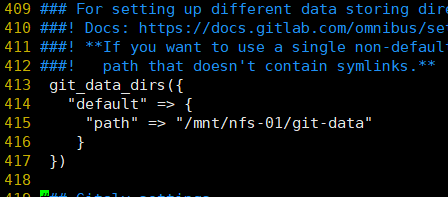
将数据路径的注释去掉,可以更改
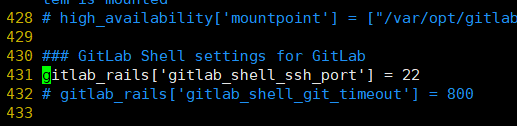
开启ssh服务:
初始化Gitlab:
[root@git-server ~]# gitlab-ctl reconfigure #重新加载,需要等很长时间
…


…
启动Gitlab服务:
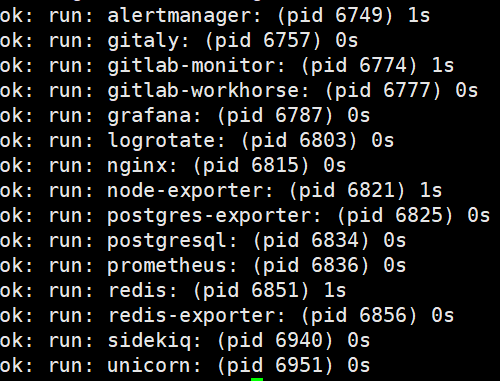
[root@git-server ~]# gitlab-ctl start #启动
Gitlab 设置 HTTPS 方式
如果想要以上的 https 方式正常生效使用,则需要把 letsencrypt 自动生成证书的配置打开,这样在执行重新让配置生效命令 (gitlab-ctl reconfigure) 的时候会自动给域名生成免费的证书并自动在 gitlab 自带的nginx 中加上相关的跳转配置,都是全自动的,非常方便。letsencrypt['enable'] = trueletsencrypt['contact_emails'] = ['caryyu@qq.com'] # 这应该是一组要添加为联系人的电子邮件地址

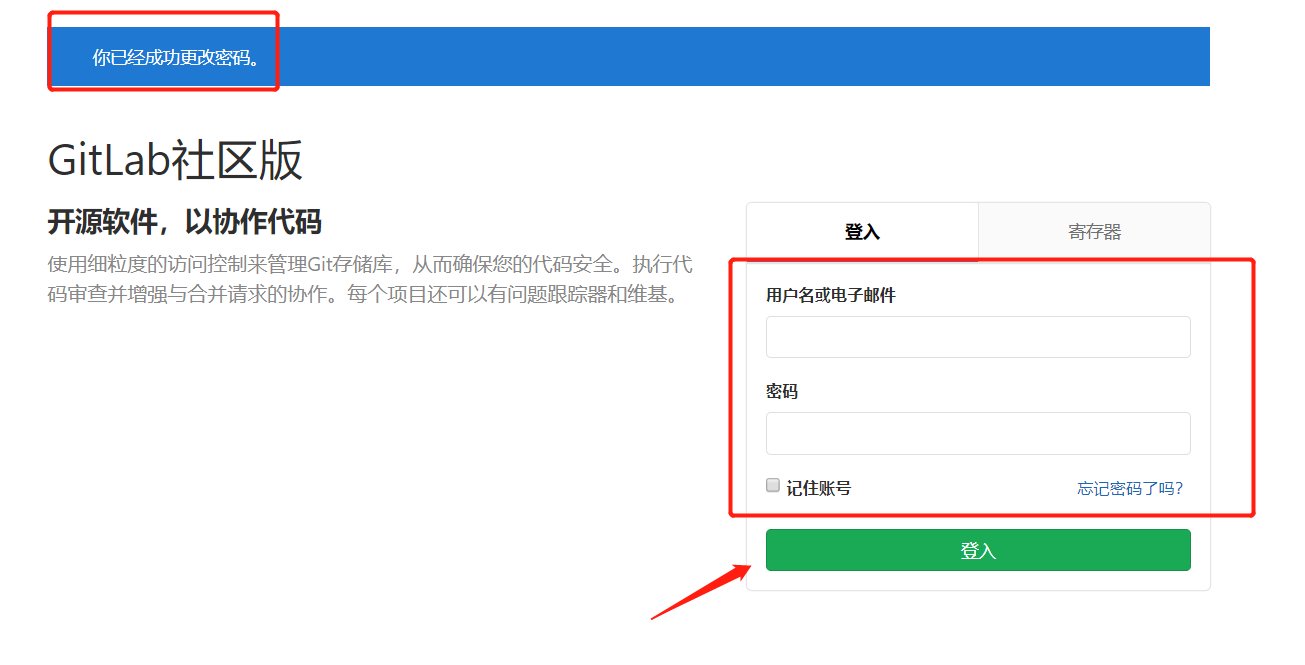
用户为:root
密码:本人设置的密码是12345678
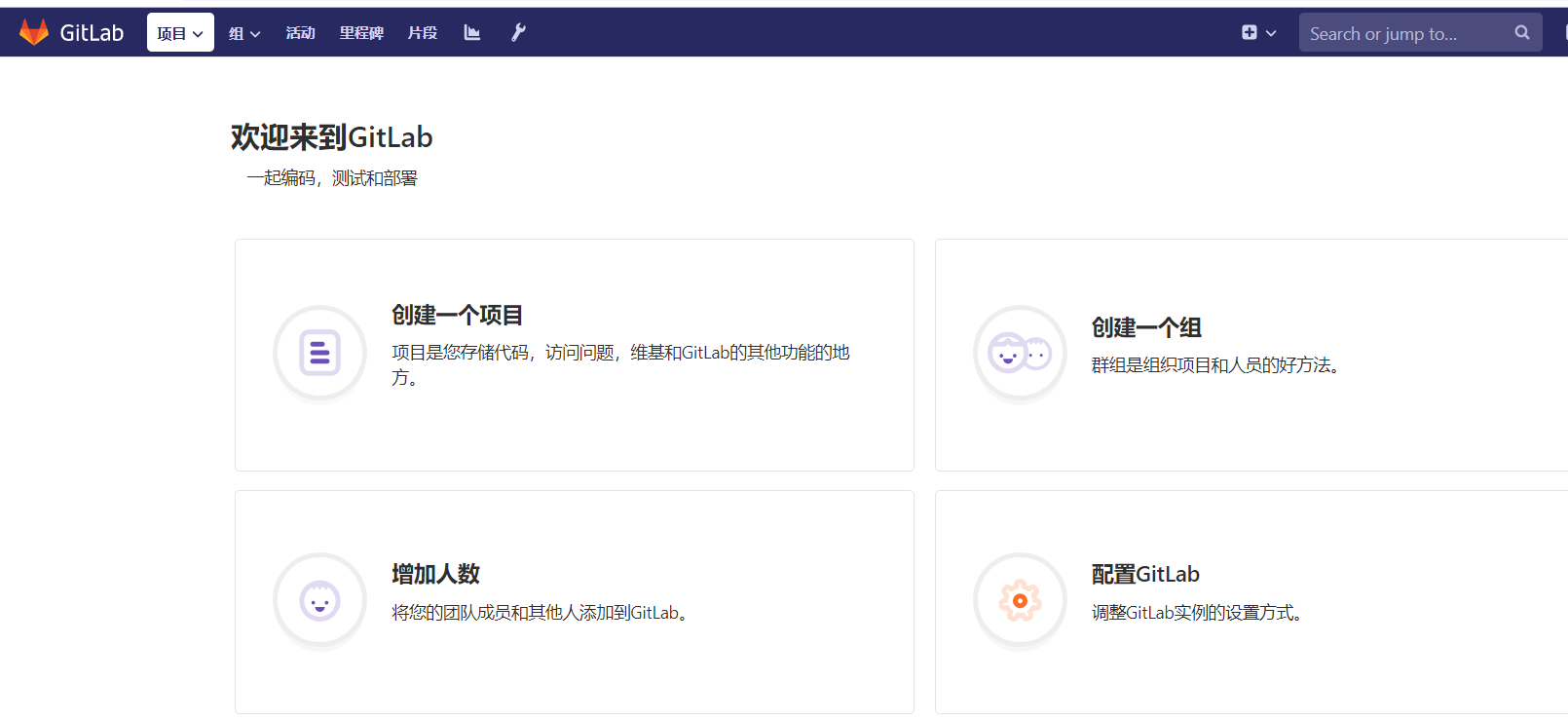
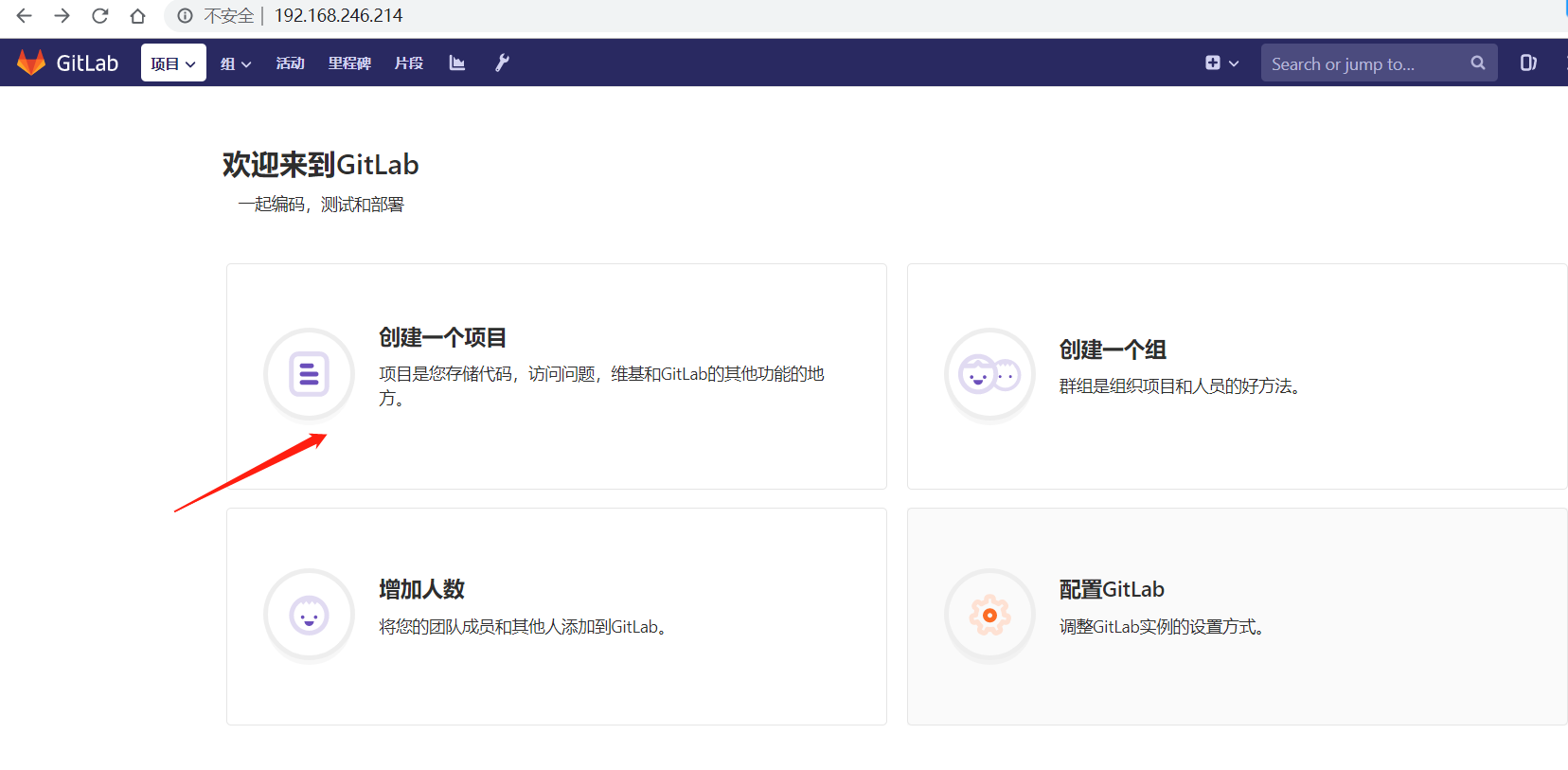


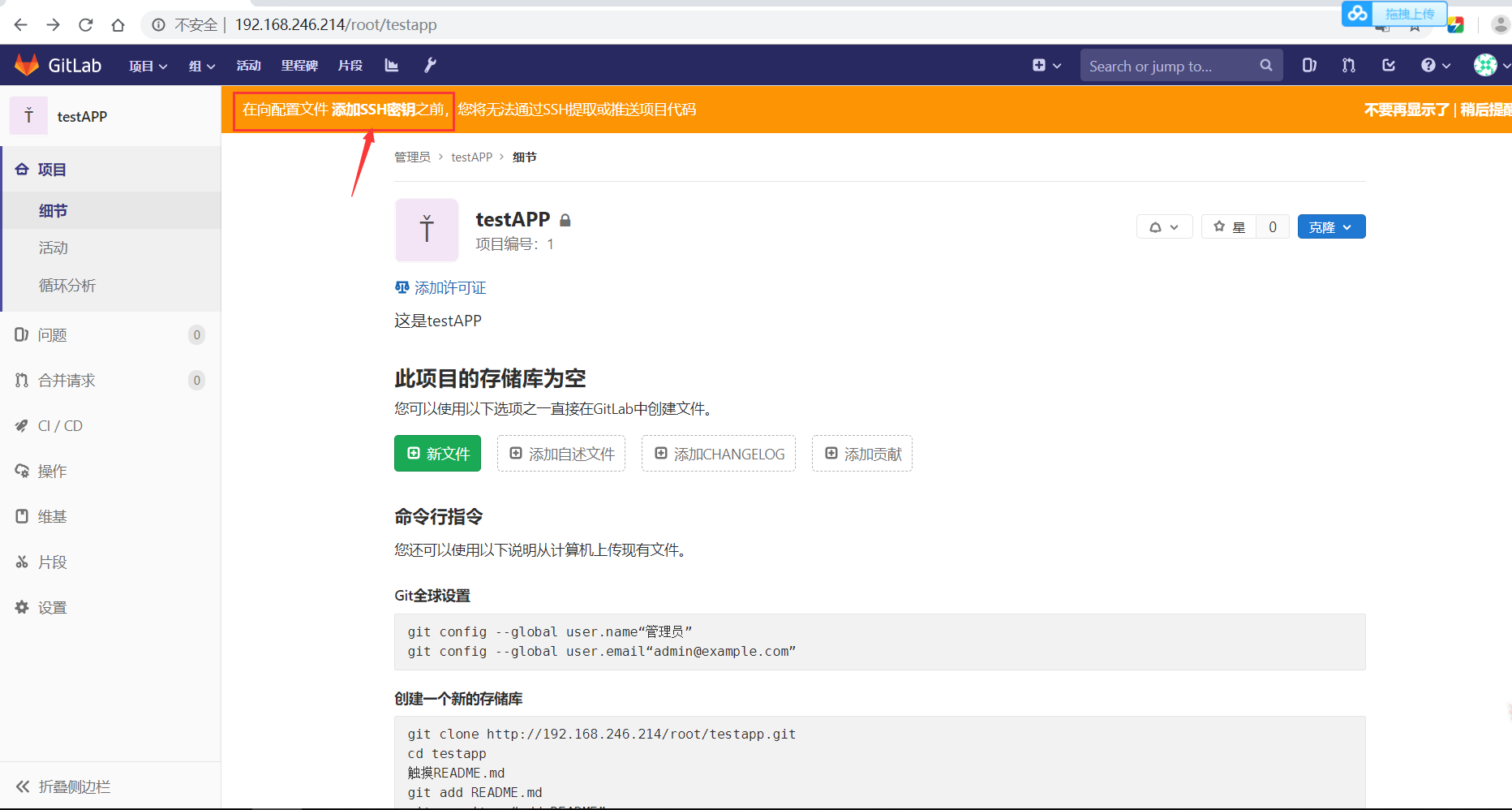
需要创建秘钥

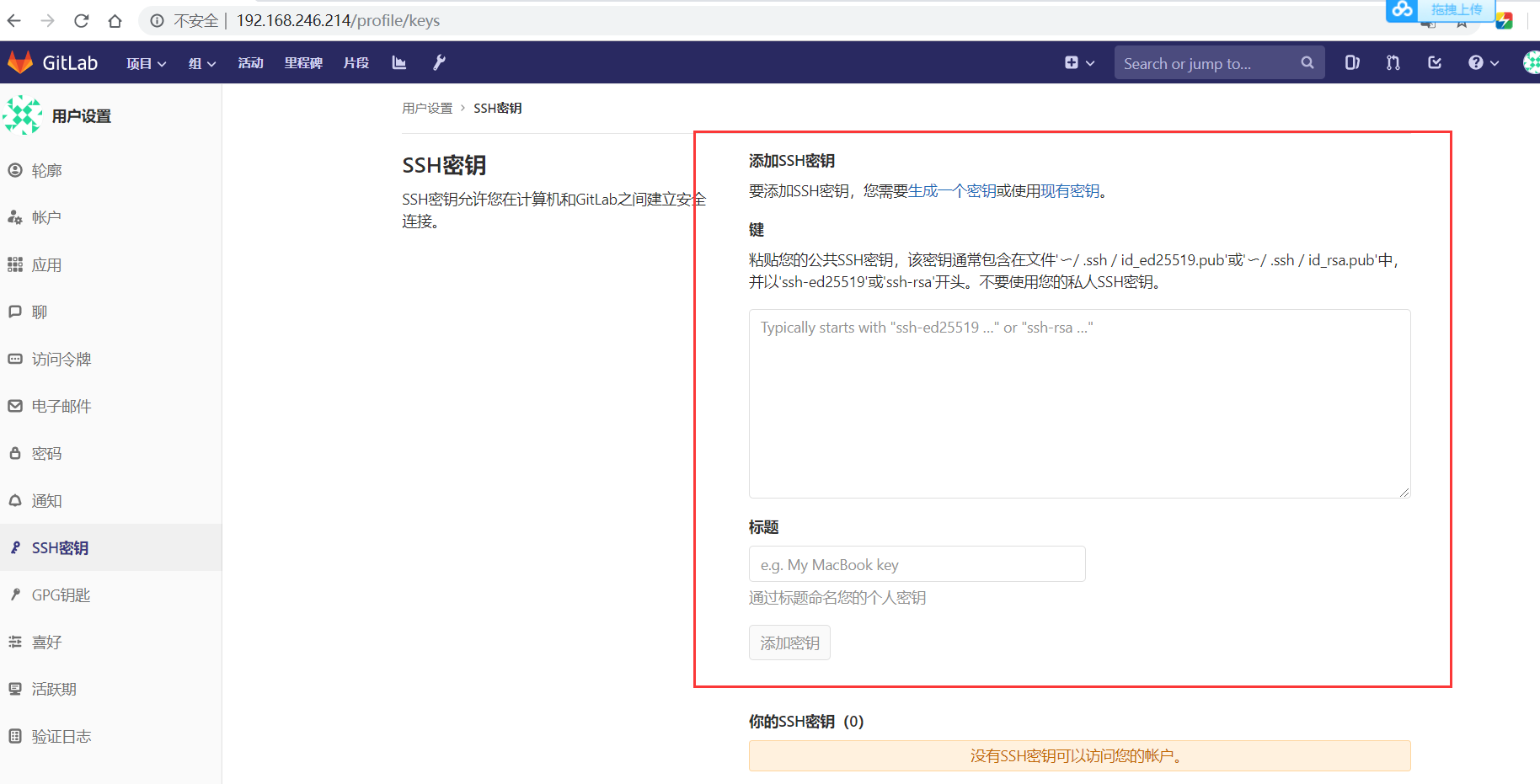
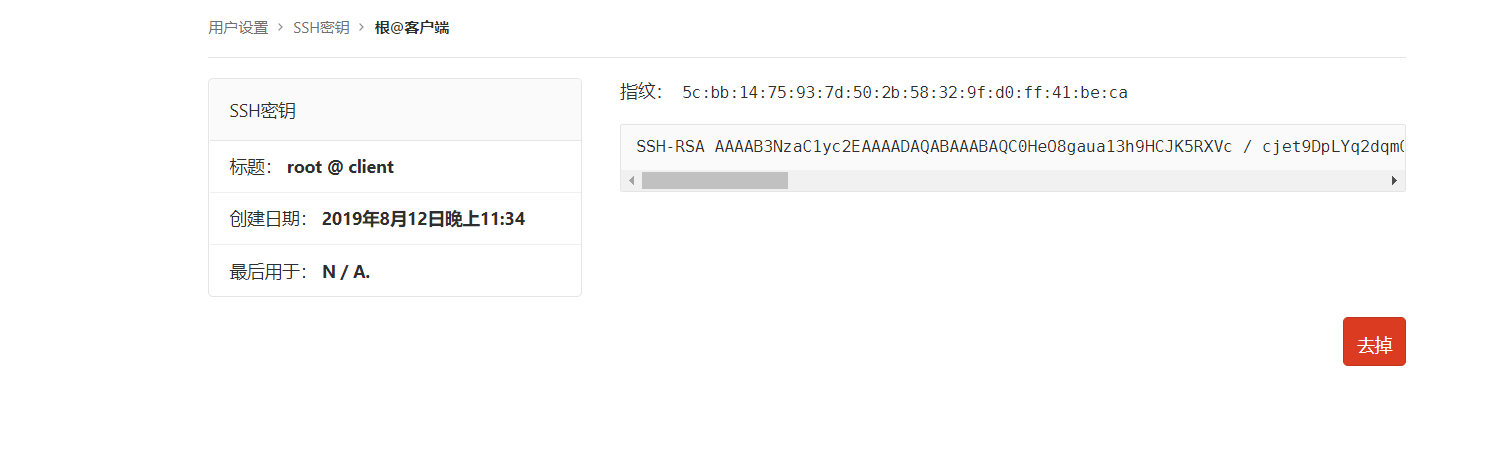
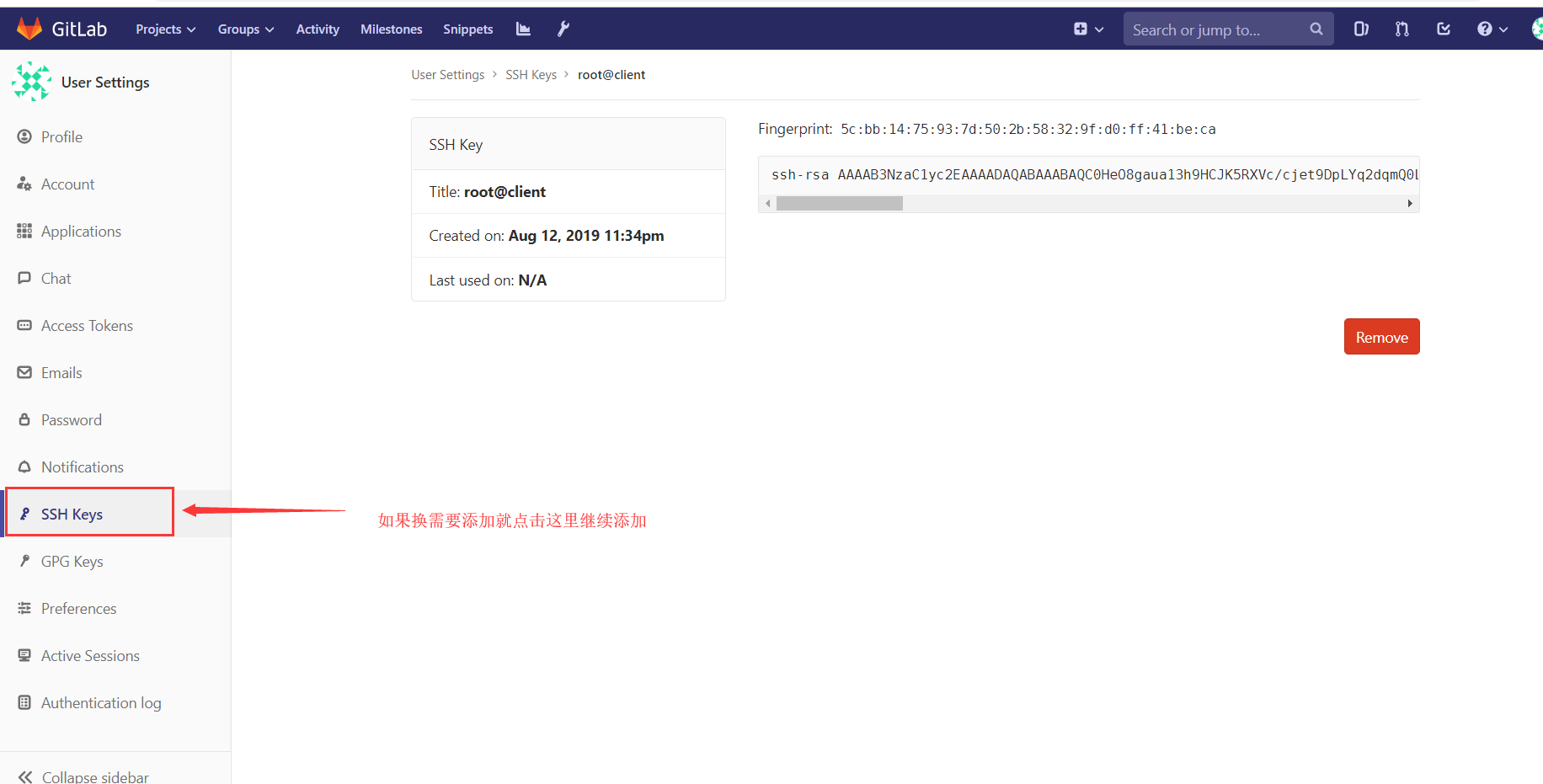
[root@client ~]# ssh-keygen[root@client ~]# cd .ssh/[root@client .ssh]# ls[root@client .ssh]# cat id_rsa.pubssh-rsa AAAAB3NzaC1yc2EAAAADAQABAAABAQC0HeO8gaua13h9HCJK5RXVc/cjet9DpLYq2dqmQ0LXfP0Vwj6YjKxu7lE1i/4Y2cmu5lDe8bG22aikyaW38Fnz0bkGfEurdVZii/KCiHBz2lXS1ocuAdloJT4wnc2MUjh/gwc4FuNkWdYvpbMLXSSHIVjv8vB9YbHlPMTMy5N89kMwMmta5C87/8fBO5VtGijgGOueywM+xAzovlfoJbprV/ZBKkhiskSKz4fHyoGFGwllX3kMkNR/soGF5XXA+/99iO3UqSaloF0UzfUCgqfMfMVB5zDHGIB6uTrMe6ccfKp9gnVyD7m4Zmk7MwouBwAfMLIiHmvekBGXqb1YCTgJ root@client


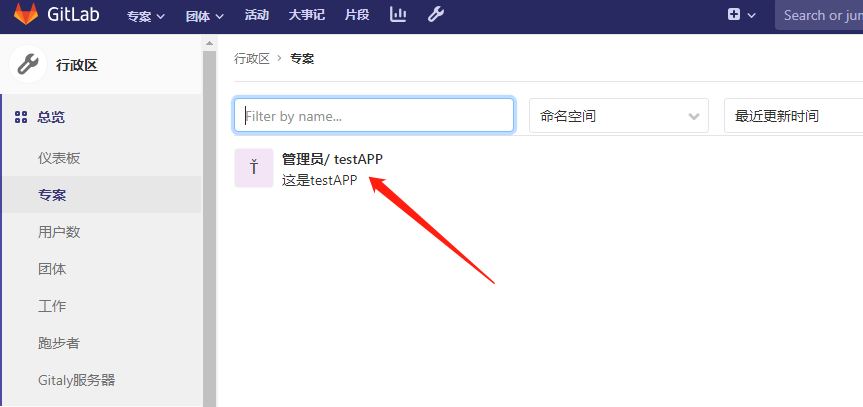
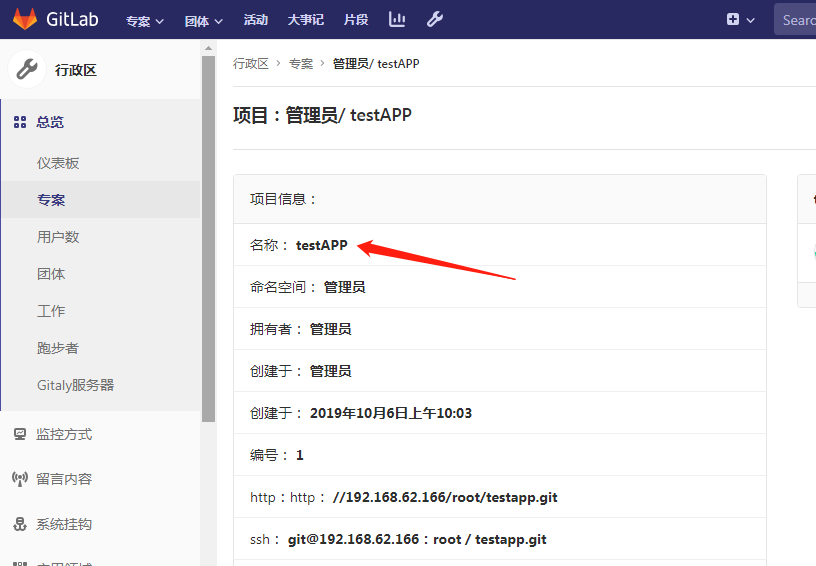
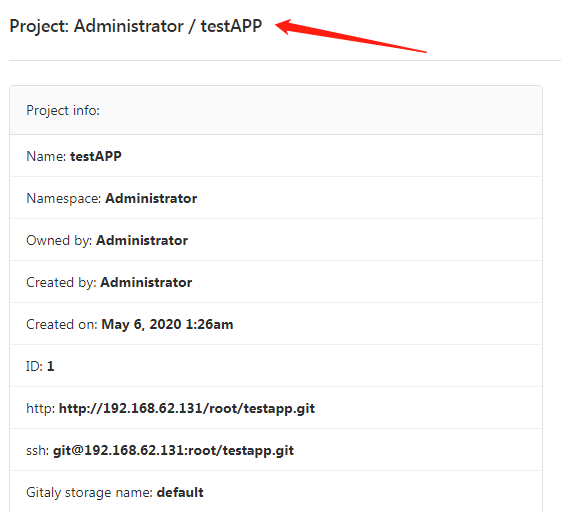
创建一个文件:
1.newfile:先新建一个文件。
2.uploadfile:再上传即可。
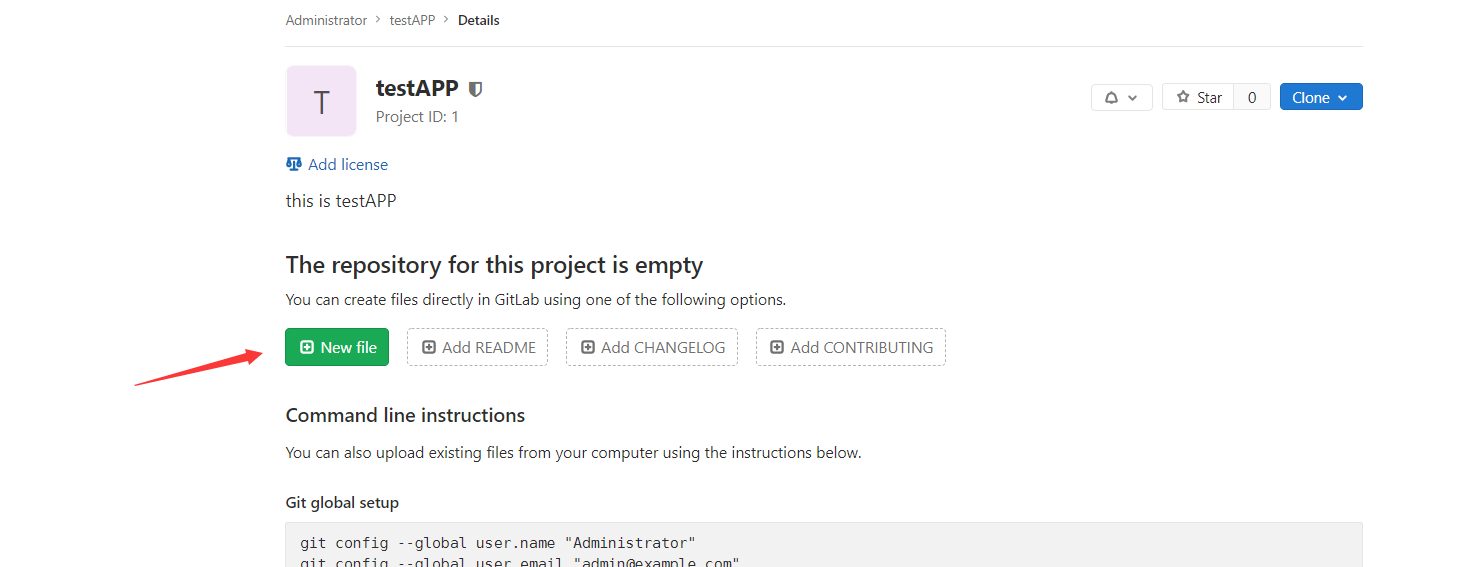


上传一个文件:
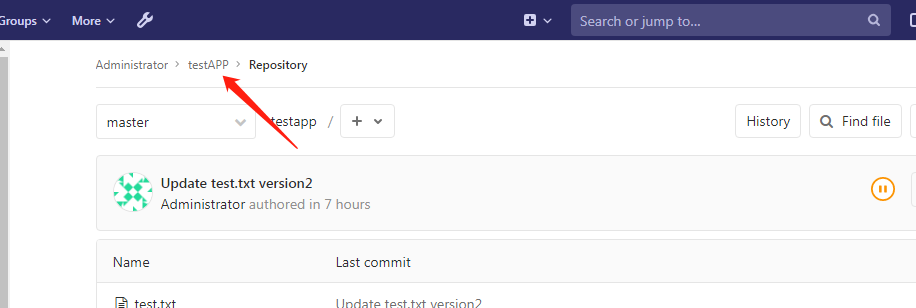


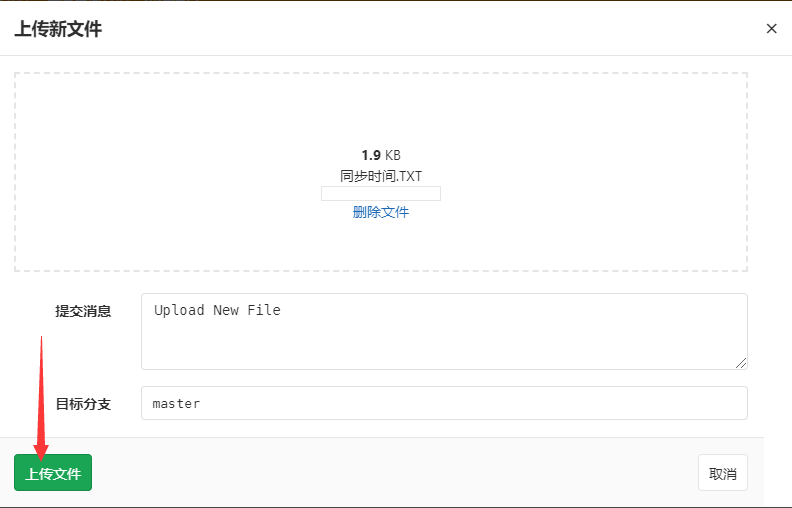
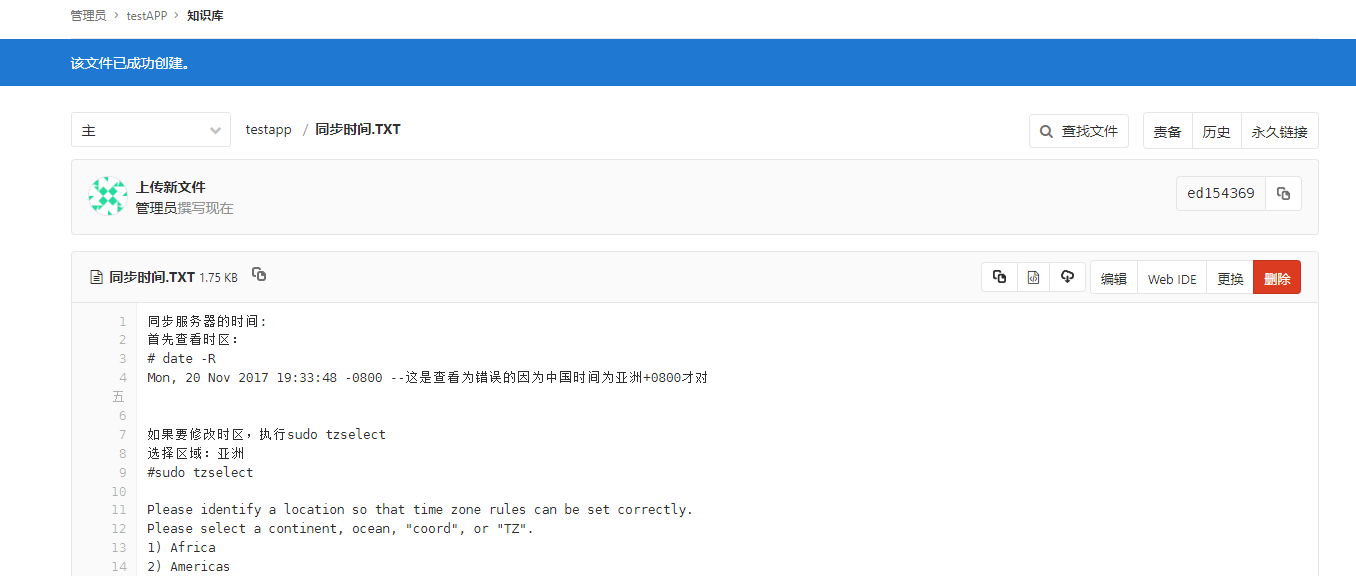
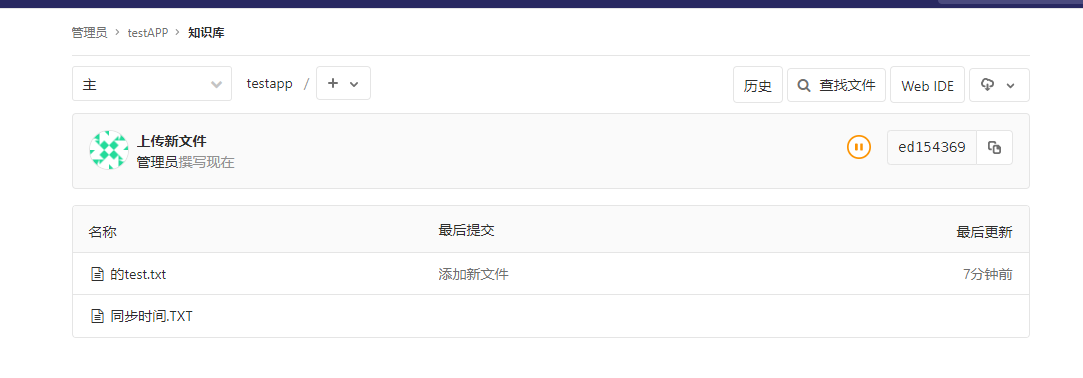
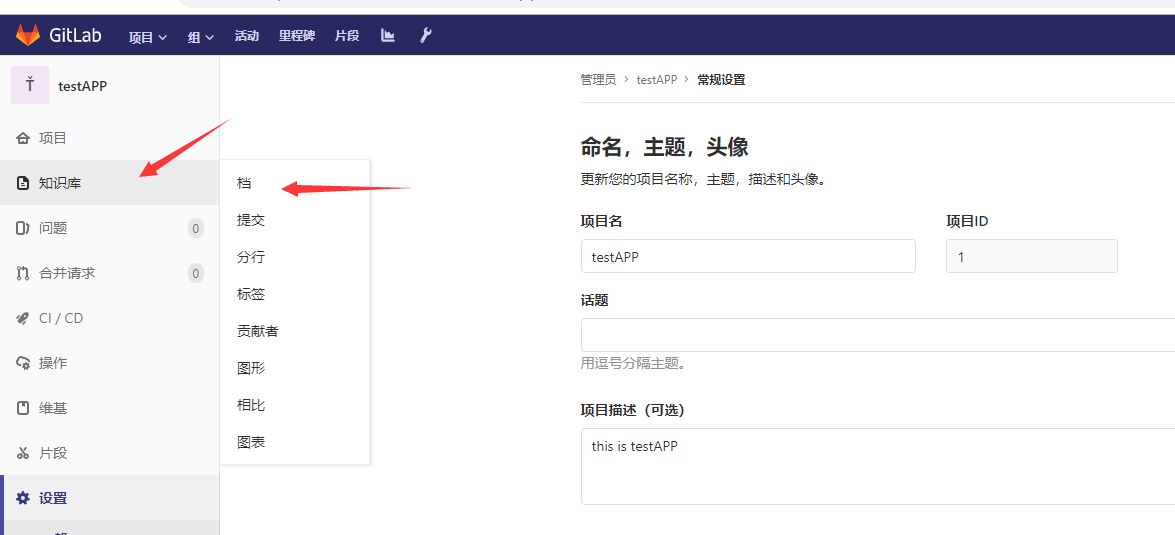
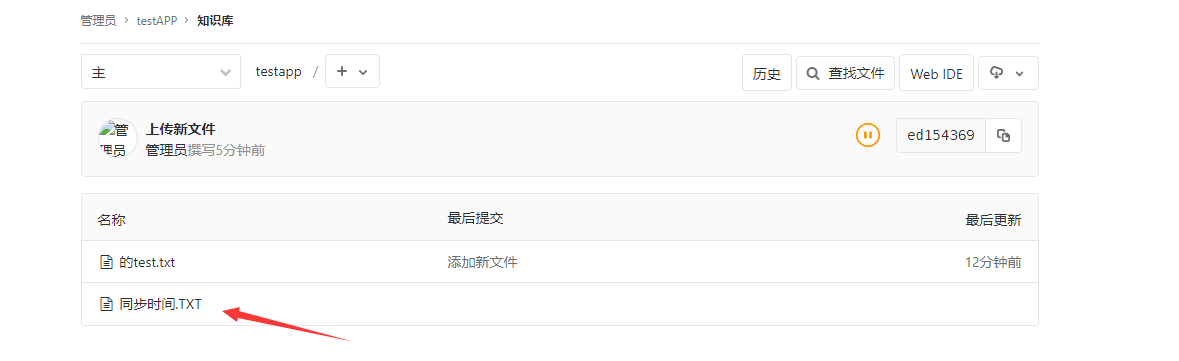
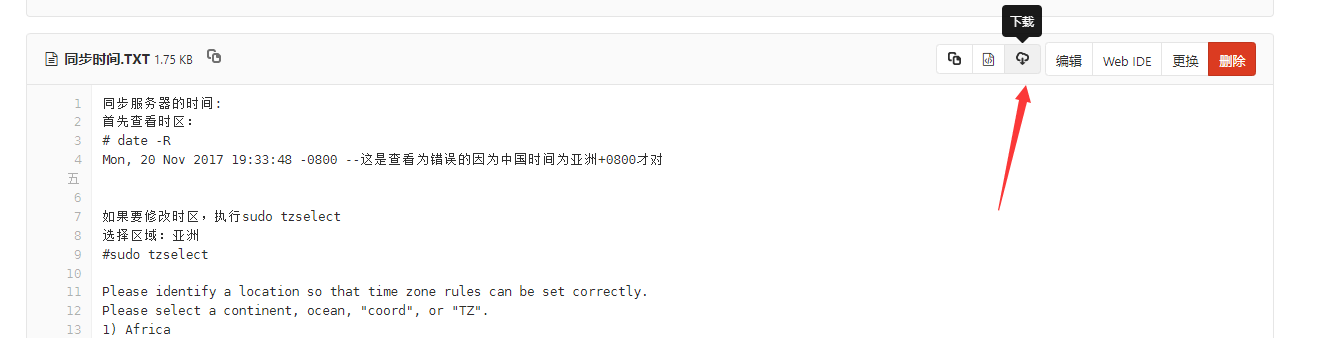
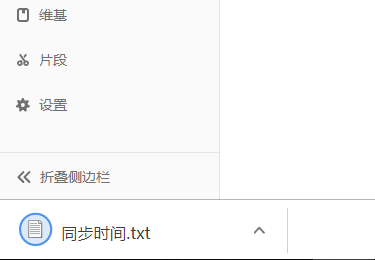
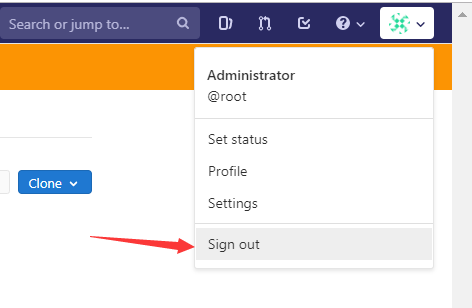
新建普通用户

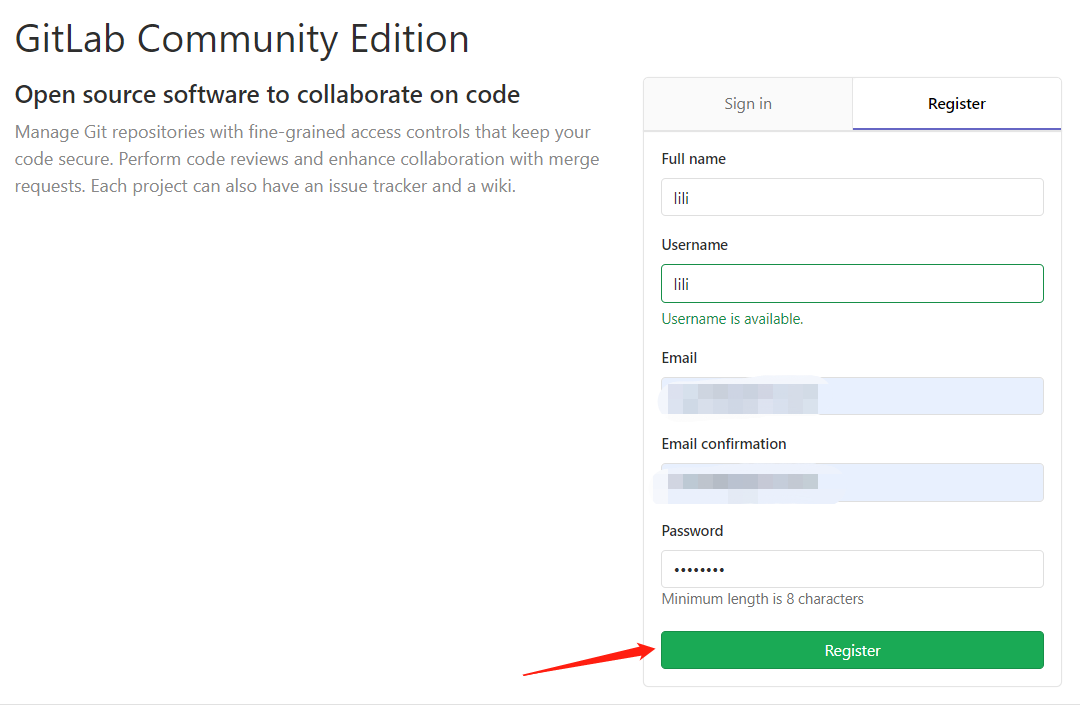
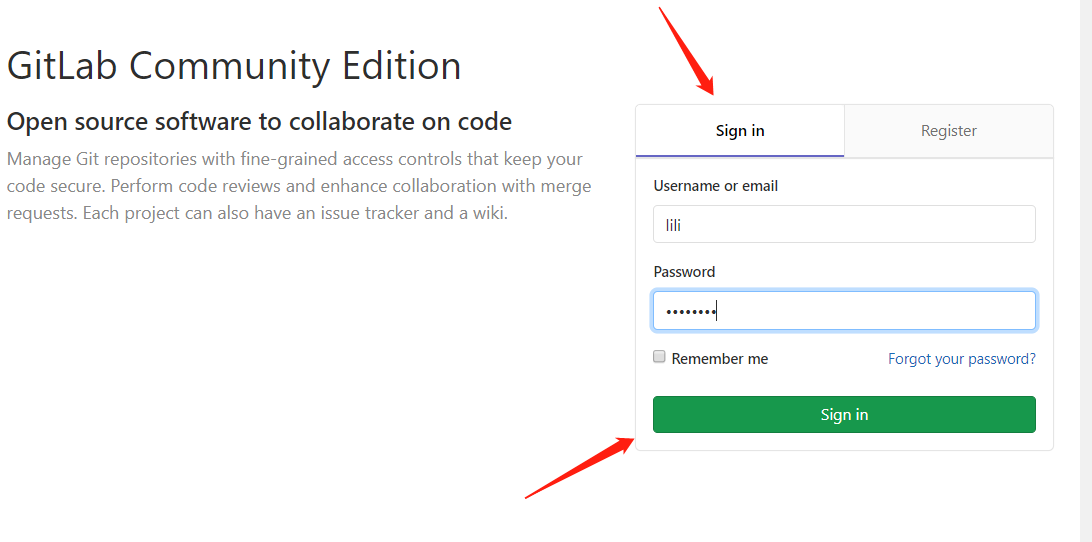
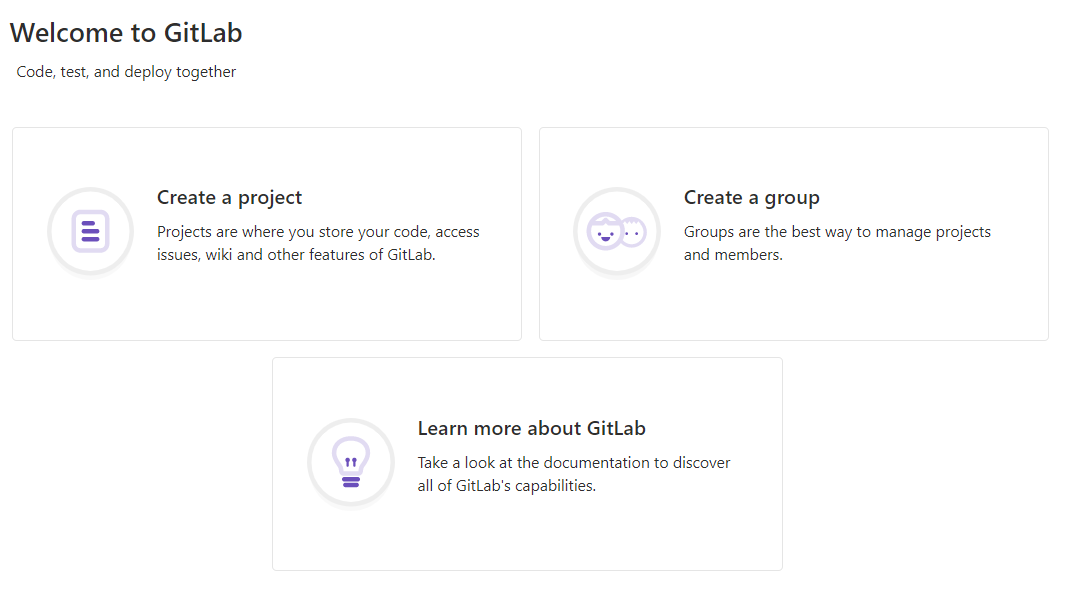
新添加的用户创建成功!
在git客户端
[root@client ~]# git clone git@192.168.246.214:root/testapp.gitCloning into 'testapp'...remote: Enumerating objects: 6, done.remote: Counting objects: 100% (6/6), done.remote: Compressing objects: 100% (4/4), done.remote: Total 6 (delta 0), reused 0 (delta 0)Receiving objects: 100% (6/6), done.[root@client ~]# lstestapp[root@client ~]# cd testapp/[root@client testapp]# lstest.txt 同步时间.txt[root@client testapp]#使用http的[root@client ~]# rm -rf testgit/[root@client ~]# git clone http://192.168.246.214/root/testapp.gitCloning into 'testapp'...Username for 'http://192.168.246.214': rootPassword for 'http://root@192.168.246.214':12345678 #为自己设置的密码remote: Enumerating objects: 6, done.remote: Counting objects: 100% (6/6), done.remote: Compressing objects: 100% (4/4), done.remote: Total 6 (delta 0), reused 0 (delta 0)Unpacking objects: 100% (6/6), done.[root@client ~]# lstestapp
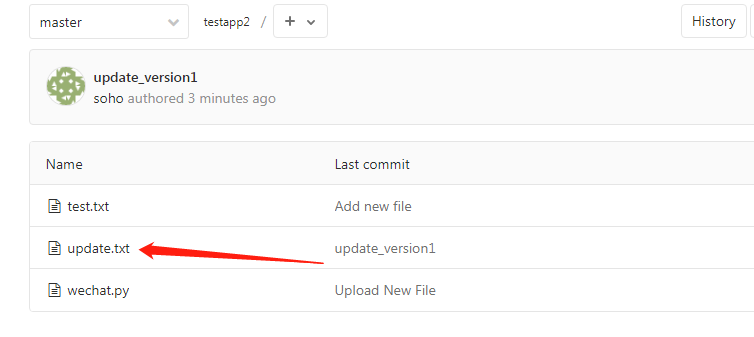
提交到远程gitlab仓库[root@client testapp]# vim update.txt1000phone[root@client testapp]# git add .[root@client testapp]# git commit -m "update_version1"[master 091798d] update_version11 file changed, 2 insertions(+)create mode 100644 update.txt[root@client testapp]# git push origin masterUsername for 'http://192.168.62.166': ^C[root@nginx-server testapp2]# git push origin masterUsername for 'http://192.168.62.166': rootPassword for 'http://root@192.168.62.166':Counting objects: 4, done.Compressing objects: 100% (2/2), done.Writing objects: 100% (3/3), 307 bytes | 0 bytes/s, done.Total 3 (delta 0), reused 0 (delta 0)To http://192.168.62.166/root/testapp2.git201f479..091798d master -> master
调整上传文件的大小


默认是10M,可根据情况调整


拓展:1.cat /proc/swaps 查看swap分区是否启动(无)2.创建 :dd if=/dev/zero of=/data/swap bs=512 count=8388616创建swap大小为bs*count=4294971392(4G);/data/swap目录若无则找/mnt/swap3.通过mkswap命令将上述空间制作成swap分区:mkswap /data/swap4.查看内核参数vm.swappiness中的数值是否为0,如果为0则根据实际需要调 整成60:查看: cat /proc/sys/vm/swappiness设置: sysctl -w vm.swappiness=60若想永久修改,则编辑/etc/sysctl.conf文件,改文件中有vm.swappiness变量配置,默认为05.启用分区:swapon /data/swapecho “/data/swap swap swap defaults 0 0” >> /etc/fstab6.再次使用cat /proc/swaps 查看swap分区是否启动
Gitlab 备份与恢复
1、查看系统版本和软件版本
[root@git-server ~]# cat /etc/redhat-releaseCentOS Linux release 7.4.1708 (Core)[root@git-server ~]# cat /opt/gitlab/embedded/service/gitlab-rails/VERSION8.15.4
2、数据备份
打开/etc/gitlab/gitlab.rb配置文件,查看一个和备份相关的配置项:
[root@git-server backups]# vim /etc/gitlab/gitlab.rb
gitlab_rails['backup_path'] = "/var/opt/gitlab/backups"    #备份的路径
gitlab_rails['backup_archive_permissions'] = 0644        #备份文件的默认权限
gitlab_rails['backup_keep_time'] = 604800                #保留时长,秒为单位
设置备份保留时常,防止每天执行备份,肯定有目录被爆满的风险,打开/etc/gitlab/gitlab.rb配置文件,找到如下配置
该项定义了默认备份出文件的路径,可以通过修改该配置,并执行 gitlab-ctl reconfigure 或者 gitlab-ctl restart 重启服务生效。
[root@git-server backups]# gitlab-ctl reconfigure
或者
[root@git-server backups]# gitlab-ctl  restart
执行备份命令进行备份
[root@git-server backups]# /opt/gitlab/bin/gitlab-rake gitlab:backup:create
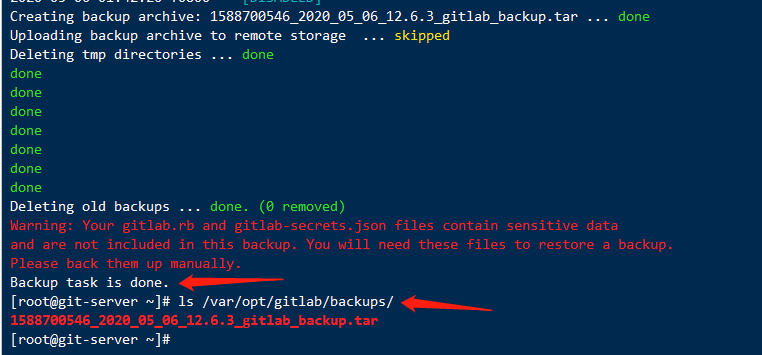
也可以添加到 crontab 中定时执行:
0 2 * * * /opt/gitlab/bin/gitlab-rake gitlab:backup:create
可以到/var/opt/gitlab/backups找到备份包,解压查看,会发现备份的还是比较全面的,数据库、repositories、build、upload等分类还是比较清晰的。
备份完成,会在备份目录中生成一个当天日期的tar包。
[root@git-server ~]# ll /var/opt/gitlab/backups/

数据恢复
特别注意:
- 备份目录和gitlab.rb中定义的备份目录必须一致
- GitLab的版本和备份文件中的版本必须一致,否则还原时会报错。
在恢复之前,可以删除一个文件,以便查看效果

执行恢复操作:
[root@git-server ~]# cd /var/opt/gitlab/backups
[root@git-server  backups]# gitlab-rake gitlab:backup:restore BACKUP=1588700546_2020_05_06_12.6.3
注意恢复文件的名称
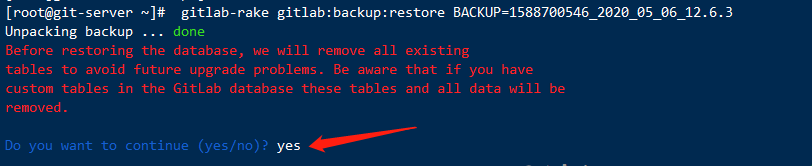
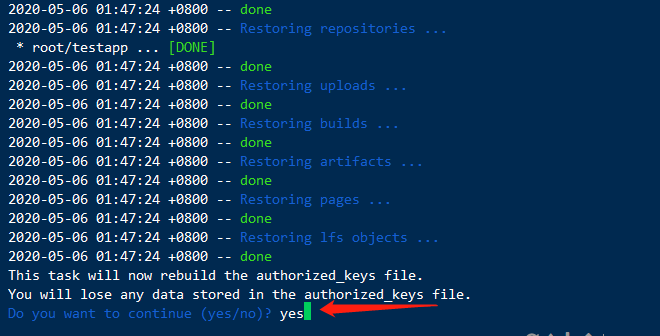
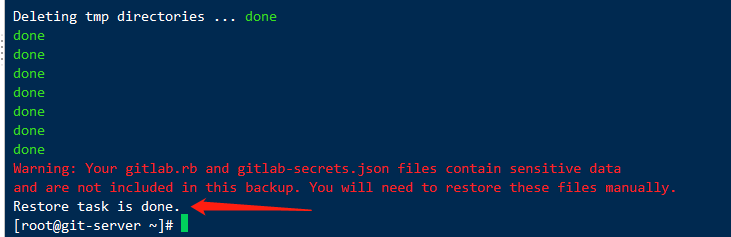
恢复完成后,启动刚刚的两个服务,或者重启所有服务,再打开浏览器进行访问,发现数据和之前的一致:
注意:通过备份文件恢复gitlab必须保证两台主机的gitlab版本一致,否则会提示版本不匹配
查看gitlab端,可以看到数据恢复成功
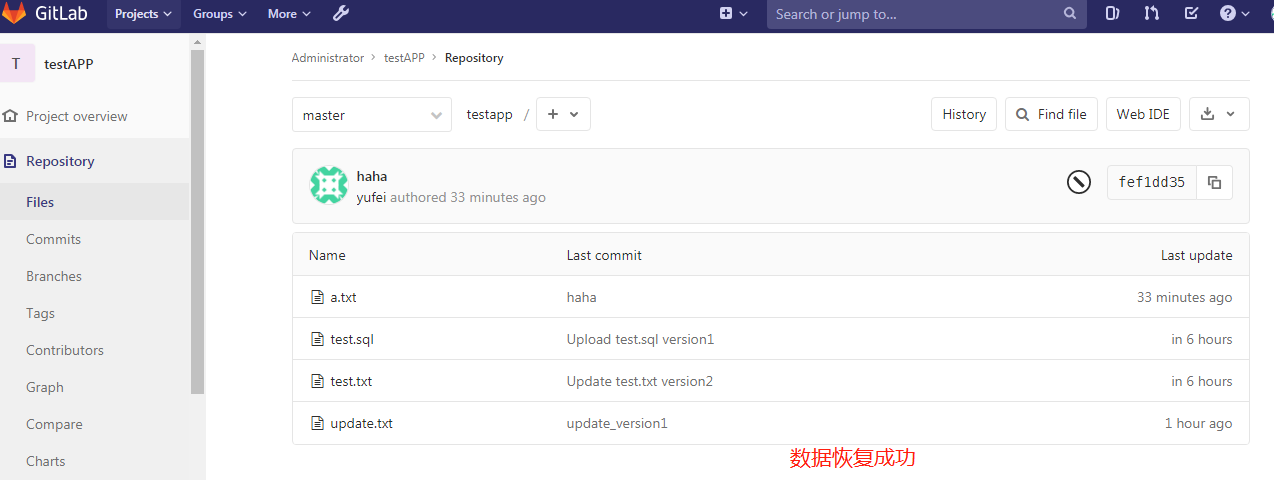
Github 远程仓库
1、github.com 注册账户
2、在github上创建仓库
本人账户:
用户名:youngfityu
邮箱: 908367919@qq.com
密码: syf*


3、客户端生成本地ssh key
[root@localhost ~]# ssh-keygen -t rsa -C 'meteor@163.com' # 邮箱要与github上注册的相同
Generating public/private rsa key pair.
Enter file in which to save the key (/root/.ssh/id_rsa):
Enter passphrase (empty for no passphrase):
Enter same passphrase again:
Your identification has been saved in /root/.ssh/id_rsa.
Your public key has been saved in /root/.ssh/id_rsa.pub.
The key fingerprint is:
SHA256:RiE6UR1BtzV5avyE2uz6TNPsVHa2D2eHprghrJEkd/g meteor@163.com
The key's randomart image is:
+---[RSA 2048]----+
|    ..oo=o. o.   |
|     o ..o o...  |
|    o   . .. +   |
|     . o    = .  |
|    . + S  = o  =|
|     + *  . oo.=o|
|      o E ..o B.+|
|       o . =.* +o|
|      .   +++ . .|
+----[SHA256]-----+
[root@localhost ~]#
[root@localhost ~]# cat .ssh/id_rsa.pub
ssh-rsa AAAAB3NzaC1yc2EAAAADAQABAAABAQDVThfq4brrlsPGtAknVB0TLPx+7Dd3qlxTbSIrUOsGC5Y8JuNqVTlIntZB4oNj8cSQrWvec9CKm0a8o7WwaJIiqpxurz+YpQHP2KbapftKIxsX4hPf/z+p0El1U6arQa35/xmNsq+cJLH/bDdRG+EMDhuCBmjVZOlLj/hEdeIT6s56AnnCkaWoF+sq58KCF7Tk54jRbs/YiyE4SN7FuA70r+07sA/uj0+lmuk4E190KtQUELhjX/E9stivlqiRhxnKvVUqXDywsjfM8Rtvbi4Fg9R8Wt9fpd4QwnWksYUoR5qZJFYXO4hSZrUnSMruPK14xXjDJcFDcP2eHIzKgLD1 meteor@163.com
4、复制以上的公钥,在github 中添加ssh key


创建好库之后,在库里创建几个文件,方便测试
5、测试:拉取github仓库
[root@localhost ~]# yum install git
[root@localhost ~]# git config --global user.name 'meteor_by'
[root@localhost ~]# git config --global user.email 'meteor@163.com'
[root@localhost tmp]# cd /tmp

[root@localhost tmp]# git clone git@github.com:youngfit/youngfit.git
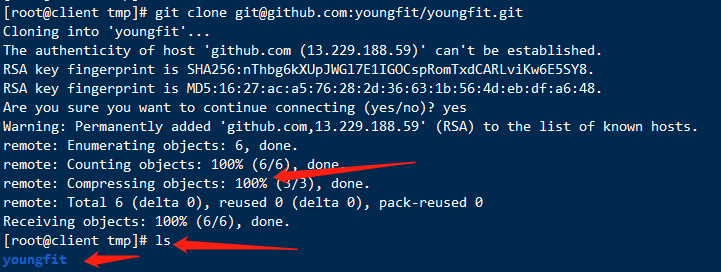
7、在本地添加远程仓库,并推送至github仓库
[root@localhost tmp]# cd /tmp/youngfit/
[root@localhost youngfit]# ls
qf.txt  README.md
[root@localhost youngfit]# cat qf.txt
this is 2002 test file
[root@client youngfit]# ls
qf.txt  README.md
[root@localhost youngfit]# vim a.txt
[root@localhost youngfit]# git add .
[root@localhost youngfit]# git commit -m "yufei"
[master 0f6a3de] yufei
 1 file changed, 2 insertions(+)
 create mode 100644 a.txt
[root@client youngfit]# git push origin master
Counting objects: 4, done.
Compressing objects: 100% (2/2), done.
Writing objects: 100% (3/3), 288 bytes | 0 bytes/s, done.
Total 3 (delta 0), reused 0 (delta 0)
To git@github.com:youngfit/youngfit.git
   ba8225d..0f6a3de  master -> master
去github界面查看
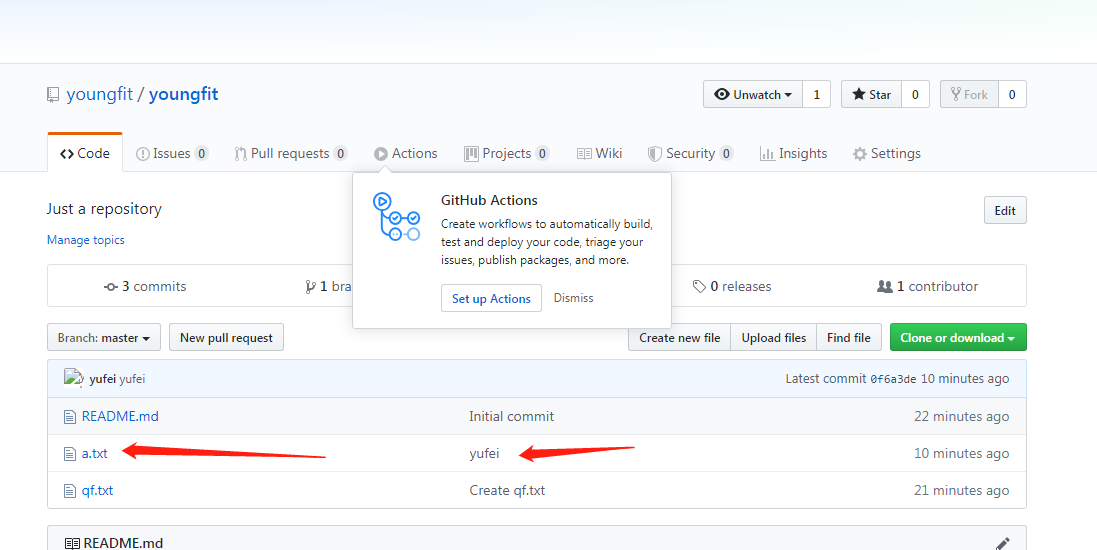
8、连接远程仓库方法
#[root@localhost testapp]# git remote -v
#origin    git@github.com:meteor/python1804.git (fetch)
#origin    git@github.com:meteor/python1804.git (push)
#[root@localhost python1804]#
#[root@localhost python1804]#  git remote rm origin  (如果连接远程的方式不是ssh,可以删除重新添加)
#[root@localhost ~]# git remote add origin git@github.com:meteor/python1804.git
#或
#git remote add origin https://github.com/meteor/python1804.git
#git push -u origin master

[root@client youngfit]# git remote -v
origin  git@github.com:youngfit/youngfit.git (fetch)
origin  git@github.com:youngfit/youngfit.git (push)
[root@client youngfit]# git remote rm origin
[root@client youngfit]# git remote add origin git@192.168.62.131:root/testapp.git
[root@client youngfit]# ls
a.txt  qf.txt  README.md
[root@client youngfit]# pwd

[root@client ~]# cd /root/testapp/
[root@client testapp]# ls
test.sql  test.txt  update.txt
[root@client testapp]# vim modify.txt
[root@client testapp]# git add .
[root@client testapp]# git commit -m "modify gitlab from github"
[master fde12c2] modify gitlab from github
 1 file changed, 1 insertion(+)
 create mode 100644 modify.txt

[root@client testapp]# git push origin master
Username for 'http://192.168.62.131': root
Password for 'http://root@192.168.62.131':
Counting objects: 4, done.
Compressing objects: 100% (2/2), done.
Writing objects: 100% (3/3), 337 bytes | 0 bytes/s, done.
Total 3 (delta 0), reused 0 (delta 0)
To http://192.168.62.131/root/testapp.git
   23bae45..fde12c2  master -> master
去自己部署的gitlab上查看


若有收获,就点个赞吧
0 人点赞


