- 清空换种方式拷贝
- 不清空就拷贝,耗时为0
- 清空换种方式拷贝,不清空原文件也是同样耗时
- 编辑添加任务,保存后查看
- Edit this file to introduce tasks to be run by cron.
- Each task to run has to be defined through a single line
- indicating with different fields when the task will be run
- and what command to run for the task
- To define the time you can provide concrete values for
- minute (m), hour (h), day of month (dom), month (mon),
- and day of week (dow) or use ‘*’ in these fields (for ‘any’).
- Notice that tasks will be started based on the cron’s system
- daemon’s notion of time and timezones.
- Output of the crontab jobs (including errors) is sent through
- email to the user the crontab file belongs to (unless redirected).
- For example, you can run a backup of all your user accounts
- at 5 a.m every week with:
- 0 5 1 tar -zcf /var/backups/home.tgz /home/
- For more information see the manual pages of crontab(5) and cron(8)
- m h dom mon dow command
- 若干分钟过去后
- 编写随机生成字符串的脚本文件
- !/bin/bash
- nohup 后台运行脚本
- sudo crontab -e 编辑后结果
- Edit this file to introduce tasks to be run by cron.
- Each task to run has to be defined through a single line
- indicating with different fields when the task will be run
- and what command to run for the task
- To define the time you can provide concrete values for
- minute (m), hour (h), day of month (dom), month (mon),
- and day of week (dow) or use ‘*’ in these fields (for ‘any’).
- Notice that tasks will be started based on the cron’s system
- daemon’s notion of time and timezones.
- Output of the crontab jobs (including errors) is sent through
- email to the user the crontab file belongs to (unless redirected).
- For example, you can run a backup of all your user accounts
- at 5 a.m every week with:
- 0 5 1 tar -zcf /var/backups/home.tgz /home/
- For more information see the manual pages of crontab(5) and cron(8)
- m h dom mon dow command
- 每隔2分钟统计的结果,每2分钟增加24行
- 1
- 2
- 3
- 4
- 5
一. 常用命令考察
- 执行下面命令,并研究该命令得到的结果是什么含义
history | awk -F” “ ‘{print $2;}’ | sort | uniq -c | awk -F” “ ‘{print $2”\t”$1;}’ | sort -k2rn
gauss@gauss-XPS-15-9570:~$ history | awk -F" " '{print $2;}' | sort | uniq -c | awk -F" " '{print $2"\t"$1;}' | sort -k2rngit 263sudo 99ls 86cd 73docker 61make 59yarn 51mvn 37java 24tmux 18go 17npm 17rm 13clear 12exit 12tslint 12cargo 9...# 以下省略
命令详解:
此命令是获取执行过的命令的历史记录的第二个单词(命令名称)并按照次数从高到低排列。
| 命令名称 | 作用 | 参数及其作用 |
|---|---|---|
| history | 查看执行过的命令 | |
| | | 管道符,将数据传递给下一个命令作为操作对象 | |
| awk | 文本处理工具。一般使用格式为:awk [ -F fs] [参数…] [‘条件 {动作}’ ] [文件…] | -F fs or —field-separator fs 指定输入文件折分隔符,fs是一个字符串或者是一个正则表达式。 print $2 打印第二个字段 print $2”\t”$1 打印第二个和第一个字段 |
| sort | 对文本进行排序 | -n 依照数值的大小排序 -r 以相反的顺序来排序 -k 指定列数,-k2 就是选择第二列 |
| uniq | 对相邻的行进行判断是否重复 | -c, —count 统计每一行出现的次数并作为前缀 |
history | awk -F” “ ‘{print $2;}’ | sort | uniq -c | awk -F” “ ‘{print $2”\t”$1;}’ | sort -k2rn
获取命令的历史记录 | 打印第二个参数(命令名称)| 按照名称排序 | 统计每一行命令出现的次数并作为前缀 | 分别打印第二个参数(命令名称)和第一个参数(次数),tab分隔 | 选择第二列作为排序条件,递减排序+
用dd命令创建一个1GB大小的文件,该文件名命为test.file下面会用到 。
gauss@gauss-XPS-15-9570:~/workspace/DevOps$ dd if=/dev/zero of=test.file bs=1M count=1000记录了1000+0 的读入记录了1000+0 的写出1048576000 bytes (1.0 GB, 1000 MiB) copied, 1.79397 s, 584 MB/sgauss@gauss-XPS-15-9570:~/workspace/DevOps$ ls -l总用量 1024004-rw-r--r-- 1 gauss gauss 1048576000 3月 31 13:40 test.file
Linux机器上假定有两块独立的硬盘,如果没有这个条件,就插入两个U盘。假定一个是a盘,一个是b盘。我们现在需要从a盘转移了一个文件(就用上一题的test.file文件)到b盘。可以采用cp,mv,rsync等方法,你测试下哪一种方法最快,他们有什么区别? ```bash gauss@gauss-XPS-15-9570:/mnt/sdb$ time sudo cp test.file /mnt/sdc1/
real 2m4.601s user 0m0.057s sys 0m2.620s
gauss@gauss-XPS-15-9570:/mnt/sdb$ sudo rm /mnt/sdc1/test.file
清空换种方式拷贝
gauss@gauss-XPS-15-9570:/mnt/sdb$ time sudo rsync -av test.file /mnt/sdc1/ sending incremental file list test.file
sent 1,048,832,088 bytes received 35 bytes 18,897,876.09 bytes/sec total size is 1,048,576,000 speedup is 1.00
real 0m54.850s user 0m8.139s sys 0m2.103s
不清空就拷贝,耗时为0
gauss@gauss-XPS-15-9570:/mnt/sdb$ time sudo rsync -av test.file /mnt/sdc1/ sending incremental file list
sent 49 bytes received 12 bytes 122.00 bytes/sec total size is 1,048,576,000 speedup is 17,189,770.49
real 0m0.006s user 0m0.002s sys 0m0.004s
清空换种方式拷贝,不清空原文件也是同样耗时
gauss@gauss-XPS-15-9570:/mnt/sdb$ time sudo mv test.file /mnt/sdc1/
real 1m27.311s user 0m0.016s sys 0m2.883s
cp是拷贝文件,用时1:11.21;mv是剪切移动文件,用时1:07.21;rsync是远程数据同步,增量同步,用时1:04.66。rsync最快,支持增量更新,而cp和mv不管清空不清空,拷贝时间都不变。4. 写一段命令验证rsync具有断点续传的能力。如果cp一个文件从a盘到b盘,这个过程中间,被kil掉了。例如在cp的过程中,被另一个命令killallcp。那么b盘上的文件会不完整,如果重新执行这个命令需要从头开始拷贝,b盘上的文件会被覆盖。但是如果采用rsync可以继续之前的断点继续拷贝,利用实验来验证,提示:模拟cp文件被中断,除了killall命令;电脑直接halt;还可以采用timeout命令,你思考怎么利用timeout命令来执行cp文件的中断;另外,如果1G文件不够大,可以创建10G甚至更大的文件方便更加从容的测试。```bash# Ctrl+C中断gauss@gauss-XPS-15-9570:~/workspace/DevOps$ sudo rsync -P /mnt/sdb/test.file /mnt/sdc1/test.file82,214,912 7% 19.56MB/s 0:00:48 ^Crsync error: received SIGINT, SIGTERM, or SIGHUP (code 20) at rsync.c(644) [sender=3.1.2]rsync error: received SIGINT, SIGTERM, or SIGHUP (code 20) at io.c(513) [generator=3.1.2]gauss@gauss-XPS-15-9570:~/workspace/DevOps$ sudo ls /mnt/sdc1/lost+found test.filegauss@gauss-XPS-15-9570:~/workspace/DevOps$ sudo ls /mnt/sdc1/ -l总用量 82416drwx------ 2 root root 16384 3月 31 13:53 lost+found-rw-r--r-- 1 root root 84377600 4月 2 18:25 test.file# 在另外一个窗口 killall rsyncgauss@gauss-XPS-15-9570:~/workspace/DevOps$ sudo rsync -P /mnt/sdb/test.file /mnt/sdc1/test.file310,116,352 29% 19.97MB/s 0:00:36rsync error: received SIGINT, SIGTERM, or SIGHUP (code 20) at rsync.c(644) [sender=3.1.2]rsync error: received SIGINT, SIGTERM, or SIGHUP (code 20) at io.c(513) [generator=3.1.2]gauss@gauss-XPS-15-9570:~/workspace/DevOps$ sudo ls /mnt/sdc1/ -l总用量 313072drwx------ 2 root root 16384 3月 31 13:53 lost+found-rw-r--r-- 1 root root 320569344 4月 2 18:26 test.file# 使用timeout 中断,从文件大小看,是断点续传的gauss@gauss-XPS-15-9570:~/workspace/DevOps$ sudo timeout 3 rsync -P /mnt/sdb/test.file /mnt/sdc1/test.filersync error: received SIGINT, SIGTERM, or SIGHUP (code 20) at rsync.c(644) [sender=3.1.2]rsync error: received SIGINT, SIGTERM, or SIGHUP (code 20) at io.c(513) [generator=3.1.2]gauss@gauss-XPS-15-9570:~/workspace/DevOps$ sudo ls /mnt/sdc1/ -l总用量 360944drwx------ 2 root root 16384 3月 31 13:53 lost+found-rw-r--r-- 1 root root 369590272 4月 2 18:28 test.file
- cat和zcat 命令都是很常见的命令
【0】 创建3个文件a,b,c 文件a中写入1,文件b中写2,文件c中写入c。cat a b c 能看到什么? 执行gzip a &&gzip b && gzip c 能得到什么?zcat *.gz能得到什么?
gauss@gauss-XPS-15-9570:~/workspace/DevOps$ cat a b c12cgauss@gauss-XPS-15-9570:~/workspace/DevOps$ gzip a &&gzip b && gzip cgauss@gauss-XPS-15-9570:~/workspace/DevOps$ lsa.gz b.gz c.gzgauss@gauss-XPS-15-9570:~/workspace/DevOps$ zcat *.gz12c
【1】cat a b c和cat b c a 和 cat a c b 结果有什么差异?你试图猜测下cat的原理。zcat是不是也符合这个原理?
gauss@gauss-XPS-15-9570:~/workspace/DevOps$ lsa.gz b.gz c.gzgauss@gauss-XPS-15-9570:~/workspace/DevOps$ gunzip a && gunzip b && gunzip cgauss@gauss-XPS-15-9570:~/workspace/DevOps$ lsa b cgauss@gauss-XPS-15-9570:~/workspace/DevOps$ cat a b c12cgauss@gauss-XPS-15-9570:~/workspace/DevOps$ cat b c a2c1gauss@gauss-XPS-15-9570:~/workspace/DevOps$ cat a c b1c2gauss@gauss-XPS-15-9570:~/workspace/DevOps$ gzip a &&gzip b && gzip cgauss@gauss-XPS-15-9570:~/workspace/DevOps$ lsa.gz b.gz c.gz test.filegauss@gauss-XPS-15-9570:~/workspace/DevOps$ zcat a.gz b.gz c.gz12cgauss@gauss-XPS-15-9570:~/workspace/DevOps$ zcat b.gz c.gz a.gz2c1gauss@gauss-XPS-15-9570:~/workspace/DevOps$ zcat a.gz c.gz b.gz1c2
cat的原理是逐个读取文件内容,zcat也是同理。
【2】cat file > /dev/null 和 cat /dev/null > file 都是很常见的用途,探索下这两个命令都是什么用
gauss@gauss-XPS-15-9570:~/workspace/DevOps$ cat a1gauss@gauss-XPS-15-9570:~/workspace/DevOps$ cat a > /dev/nullgauss@gauss-XPS-15-9570:~/workspace/DevOps$ cat /dev/null > agauss@gauss-XPS-15-9570:~/workspace/DevOps$ cat agauss@gauss-XPS-15-9570:~/workspace/DevOps$
/dev/null是一个特殊的设备文件,可用来丢弃某个进程不再需要的输出流,或者作为某个输入流的空白文件。例如 cat
file > /dev/null 丢弃cat file的内容,cat
/dev/null > file表示清空file文件。
- 在crontab里面创建一个定时任务,每5分钟往/root/readme
里面加入当前时间这一行记录。看看crontab是否是每5分钟调用一次
```bash
gauss@gauss-XPS-15-9570:~/workspace/DevOps$ sudo crontab -e
crontab: installing new crontab
编辑添加任务,保存后查看
gauss@gauss-XPS-15-9570:~/workspace/DevOps$ sudo crontab -lEdit this file to introduce tasks to be run by cron.
Each task to run has to be defined through a single line
indicating with different fields when the task will be run
and what command to run for the task
To define the time you can provide concrete values for
minute (m), hour (h), day of month (dom), month (mon),
and day of week (dow) or use ‘*’ in these fields (for ‘any’).
Notice that tasks will be started based on the cron’s system
daemon’s notion of time and timezones.
Output of the crontab jobs (including errors) is sent through
email to the user the crontab file belongs to (unless redirected).
For example, you can run a backup of all your user accounts
at 5 a.m every week with:
0 5 1 tar -zcf /var/backups/home.tgz /home/
For more information see the manual pages of crontab(5) and cron(8)
m h dom mon dow command
/5 * date >> /root/readme
若干分钟过去后
gauss@gauss-XPS-15-9570:~$ sudo cat /root/readme 2020年 03月 31日 星期二 16:15:01 CST 2020年 03月 31日 星期二 16:20:01 CST 2020年 03月 31日 星期二 16:25:01 CST 2020年 03月 31日 星期二 16:30:01 CST
7. 寻找此前创建的test.file文件在什么路径下。使用locate命令,如果locate不到,需要怎么操作才能找到,探索一下。```bashgauss@gauss-XPS-15-9570:~$ locate test.file# 第一次locate不到,更新数据库后就能找到,因为locate是从数据文件中索引gauss@gauss-XPS-15-9570:~$ sudo updatedbgauss@gauss-XPS-15-9570:~$ locate test.file/home/gauss/workspace/DevOps/test.file/mnt/sdb/test.file
- telnet 是非常常用的命令,可以判断一个服务是否开了端口。例如我们可以执行
telnet checkip.dyndns.org 80
在提示符号下输入下面内容
GET / HTTP/1.1 【此处输入一个换行】
HOST: checkip.dyndns.org 【此处输入两个换行】
看看能返回什么结果?
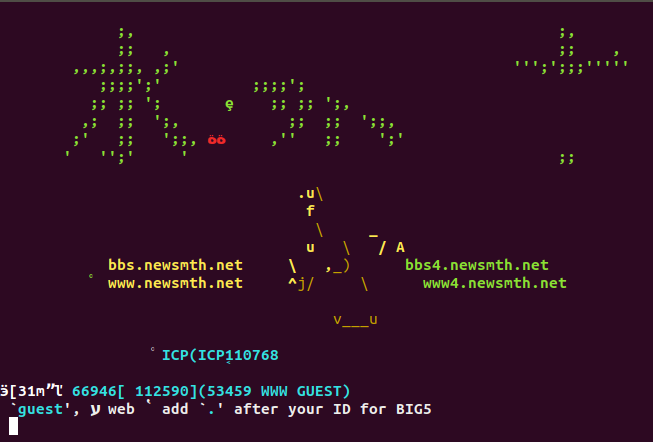
大家还可以telnet bbs.newsmth.net 23 看看有什么结果?我们一般判断一个服务(例如IP是YYYY)在端口xx上是否监听,就采用telnet
YYYY xx 如果出现提示符就表示开了监听端口。
gauss@gauss-XPS-15-9570:~$ telnet checkip.dyndns.org 80Trying 216.146.43.70...Connected to checkip.dyndns.com.Escape character is '^]'.GET / HTTP/1.1\nConnection closed by foreign host.gauss@gauss-XPS-15-9570:~$ GET / HTTP/1.1\nHOST: checkip.dyndns.org\n\n<HTML><HEAD><TITLE>Directory /</TITLE><BASE HREF="file:/"></HEAD><BODY><H1>Directory listing of /</H1><UL><LI><A HREF="./">./</A><LI><A HREF="../">../</A><LI><A HREF=".dotnet/">.dotnet/</A><LI><A HREF="bin/">bin/</A><LI><A HREF="boot/">boot/</A><LI><A HREF="cdrom/">cdrom/</A><LI><A HREF="data/">data/</A><LI><A HREF="data2/">data2/</A><LI><A HREF="dev/">dev/</A><LI><A HREF="etc/">etc/</A><LI><A HREF="home/">home/</A><LI><A HREF="initrd.img">initrd.img</A><LI><A HREF="initrd.img.old">initrd.img.old</A><LI><A HREF="lib/">lib/</A><LI><A HREF="lib32/">lib32/</A><LI><A HREF="lib64/">lib64/</A><LI><A HREF="libx32/">libx32/</A><LI><A HREF="lost%2Bfound/">lost+found/</A><LI><A HREF="media/">media/</A><LI><A HREF="mnt/">mnt/</A><LI><A HREF="opt/">opt/</A><LI><A HREF="proc/">proc/</A><LI><A HREF="root/">root/</A><LI><A HREF="run/">run/</A><LI><A HREF="sbin/">sbin/</A><LI><A HREF="snap/">snap/</A><LI><A HREF="srv/">srv/</A><LI><A HREF="swapfile">swapfile</A><LI><A HREF="sys/">sys/</A><LI><A HREF="tmp/">tmp/</A><LI><A HREF="usr/">usr/</A><LI><A HREF="var/">var/</A><LI><A HREF="vmlinuz">vmlinuz</A><LI><A HREF="vmlinuz.old">vmlinuz.old</A></UL></BODY></HTML>
telnet bbs.newsmth.net 23 :
- 写一个生成100万行随机字符串的脚本,每写一行sleep
5秒;
并让这个程序在后台运行(用到nohup)。然后写一个定时程序(用到crontab)每2分钟统计这个文件当前行数(用到wc
命令)并把当前时间和当前行数写入到/root/result
文件中去,看看每2分钟行数的增加值。
```bash
编写随机生成字符串的脚本文件
gauss@gauss-XPS-15-9570:~/workspace/DevOps$ cat genString.sh!/bin/bash
for i in {1..1000000..1} do
donecat /dev/urandom | tr -dc 'a-zA-Z' | fold -w 10 | head -n 1 >> linesFilesleep 5
nohup 后台运行脚本
gauss@gauss-XPS-15-9570:~/workspace/DevOps$ nohup ./genString.sh &
sudo crontab -e 编辑后结果
gauss@gauss-XPS-15-9570:~/workspace/DevOps$ sudo crontab -l
Edit this file to introduce tasks to be run by cron.
Each task to run has to be defined through a single line
indicating with different fields when the task will be run
and what command to run for the task
To define the time you can provide concrete values for
minute (m), hour (h), day of month (dom), month (mon),
and day of week (dow) or use ‘*’ in these fields (for ‘any’).
Notice that tasks will be started based on the cron’s system
daemon’s notion of time and timezones.
Output of the crontab jobs (including errors) is sent through
email to the user the crontab file belongs to (unless redirected).
For example, you can run a backup of all your user accounts
at 5 a.m every week with:
0 5 1 tar -zcf /var/backups/home.tgz /home/
For more information see the manual pages of crontab(5) and cron(8)
m h dom mon dow command
/2 * date | tr ‘\n’ ‘ ‘ >> /root/result && wc -l /home/gauss/workspace/DevOps/linesFile | awk ‘{print $1}’ >> /root/result
每隔2分钟统计的结果,每2分钟增加24行
gauss@gauss-XPS-15-9570:~/workspace/DevOps$ sudo cat /root/result 2020年 04月 02日 星期四 18:04:01 CST 309 2020年 04月 02日 星期四 18:06:01 CST 333 2020年 04月 02日 星期四 18:08:01 CST 356 2020年 04月 02日 星期四 18:10:01 CST 380 2020年 04月 02日 星期四 18:12:01 CST 404 2020年 04月 02日 星期四 18:14:01 CST 428 2020年 04月 02日 星期四 18:16:01 CST 452 2020年 04月 02日 星期四 18:18:01 CST 476 2020年 04月 02日 星期四 18:20:01 CST 500 2020年 04月 02日 星期四 18:22:01 CST 524 2020年 04月 02日 星期四 18:24:02 CST 548 2020年 04月 02日 星期四 18:26:01 CST 571 2020年 04月 02日 星期四 18:28:01 CST 595 2020年 04月 02日 星期四 18:30:01 CST 619
10. uptime,free,top等命令是判断系统符合的常见命令,回答以下问题【1】top命令的结果如果按照CPU用量倒叙排列如何操作?<br />输入top,然后输入`P`<br />【2】uptime的 loadaverage 中三个数值分别表示什么含义?```bashgauss@gauss-XPS-15-9570:~$ uptime16:42:24 up 1 day, 23:13, 4 users, load average: 1.17, 1.13, 0.96# 16:42:24 --当前系统时间# up 1 day, 23:13 -- 从上次启动开始系统运行的时间# 4 users -- 连接数量# 1.17, 1.13, 0.96 -- 1分钟5分钟15分钟内系统平均负载,系统平均负载是指在特定时间间隔内运行队列中的平均进程数。# 如果每个CPU内核的当前活动进程数不大于3的话,那么系统的性能是良好的。如果每个CPU内核的任务数大于5,那么这台机器的性能有严重问题。
【3】free 命令中Mem和Swap分别是什么含义,used和free又是什么含义?
| 参数 | 含义 |
|---|---|
| Mem | 物理内存总数 |
| Swap | 交换分区,虚拟内存 |
| used | 已经使用的内存数 |
| free | 空闲的内存数 |
- grep命令主要用来查找字符串是不是在文本文件中,回答以下问题
创建一个readme文件,在文件里面每行依次写入如下内容
a, aaa
b, bbb
c, ccc
b, aaa
c, bbb
c, bbb
查找包含字母b所在的行,并输出
查找以字母b开头的行,并输出
查找以字母b开头,并包含a的行,并输出
查找出现aaa字符串的下一行,连同aaa出现的行一起输出。
查找出现aaa字符串的下一行,去掉aaa出现的行,只输出aaa出现行的下一行。 ```bash gauss@gauss-XPS-15-9570:~/workspace/DevOps$ cat readme a, aaa b, bbb c, ccc b, aaa c, bbb c, bbb
1
gauss@gauss-XPS-15-9570:~/workspace/DevOps$ cat readme | grep a -n 1:a, aaa 4:b, aaa
2
gauss@gauss-XPS-15-9570:~/workspace/DevOps$ cat readme | grep ^b -n 2:b, bbb 4:b, aaa
3
gauss@gauss-XPS-15-9570:~/workspace/DevOps$ cat readme | grep ^b.*a -n 4:b, aaa
4
gauss@gauss-XPS-15-9570:~/workspace/DevOps$ cat readme | grep aaa -A 1 a, aaa
b, bbb
b, aaa c, bbb
5
gauss@gauss-XPS-15-9570:~/workspace/DevOps$ cat readme | grep aaa -A1 | grep -v aaa
b, bbb
c, bbb
**二. 压缩命令的探索**<br />自动生成一个1GB随机纯文本文件,内容是中文或者英文。采用以上命令压缩,比较压缩率,压缩和解压时间,完成一个表格,运行时间可以用time命令来计时。```bash# 生成1G大小的文本文件,里面是随机的英文字符和空格(单词长度固定)cat /dev/urandom | tr -dc 'a-zA-Z' | fold -w 10 | tr '\n' ' ' | head -c 1048576000 > randomFile# 生成1G大小的文本文件,里面是随机的英文字符和空格(单词长度不固定,速度太慢,放弃使用此命令)strings /dev/urandom | sed 's/[^a-zA-Z]//g' | strings | tr '\n' ' ' | head -c 1048576000 > randomFilegauss@gauss-XPS-15-9570:~/workspace/DevOps$ time gzip randomFilereal 0m45.587suser 0m41.187ssys 0m0.549s# tar + 7z 的命令是: time tar cf - randomFile | 7za a -si randomFile.tar.7zgauss@gauss-XPS-15-9570:~/workspace/DevOps$ time 7z a -t7z randomFile.7z randomFile7-Zip [64] 16.02 : Copyright (c) 1999-2016 Igor Pavlov : 2016-05-21p7zip Version 16.02 (locale=zh_CN.UTF-8,Utf16=on,HugeFiles=on,64 bits,8 CPUs Intel(R) Core(TM) i5-8300H CPU @ 2.30GHz (906EA),ASM,AES-NI)Scanning the drive:1 file, 1048576000 bytes (1000 MiB)Creating archive: randomFile.7zItems to compress: 1Files read from disk: 1Archive size: 752144794 bytes (718 MiB)Everything is Okreal 1m55.860suser 12m42.068ssys 0m4.958sgauss@gauss-XPS-15-9570:~/workspace/DevOps$ time zip randomFile.zip randomFileadding: randomFile (deflated 28%)real 0m45.721suser 0m42.820ssys 0m0.596sgauss@gauss-XPS-15-9570:~/workspace/DevOps$ time tar -jcvf randomFile.tar.bz2 randomFilerandomFilereal 1m28.604suser 1m25.874ssys 0m1.585sgauss@gauss-XPS-15-9570:~/workspace/DevOps$ time tar -Jcvf randomFile.tar.xz randomFilerandomFilereal 7m44.642suser 7m43.808ssys 0m4.622s
| 压缩命令 | 压缩率 | 压缩时间 |
|---|---|---|
| gzip |
72.1744% | 45.587s |
| 7z | 71.7301% | 1m55.860s |
| tar+7z | 71.7329% | 1m53.084s |
| zip | 72.1744% | 45.721s |
| tar+bzip2 | 72.1953% | 1m28.604s |
| tar+xz | 72.0268% | 7m44.642s |
2附加题)7z压缩是常见的命令,压缩率高,但是7z压缩比较慢,如果能利用多核,并行的压缩,探索一下并行的方法。pstree和top 命令都可以查看一个进程的多个线程,用以判断是否用到了多核,如果没有多核环境可以先不做此题。
# 使用mmt支持多核心CPUgauss@gauss-XPS-15-9570:~/workspace/DevOps$ time tar cf - randomFile | 7za a -si -mmt=8 randomFile.tar.7z7-Zip (a) [64] 16.02 : Copyright (c) 1999-2016 Igor Pavlov : 2016-05-21p7zip Version 16.02 (locale=zh_CN.UTF-8,Utf16=on,HugeFiles=on,64 bits,8 CPUs Intel(R) Core(TM) i5-8300H CPU @ 2.30GHz (906EA),ASM,AES-NI)Creating archive: randomFile.tar.7zItems to compress: 1Files read from disk: 1Archive size: 542997647 bytes (518 MiB)Everything is Okreal 3m40.931suser 20m34.829ssys 0m5.678s# 不指定核心数量,耗时较长。默认是单核多线程的gauss@gauss-XPS-15-9570:~/workspace/DevOps$ time tar cf - randomFile | 7za a -si randomFile.tar.7z7-Zip (a) [64] 16.02 : Copyright (c) 1999-2016 Igor Pavlov : 2016-05-21p7zip Version 16.02 (locale=zh_CN.UTF-8,Utf16=on,HugeFiles=on,64 bits,8 CPUs Intel(R) Core(TM) i5-8300H CPU @ 2.30GHz (906EA),ASM,AES-NI)Creating archive: randomFile.tar.7zItems to compress: 1Files read from disk: 1Archive size: 542997647 bytes (518 MiB)Everything is Okreal 4m1.781suser 22m7.585ssys 0m6.878s
三. 排序命令的探索
a)
自动生成多列文件1G,第一列是5位随机字符串,第二列是2位数值,第三列是5位数值
# 生成三个文件,然后合并成一个文件gauss@gauss-XPS-15-9570:~/workspaccat /dev/urandom | tr -dc 'a-zA-Z' | fold -w 5 -s | head -c 1048576000 > randomFileString5gauss@gauss-XPS-15-9570:~/workspace/DevOps$ cat /dev/urandom | tr -dc '0-9' | fold -w 5 -s | head -c 1048576000 > randomFileNumber5gauss@gauss-XPS-15-9570:~/workspace/DevOps$ cat /dev/urandom | tr -dc '0-9' | fold -w 2 -s | head -c 1048576000 > randomFileNumber2gauss@gauss-XPS-15-9570:~/workspace/DevOps$ paste randomFileString5 randomFileNumber2 randomFileNumber5 -d ' ' | head -c 1048576000 > randomFile
b) 按照字符串顺序排序整个文件。
sort randomFile -k1 | less
c) 首先按第一列排序,第一列字符串相同的情况下,按照第二列数值排序,第二列数值相同的情况下按第三列排序。
sort randomFile -k1 -k2 -k3 | less
d)考虑如何并行排序这个1G文件,加快速度(切分文件,分别压缩,然后再归并)
# 切分文件gauss@gauss-XPS-15-9570:~/workspace/DevOps$ split -l 1000000 randomFile -d -a 2 split_gauss@gauss-XPS-15-9570:~/workspace/DevOps$ for file in split*; do sort -o $file --compress-program=lzop $file ; donegauss@gauss-XPS-15-9570:~/workspace/DevOps$ sort -m split* > sortedRandomFile## 计时,增加压缩参数gauss@gauss-XPS-15-9570:~/workspace/DevOps$ time split -l 1000000 randomFile -d -a 2 split_ && time for file in split*; do sort -o $file --compress-program=lzop $file ; done && time sort -m split* > sortedRandomFile && rm split*real 0m6.056suser 0m0.730ssys 0m1.099sreal 0m39.535suser 2m37.632ssys 0m5.224sreal 1m6.568suser 1m3.225ssys 0m2.380sgauss@gauss-XPS-15-9570:~/workspace/DevOps$ time split -l 1000000 randomFile -d -a 2 split_ && time for file in split*; do sort -o $file --parallel=8 $file ; done && time sort -m split* > sortedRandomreal 0m11.863suser 0m1.035ssys 0m1.597sreal 0m39.846suser 2m39.701ssys 0m4.889sreal 0m59.900suser 0m56.678ssys 0m1.532s# 计时,不增加压缩参数gauss@gauss-XPS-15-9570:~/workspace/DevOps$ time split -l 1000000 randomFile -d -a 2 split_ && time for file in split*; do sort -o $file $file ; done && time sort -m split* > sortedRandomFile && rm split* > sortedRandomreal 0m12.219suser 0m0.925ssys 0m1.432sreal 0m39.841suser 2m39.681ssys 0m4.966sreal 1m1.476suser 0m58.257ssys 0m1.808s# 计时,直接排序,总的时间是最快的,排序gauss@gauss-XPS-15-9570:~/workspace/DevOps$ time sort randomFile -k1 > sortedRandomFilereal 1m27.406suser 4m46.942ssys 0m3.153sgauss@gauss-XPS-15-9570:~/workspace/DevOps$ time sort randomFile -k1 --parallel=8 > sortedRandomFilereal 1m27.672suser 4m48.449ssys 0m3.079s
e)sort命令有时候排很大的文件比如超过100GB的情况下,需要指定排序临时文件存放目录,否则默认的/tmp文件夹可能存不下这些临时文件会导致sort命令失败;另外为了加快排序速度,还会指定排序中使用的内存。写一个sort命令指定临时文件存放目录为当前目录,并让排序使用的内存为全部内存的10%。
# 排序指定当前目录gauss@gauss-XPS-15-9570:~/workspace/DevOps$ sort -T . randomFile# 在另外一个窗口查看临时文件gauss@gauss-XPS-15-9570:~/workspace/DevOps$ ll总用量 4257140drwxr-xr-x 2 gauss gauss 4096 4月 3 10:25 ./drwxr-xr-x 15 gauss gauss 4096 3月 31 13:40 ../-rw-r--r-- 1 gauss gauss 1048576000 4月 1 20:35 randomFile-rw------- 1 gauss gauss 164957805 4月 3 10:25 sort4OfhJG-rw------- 1 gauss gauss 164957805 4月 3 10:25 sortouX1U1-rw------- 1 gauss gauss 164957805 4月 3 10:25 sortp4jSjI-rw------- 1 gauss gauss 164957805 4月 3 10:25 sortWjOXVv-rw------- 1 gauss gauss 164957805 4月 3 10:26 sortxdKU4D-rw------- 1 gauss gauss 164957805 4月 3 10:25 sortXe6dDX-rw------- 1 gauss gauss 58829171 4月 3 10:26 sortY76TWy# sort 指定临时文件目录和限定内存使用 10%gauss@gauss-XPS-15-9570:~/workspace/DevOps$ sort -T . -S 10% randomFile | less# 这是 top 命令下查看到sort使用10.0%的内存 13249 gauss 20 0 1116776 782704 2104 S 450.7 10.0 1:35.24 sort

若有收获,就点个赞吧
0 人点赞


