Overview
🧭Bottom navigation
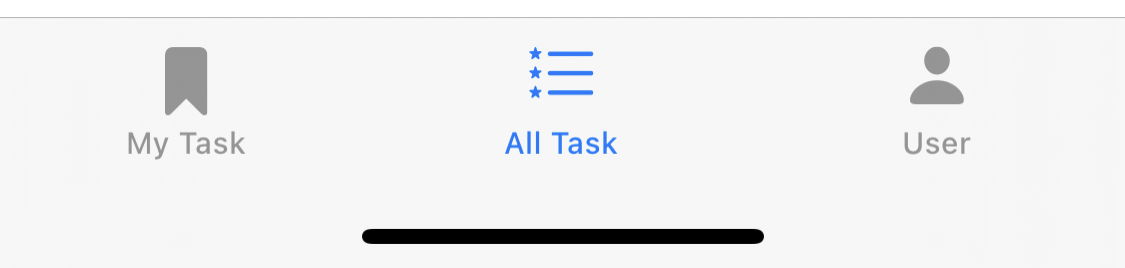
- My Task: Available after login, shows the tasks you received;
- All Task: Shows the available tasks;
- User: User info and other operations;
User
Register
- Navi to “User”;
- Click “Register”;
- Fill in the form as require;
- When all the conditions are met, click “Register” button.
- If successful, it will automatically login and display your user information.

Login
- Navi to “User”;
- Click “Login”;
- Fill in the form as require;
- When all the conditions are met, click “Login” button.
- If successful, it will automatically return and display your user information.
Log out
- Navi to “User”;
- Click “Log out”;
- If successful, it will automatically return.

Noise Test
To ensure the quality of the recording, we recommend that you perform a background noise test:
- Navi to “User”;
- Click “Noise Test”;
- Click “Test”;
- Keep quite, and check the values after 5 seconds;
Values:
- MAX: Max sound power during test;
- NOW: Current sound power;
- AVG: Average sound power during test;
It is good if avg. power is below 45db;
Trouble Shooting
Sound power stay zero?
My environment is very quire by the avg. power is above 50db?
Try another phone or record device.
All Task
View tasks and details
- Navi to “All Task”;
- Pull down the list above to refresh the list;
- Click one of the task and view detail;
Claim the task
When you click the “Claim” button on the task details page, the task will be bound to your account, then you can start the recording task;
My Task
View tasks and details
- Navi to “My Task”;
- Pull down the list above to refresh the list;
- Click one of the task and view detail;
Start recording
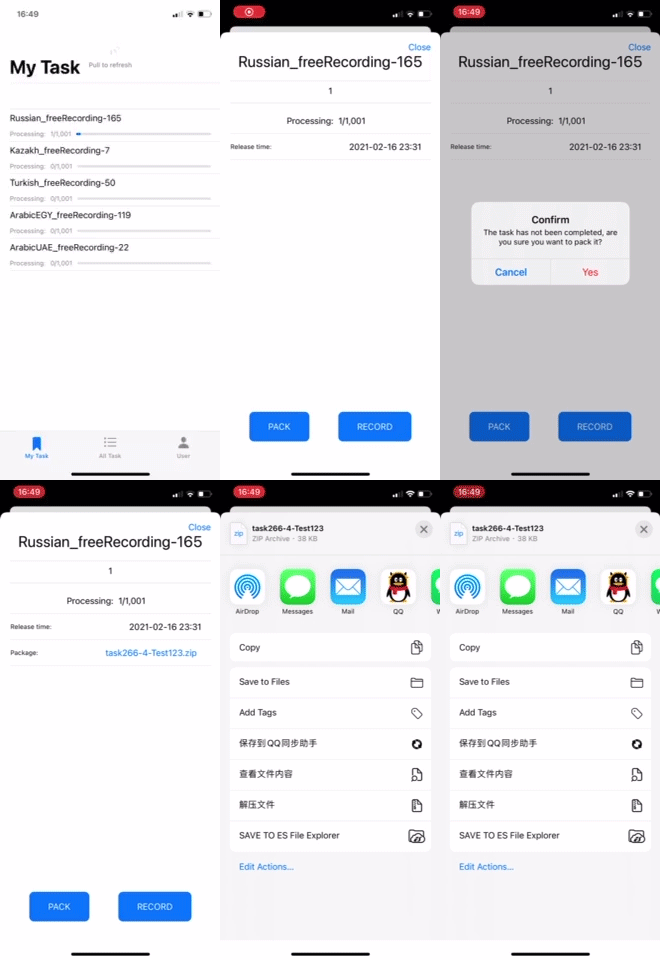
Click “RECORD” button in task detail.Pack files
When you finish the task, you can pack the record file and share it.
- Click “PACK” button in task detail.
- When it’s done, the package name will show above.
- You can click the package name to share it via file sender.
Record
Main

- Task ID: Current task ID
- Position: Current sentence / All sentence
- Text: Text to be record
- Record sound wave
- Play sound wave
- Play time
- Control:
- PLAY: If there is a record file, click to play it;
- STOP: Stop play or record;
- NEXT ONE: Stop record and go to next;
- PREVIOUS: go to previous one;
- CURRENT: go to the first unrecord one;
- NEXT: go to next one;
- Quit: quit the task
- List: Shows all the sentence
List

- List item with Black font: you can click one of them to jump to it;
- List item with a “√” have been recorded;
- List item with red font is the current one;
- List item with grey font is not reach yet;
Trouble shooting
Unable to login/refresh the tasks/claim failed?
- Check your internet connection;
- Check login state;
Check if the mobile phone has enough space, see get-and-install;
Unable to record voice?
Check whether the app has sufficient permissions, see get-and-install;
- Check if the mobile phone has enough space, see get-and-install;
Technical Support
Developer
Dongguan Yuanji Network Technology Co., Ltd
E-mail: antoniothefuture2@163.com
Operator
Shenzhen BaiyuGuangtu Technology Co., Ltd.
E-mail: service@baiyugt.com

若有收获,就点个赞吧
0 人点赞


