安装
cd /opt# 安装dockeryum install -y yum-utils device-mapper-persistent-data lvm2# 添加aliyun镜像yum-config-manager --add-repo http://mirrors.aliyun.com/docker-ce/linux/centos/docker-ce.repo# 安装Docker CEyum install -y docker-ce docker-ce-cli containerd.io# 安装Docker Composeyum install -y lsof wgetwget https://github.com/docker/compose/releases/download/1.29.0/docker-compose-Linux-x86_64mv docker-compose-Linux-x86_64 /usr/local/bin/docker-composechmod +x /usr/local/bin/docker-compose# 查看Docker Compose 的版本docker-compose version# 安装 Harborwget https://github.com/goharbor/harbor/releases/download/v2.4.0/harbor-online-installer-v2.4.0.tgztar -zxvf harbor-online-installer-v2.4.0.tgzcd harborvi harbor.yml将hostname 配置为ip去掉https开头的配置保存./install.sh
验证服务是否安装完成
查看服务进程
docker-compose ps

查看服务进程是否都为 running  状态
帮助命令
停止服务
docker-compose down -v

启动服务
docker-compose up -d

查看日志
docker ps -a
docker logs --tail=200 d651c3a07a2e

查看网络模式
docker network ls
调整容器网络
部署Harbor主机与容器网络不通问题
docker 创建容器时指定容器ip
yum install bridge-utils -y
brctl show

# 下面的br-xxxxxx 改成 interfaces ---> veth2902b7a的 bridge name
# 删掉bridge,重新创建一个新的网桥
service docker stop
ip link set dev br-2b9e1b8e71f2 down
brctl delbr br-2b9e1b8e71f2
brctl addbr br-2b9e1b8e71f2
ip addr add 172.27.0.1/16 dev br-2b9e1b8e71f2
ip link set dev br-2b9e1b8e71f2 up
service docker start

浏览器访问
在浏览器中输入部署harbor服务的IP地址 默认用户名 admin 密码 Harbor12345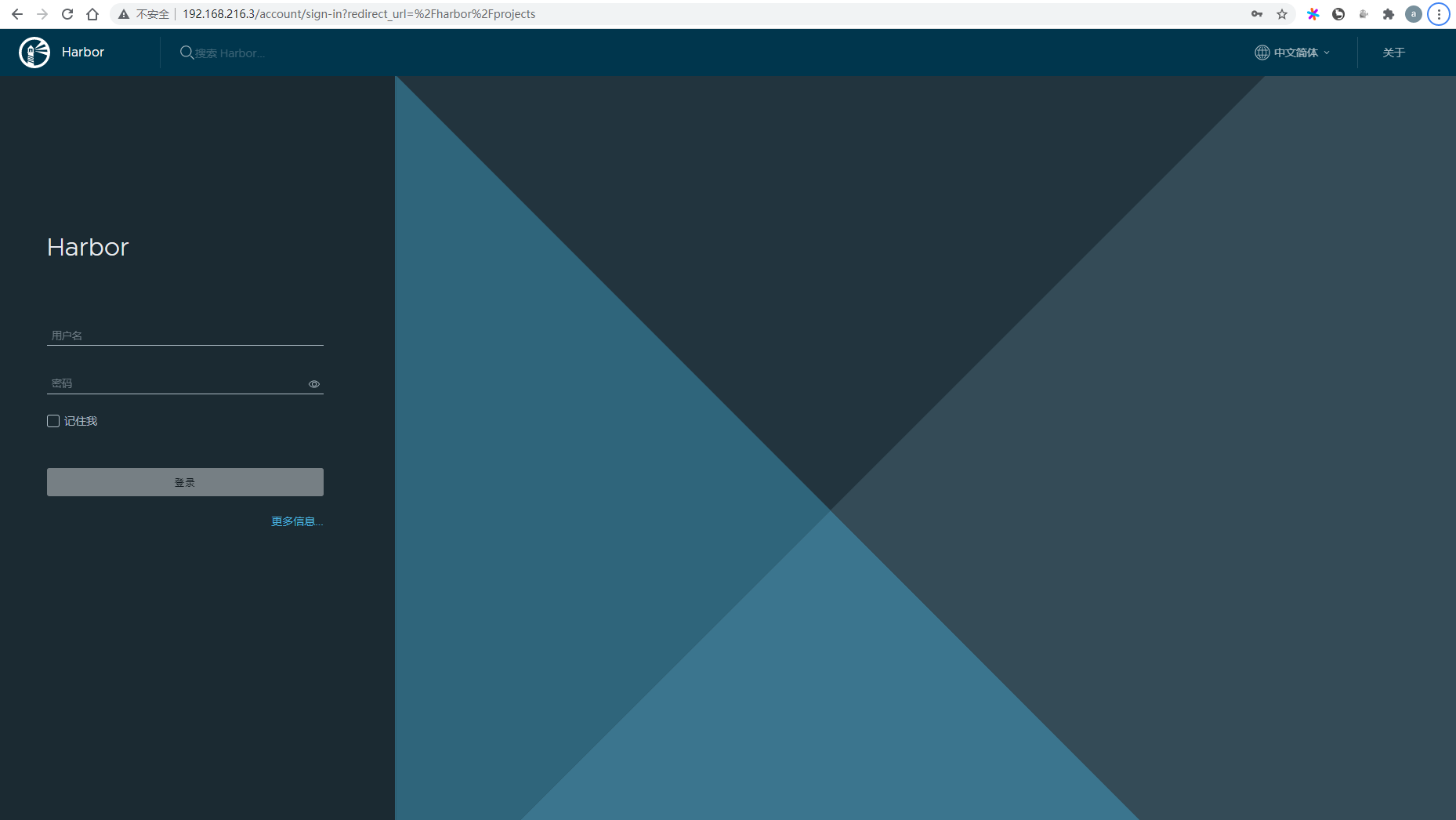
登录成功后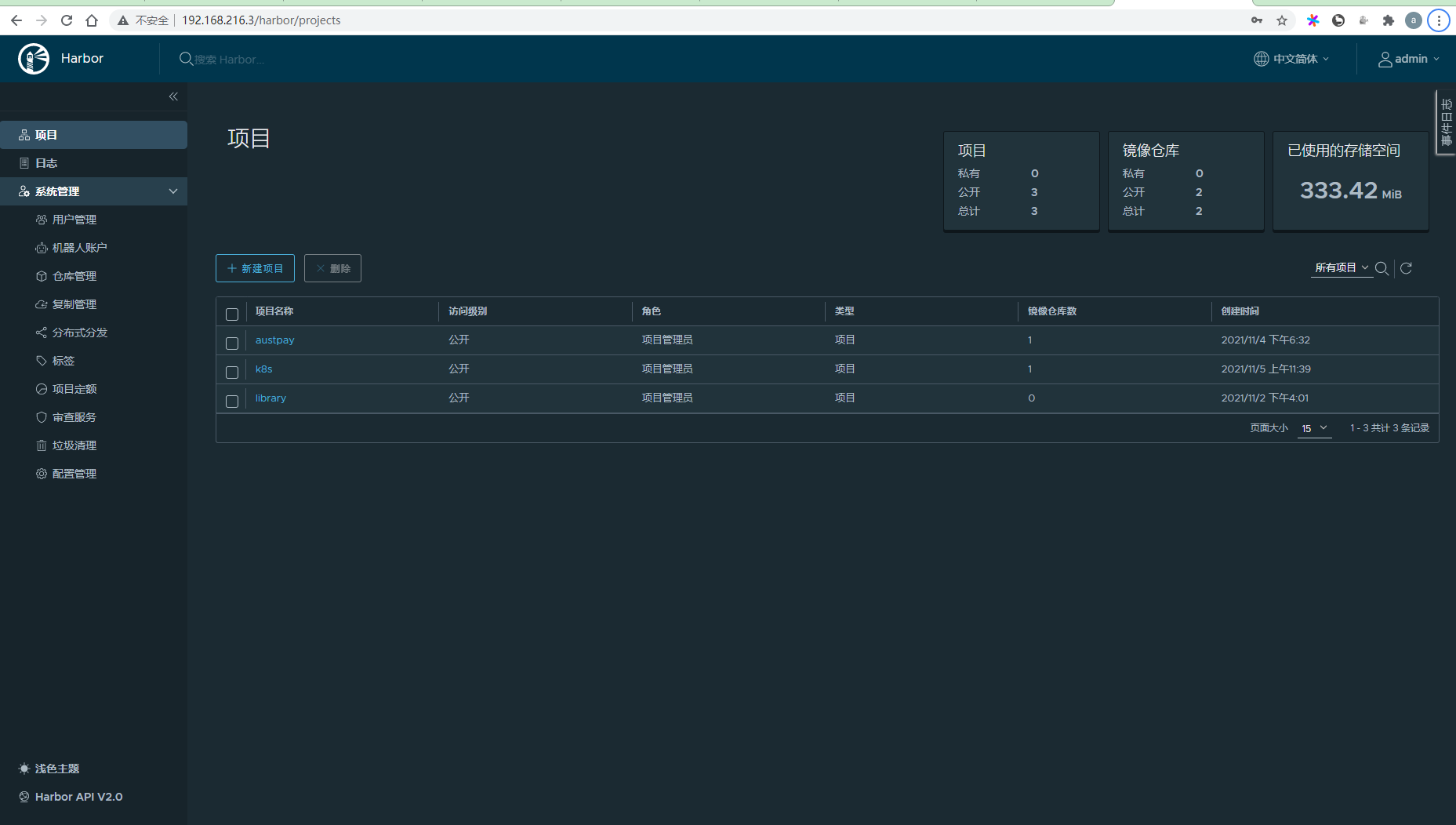
实践打包应用上传私服
基础环境搭建
# git安装
yum install -y git

# java 和 maven 安装脚本
cd /opt
vi maven.sh
cd /opt
# check java install
if which java 2>/dev/null; then
  echo "java exists!"
else
  yum install wget -y
  wget http://cdn.wswzms.top/jdk-8u11-linux-x64.tar.gz
  # unzip
  tar -zxvf jdk-8u11-linux-x64.tar.gz
  # rename
  mv jdk1.8.0_11 jdk
  # change Jurisdiction
  chown -R root:root /opt/jdk
  # set config
  echo 'export JAVA_HOME=/opt/jdk' >>  /etc/profile
  echo 'export CLASSPATH=$JAVA_HOME/lib' >>  /etc/profile
  echo 'export PATH=$JAVA_HOME/bin:$PATH' >>  /etc/profile
  # Take effect config
  source /etc/profile
  # Test
  java -version
fi

# Download maven source tar.gz
# https://maven.apache.org/download.cgi
wget http://archive.apache.org/dist/maven/maven-3/3.5.4/binaries/apache-maven-3.5.4-bin.tar.gz
# unzip
tar -zxvf apache-maven-3.5.4-bin.tar.gz
# rename
mv apache-maven-3.5.4 maven
# set env config
echo "export M3_HOME=/opt/maven"  >> /etc/profile
echo "export PATH=/opt/maven/bin:${PATH}" >> /etc/profile
# source config
source /etc/profile
mvn -version

!wq
保存退出
chmod u+x maven.sh
# 执行脚本
./maven.sh
Maven仓库配置
仓库默认位置:/root/.m2/repository
在/root/.m2目录下添加 settings.xml
<?xml version="1.0" encoding="UTF-8"?>

<!--
Licensed to the Apache Software Foundation (ASF) under one
or more contributor license agreements.  See the NOTICE file
distributed with this work for additional information
regarding copyright ownership.  The ASF licenses this file
to you under the Apache License, Version 2.0 (the
"License"); you may not use this file except in compliance
with the License.  You may obtain a copy of the License at

    http://www.apache.org/licenses/LICENSE-2.0

Unless required by applicable law or agreed to in writing,
software distributed under the License is distributed on an
"AS IS" BASIS, WITHOUT WARRANTIES OR CONDITIONS OF ANY
KIND, either express or implied.  See the License for the
specific language governing permissions and limitations
under the License.
-->

<!--
 | This is the configuration file for Maven. It can be specified at two levels:
 |
 |  1. User Level. This settings.xml file provides configuration for a single user,
 |                 and is normally provided in ${user.home}/.m2/settings.xml.
 |
 |                 NOTE: This location can be overridden with the CLI option:
 |
 |                 -s /path/to/user/settings.xml
 |
 |  2. Global Level. This settings.xml file provides configuration for all Maven
 |                 users on a machine (assuming they're all using the same Maven
 |                 installation). It's normally provided in
 |                 ${maven.home}/conf/settings.xml.
 |
 |                 NOTE: This location can be overridden with the CLI option:
 |
 |                 -gs /path/to/global/settings.xml
 |
 | The sections in this sample file are intended to give you a running start at
 | getting the most out of your Maven installation. Where appropriate, the default
 | values (values used when the setting is not specified) are provided.
 |
 |-->
<settings xmlns="http://maven.apache.org/SETTINGS/1.0.0"
          xmlns:xsi="http://www.w3.org/2001/XMLSchema-instance"
          xsi:schemaLocation="http://maven.apache.org/SETTINGS/1.0.0 http://maven.apache.org/xsd/settings-1.0.0.xsd">
  <!-- localRepository
   | The path to the local repository maven will use to store artifacts.
   |
   | Default: ${user.home}/.m2/repository
  <localRepository>/path/to/local/repo</localRepository>
  -->
  <localRepository>/opt/maven/repository</localRepository>

  <!-- interactiveMode
   | This will determine whether maven prompts you when it needs input. If set to false,
   | maven will use a sensible default value, perhaps based on some other setting, for
   | the parameter in question.
   |
   | Default: true
  <interactiveMode>true</interactiveMode>
  -->

  <!-- offline
   | Determines whether maven should attempt to connect to the network when executing a build.
   | This will have an effect on artifact downloads, artifact deployment, and others.
   |
   | Default: false
  <offline>false</offline>
  -->

  <!-- pluginGroups
   | This is a list of additional group identifiers that will be searched when resolving plugins by their prefix, i.e.
   | when invoking a command line like "mvn prefix:goal". Maven will automatically add the group identifiers
   | "org.apache.maven.plugins" and "org.codehaus.mojo" if these are not already contained in the list.
   |-->
  <pluginGroups>
    <!-- pluginGroup
     | Specifies a further group identifier to use for plugin lookup.
    <pluginGroup>com.your.plugins</pluginGroup>
    -->
  </pluginGroups>

  <!-- proxies
   | This is a list of proxies which can be used on this machine to connect to the network.
   | Unless otherwise specified (by system property or command-line switch), the first proxy
   | specification in this list marked as active will be used.
   |-->
  <proxies>
    <!-- proxy
     | Specification for one proxy, to be used in connecting to the network.
     |
    <proxy>
      <id>optional</id>
      <active>true</active>
      <protocol>http</protocol>
      <username>proxyuser</username>
      <password>proxypass</password>
      <host>proxy.host.net</host>
      <port>80</port>
      <nonProxyHosts>local.net|some.host.com</nonProxyHosts>
    </proxy>
    -->
  </proxies>

  <!-- servers
   | This is a list of authentication profiles, keyed by the server-id used within the system.
   | Authentication profiles can be used whenever maven must make a connection to a remote server.
   |-->
  <servers>
    <!-- server
     | Specifies the authentication information to use when connecting to a particular server, identified by
     | a unique name within the system (referred to by the 'id' attribute below).
     |
     | NOTE: You should either specify username/password OR privateKey/passphrase, since these pairings are
     |       used together.
     |
    <server>
      <id>deploymentRepo</id>
      <username>repouser</username>
      <password>repopwd</password>
    </server>
    -->

    <!-- Another sample, using keys to authenticate.
    <server>
      <id>siteServer</id>
      <privateKey>/path/to/private/key</privateKey>
      <passphrase>optional; leave empty if not used.</passphrase>

    </server>
    -->

  </servers>

  <!-- mirrors
   | This is a list of mirrors to be used in downloading artifacts from remote repositories.
   |
   | It works like this: a POM may declare a repository to use in resolving certain artifacts.
   | However, this repository may have problems with heavy traffic at times, so people have mirrored
   | it to several places.
   |
   | That repository definition will have a unique id, so we can create a mirror reference for that
   | repository, to be used as an alternate download site. The mirror site will be the preferred
   | server for that repository.
   |-->
 <mirrors>
    <mirror>
      <id>alimaven</id>
      <name>aliyun maven</name>
      <url>http://maven.aliyun.com/nexus/content/groups/public/</url>
      <mirrorOf>central</mirrorOf>
    </mirror>
  </mirrors>


  <!-- profiles
   | This is a list of profiles which can be activated in a variety of ways, and which can modify
   | the build process. Profiles provided in the settings.xml are intended to provide local machine-
   | specific paths and repository locations which allow the build to work in the local environment.
   |
   | For example, if you have an integration testing plugin - like cactus - that needs to know where
   | your Tomcat instance is installed, you can provide a variable here such that the variable is
   | dereferenced during the build process to configure the cactus plugin.
   |
   | As noted above, profiles can be activated in a variety of ways. One way - the activeProfiles
   | section of this document (settings.xml) - will be discussed later. Another way essentially
   | relies on the detection of a system property, either matching a particular value for the property,
   | or merely testing its existence. Profiles can also be activated by JDK version prefix, where a
   | value of '1.4' might activate a profile when the build is executed on a JDK version of '1.4.2_07'.
   | Finally, the list of active profiles can be specified directly from the command line.
   |
   | NOTE: For profiles defined in the settings.xml, you are restricted to specifying only artifact
   |       repositories, plugin repositories, and free-form properties to be used as configuration
   |       variables for plugins in the POM.
   |
   |-->
  <profiles>
    <!-- profile
     | Specifies a set of introductions to the build process, to be activated using one or more of the
     | mechanisms described above. For inheritance purposes, and to activate profiles via <activatedProfiles/>
     | or the command line, profiles have to have an ID that is unique.
     |
     | An encouraged best practice for profile identification is to use a consistent naming convention
     | for profiles, such as 'env-dev', 'env-test', 'env-production', 'user-jdcasey', 'user-brett', etc.
     | This will make it more intuitive to understand what the set of introduced profiles is attempting
     | to accomplish, particularly when you only have a list of profile id's for debug.
     |
     | This profile example uses the JDK version to trigger activation, and provides a JDK-specific repo.
    <profile>
      <id>jdk-1.4</id>

      <activation>
        <jdk>1.4</jdk>
      </activation>

      <repositories>
        <repository>
          <id>jdk14</id>
          <name>Repository for JDK 1.4 builds</name>
          <url>http://www.myhost.com/maven/jdk14</url>
          <layout>default</layout>
          <snapshotPolicy>always</snapshotPolicy>
        </repository>
      </repositories>
    </profile>
    -->

    <!--
     | Here is another profile, activated by the system property 'target-env' with a value of 'dev',
     | which provides a specific path to the Tomcat instance. To use this, your plugin configuration
     | might hypothetically look like:
     |
     | ...
     | <plugin>
     |   <groupId>org.myco.myplugins</groupId>
     |   <artifactId>myplugin</artifactId>
     |
     |   <configuration>
     |     <tomcatLocation>${tomcatPath}</tomcatLocation>
     |   </configuration>
     | </plugin>
     | ...
     |
     | NOTE: If you just wanted to inject this configuration whenever someone set 'target-env' to
     |       anything, you could just leave off the <value/> inside the activation-property.
     |
    <profile>
      <id>env-dev</id>

      <activation>
        <property>
          <name>target-env</name>
          <value>dev</value>
        </property>
      </activation>

      <properties>
        <tomcatPath>/path/to/tomcat/instance</tomcatPath>
      </properties>
    </profile>
    -->
    <profile>
      <id>nexus</id>
      <!--Enable snapshots for the built in central repo to direct -->
      <!--all requests to nexus via the mirror -->
      <repositories>
        <repository>
              <id>aliyun</id>
              <name>aliyun</name>
              <url>http://maven.aliyun.com/nexus/content/groups/public/</url>
              <layout>default</layout>
              <releases>
                  <enabled>true</enabled>
                  <updatePolicy>never</updatePolicy>
              </releases>
              <snapshots>
                  <enabled>true</enabled>
                  <updatePolicy>never</updatePolicy>
              </snapshots>
          </repository>
      </repositories>
        <snapshots>
        <enabled>true</enabled>
        </snapshots>
        </pluginRepository>
      </pluginRepositories>
    </profile>

    <profile>
       <id>sonar</id>
         <activation>
           <activeByDefault>true</activeByDefault>
         </activation>
       <properties>
         <!--  <sonar.jdbc.url>jdbc:postgresql://192.168.32.81/sonar?currentSchema=public</sonar.jdbc.url>
          <sonar.jdbc.driver>org.postgresql.Driver</sonar.jdbc.driver>
          <sonar.jdbc.username>d_sonar</sonar.jdbc.username>
          <sonar.jdbc.password>UoWcNEk0X%ed1xyf2y1h</sonar.jdbc.password>
          Sonar服务器访问地址 -->
          <sonar.host.url>http://192.168.0.50:9000</sonar.host.url>
       </properties>
    </profile>

  </profiles>

  <!-- activeProfiles
   | List of profiles that are active for all builds.
   |
  <activeProfiles>
    <activeProfile>alwaysActiveProfile</activeProfile>
    <activeProfile>anotherAlwaysActiveProfile</activeProfile>
  </activeProfiles>
  -->

  <activeProfiles>
    <!--make the profile active all the time -->
    <activeProfile>nexus</activeProfile>
  </activeProfiles>
</settings>
应用打成镜像发布
mkdir -p /opt/project
git clone https://gitlab.xxxx.org/project/eureka-server.git
输入用户名 和 密码拉取项目

# 打包
mvn clean package -Dmaven.test.skip=true --update-snapshots
添加Dockerfile文件
FROM java:8
MAINTAINER luis luis@yunio.com
COPY bootstrap.yml bootstrap.yml
COPY target/eureka-server-0.0.1-SNAPSHOT.jar web-start.jar
ENTRYPOINT ["java","-jar","-Deureka.instance.metadata-map.zone=dev -Duser.timezone=GMT -Dspring.profiles.active=dev -Dspring.config.location=bootstrap.yml -XX:MetaspaceSize=256m -XX:MaxMetaspaceSize=256m -Xms512m -Xmx512m -Xmn256m -Xss256k -XX:SurvivorRatio=8 --server.port=8761 --management.server.port=8761","/web-start.jar"]
EXPOSE 8761
登录私服仓库
docker login -u admin -p Harbor12345 http://xxx.xx.xx.xx

如果登录出现 request canceled while waiting for connection 错误
vi /usr/lib/systemd/system/docker.service
添加私服地址: —insecure-registry xxx.xxx.xxx.xxx
Docker命令操作
# 构建镜像
docker build -t eureka-server .

# 查看镜像
docker images

# 运行容器
docker run -d -p 8761:8761 eureka-server

# 容器发版
docker tag eureka-server 192.168.216.3/xxxx/eureka-server

# 将容器上传至私服
docker push 192.168.216.3/xxxx/eureka-server

# 查看容器的进程
docker ps

# 查看日志
docker logs --tail=200 xxxx # xxxx IMAGES ID

# 删除容器镜像
docker rmi 192.168.216.3/xxxx/eureka-server

# 强制删除
docker rmi -f 192.168.216.3/xxxx/eureka-server

# 下载私服镜像
docker pull 192.168.216.3/xxx/eureka-server

# 进入容器内部
docker exec -ti 我们的容器id bash

# 停止服务
docker stop IMAGEID #容器ID
测试启动服务
docker run -d -p 192.168.216.4:8761:8761 192.168.216.3/eureka-server
浏览器访问:http://192.168.216.4:8761/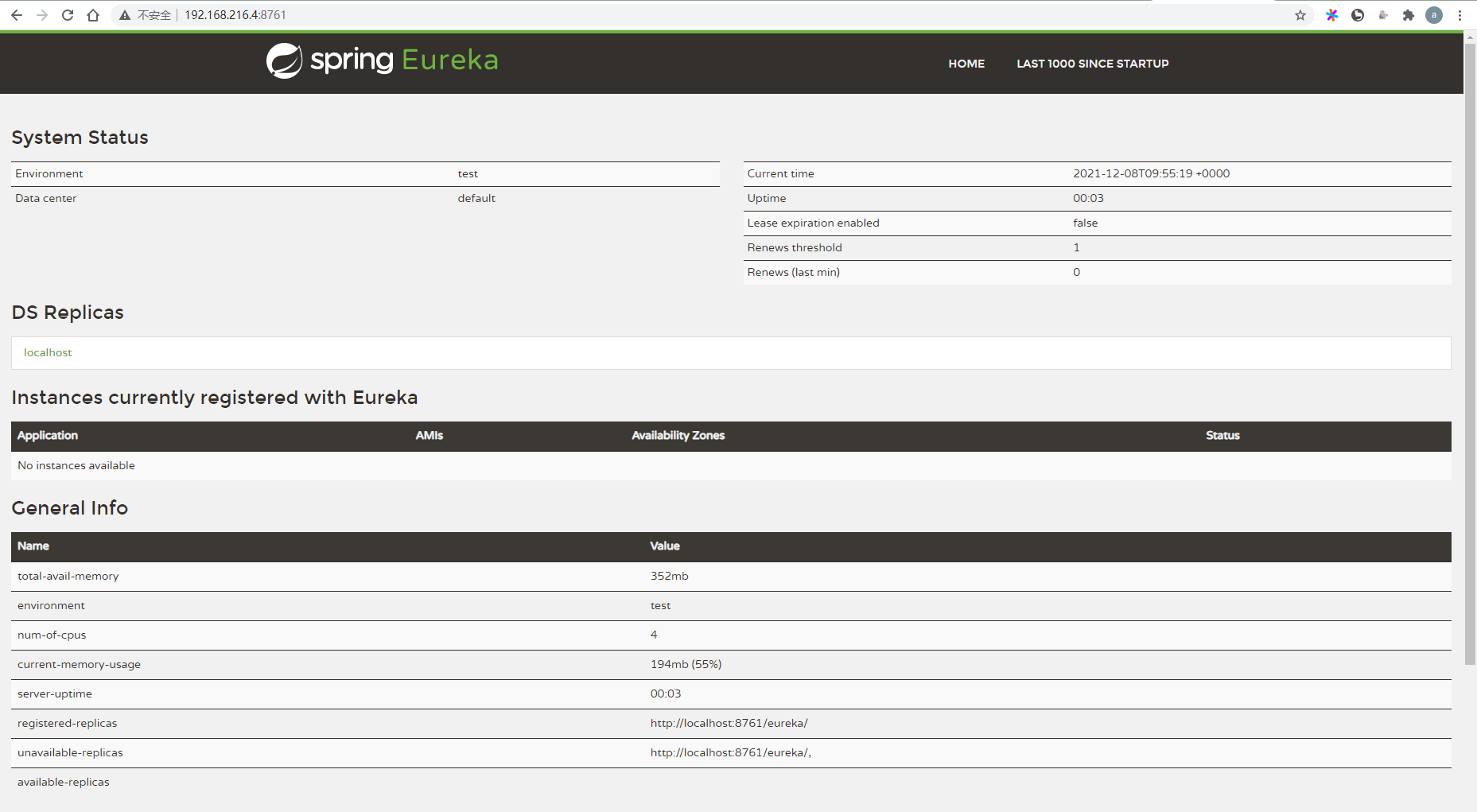
资料
- docker compose 常用命令

若有收获,就点个赞吧
0 人点赞


